Build a to do list in Excel with dropdown status, due-date formulas, conditional formatting and filters. A step-by-step template you can use today.
October 26, 2026 (Today)
To Do List in Excel: Build a Working Tracker Step by Step
Build a to do list in Excel with dropdown status, due-date formulas, conditional formatting and filters. A step-by-step template you can use today.
← Back to blog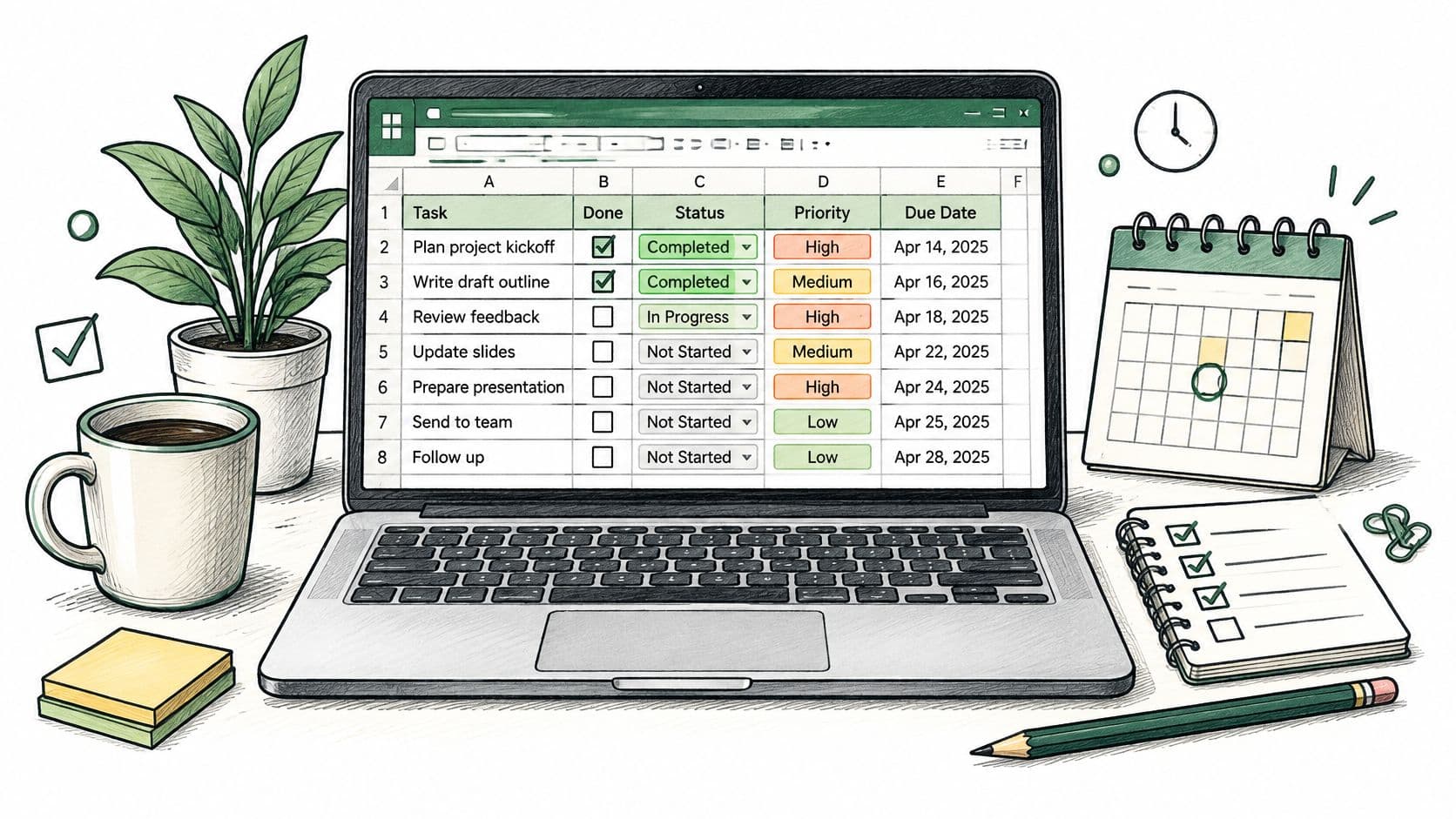
You open your task spreadsheet to decide what to do next. Half the rows have no deadline, several priorities say High, and the notes contain work that never made it into the task column. You spend more time interpreting the sheet than doing anything on it.
A useful to do list in Excel should answer a simpler question: what needs attention today, and what's the next action? Build it as a daily review queue, not a list to admire. Keep manual entry small, let formulas identify exceptions, and stop adding fields that nobody will maintain.
Columns That Turn a List Into a Tracker
A sheet nobody can read is a sheet nobody updates. Fix the layout before entering tasks, because your filters, formulas, and formatting will all depend on consistent columns.
Use these eight fields in order: Task, Owner, Status, Priority, Start Date, Due Date, Next Action, and Notes. Keep Task to a short phrase beginning with a verb, ideally under about 60 characters. That's a writing limit, not an Excel limit.
Owner should come from a fixed names list. Status needs the choices Not started, In progress, Blocked, and Done; Priority needs High, Medium, and Low. Write a definition beside the sheet: High means deadline risk, dependency impact, or material business cost, not just work someone wants quickly.
Column layout for a working to-do list
| Column | Field | Input control | Example entry |
|---|---|---|---|
| A | Task | Short free text beginning with a verb | Send Q3 budget to finance |
| B | Owner | Dropdown from a fixed names list | Dana |
| C | Status | Dropdown: Not started, In progress, Blocked, Done | In progress |
| D | Priority | Dropdown: High, Medium, Low | High |
| E | Start Date | Date in one format (yyyy-mm-dd) | Today's date, entered as a date value |
| F | Due Date | Date in one format (yyyy-mm-dd) | Agreed submission date, entered as a date value |
| G | Next Action | Free text, one physical step | Email Dana for Q2 actuals |
| H | Notes | Free text, kept short | Figures are in the shared folder |
Format the date columns through Ctrl+1 > Number > Custom, using yyyy-mm-dd. Formatting doesn't convert text into dates, so check imported values before relying on comparisons.
Next Action should describe something you can do right now, such as emailing a colleague for missing figures. Notes holds supporting context, not another hidden task list.
Microsoft's worksheet and workbook limits allow 32,767 characters per cell, but that capacity isn't a reason to bury project records inside a narrow column.
Every extra input field becomes another promise to keep the sheet current.
Keep the eight manual fields; place calculated helpers separately. If you need a refresher on records and consistent fields, the guide to creating an Excel database explains the underlying structure.
Build the Task Table, Dropdowns and Checkboxes
Build a small test version before moving your backlog. It's easier to catch a broken dropdown before colleagues start entering work.
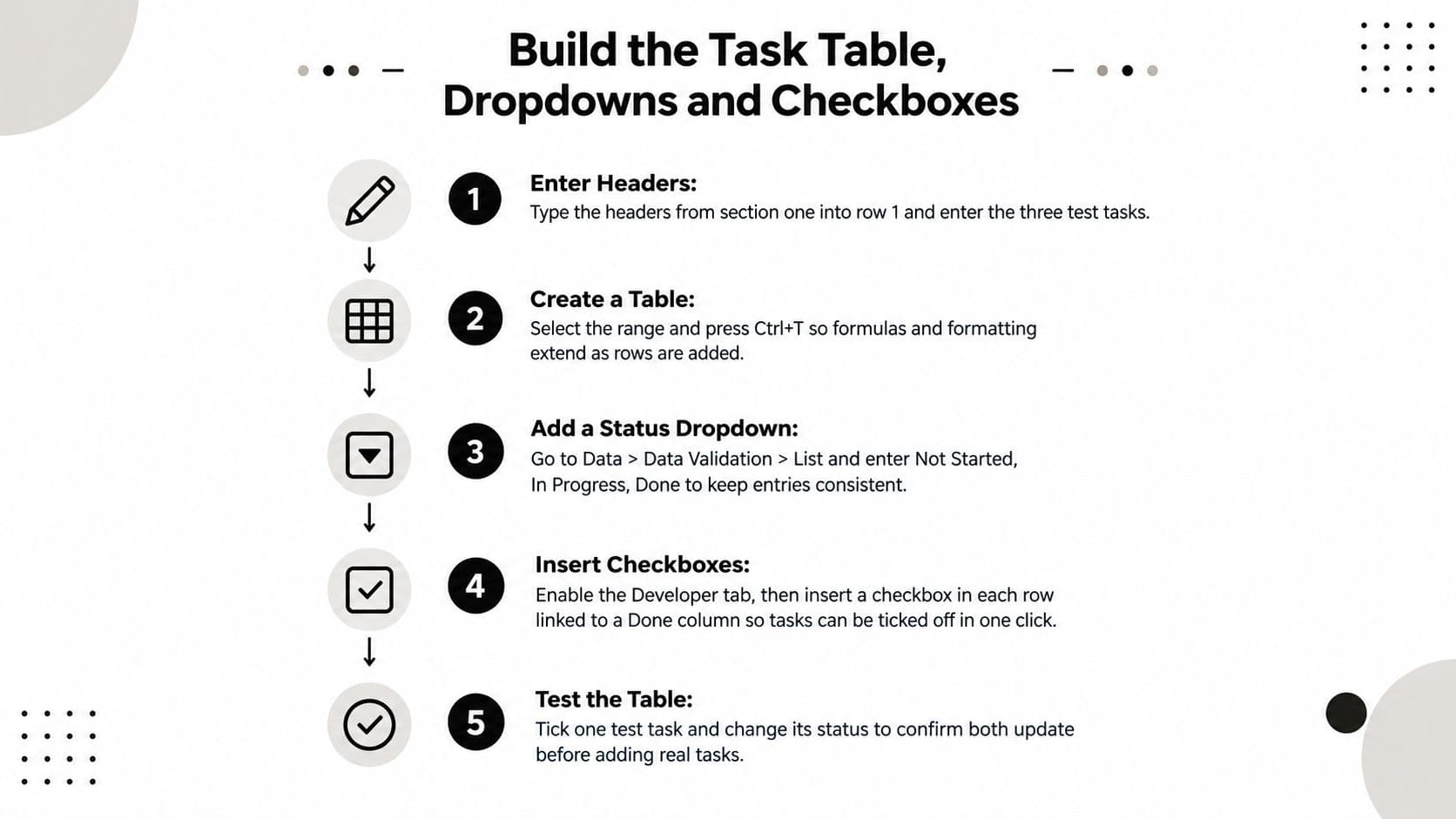
Use this visual overview for the sequence, then follow the detailed settings below.
Create and validate the inputs
-
Enter the headers in row 1, then add three test tasks: send the budget, confirm a supplier delivery, and review a draft proposal. Give them different statuses so you can check the filters rather than merely confirm that the cells accept text.
-
Select the range and press Ctrl+T, then tick My table has headers. Under Table Design > Table Name, name it
Tasks; the table supplies filter buttons and helps formatting and calculated columns extend as you add rows. -
Select the Status data cells and choose Data > Data Validation > Allow > List. Enter
Not started,In progress,Blocked,Donein Source, using your regional list separator if Excel doesn't accept commas. -
Repeat validation for Owner and Priority, with
High,Medium,Lowas the priority source. Keep owner names on a separate Lists sheet, define a named range such asOwners, and use=Ownersas the source; under Error Alert, choose Stop so typed alternatives are refused. -
Select a validated cell and press Alt+Down Arrow to open its choices, a shortcut documented in Microsoft's Excel keyboard guide. This lets keyboard users update a task without reaching for the mouse.
Add checkboxes only if they help
-
For newer Microsoft 365 builds, select the intended checkbox cells and choose Insert > Checkbox; these in-cell checkboxes store TRUE or FALSE directly. For older desktop versions, enable Developer through File > Options > Customize Ribbon, choose Developer > Insert > Check Box under Form Controls, then right-click each box, use Format Control > Control > Cell link, and align it inside its cell; after copying, verify that every box points to its own helper cell.
-
Type
Completeinto a Status cell to confirm that the Stop alert rejects it, then test adding a task beneath the table. Tick a checkbox and inspect its Boolean value separately, because inserting a checkbox does not automatically update the Status dropdown.
For a screen-based demonstration, use the video alongside your test workbook.
Keep Status as the source of truth. A manually ticked box can disagree with a dropdown unless you explicitly connect them through automation. For a lean tracker, omit editable checkboxes or use a formula-driven Boolean helper, =C2="Done", displayed as an in-cell checkbox where supported.
The written settings above retain Blocked as a status. That distinction matters: work waiting on someone else isn't the same as work nobody has started.
Formulas That Flag Status and Sort by Due Date
These formulas assume Status is in C, Priority in D, Due Date in F, and the first task is on row 2. Add calculated helpers to the right of the manual inputs, named Days Left, Status Flag, and Priority Rank. They don't create more daily typing.
Questions the calculations should answer
How long until this is due? Days Left subtracts today's date from the deadline and goes blank when Status is Done. A negative result means overdue, but the basic formula needs a populated date; use =IF(OR(C2="Done",F2=""),"",F2-TODAY()) if incomplete dates are common.
What needs attention? Status Flag returns readable text, including No date, instead of leaving you to interpret date arithmetic. The example uses a two-day planning window, which you should adjust to suit your review rhythm.
Formulas for status, priority and sorted view
| Purpose | Formula in row 2 | What it returns |
|---|---|---|
| Days left | =IF(C2="Done","",F2-TODAY()) | Days to due date; negative means overdue |
| Status flag | =IF(C2="Done","Complete",IF(F2="","No date",IF(F2<TODAY(),"Overdue",IF(F2-TODAY()<=2,"Due soon","On track")))) | Complete, No date, Overdue, Due soon or On track |
| Priority rank | =IF(D2="High",1,IF(D2="Medium",2,IF(D2="Low",3,""))) | 1 for High, 2 for Medium, 3 for Low |
| Sorted open tasks (Microsoft 365) | =IF(COUNTIF(Tasks[Status],"<>Done")=0,"No open tasks",SORT(FILTER(Tasks[[Task]:[Notes]],Tasks[Status]<>"Done"),6,1)) | Open tasks sorted by due date, earliest first |
Which priority comes first? Priority Rank makes High sort before Medium and Low. Alphabetical sorting doesn't express that order, so use the rank rather than the label when arranging your review queue.
Can I see only unfinished work? The sorted formula filters out Done and sorts the original task fields by Due Date, earliest first. Put it on a separate sheet outside an Excel table, leaving the spill area empty; this Microsoft 365 workflow requires dynamic-array support.
A filtered formula view is a reading surface, not a second place to edit tasks.
Missing deadlines still require attention because blank dates don't represent a meaningful position in a deadline queue. Resolve No date flags before treating the sorted view as a reliable schedule.
With automatic calculation enabled, TODAY() updates when Excel recalculates, including when the workbook opens. In older versions without the required dynamic arrays, use Data > Sort > Due Date > Oldest to Newest, then filter Status to exclude Done.
Conditional Formatting Rules for Overdue and Blocked Tasks
The overdue rule is the one most likely to mislead you. A blank due-date cell can be treated as zero in a comparison, making an undated task appear overdue. Decide whether missing dates deserve a separate warning rather than letting them masquerade as missed deadlines.
Microsoft describes validation and visual organization tools on its Excel spreadsheets overview; conditional formatting evaluates cell values and reapplies as those values change. Use it to expose exceptions, not to decorate every row.
Conditional formatting rules for the task table
| Rule | Formula | Format |
|---|---|---|
| Completed | =$C2="Done" | Gray text with strikethrough |
| Overdue | =AND($C2<>"Done",$F2<TODAY()) | Red fill, bold text |
| Due within 2 days | =AND($C2<>"Done",$F2>=TODAY(),$F2-TODAY()<=2) | Amber fill |
| Blocked | =$C2="Blocked" | Purple fill with dark text |
For production use, strengthen the overdue formula to =AND($C2<>"Done",ISNUMBER($F2),$F2<TODAY()). That excludes blanks and text values while retaining the same overdue test.
Apply rules to the working range
- Select the table's data rows across the fields you want highlighted, rather than an unrelated block of cells.
- Choose Home > Conditional Formatting > New Rule > Use a formula to determine which cells to format.
- Enter the formula, choose Format, and set the fill or font treatment.
- Open Manage Rules, check Applies to, and place Overdue above Due soon. Tick Stop If True where overdue formatting should take precedence.
Blocked and overdue can both be true. If red must win, position Overdue above Blocked; otherwise, place Blocked first and deliberately let purple dominate.
Inconsistent labels also cause trouble. Finished won't match Done, although ordinary Excel equality comparisons are case-insensitive, so lowercase done alone won't break this rule. Text dates remain unsafe, and pasted ranges can fragment formatting rules.
Use the guide to color coding in Excel if you need more help managing overlapping formats.
Keep Status Flag visible and printable, because color must never carry the whole message. During the weekly check, inspect blank deadlines, overdue incomplete tasks, and due dates earlier than Start Date.
Daily Review, Filters and Printing Routine
- Remove finished work from view. Filter Status Flag to exclude Complete so you aren't rereading yesterday's accomplishments.
- Sort by Priority Rank, smallest to largest, then Due Date, oldest to newest. This brings urgent High-priority work together without treating every deadline as equally important.
- Choose no more than three tasks as today's execution set. Before starting, confirm that each has an actionable instruction in column G.
- Review Overdue flags and filter Status for Blocked separately. Decide who will move each exception today, whether that means doing the work, requesting input, or agreeing a revised commitment.
About one in four Finnish knowledge workers in a study published by Springer never decided a task's start and due date. A tracker won't compensate for work that stays in someone's inbox or memory; capture commitments before trying to prioritize them.
Keep review controls simple
Add slicers for Owner and Status through Table Design > Insert Slicer where your Excel version supports table slicers. They make it easier to inspect someone's workload without repeatedly opening filter menus.
Excel filter dropdowns display up to 10,000 items, according to Microsoft's specifications and limits, so use compact categories for Owner and Status rather than unique descriptions. For locating a phrase buried in task text, use the techniques in how to search in Excel.
The morning review ends with a decision about work, not another round of spreadsheet maintenance.
Archive and print deliberately
Each week, move Done rows to an Archive sheet, preserving headers and pasting calculated results as values where you need a stable record. Keep a dated copy before a major redesign; for accountability in a shared workbook, use OneDrive or SharePoint version history rather than relying on scattered copies.
For printing, choose Page Layout > Orientation and pick the option that turns the page sideways, then Print Titles > Rows to repeat at top and enter $1:$1. Under File > Print, select Fit All Columns on One Page, checking that the text remains readable rather than forcing the whole backlog onto a single page.
Use File > Export > Create PDF/XPS on Windows for a shareable snapshot. Include the Status Flag text and inspect the preview in black and white before distributing it.
Decide Whether Excel Still Fits Your Task Load
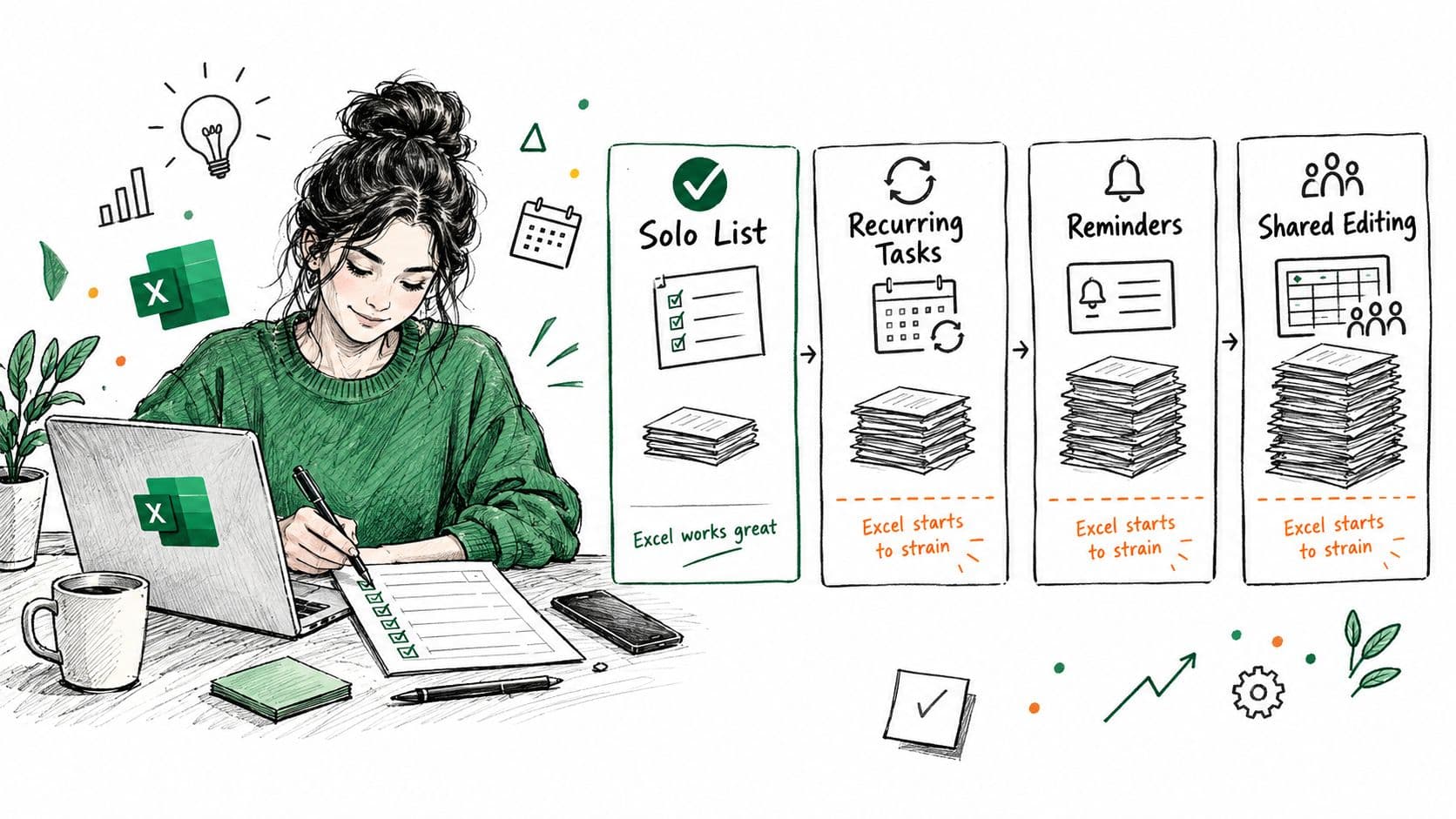
A better spreadsheet won't solve every task-management problem. Excel works well when you can maintain the commitments yourself; recurring work, reminders, delegation, and shared updates introduce upkeep that formulas don't remove.
Use these situations to judge the workload, not just the appearance of your tracker.
When Excel fits and when a dedicated tool fits better
| Situation | Stay in Excel | Move to a dedicated tool |
|---|---|---|
| Solo planning with a few dozen open tasks | Works well with the table, dropdowns and flags | Not needed yet |
| Recurring tasks and reminders | Each recurrence is typed by hand and reminders are missed | Automated recurrence and alerts |
| Delegating work to other people | Handoffs and completion are tracked by hand | Assign tasks, see progress and pay per completed task where supported |
| Shared updates across a team | Co-authoring works until edits collide and owners lose track | Real-time collaboration with one shared task view |
The illustration captures the practical boundary: keeping a list is different from coordinating a workflow.
Don't automate unclear priorities
In EY's survey of employees across 29 countries, 88% used AI, but only 5% used it in advanced ways that transformed work. Adding an AI-generated ranking won't fix an unrealistic workload.
Keep confidential client, financial, and personnel details out of prompts unless your policy permits them. Require human approval for priority changes affecting deadlines or budgets, and audit completed work monthly.
Before changing tools, use Papa's guide to plan tasks you can actually finish to check whether your daily commitments are realistic. Software can organize an overloaded plan without making it achievable.
OneDrive or SharePoint co-authoring can support a small team, but simultaneous changes to ownership and commitments still need coordination. Keep the sheet for two weeks and log the hours spent maintaining it.
Switch when weekly upkeep takes more hours than the list saves, or when a second person must edit the same tasks.
Fluidwave offers auto-prioritization across table, list, calendar, Kanban, and card views, plus pay-per-task delegation to assistants. If your Excel review queue has become a job to maintain, visit Fluidwave to explore managing priorities and handing off work without building more spreadsheet controls.
Focus on What Matters.
Experience lightning-fast task management with AI-powered workflows. Our automation helps busy professionals save 4+ hours weekly.