Learn how to search in Excel like a pro. This guide covers everything from Ctrl+F and filters to XLOOKUP and dynamic arrays for finding data fast.
June 3, 2026 (4mo ago)
How to Search in Excel: A Complete Guide for 2026
Learn how to search in Excel like a pro. This guide covers everything from Ctrl+F and filters to XLOOKUP and dynamic arrays for finding data fast.
← Back to blog
You're probably here because a workbook has gotten out of hand.
You know the value exists. You know the row is in there somewhere. But the sheet has grown into a maze of IDs, dates, formulas, notes, and formatting choices nobody remembers making. The common response is the same: Ctrl + F, type a keyword, and hope for the best.
That works sometimes. It also breaks down fast.
Excel doesn't have one search tool. It has several, and each solves a different problem. Sometimes you need to jump to one cell. Sometimes you need to isolate a whole subset of rows. Sometimes you need to return a related value from another column. And sometimes you need a live search box that behaves more like a small app than a spreadsheet.
That's the skill behind learning how to search in Excel. It's not memorizing one shortcut. It's choosing the right method for the job.
Beyond Finding Data You Need a Search Strategy
A big spreadsheet creates two different kinds of problems. The first is navigation. You need to get to one specific cell or phrase fast. The second is retrieval. You need Excel to surface the right records, related values, or filtered views without manual hunting.
Those are not the same task, and treating them the same wastes time.
I see this most often in workbooks that started small and slowly turned into operational systems. A team begins with a simple table. A few months later, the file has lookup tabs, exception lists, color-coded statuses, imported exports, and old formulas living beside new ones. At that point, “search” stops meaning one thing.
Practical rule: If you need to locate something, start with Find. If you need to reduce the visible dataset, use Filters. If you need to return a related answer, use a lookup formula. If you need the sheet to respond live as someone types, build around FILTER.
That distinction matters because the wrong tool creates fake complexity. People use Find when they should filter. They build VLOOKUPs when they only needed a quick isolate-and-review step. They create clever formula-driven search bars for teams that would've been better served by a simple table and slicers.
If your workbook is acting more like a lightweight database, it helps to think about structure first, not just search. This guide on creating an Excel database is a useful companion if your sheet has already crossed that line.
A good search strategy does one thing above all else. It reduces friction. You stop scanning manually, stop second-guessing results, and stop rebuilding the same workaround every time someone asks a new question.
Mastering the Basics with Find and Replace
The Find dialog is still the fastest place to start for direct cell-level searching. Excel builds its core search workflow around Ctrl + F, and from there you can use Find Next to move match by match or Find All to list every occurrence in the selected range or worksheet, including searches across formulas and formatting such as font or cell color, which makes it useful for auditing large workbooks rather than just locating words, as outlined in this guide to Excel Find tools and search options.

Start with Find All, not Find Next
Most users press Ctrl + F, enter a term, then keep clicking Find Next. That's fine for a short sheet. It's slow in a real workbook.
Find All is usually better because it gives you a clickable list of matches. That changes the job from hunting to reviewing. You can scan the result list, see where the term appears, and jump straight to the right location.
Use it when:
- You're auditing repeated values such as product IDs, customer names, or account codes.
- You expect multiple matches and need to inspect all of them, not just the first one.
- You're checking formula coverage and want to see where a term appears inside formulas rather than visible cell text.
If you only use Find Next, you're moving linearly. If you use Find All, you're working from a map.
The hidden power is in Options
Click Options in the Find dialog. That's where Excel stops being basic.
A few search modes are worth using regularly:
- Search within formulas when the visible cell result isn't enough and you need to inspect the underlying logic.
- Search by format if a workbook uses fill colors, font colors, or styles to mark exceptions, approvals, or missing fields.
- Limit the search area to the current selection when you know the relevant table is only one part of a crowded worksheet.
Searching by format is one of those features people ignore for years, then start using once, and never want to lose again.
If someone highlighted every urgent issue in yellow, don't scroll for yellow cells. Let Excel find them.
Use wildcards when the text isn't exact
Exact matches are easy. Real work rarely is.
When part of the value is inconsistent, wildcards help:
- Use
*when any number of characters can vary. - Use
?when only one character can vary.
This is useful for product codes, invoice strings, naming conventions, and imported text that follows a pattern but not perfectly.
Examples:
- Search
INV*to find entries that start with INV. - Search
A?Cto match values where the middle character changes.
The point isn't cleverness. It's speed. Wildcards let you search patterns without cleaning data first.
Replace is powerful, but risky
Ctrl + H opens Replace, and it belongs in the same family as Find. It's efficient for standardizing repeated text, correcting consistent errors, or swapping outdated labels.
But don't run Replace All casually in a formula-heavy workbook.
Before replacing anything broadly:
- Check whether the term appears inside formulas
- Test on a copy if the workbook is business-critical
- Use Find All first so you understand the scope of what will change
A careful Find workflow saves more time than a reckless Replace workflow ever will.
Using Filters and Slicers for Interactive Searching
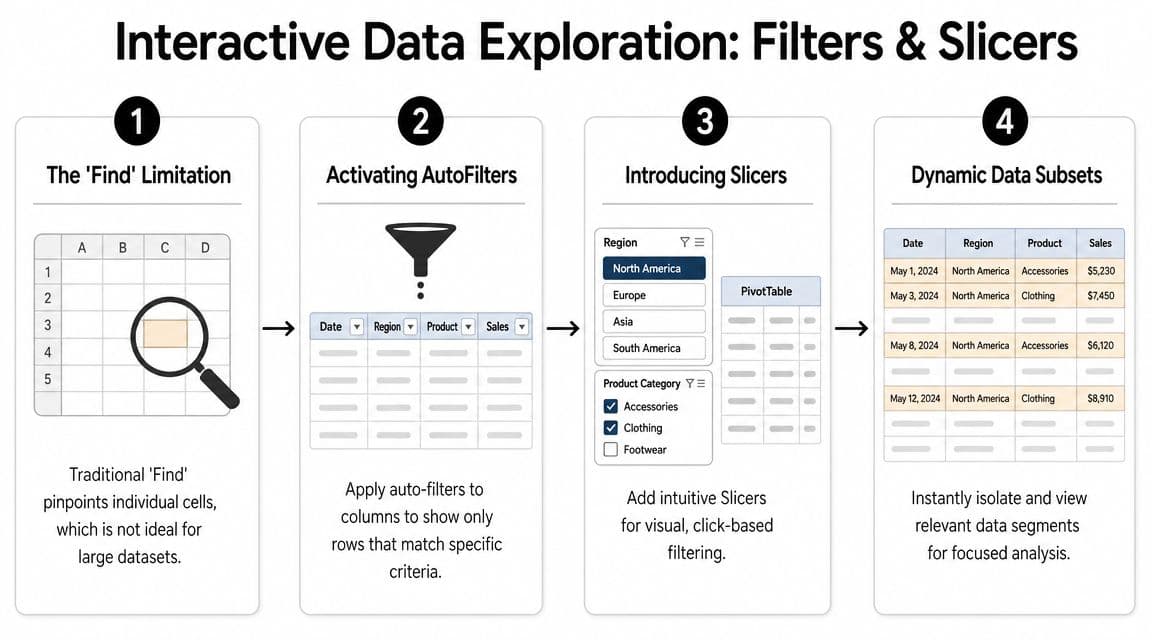
Find helps when you need one location. Filters help when you need a usable view.
That's the distinction that trips people up. If your real question is “show me all rows that match this condition,” then cell-by-cell search is the wrong move. You don't want a match. You want a subset.
AutoFilter is the practical workhorse
Turn your range into a table or apply AutoFilter from the header row. Once those dropdowns are active, Excel shifts from search mode into isolation mode.
That gives you a better workflow for common questions like:
- Which rows belong to one client
- Which tasks are overdue
- Which records fall within a date window
- Which items have a specific status or fill color
The strength of filters is that they preserve context. You don't just find one matching cell. You see the full row, along with every related field beside it.
That's why filters beat Find for operational work. If someone asks for every invoice from one region with a specific status, Find will only take you to isolated hits. A filter gives you the working set immediately.
Filter logic works best on clean tables
Filters reward good structure and punish messy ranges.
If you want them to stay reliable:
- Keep one header row only so Excel understands the data shape.
- Avoid merged cells because they break clean filtering behavior.
- Use consistent data types in each column. Mixed date text and real dates create confusion fast.
- Convert the range to an Excel Table when possible, because tables make filtering more stable and easier to maintain.
A well-structured table turns search into selection. A messy range turns search into guesswork.
If your workbook is shared across a team, default to the method that's easiest to understand at a glance. Filters usually win that contest.
Slicers make filtered views easier to use
Slicers are the visual layer many users should use more often.
Instead of opening dropdowns in headers, you click buttons that represent categories or values. That's simpler for nontechnical users and much better for recurring reports. A slicer-based sheet feels less like raw Excel and more like an interactive report.
Slicers are especially useful when:
- You present filtered data to managers or clients
- The same columns get filtered repeatedly
- Multiple people use the workbook and need an obvious interface
- You're working with Excel Tables or PivotTables
They're not magical. They don't replace formulas. But they remove friction for repeated filtering tasks.
When filters beat formulas
A lot of users overbuild search solutions. They write formulas to create views that a filter could have handled in seconds.
Use filters or slicers when the goal is review, not retrieval. If someone needs to inspect rows, compare records, or click between segments, visual filtering is usually the cleaner answer. Save formulas for cases where Excel needs to return a result, not just show a subset.
Leveraging Formulas for Advanced Lookups
There's a point where “search” stops meaning navigation and starts meaning retrieval.
You're no longer asking, “Where is this customer ID?” You're asking, “Given this customer ID, what's the assigned rep, current status, or latest value tied to it?” That's where formulas take over.
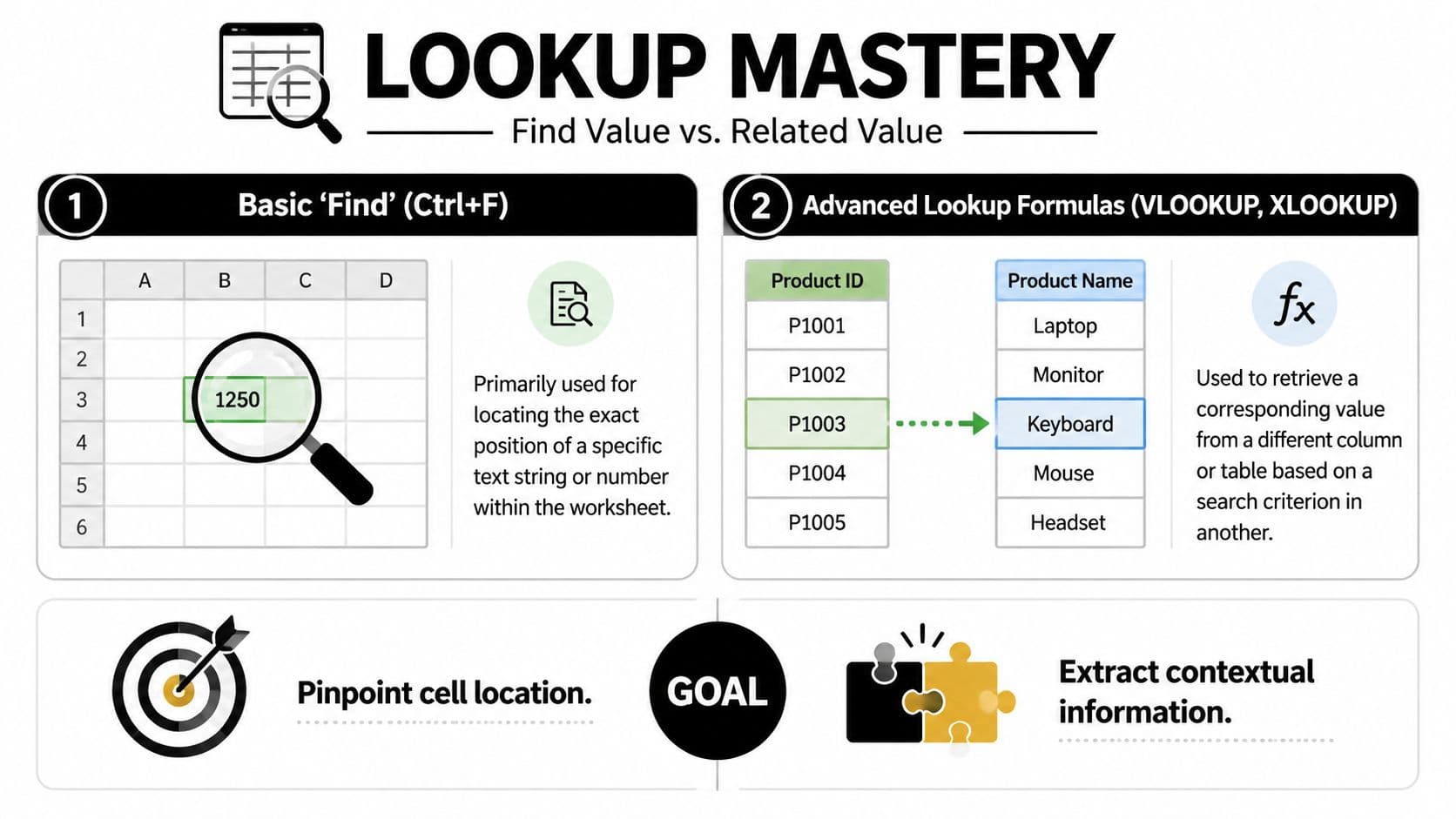
A practical rule I use is simple: if the answer needs to appear in another cell automatically, don't use Find. Use a lookup.
Why VLOOKUP is usually not the best choice
Many people learn VLOOKUP first, then keep using it longer than they should. The problem isn't that VLOOKUP never works. The problem is that it's fragile.
Its biggest limitation is structural. It assumes the lookup column is in the right position for the formula layout you've chosen. Once the sheet changes, VLOOKUP often becomes awkward or breaks.
For more reliable searching, XLOOKUP or INDEX/MATCH are more powerful than VLOOKUP, especially when the lookup column isn't the leftmost one. XLOOKUP also defaults to an exact match and supports search direction options, which makes it useful for returning the first or last occurrence when duplicates exist, as demonstrated in this walkthrough of XLOOKUP and INDEX/MATCH lookup methods.
The comparison that actually matters
| Feature | VLOOKUP | INDEX/MATCH | XLOOKUP |
|---|---|---|---|
| Can return values from the left | No | Yes | Yes |
| Handles changing table structure well | Less reliable | Reliable | Reliable |
| Exact match behavior | Must be set carefully | Controlled through MATCH setup | Exact match by default |
| Search from last to first | No | Possible with more setup | Yes |
| Ease of reading | Familiar but rigid | Flexible but less readable for some users | Clear and modern |
| Best use case | Older simple sheets | Flexible classic models | Most modern lookup tasks |
That table explains why I rarely recommend starting new work with VLOOKUP unless compatibility with an older environment forces it.
When XLOOKUP is the best answer
Use XLOOKUP when you want a formula that reads clearly and survives worksheet changes better.
It works well for:
- Returning one related field such as department, owner, or category
- Handling duplicate keys when you need the first or last match
- Building maintainable models that other people can audit later
- Reducing accidental mismatch behavior because exact match is the default
It also helps to hard-reference lookup ranges with absolute references so copied formulas stay stable. In practice, that usually means locking the relevant ranges before filling formulas across rows or columns.
When INDEX and MATCH still shine
INDEX/MATCH remains a strong choice when you want flexibility and control. It's older than XLOOKUP, but still dependable.
I still reach for it in workbooks where:
- the model already uses INDEX/MATCH consistently
- I want to separate row-finding logic from value-return logic
- I'm dealing with more custom lookup structures
The best lookup formula isn't the cleverest one. It's the one that still makes sense when someone else opens the file later.
Common lookup mistakes that waste time
The same problems show up again and again:
- Ranges aren't anchored and shift when copied
- Users expect VLOOKUP to search left
- Duplicate keys exist, but the formula assumes uniqueness
- The source data changes shape, and rigid formulas can't handle it cleanly
A formula-based search should reduce maintenance, not create it. That's why choosing XLOOKUP or INDEX/MATCH is often less about power and more about avoiding breakage later.
Building Dynamic Search Bars with the FILTER Function
If you use a modern version of Excel, FILTER changes what “search” can mean inside a workbook.
Instead of jumping to a match or returning one related value, FILTER can return a live list of matching rows. That gives you something much closer to an app-style search experience.

What makes FILTER different
The main advantage is responsiveness. You put a search term or criteria in an input cell, and the result area updates automatically.
Expert users often combine FILTER with SUM or other aggregation functions to create dynamic, multi-criteria searches that update automatically. This is more scalable than manual filtering because dynamic arrays return a live spill range, which creates a more interactive reporting experience, as shown in this FILTER-based Excel workflow example.
That matters in day-to-day work because it removes repeated manual steps. You don't filter, copy, re-filter, and sum again. The sheet does the retrieval for you.
A better use case than people expect
The strongest FILTER setups aren't flashy dashboards. They're repeated operational searches.
Think about a project tracker, support log, issue register, or exported task list. If the same questions keep coming up, a live formula-driven search saves effort:
- Show all open items for one person
- Return all records with a specific status
- List rows matching one owner and one priority
- Surface only the entries relevant to a meeting
If you regularly move data between tools, this becomes even more useful after exports. For example, if you're working from scheduling data, this guide on exporting Google Calendar to Excel pairs well with a FILTER-driven review sheet.
Multi-criteria searching works especially well
FILTER becomes much more useful when you stop thinking in single conditions.
You can build formulas that narrow results based on several rules at once. That could mean assigned owner plus status, region plus category, or keyword plus date flag. Because the output spills dynamically, the visible result set changes as the inputs change.
Here's the practical benefit: one formula can replace a lot of repetitive clicking.
A short demo helps if you want to see the idea in action:
The trade-off most tutorials skip
Custom search bars look impressive. They are not always the right answer.
Use them when the data stays structured, the workbook lives in a modern Excel environment, and people benefit from live search behavior. Avoid them when compatibility is uncertain or when the team only needs simple filtering.
A FILTER search bar is great when people ask changing questions against the same table. It's a poor choice when the workbook itself keeps changing shape.
That's the decision point. If you need an interactive search layer, FILTER is excellent. If you just need fast review and broad compatibility, table filters still win.
Troubleshooting and Pro-Level Search Hacks
When Excel can't find something you can clearly see, the problem usually isn't search. It's the data.
The most common failures happen with dirty values: hidden spaces, non-printing characters, and inconsistent text formatting. Microsoft's SEARCH function only returns the position of text within another text string, and practical cleanup often requires combining SEARCH with ISNUMBER or SUMPRODUCT to identify hard-to-spot text issues before a lookup becomes reliable, as explained in Microsoft's overview of the SEARCH function in Excel.
What usually breaks search
If a search is failing, check these first:
- Leading or trailing spaces often make two values look identical while Excel treats them as different.
- Non-printing characters can come in through copied exports, web data, or old system outputs.
- Numbers stored as text create mismatches in lookups and inconsistent filter behavior.
- Mixed formatting inside the same field can make one part of a dataset behave differently from another.
This is why search and data cleaning are closely connected. In practice, many “Excel search problems” are really standardization problems.
Useful pro habits
A few habits save a lot of frustration:
- Test the data, not just the formula. If the formula looks right, inspect the source values.
- Create helper columns for cleaned versions of key fields when the workbook is messy.
- Use formula-based checks to flag suspect characters before running critical lookups.
- Keep a separate review area for exceptions instead of editing raw imports immediately.
If you want to upskill in Advanced Excel, this is the level where training starts paying off. The gap between beginner and advanced Excel isn't just formula knowledge. It's learning how to diagnose why a workbook behaves inconsistently.
Short FAQ for awkward search problems
How do I search case-sensitively in Excel?
The standard Find workflow isn't the best fit for every case-sensitive need. In those situations, formula-based checks are usually more dependable than relying on a basic search dialog.
Can I search for comments, hyperlinks, or special content?
Yes, but that usually requires more than plain text search. These are the moments where workbook inspection, helper methods, or specialized formulas become more useful than standard Find.
Why does my lookup return nothing even when the value exists?
Most often, the value isn't as identical as it looks. Clean the data first, then rerun the lookup.
Teams running complicated spreadsheets also benefit from reducing context switching outside Excel. If you're trying to tighten the rest of your workflow, this article on how to use AI for productivity is worth reading alongside your spreadsheet process.
If your workday is full of spreadsheets, follow-ups, and too many moving parts, Fluidwave helps you organize tasks, delegate busywork, and keep execution moving without adding more noise. It's a practical fit for people who need clearer workflows, not another complicated system.
Focus on What Matters.
Experience lightning-fast task management with AI-powered workflows. Our automation helps busy professionals save 4+ hours weekly.