Learn how to perform a Google Calendar export to Excel using multiple methods. Our guide covers manual exports, automation, and troubleshooting for clean data.
May 5, 2026 (5mo ago)
Google Calendar Export to Excel: A Step-by-Step Guide
Learn how to perform a Google Calendar export to Excel using multiple methods. Our guide covers manual exports, automation, and troubleshooting for clean data.
← Back to blog
You open Google Calendar because you need answers, not just appointments. How many client hours did you spend last month? Which internal meetings are eating the week? Why does your team feel overloaded when the project plan looked reasonable on paper?
Google Calendar won’t answer those questions well on its own. It’s built for scheduling, reminders, and sharing availability. It’s not built for analysis. If you want to sort time by client, build a billing report, audit recurring meetings, or compare planned time against actual work, you need the calendar data in a spreadsheet.
That’s where google calendar export to excel becomes useful. Not as a tech trick, but as the first step in turning a calendar into something you can filter, group, total, and review. Once the data is in Excel or Sheets, it becomes much easier to see patterns, clean up wasted time, and build simple reporting that people will find useful.
Unlocking Your Calendar's Hidden Data
The people who usually ask for this aren’t trying to do anything exotic. They’re trying to solve ordinary, expensive problems.
A consultant wants cleaner timesheets. A founder wants to see whether the week was spent on sales, hiring, or firefighting. A project manager wants one spreadsheet that combines a personal calendar, a shared team calendar, and milestone events. An executive assistant wants a monthly summary without copying event details by hand.
Google Calendar can show those events. It can’t do much with them analytically.
That’s why exporting matters. Once your events are in Excel, you can group them by project, filter by attendee or location, flag admin time, and build a working report instead of staring at a visual calendar grid. If your team already coordinates work in shared calendars, this becomes even more useful because the export gives you a dataset instead of a screenshot. If you’re already managing collaborative schedules, using a shared calendar well makes the export much more valuable later.
Practical rule: If you expect to ask the same question about your schedule more than once, get the data out of the calendar and into a spreadsheet.
The key shift is this. Don’t think of calendar export as archiving. Think of it as workflow design.
A one-off export helps when finance needs a report by Friday. A repeatable export process helps when you need to track utilization, client delivery, recurring meeting load, or team availability every week. Most guides stop at the download. The more useful question is what happens after the download, and whether you’re setting up a process you can rely on again next month.
The Manual Export Your Starting Point
If you want the native method, Google gives you one. However, it doesn't provide an Excel export in the typically envisioned format.
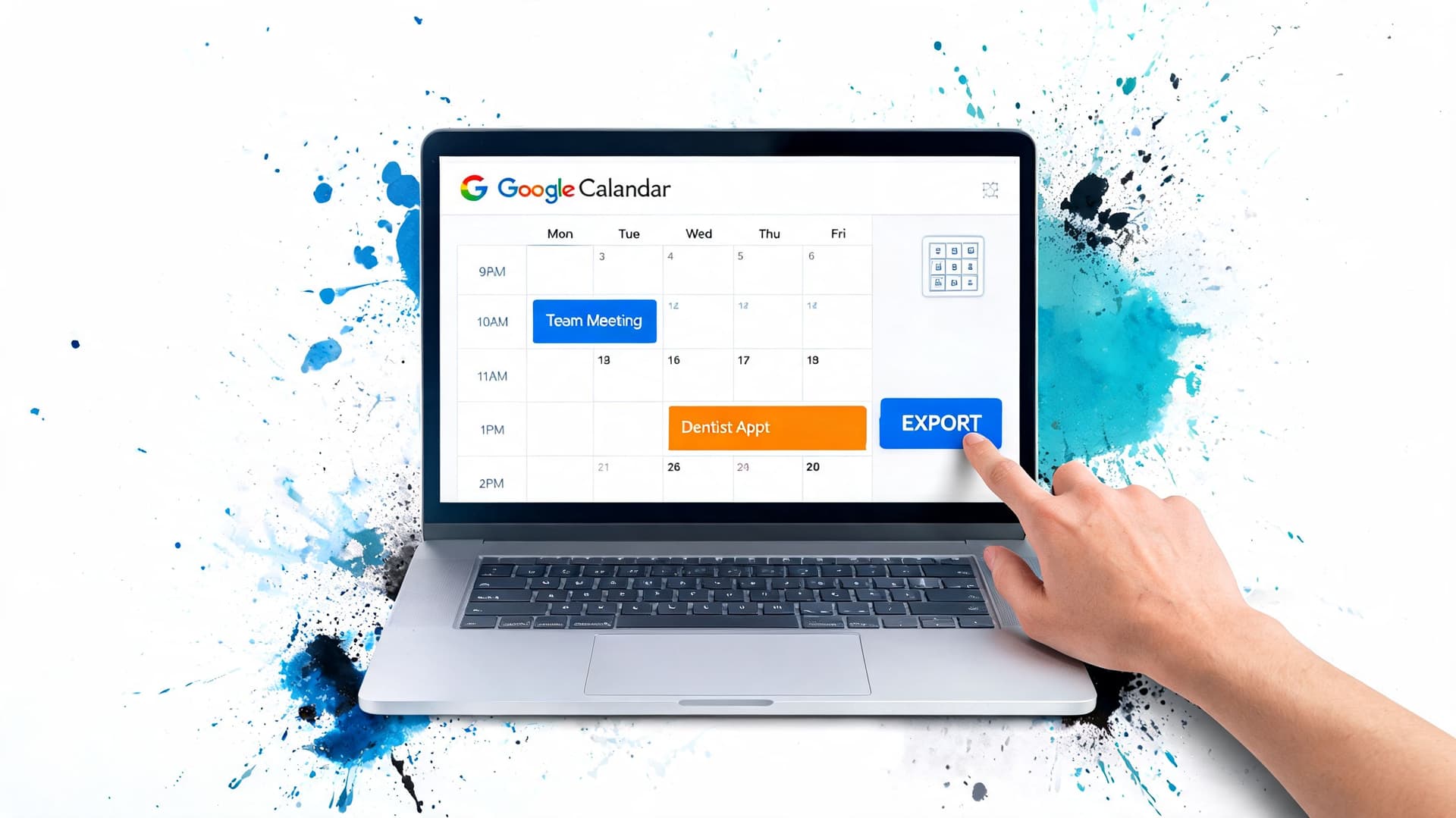
Where the export lives
On desktop, open Google Calendar, click the gear icon, go to Settings, then Import & export, then Export. That workflow has stayed consistent across Google’s platform updates, and it’s still the main access point for getting calendar data out.
Google Calendar exports calendars as .ics files, which use the iCalendar format. That format was standardized in RFC 5545 in 2009, and when you export multiple calendars, Google bundles them into a single .zip archive. That’s useful because you can pull several calendars at once, but it also means you’re not getting a neat Excel workbook out of the gate. You’re getting a standards-based calendar file that works across many apps, with details covered in this walkthrough on Google Calendar export behavior.
If you want a quick visual refresher before doing it yourself, this short video covers the basic export flow.
What you should expect to download
After export, you’ll download a ZIP file if more than one calendar is included. Inside it, each calendar appears as its own ICS file. Those files are portable, which is why they can be imported into Outlook, Apple Calendar, and other calendar systems.
What they are not is spreadsheet-friendly.
That’s the part that trips people up. They search for google calendar export to excel, click Export, and expect a CSV. Google doesn’t natively provide that. You still need a conversion step.
A clean manual workflow looks like this:
- Open Google Calendar on desktop
- Go to Settings
- Choose Import & export
- Click Export
- Download the ZIP archive
- Extract the ICS file or files
- Choose a conversion method before opening in Excel
If you want a separate guide focused just on the native export itself, this article on how to export a Google Calendar is a useful companion.
Don’t judge the export by the file extension. ICS is the right format for interchange. It’s just the wrong format if your end goal is analysis in Excel.
Why this matters before you touch Excel
The native export is still worth learning because it gives you a dependable baseline. Even if you later automate the process, you need to understand what Google is giving you.
It also helps you separate two different tasks:
- Extraction means getting the data out of Google Calendar.
- Conversion means turning that data into rows and columns you can work with.
Treat those as separate steps and the whole process becomes less frustrating.
From ICS to Excel Three Conversion Pathways
An ICS file is structured for calendar apps, not for spreadsheet analysis. The conversion method you choose determines how much cleanup you do later, whether recurring events survive intact, and whether the workflow can scale beyond a one-time export.
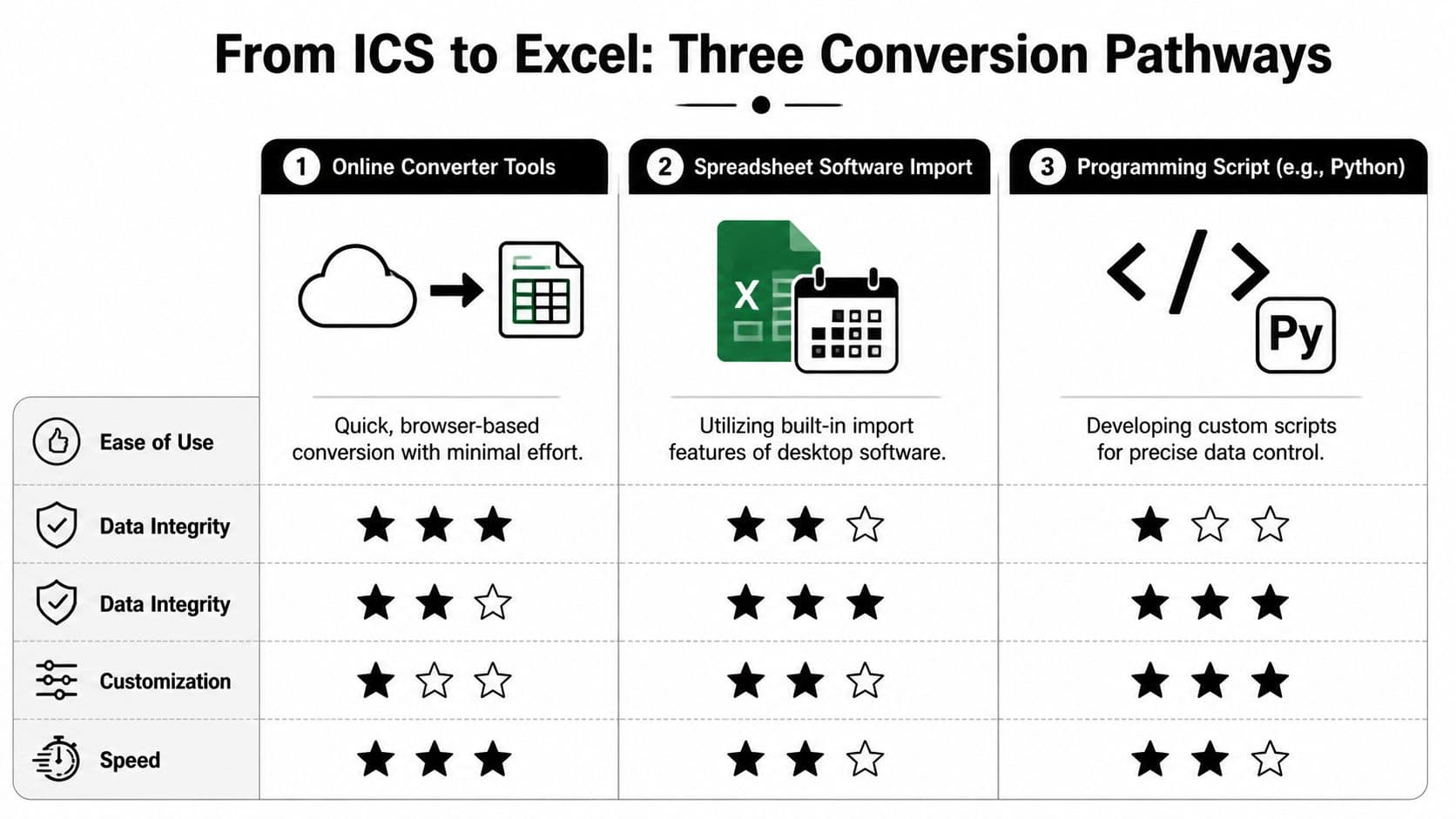
I usually sort the options by one question: are you solving today’s export, or building a repeatable reporting process? A quick personal check can tolerate rough edges. A monthly utilization report cannot.
Path one, open the ICS file in Excel
Start here only if speed matters more than accuracy.
Excel sometimes opens a basic ICS file well enough for a quick review. Simple events may land in columns you can recognize, such as subject, start time, end time, location, and notes. The trouble starts when the calendar includes recurring meetings, all-day events, long descriptions, or timezone quirks. As noted earlier from the Unito guide, direct parsing is inconsistent and tends to break down on the very records that matter most in reporting.
Best for: a fast spot check on a simple personal calendar
Weak fit for: finance, client reporting, operations reviews, or executive schedules
Typical failure points:
- Recurring events often stay compressed into RRULE metadata instead of becoming clean rows
- Descriptions can lose line breaks or collapse into unreadable text
- Dates and times may import as mixed formats, which creates sorting and filtering problems
- All-day events may shift unexpectedly depending on timezone handling
If you choose this path, inspect a few recurring and all-day events before trusting the sheet.
Path two, use the Outlook pivot
This is the safest manual option when data quality matters and you have access to Classic Outlook.
The workflow is simple. Import the ICS file into Outlook, then export from Outlook as CSV, then open that CSV in Excel. Outlook handles iCalendar structure more reliably than Excel, so the spreadsheet usually arrives in better shape. As noted earlier, the Unito guide found that this route preserves far more of the original event data than opening the ICS directly in Excel.
Use this sequence:
- Import the ICS into Classic Outlook
- Open File, then Open & Export
- Export the calendar as CSV
- Open the CSV in Excel
- Standardize headers, date fields, and timezone formatting
There is a practical limitation. New Outlook often breaks this workflow, so verify the desktop app is Classic Outlook before you commit to it.
For busy teams, this path is often the best midpoint between accuracy and effort. It is slower than dragging an ICS into Excel, but it cuts down the cleanup work that usually eats the rest of the afternoon. It also sets you up better if you later want a Google Calendar sync workflow for recurring spreadsheet updates instead of repeating manual exports every week.
Path three, use an online converter or custom script
These two options solve the same problem in different ways. Both avoid Excel’s weak handling of raw ICS files.
Online converters are the fastest route for a one-off file. Upload, convert, download, review. That convenience comes with a privacy trade-off. If event titles or descriptions contain client names, internal project notes, health appointments, or billing details, uploading the file to a third-party tool may violate your own data handling standards.
Custom scripts take longer to set up, but they are the better long-term choice if calendar exports feed a recurring workflow. A script can flatten recurring events, keep only the fields you care about, normalize dates, and write directly to CSV or XLSX. That matters if your end goal is trend reporting, time audits, capacity planning, or task management, not just one spreadsheet for today.
If you need to clean the final spreadsheet format after conversion, Digital ToolPad's conversion tutorial is a handy follow-up for turning a CSV into a polished XLSX file without mangling the structure.
Quick comparison
| Method | Effort | Reliability | Privacy control | Best use |
|---|---|---|---|---|
| Open ICS in Excel | Low | Low to moderate | High | Simple one-off personal calendars |
| Classic Outlook to CSV | Moderate | High | High | Reporting, billing, team review |
| Online converter or script | Low to high | Varies | Low to high | Fast browser conversion or repeatable custom workflows |
For business use, I rarely recommend stopping at direct import. If the calendar data will be filtered, summarized, billed against, or merged with task data later, choose the method that preserves structure first. That decision usually saves more time than the fastest initial export.
Automate Recurring Exports and Save Hours
Friday at 4:30 p.m., someone asks for a utilization report, a client hours summary, or a clean list of next week's appointments in Excel. If that request happens every week or every month, the export method matters more than the export itself.
One manual pull is manageable. A recurring reporting cycle is a process problem.
That is where many Google Calendar to Excel guides stop too early. They explain how to get one file out, but not how to turn calendar data into something you can trust for reporting, task tracking, or operational reviews without repeating the same cleanup every time.
Platforms such as Coupler.io and Unito exist for that reason. Teams use them to push calendar data into spreadsheets on a schedule, combine multiple calendars, and reduce handoffs. If you want a quick look at that category of tools, this overview of recurring export tools shows the general approach.

Option one, pay for convenience
Third-party sync tools are the fastest way to stop doing repeat exports by hand. They fit teams that need a working system this week, not a custom build next month.
They work best when you need to:
- Combine several calendars into one reporting sheet
- Refresh on a schedule such as daily, weekly, or monthly
- Share the result with non-technical stakeholders
- Avoid repeating the same conversion routine
I usually recommend this route for operations teams, agencies, and small businesses that want low setup effort and predictable output. If the report goes to leadership or clients on a schedule, paying for automation is often cheaper than assigning someone to export, clean, and resend files forever.
The trade-off is flexibility. Connector tools decide how fields map, how updates behave, and how recurring events are represented. If your reporting needs are standard, that is acceptable. If you need custom duration rules, event categorization, exception handling, or calendar data merged into another workflow, those limits show up quickly.
Option two, build it with Google Apps Script
Google Apps Script is the better long-term choice when the spreadsheet is part of an operating system, not just a report.
Instead of exporting an ICS file and converting it later, the script pulls events directly from Google Calendar, selects the fields you care about, writes them into Google Sheets, and leaves you with a dataset you can open in Excel or export on demand. As noted earlier, the source used in the previous section describes a workflow built around CalendarApp.getEvents(startDate, endDate), calculated durations, high field fidelity, and scheduled runs, with platform quotas still worth accounting for if you process large volumes.
That setup changes the job. You stop creating files manually and start maintaining a repeatable data pipeline.
A solid Apps Script workflow usually includes:
- Set the reporting window by week, month, quarter, or rolling date range
- Pull events from one or more calendars
- Write clean columns such as title, start, end, duration, owner, location, and notes
- Run on a time trigger so the sheet refreshes automatically
- Flag exceptions such as blank titles, missing attendees, or suspect durations
This route takes longer to set up, but it gives you much tighter control over the output. That matters if the exported data feeds time audits, workload reviews, billing checks, or a task system. If you are already trying to connect planning and execution, syncing work with Google Calendar becomes far more useful once the calendar data refreshes on its own.
If you will use the spreadsheet more than once, automation is usually the better solution. Manual export is a short-term patch.
Which route I’d choose
For a one-time board packet or ad hoc request, manual export is fine.
For anything recurring, I would choose based on who needs to own the process. Use a paid connector when speed, low maintenance, and shared visibility matter more than customization. Use Apps Script when calendar data needs to match your process exactly and feed a larger reporting or task workflow. Building it once usually costs less than cleaning inconsistent exports every reporting cycle.
Troubleshooting Common Export Headaches
Monday morning is a bad time to discover that last month’s calendar report is off by three hours, recurring meetings are split into nonsense rows, and the notes column has swallowed half your agendas. These problems usually show up after export, during conversion or cleanup. That matters because a one-time fix in Excel often turns into the same manual repair every reporting cycle.

Event times are wrong
Symptom: meetings appear a few hours early or late after import.
Cause: timezone mismatch between Google Calendar, the export file, and the app reading it. I see this often when someone exports from one account setting, opens the file in another tool, then assumes the timestamps stayed fixed.
Fix: confirm the calendar timezone before export. Then check the destination tool before you trust the spreadsheet. If you are using CSV as a middle step, test a few known events first, especially ones near daylight saving time changes. If those are wrong, stop there and fix the timezone issue before you process the full file.
Recurring meetings look broken
Symptom: one recurring series turns into duplicates, missing instances, or oddly grouped rows.
Cause: recurring events in ICS rely on RRULE logic. Excel is not built to interpret calendar rules cleanly, and many conversion tools flatten that logic inconsistently.
Fix: treat recurring events as a workflow design issue, not a formatting annoyance. If your reporting depends on each instance appearing as its own row, use a method that expands the series before it reaches Excel. As noted earlier, standard export methods also fall short for ongoing refreshes. If your team keeps re-exporting the same calendar and re-cleaning the same recurring meetings, the better fix is an automated feed that writes clean event rows on a schedule.
Descriptions get cut off or look messy
Symptom: long notes, agendas, or multi-line descriptions lose formatting or arrive truncated.
Cause: ICS is built for calendar apps, not spreadsheet structure. Line breaks, special characters, and long text fields are common failure points during conversion.
Fix: test with real events, not a blank sample calendar. Export one calendar that includes your longest notes, your busiest recurring series, and a few edge cases like all-day events or invite updates. If descriptions matter for reporting or task follow-up, favor a conversion path that preserves plain text fields cleanly. If Excel starts fighting the output after import, use this guide to troubleshoot Excel sorting issues before you build filters or pivot tables on top of inconsistent rows.
Test ten representative events before you trust ten thousand.
Quick diagnosis table
| Problem | Likely cause | Best fix |
|---|---|---|
| Time shifted | Timezone mismatch | Align timezone settings before conversion |
| Recurring events distorted | RRULE parsing | Use a method that expands each instance into its own row |
| Notes truncated | Multi-line description parsing | Validate with real sample events and avoid direct Excel opening |
| Repeated manual cleanup | Export process cannot refresh cleanly | Replace one-off exports with a scheduled workflow |
The pattern is straightforward. Repeated cleanup means the export process is wrong for the job. Fixing the workflow once usually saves more time than correcting the same spreadsheet every week.
Putting Your Exported Data to Work
A spreadsheet full of calendar rows isn’t useful by itself. The value comes from what you do next.
The first win is usually basic analysis. Group events by project. Filter out personal items. Sum hours by client or category. Build a pivot table to see where the month went. That’s often enough to spot over-servicing, meeting overload, or planning mistakes.
The second win is operational. Exported calendar data can feed billing reviews, staffing conversations, resource planning, and availability dashboards. Teams that keep separate calendars for launches, client work, and internal operations can finally compare them side by side in one place.
A few practical uses stand out:
- Billing support: match calendar events to client invoices before they go out
- Time audits: identify recurring meetings that no longer justify the calendar space
- Capacity planning: compare scheduled commitments across people or departments
- Task review: convert calendar activity into a cleaner list for follow-up and prioritization
Once the data is in Excel, cleanup matters. Sorting by date, project, or owner sounds trivial until Excel handles the column inconsistently. If your worksheet starts fighting you, this guide on how to troubleshoot Excel sorting issues is useful for getting order back before you build reports on top of bad sorting.
The bigger point is that exported calendar data helps you make better decisions about work. You can’t delegate well, plan well, or price work well if you don’t know where the time is going.
If you’re trying to turn scattered calendar activity into a clearer system for execution, Fluidwave is built for that next step. It helps you organize tasks, prioritize what matters, and delegate work to human assistants without adding more chaos to your day.
Focus on What Matters.
Experience lightning-fast task management with AI-powered workflows. Our automation helps busy professionals save 4+ hours weekly.