Learn how to export a Google calendar on any device. Our guide covers ICS/CSV formats, shared calendars, troubleshooting, & importing to Fluidwave.
April 22, 2026 (6mo ago)
How to Export a Google Calendar: Step-by-Step Guide
Learn how to export a Google calendar on any device. Our guide covers ICS/CSV formats, shared calendars, troubleshooting, & importing to Fluidwave.
← Back to blog
Your calendar probably already tells the truth about your work, even if your task system doesn’t.
It shows where your attention went, which projects kept expanding, which meetings should’ve been emails, and where your best hours disappeared. The problem is that inside Google Calendar, that history often stays trapped as a schedule instead of becoming usable data.
That’s why knowing how to export a Google Calendar matters. Sometimes you need a backup. Sometimes you’re moving to Outlook or Apple Calendar. Sometimes you want a spreadsheet so you can audit your week, hand off recurring work, or turn event history into something structured enough for a smarter workflow.
Why Exporting Your Google Calendar Unlocks Productivity
A lot of busy professionals treat their calendar like a live surface only. They check what’s next, reschedule, survive the week, repeat. But after a few months, the calendar becomes one of the best records you have of how work happens.
That matters if you’re trying to tighten operations. A founder can export a calendar and spot how much time went to sales calls versus internal meetings. A consultant can pull event history into a spreadsheet to review client load. An executive assistant can use exports to rebuild routines, prep recurring agendas, and identify which blocks are protected versus constantly overwritten.
The practical shift is simple. Once exported, calendar data stops being locked inside one interface. You can move it, analyze it, clean it, and repurpose it.
For people who already use methods like Google Calendar time blocking, exporting adds the missing layer. Time blocking helps you plan. Exporting helps you audit whether the plan held.
Your calendar isn’t just a map of future commitments. It’s a record of behavioral patterns.
That’s the part most basic tutorials miss. They frame export as a backup feature. It is that, but it’s also a way to answer operational questions:
- Where time went: Compare planned blocks with the meetings and changes that replaced them.
- What can be delegated: Repeating events often reveal repeating responsibilities.
- What should move systems: If a schedule contains project metadata in titles and descriptions, exporting makes migration possible.
- What deserves automation: Recurring handoffs, prep windows, and follow-up tasks often become obvious only after review.
If you’ve ever looked at a packed week and still felt unsure what consumed it, exporting is the first useful move.
The Standard Method for Exporting Calendars on Desktop
A desktop export is the fastest way to get clean calendar data out of Google without adding another tool to the process. If the goal is to move your schedule into a system like Fluidwave, this method gives you the best first pass because it preserves the event structure Google already understands.
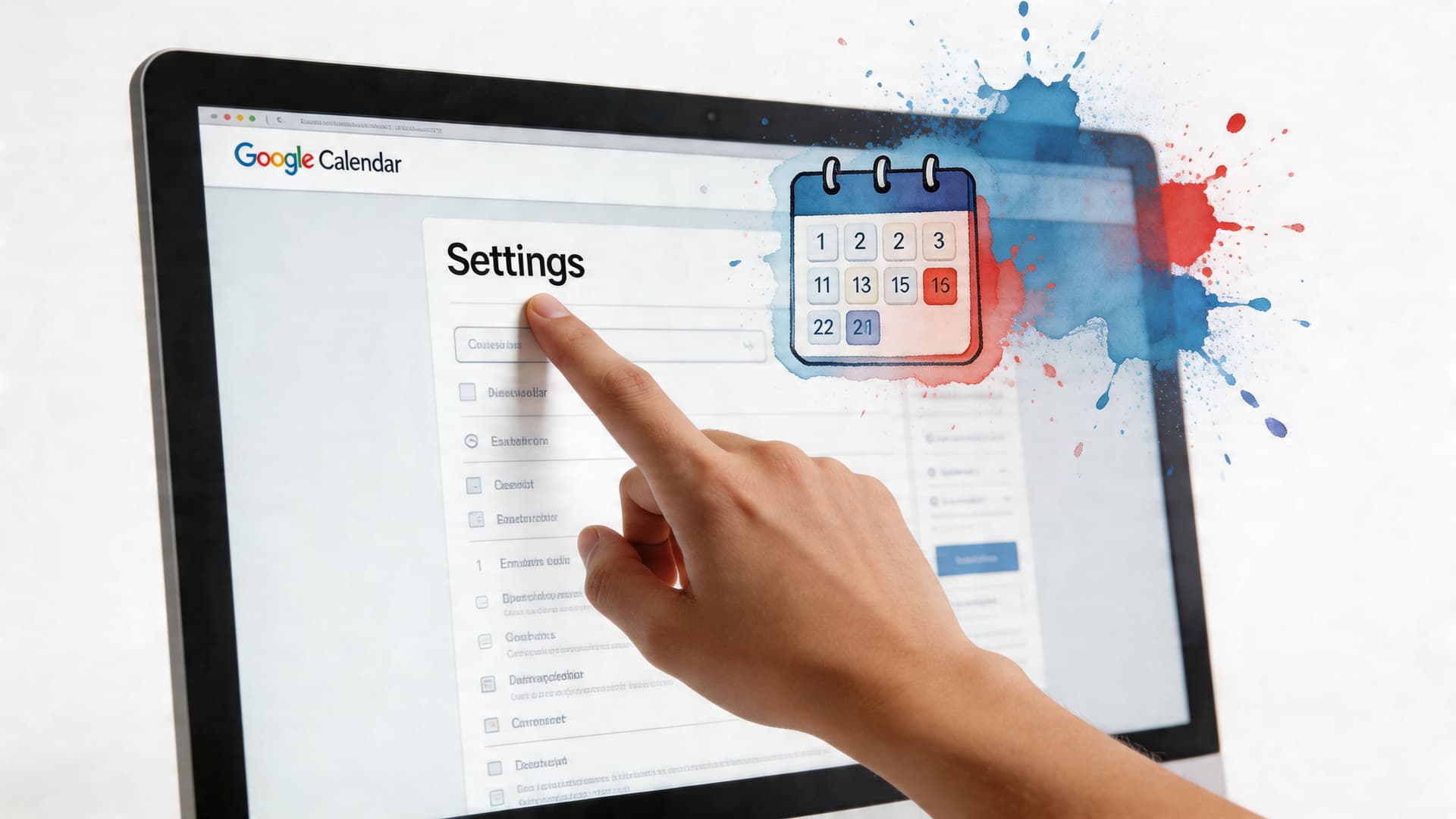
Where to click and why it matters
Open Google Calendar in a desktop browser, sign in, click the gear icon, and go to Settings. Under My calendars, choose the calendar you want to export, or use the broader import/export area if you want everything you own.
Ownership is the first thing to verify. Google’s native export creates an iCalendar (.ics) ZIP archive with separate .ics files for each calendar you own under “My calendars,” and it does not include calendars listed under “Other calendars” if you only have viewing or editing access, as noted in IFTTT’s guide to exporting Google Calendar.
That distinction matters in real operations. An executive assistant may manage a leader’s calendar every day and still be unable to export it. A project manager may see a team schedule but not have the rights to archive it for migration or reporting. Before you start, confirm who owns the calendar and who needs the exported file.
Single calendar versus all calendars
Google supports two practical export paths.
A single-calendar export is the better choice for testing, migration pilots, or pulling one project schedule into another system. The all-calendars export is better for backup, account cleanup, or a full move into a planning stack that needs every time block, meeting note, and recurring series.
Use this quick rule:
| Goal | Better choice |
|---|---|
| Move one project or one personal calendar | Export a single calendar |
| Back up your whole account history | Export all owned calendars |
| Test an import into another app first | Start with one calendar |
| Prepare a full archive for migration | Download the ZIP of all owned calendars |
Start with one calendar if quality matters.
That gives you a smaller file to inspect before you commit to a larger migration. Check the event titles, descriptions, time zones, recurrence patterns, and attendee details. If you use color coding to signal meeting type, client priority, or delegation status, verify what survives the export and what will need to be recreated in the destination system. Basic export guides often skip that step, but those metadata decisions affect how useful the file will be once it leaves Google Calendar.
Practical rule: Export one owned calendar first, inspect the .ics file and a test import, then export the full set.
A short walkthrough helps if you want a visual reference.
What you’ll get after download
Google usually delivers a ZIP file. After unzipping it, you’ll see one or more .ics files. That format is built for calendar-to-calendar transfer, so it usually carries over event timing, recurrence rules, descriptions, and attendee information better than a spreadsheet export.
There are trade-offs. Very long descriptions may be cut off, and complex recurring events can create exceptions that do not transfer cleanly. If your calendar doubles as an operating system for work, with handoff notes, agenda templates, owner tags, or task instructions stored in event descriptions, review a few exported events before relying on the file for a full migration.
What this method does well and where it falls short
Use the standard desktop export when you need a dependable calendar file with the least setup work.
It works well for:
- Migration to another calendar app: Outlook, Apple Calendar, and other calendar-aware tools handle ICS files well.
- Preserving event logic: Recurring meetings, start and end times, and attendee fields usually hold up better here than in flatter exports.
- Capturing operational context: Titles and descriptions often come through intact enough to support downstream use in systems that turn calendar events into tasks, reviews, or delegated work.
It is less useful when the calendar needs to become a spreadsheet for analysis. ICS keeps the calendar structure. It is not designed for filtering by owner, summarizing meeting load by category, or building a reporting table without extra conversion work.
Choosing Your Export Format ICS vs CSV
Choose the format based on what the calendar needs to do next.
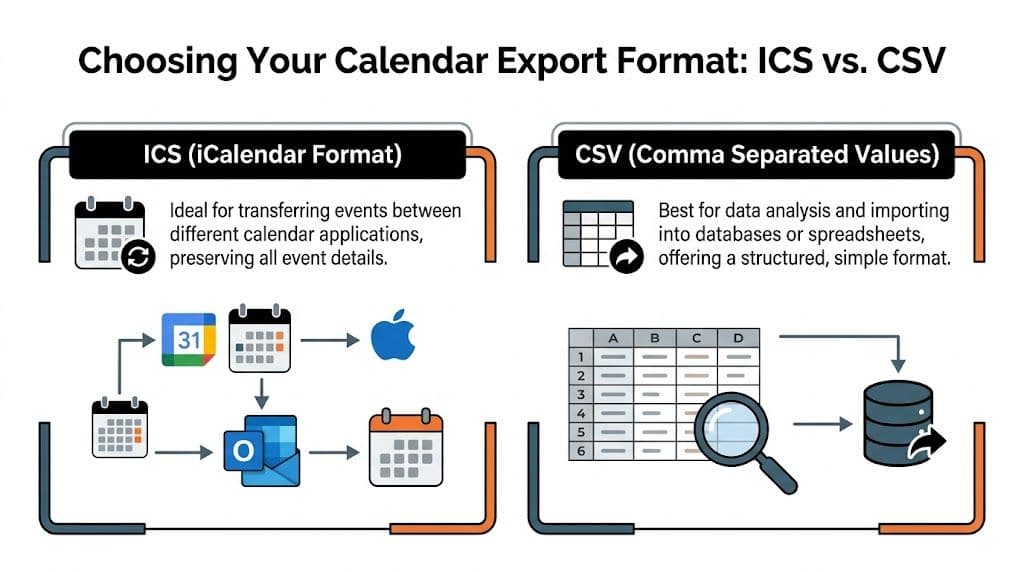
A lawyer handing off a matter calendar to a new firm needs one thing. A chief of staff trying to turn meeting load, follow-up notes, and delegation cues into an operating view for Fluidwave needs another. ICS and CSV serve different jobs, and choosing the wrong one creates cleanup work later.
When ICS is the right choice
ICS preserves calendar behavior. It keeps the event in a format calendar apps understand, including timing, recurrence patterns, attendees, and time zone data.
Use ICS when the destination is still a calendar-aware system, or when you want the closest thing to the original record. It is the better choice for:
- Calendar migrations: Moving events into Outlook, Apple Calendar, or another scheduling tool
- Operational continuity: Keeping recurring meeting patterns intact
- Context retention: Preserving descriptions, notes, and other event-level details that often matter in workflow systems
For advanced productivity setups, ICS is usually the better starting point when event descriptions carry instructions, handoff notes, or meeting prep context. That metadata often matters as much as the start time.
When CSV is the better tool
CSV turns the calendar into rows. That is useful when you need analysis, not calendar behavior.
Use CSV for workload reporting, billing review, capacity planning, spreadsheet cleanup, or imports into systems that expect structured tables. If the next step is sorting by owner, filtering by project, calculating hours, or mapping events into a task pipeline, CSV is easier to work with.
Google Calendar does not offer a native CSV export from the standard interface. According to Worklytics on exporting Google Calendar data to Excel and Power BI, teams often use Google Apps Script, Sheets-based workflows, or add-ons to convert calendar data into spreadsheet format for reporting and analysis.
That pattern makes sense. Analysts, operations leads, and executive support teams usually need a table they can edit, audit, and enrich.
A direct comparison
| Format | Best for | Strength | Weak point |
|---|---|---|---|
| ICS | Migration, backup, system transfer | Keeps calendar logic and richer event structure | Harder to analyze in spreadsheets |
| CSV | Analysis, reporting, workflow mapping | Easy to sort, filter, calculate, and transform | Flattens recurrence, attendees, and some context |
Choose ICS when the event needs to behave like a calendar item. Choose CSV when the event needs to behave like a record.
What works in real workflows
The safest process for many professionals is to keep both versions, but create them in the right order.
Start with ICS as the source record. Then convert the data into CSV if the next step involves analysis, dashboards, delegation tracking, or imports into a system like Fluidwave. That sequence protects the original structure before you flatten it for reporting.
I recommend this approach any time a calendar carries more than appointment data. Color coding, descriptions, recurring patterns, and title conventions often contain real operating logic. Once those details are flattened or inconsistently mapped into columns, reconstruction takes time.
The trade-off basic guides miss
Metadata quality often decides whether the export is useful.
If your team uses event colors to signal meeting type, descriptions to store agendas, and titles to indicate ownership or status, a plain CSV can lose the meaning unless you map those fields deliberately. ICS usually preserves more of that context, but it is less convenient for analysis. CSV is easier to manipulate, but it needs a cleaner extraction plan if you want the output to support task management, delegation, or review workflows.
Use this filter:
- Choose ICS when preserving structure and metadata matters most
- Choose CSV when sorting, auditing, and modeling the data matters most
- Use both when you need a reliable source file and a working analysis file
Advanced Archiving with Google Takeout
A standard calendar export works for a one-off transfer. Google Takeout is the better choice when the calendar itself is part of your operating history.
That matters during account changes, team restructuring, compliance reviews, or any migration into a system like Fluidwave where the event itself is only part of the value. Descriptions, calendar-level separation, and other context often drive follow-up, delegation, and reporting. If that context disappears, the archive becomes harder to trust.

Why Takeout is different
Google documents that you can export your calendars as a ZIP file containing individual .ics files through its Google Calendar export help. In practice, Takeout gives you a cleaner archiving workflow when you want a dated package you can store, audit, and reuse later.
The primary advantage is separation.
Instead of pulling a file for an immediate import, you create a snapshot of calendar data at a specific point in time. That is useful if you are leaving a company account, preserving planning history before reworking a team calendar structure, or preparing data for a shared system. If your next step involves redesigning ownership rules, it also helps to review your shared calendar setup for teams and projects before you import archived data into a new workflow.
How to use it without creating archive clutter
Takeout gets messy fast if you export your full Google account by default. For calendar archiving, keep the scope narrow.
Use this process:
- Deselect other Google services: Leave Calendar checked and remove everything else unless you have a clear retention reason.
- Choose a file size and delivery method you can manage: A direct download is usually easiest to verify and store.
- Download and inspect the archive right away: Open the ZIP, confirm the expected calendars are present, and check that the file names make sense.
- Rename the archive before filing it away: Include the account, export date, and purpose.
- Store the raw export separately from any converted working files: Keep the original archive untouched so you always have a clean source.
I use that last step often. Once teams start converting files, merging calendars, or stripping fields for analysis, it becomes much harder to trace a bad import back to the original record.
Archive first. Transform second.
When Takeout is the better call
Choose Takeout when you need a durable archive, not just a transport file. It is the safer option for account exits, long-term backups, and historical records you may need to revisit months later.
Use the standard export when speed matters and the job is narrow. Use Takeout when preserving calendar history, structure, and supporting metadata matters more than convenience.
Exporting from Mobile and Shared Workspace Calendars
Many people assume Google Calendar is more flexible than it is. It isn’t.
The mobile apps are good for managing a schedule, but they’re not great export tools. Shared calendars add another layer because access and ownership are not the same thing.

Mobile export is possible, but it’s rarely the first choice
If you’re on Android and specifically need CSV, tools that bridge phone data to a PC can work. According to Wide Angle Software’s guide on exporting calendar data, Droid Transfer offers a 95% success rate for mobile-synced data by connecting the phone to a PC, opening the Calendars section, and saving as CSV.
That sounds convenient, but there are trade-offs. The same source warns of 25% data loss on recurring events because RRULE data isn’t exported in CSV, and says encoding issues affect about 40% of users, especially with special characters.
So yes, mobile export can work. No, it usually isn’t the most faithful method.
What to do instead on mobile
If you only have your phone, the better move is often to open Google Calendar in a mobile browser and request the desktop site. It’s less elegant than the app, but it gets you closer to the actual export controls.
If you care about preserving more event detail, wait until you can use a desktop browser. That applies even more strongly if your calendar includes recurring events, detailed descriptions, or notes you plan to analyze later.
Shared calendars are where ownership matters
People often ask why a visible calendar won’t export. The answer is usually ownership.
A calendar shared with you may appear in your left sidebar, but that doesn’t mean Google will include it in your export. If it lives under Other calendars and you don’t own it, the standard export flow typically won’t package it with your files.
That’s especially important in team settings. You may need the calendar owner to export it, or you may need a Workspace admin to help if the calendar belongs to an organization.
A few practical checks save time:
- Look at where the calendar appears: If it’s under “Other calendars,” assume limits until proven otherwise.
- Confirm ownership before troubleshooting: Shared access doesn’t equal export permission.
- Ask for an owner-side export when needed: This is often faster than trying workarounds.
- Check collaboration setup: Team systems work better when shared calendar policies are deliberate, not improvised. If your team is still sorting that out, this guide on how to create a shared calendar is a useful baseline.
A shared calendar can be visible, searchable, and fully usable day to day, yet still not be exportable by the person viewing it.
Workspace calendars need cleaner governance
In Google Workspace, calendar data often reflects real operating systems. Recruiting schedules, on-call rotations, launch calendars, leadership meetings. If those records matter, don’t wait until someone leaves or a project ends to discover who owns them.
The best teams decide early who owns the calendar, who can edit it, and who is responsible for exporting or archiving it when needed.
Solving Common Export Problems
You export your calendar because you need it for something real. A migration, an archive, a workload review, or a handoff into Fluidwave. Then the file opens and half the logic is missing. The export probably did not fail. Google exported the basic calendar record, while your actual operating system lived in ownership settings, recurrence rules, colors, descriptions, and linked materials.
The export option is missing or greyed out
Check account context first. Busy professionals often stay signed into multiple Google accounts, and Calendar follows the wrong one.
If the calendar is visible but the export option is unavailable, confirm you are in the account that owns the calendar. Secondary calendars, delegated calendars, and organization-managed calendars often allow editing without allowing export. In that case, the fix is permission-based. Use the owner account or ask the owner to export the data you need.
This matters more than it sounds. If you are preparing data for a planning system, missing one calendar can distort capacity, meeting load, and delegation history.
The file downloads, but it looks incomplete
Start by checking the events that tend to break first. Recurring meetings with exceptions, all-day events, and long descriptions usually reveal problems faster than a random spot check.
A practical audit looks like this:
- Compare a few recurring series against the live calendar.
- Open events with long notes and confirm the description survived.
- Check whether canceled or modified instances still make sense after import.
- Verify time zones on older events, especially if the calendar spans travel or team changes.
For an archive, small inconsistencies may be acceptable. For analysis or automation, they are not. If you plan to structure the export for another system, including the kind of ongoing workflow described in this guide to syncing Google Calendar with Fluidwave, validate the sample before you transform the whole file.
Colors, attachments, and rich metadata often do not survive
Basic export guides often prove insufficient. An ICS file usually preserves event basics well enough for backup or migration, but it is weak at preserving the metadata people use to run work.
Color coding is a good example. In many teams, colors are not cosmetic. They signal client priority, meeting type, energy level, or whether an assistant needs to prepare materials. Descriptions matter for the same reason. They often contain agendas, handoff notes, Zoom links, and decision context. Attachments and linked docs can be even more important, yet standard exports may not retain them in a way that is useful downstream. Google’s own help documentation on importing and exporting calendars makes the basic export limits clear.
If your goal is Fluidwave, a task system, or any structured operations workflow, assume the default export gives you the schedule skeleton, not the full meaning.
What works better when metadata matters
Use a capture process that reflects how the calendar is used.
- Export for the job you need to do: Use ICS for backup or migration. Use tabular data if you need review, routing, or automation.
- Preserve descriptions intentionally: Long notes often carry delegation context, prep steps, and status clues that should become separate fields later.
- Document color meaning outside the calendar: If blue means client calls and green means deep work, store that mapping in a reference table.
- Record attachment URLs and linked resources separately: Treat them as part of the workflow, not as optional decoration.
- Test one conversion path first: If you plan to reshape the file, these secure offline CSV to JSON conversion methods are useful for keeping sensitive schedule data out of another cloud tool.
A plain export is fine for backup. It is rarely enough for a serious productivity system.
That is the trade-off. The faster method gets events out. The better method preserves the context you need to review work, assign it cleanly, and rebuild the calendar into something a person or a system can use.
Putting Your Exported Calendar Data to Work
The export itself is only the release valve. The gain comes from what you do next.
Some people need a clean archive. Others need to move events into another calendar app. But the most valuable use is usually analysis. Once your calendar is outside Google, you can review how time was spent, identify repeated commitments, spot delegation candidates, and rebuild old patterns into something more deliberate.
If you convert calendar data into spreadsheet form, keep the transformation step tidy. For teams that need structured handoff into automation or custom systems, these secure offline CSV to JSON conversion methods are useful when you want to reshape export data without sending sensitive schedule information through another cloud service.
A practical end-state looks like this:
- ICS for backup or migration
- CSV for analysis
- JSON or structured tables for automation and integration
If your next goal is an operating system that stays synced with your schedule, it also helps to understand how ongoing calendar connections work after the export step. This guide on syncing with Google Calendar is the next logical move once you’ve cleaned and organized the data you pulled out.
The point isn’t just to know how to export a Google Calendar. It’s to stop treating your schedule like a closed container and start using it as one of the most accurate datasets in your work.
If you want a calmer way to turn calendar activity into prioritized action, Fluidwave gives you a place to organize tasks, work across calendar and list views, collaborate in real time, and delegate specific tasks to virtual assistants without committing to a subscription. It’s a practical next step when your exported calendar data shows you what needs to happen, but you still need a better system for getting it done.
Focus on What Matters.
Experience lightning-fast task management with AI-powered workflows. Our automation helps busy professionals save 4+ hours weekly.