Master Google Calendar time blocking with this guide. Learn to plan, create templates, handle interruptions, and sync tasks for ultimate schedule control.
April 17, 2026 (5mo ago)
Master Google Calendar Time Blocking & Boost Productivity
Master Google Calendar time blocking with this guide. Learn to plan, create templates, handle interruptions, and sync tasks for ultimate schedule control.
← Back to blog
Your calendar probably looks full. That doesn’t mean it’s doing its job.
A lot of busy professionals live inside a pattern that feels productive on the surface. Meetings fill the day. Slack pings slice up the gaps. Email becomes the default task between calls. By late afternoon, you’ve been active for hours and still haven’t touched the work that moves anything forward.
That isn’t a discipline problem. It’s usually a calendar problem.
google calendar time blocking works because it changes the role of your calendar. Instead of acting like a passive record of other people’s demands, it becomes the place where your priorities get protected first. Done well, it’s simple, flexible, and surprisingly durable even when the day goes sideways.
Why Your Current Calendar Isn't Working for You
The most common failure pattern is a reactive schedule.
You start the day with good intentions. Then a meeting gets moved. Someone asks for a “quick look.” A message comes in that feels urgent. Your task list is still there, but it lives outside the calendar, so it keeps losing to whatever is loudest.
That’s why so many capable people feel busy and behind at the same time.
A lot of workers still run their day from lists alone. A 2024 Timewatch study on time management statistics found that 48% of workers rely on to-do lists, while only 5% use dedicated time blocking. That gap matters. Lists are good for capture. They’re weak for protection.
What changes results: A task only becomes real when it has both a priority and a place on the calendar.
A to-do list asks, “What should I do next?”
A time-blocked calendar asks, “When will this happen, and what gets pushed out to make room for it?”
That second question is where most of the value lives.
The hidden cost of open space
An empty calendar looks flexible, but it often creates friction. If your afternoon has “free time,” that block usually gets eaten by shallow work, random follow-ups, and unplanned meetings. Deep work rarely wins by accident.
This is why people who switch to google calendar time blocking often describe relief before they describe efficiency. The calendar stops being a source of guilt and starts becoming a decision tool.
Intentional beats ideal
Time blocking doesn’t mean scripting every minute. It means making a few decisions earlier, while your brain is calm, instead of making dozens of them later under pressure.
That shift is a true upgrade. You stop reacting to the day. You start shaping it.
Laying Your Time Blocking Foundation in Google Calendar
Many individuals make time blocking harder than it needs to be. They create one crowded calendar, assign too many colors, and try to plan an ideal week they won’t follow.
A better setup is lighter and more practical.
Create separate calendars for different kinds of work
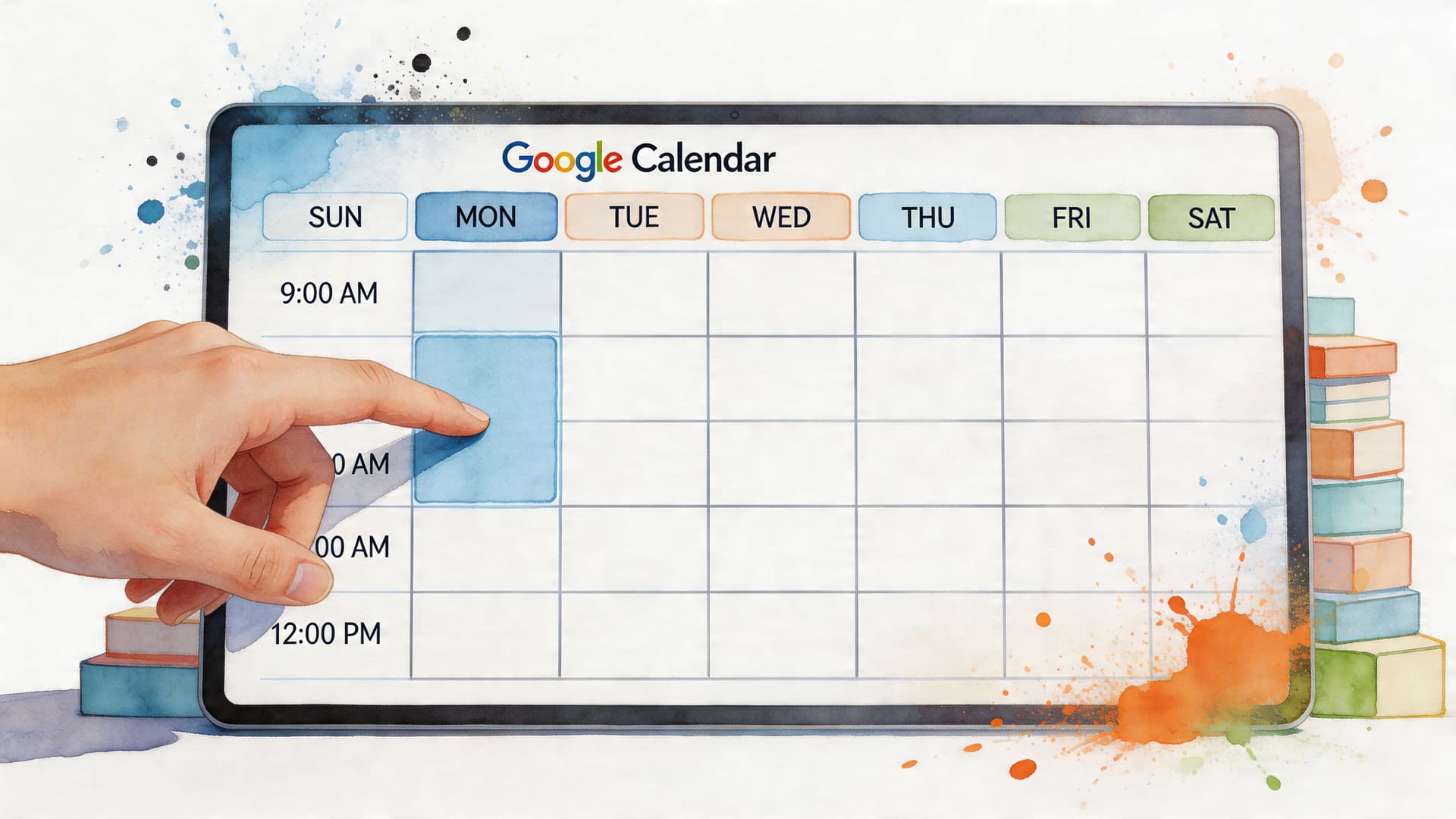
The most useful foundation is a multi-calendar system. The core methodology for Google Calendar time blocking starts with creating dedicated, toggleable calendars for different activity types so you can plan flexibly without deleting events.
A clean version looks like this:
- Main calendar: Fixed appointments, client calls, personal commitments, deadlines you can’t move
- Deep work calendar: Writing, analysis, strategy, design, coding, planning
- Admin calendar: Email, approvals, expense review, inbox cleanup
- Planning calendar: Weekly review, daily setup, project check-ins
Toggleable calendars make editing easier. If you want to see only hard commitments, you can. If you want to review whether your week has enough focus time, you can do that in seconds.
Keep your color system boring
Color coding helps when it reduces thinking. It hurts when it becomes decoration.
Use a small system you can remember:
| Calendar type | Suggested use | Simple color cue |
|---|---|---|
| Fixed commitments | Meetings, appointments, calls | Green |
| Deep work | Focus blocks for meaningful work | Blue |
| Admin | Email, paperwork, routine follow-up | Gray |
| Personal | Exercise, family, appointments | Yellow |
If you need to check a legend every time you look at your calendar, the system is too complicated.
A good calendar should explain your day at a glance. If it needs interpretation, simplify it.
Use the right event type
Google Calendar gives you more than standard events, and those choices matter.
Focus Time is useful when you want the calendar itself to help protect your work. It’s a better fit than a generic event when you need fewer interruptions. Out of Office is best for true unavailability like leave, medical appointments, or personal time you don’t want treated like “open” capacity.
Regular events still have a place. I use them for routines, planning blocks, and anything that doesn’t need special behavior.
A simple rule works well:
- Use Focus Time for concentration-heavy work.
- Use Out of Office for hard boundaries.
- Use standard events for recurring structure and flexible blocks.
Set up visibility before you need it
If colleagues or clients can see your availability, decide in advance how blocked time should appear. Some people prefer detailed titles. Others keep blocks generic and private.
What matters is consistency. If your blocked time sometimes means “real work” and sometimes means “available if asked,” people learn to ignore it.
That teaches your calendar not to protect you.
How to Build and Template Your First Time-Blocked Week
A strong setup helps, but the true test is what happens on Sunday night, Monday morning, and Thursday at 2:15 when the week is no longer clean.
The trick isn’t building a perfect week. It’s building one that can bend without collapsing.
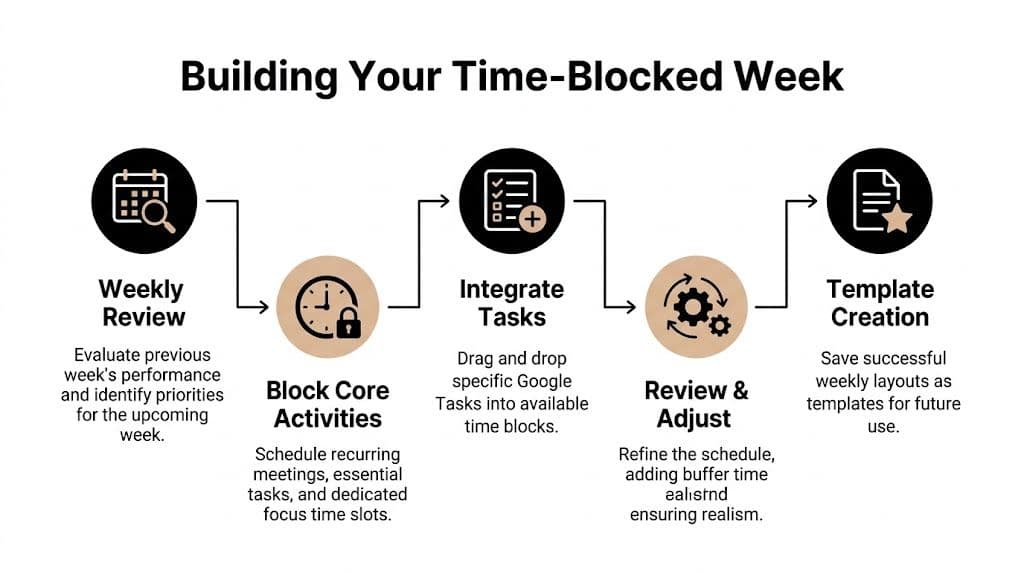
Start with a weekly review
Before you drag blocks onto a calendar, decide what the week is for.
Look at open projects, upcoming meetings, deadlines, and anything personal that will affect your working capacity. Then identify a short list of outcomes that would make the week feel solid. Not ideal. Solid.
That gives your calendar direction.
A useful weekly review asks:
- What must happen: Commitments and deadlines that are fixed
- What matters most: Work that creates progress, not just motion
- What can wait: Tasks that don’t deserve premium hours
- What usually blows up the week: Travel, approvals, launches, family logistics, end-of-month admin
Block the immovable pieces first
Put meetings, appointments, and recurring commitments on the calendar before you block task work. Then add your best focus windows. For many people, those are earlier in the day, before communication starts taking over.
This is also where recurring blocks help. Put routine work on autopilot where you can.
Examples:
- Email block: Once or twice a day instead of constant checking
- Weekly review: Same day, same time
- Operations admin: A repeating slot for approvals, invoices, and cleanup
- Planning block: End-of-day review to set up tomorrow
A reusable weekly rhythm saves effort because you stop rebuilding from scratch. If you want a starting point, a practical way to map a repeatable structure is to use a time blocking schedule template.
Here’s a simple model that works well:
| Time block type | Best use | Common mistake |
|---|---|---|
| Morning focus block | Deep work, thinking, creation | Booking meetings into it |
| Midday admin block | Email, approvals, responses | Letting it expand all afternoon |
| Afternoon collaboration block | Calls, reviews, team syncs | Using it for work that needs concentration |
| Shutdown block | Plan tomorrow, close loops | Skipping it when busy |
A walkthrough can help if you want to see the workflow in action.
Draft daily, not weekly in full detail
Often, many people fail. They plan the entire week down to the hour, then reality breaks the plan by Tuesday.
A more durable approach is weekly structure, daily drafting.
Give the week a shape. Then draft each day with enough detail to guide action, not enough detail to create brittleness. You’re not trying to predict everything. You’re giving today a useful order.
Practical rule: Keep your weekly plan broad and your daily plan specific.
That one change makes time blocking far easier to keep.
Protect your schedule with buffers
Buffers look unproductive until you’ve lived without them.
Small gaps between blocks absorb the normal friction of work. A call runs over. You need a reset before switching tasks. A document takes longer to finish. Without buffers, one delay wrecks the next three blocks.
Short transition blocks are especially helpful around meetings and before deep work.
Use buffers for:
- Context switching: A few minutes to close one mode and enter another
- Triage: Handling urgent items without stealing an entire hour
- Recovery: A short walk, notes cleanup, or mental reset
- Rescheduling: Moving unfinished work instead of pretending it vanished
Build templates from what already works
Don’t create a template from theory. Create it from a week that felt functional.
Maybe your best week has two strong focus mornings, clustered meetings in the afternoon, and a protected Friday review. Save that pattern. Keep the structure, not the exact tasks.
That’s how templates become useful. They reduce planning load while leaving room for the specifics of the week in front of you.
Integrating Google Tasks and Handling Real-World Chaos
For a long time, Google Calendar had an obvious weakness. Tasks and calendar time lived too far apart. You could list the work or schedule the day, but bridging the two cleanly took effort.
That changed with Google’s task update.
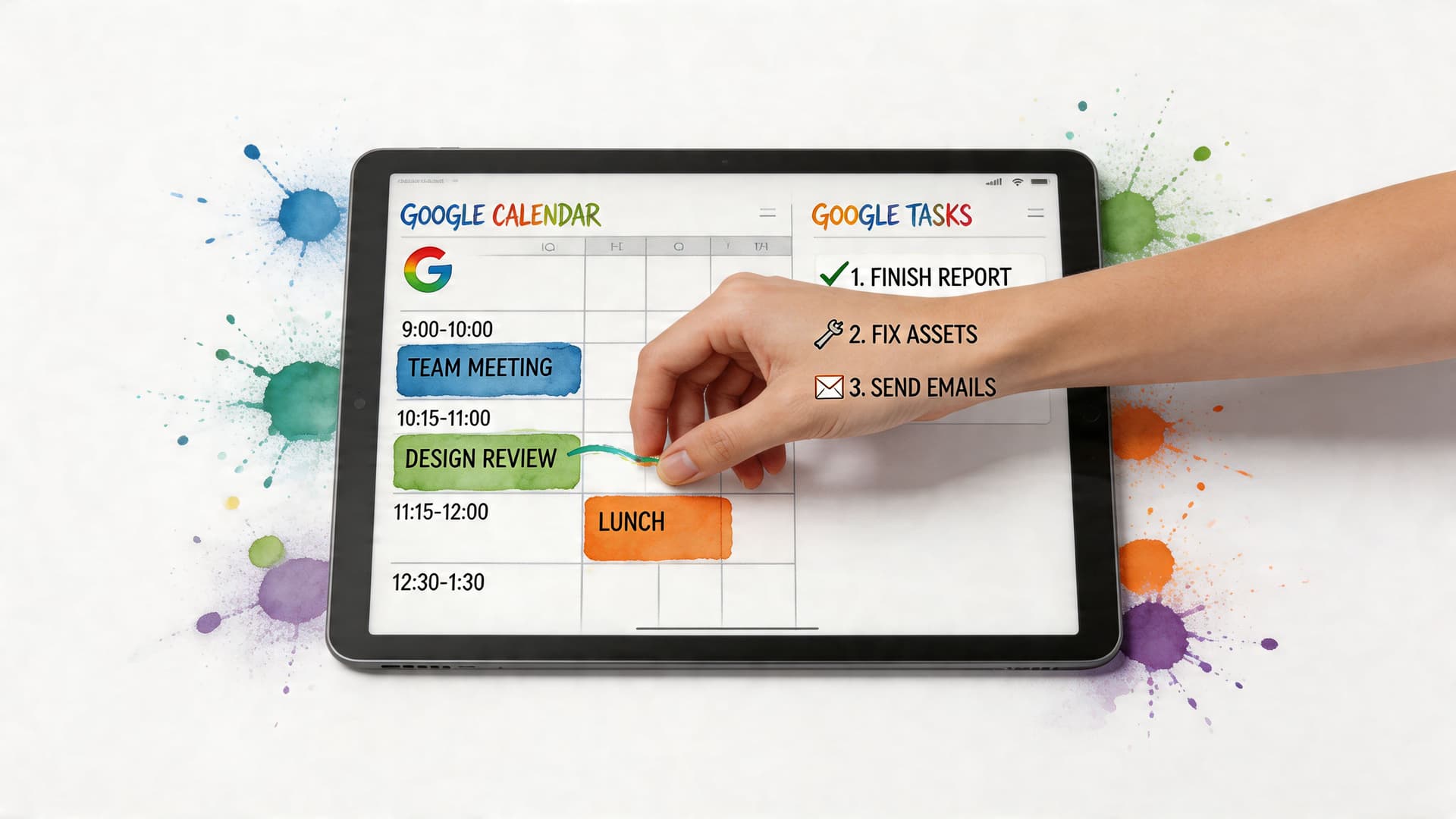
In November 2025, Google Calendar started rolling out an update that lets users block specific time slots for Tasks, mark those blocks as busy, and auto-reject conflicting meetings. The rollout details and feature behavior are described in this report on the Google Calendar Tasks busy-status update. It addressed a very real annoyance. People had been creating fake meetings just to protect task time.
Why this changes the system
When tasks can hold real calendar space, your task list stops acting like a wish list.
That’s a practical improvement because blocked task time now behaves more like meeting time. It becomes visible. It gets protected. It’s harder to casually overwrite.
If you already keep work in Google Tasks, that means less friction between capture and execution. If your workflow spans tools, keeping your calendar and task system aligned still matters. This guide on how to sync with Google Calendar is useful when you want blocked time and task visibility to stay connected.
What to do when the day breaks
No scheduling method survives untouched. A good one recovers quickly.
When a surprise meeting lands, don’t just let the lost block disappear. Drag it somewhere else immediately, even if the new slot is rough. Rescheduling preserves trust in the system. “I’ll do it later” usually means “this will become tomorrow’s stress.”
When a task overruns, use one of three responses:
- Extend the block if the work is still the highest-value thing on your plate.
- Shrink the scope if a partial finish still creates meaningful progress.
- Move the remainder into the next available block and rename it clearly.
That third move matters. Vague carryover creates friction. Specific carryover gets done.
A short chaos playbook
| Situation | Bad response | Better response |
|---|---|---|
| Urgent meeting appears | Delete your focus block | Move it to the next realistic slot |
| Task takes longer than planned | Keep pushing everything back | Stop, assess, then reduce scope or reschedule |
| Energy crashes | Force deep work anyway | Swap in lower-cognitive admin work |
| Day becomes overloaded | Add more blocks | Remove or defer lower-value tasks |
When your schedule breaks, repair it fast. Don’t wait until evening to admit the plan is gone.
That habit makes time blocking sustainable. The calendar doesn’t need to be perfect. It needs to stay honest.
Advanced Time Blocking for Teams and Power Users
Solo time blocking is useful. Team time blocking is where scheduling starts influencing output across a whole group.
Many teams don’t have a time problem in the abstract. They have a coordination problem. People work from separate lists, separate calendars, and separate assumptions about who is available for what.
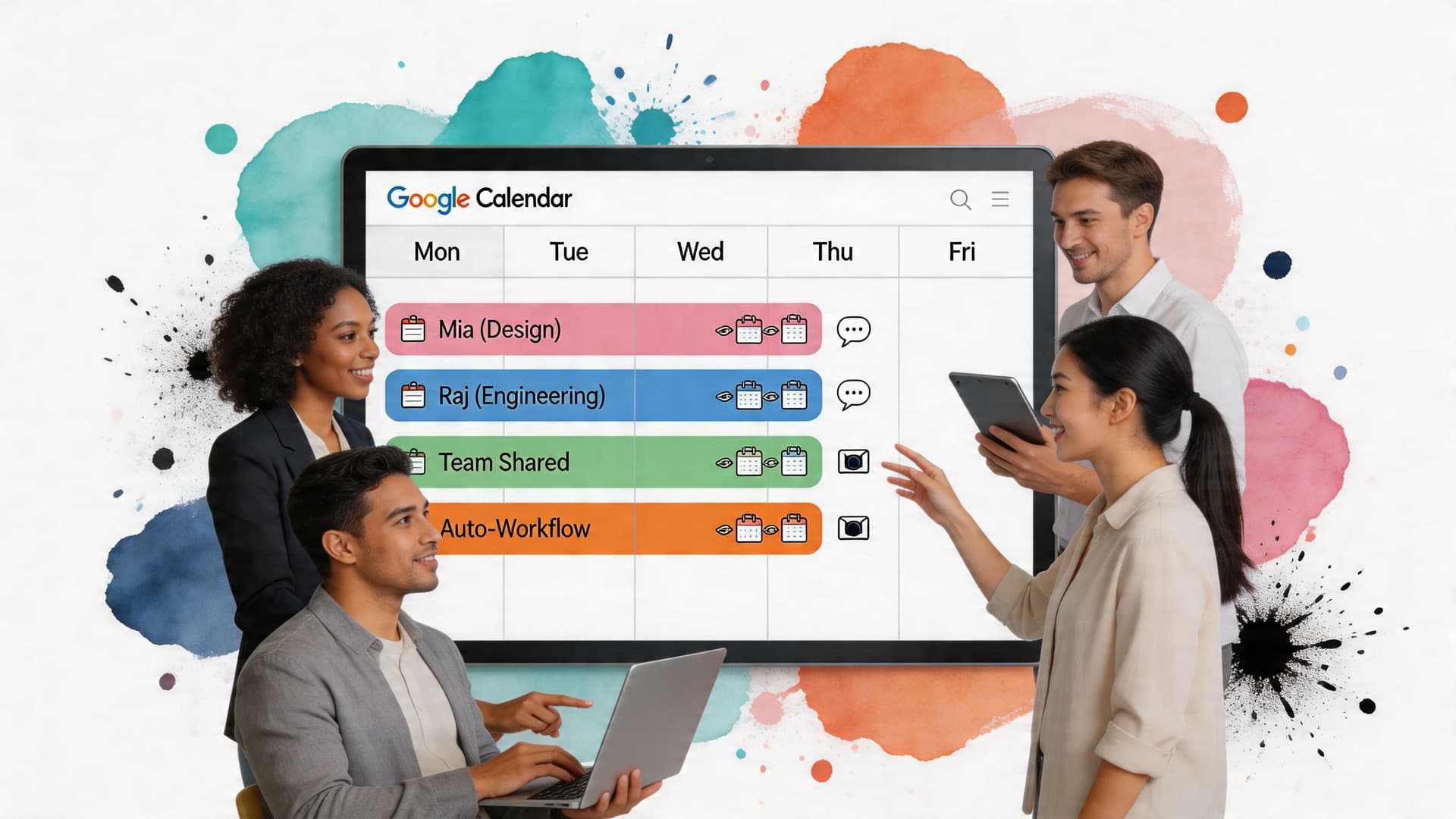
A gap in current guidance is how to use Google Calendar’s task-blocking update for collaboration and delegation. That matters because 62% of project managers cite scheduling conflicts as a top blocker in dynamic workflows.
Shared visibility beats hidden busyness
If you lead a team, don’t just encourage people to block time privately. Define a shared language for calendar visibility.
For example:
- Focus blocks are visible and respected
- Collaboration windows are the default slots for meetings
- Handoff work gets a named block, not a vague due date
- Recurring check-ins happen in known windows, not by constant ad hoc requests
This reduces the classic problem where everyone says they’re slammed, but nobody can see the shape of the work.
Delegation works better when time is attached
A delegated task with no time context is easy to delay. A delegated task tied to a specific block is far clearer. The assignee understands not just what matters, but when it fits the broader workflow.
That’s especially useful for founders, operators, and freelancers working with assistants. Instead of sending a loose task list, you can assign work in relation to actual calendar capacity. In tools that combine scheduling and delegation, that workflow gets tighter. Fluidwave lets users organize tasks in a calendar view and delegate them to virtual assistants within a defined workflow, which is useful when a blocked task needs to move from “I should do this” to “someone owns this now.”
Automation is useful when it removes clerical work
Power users often over-automate too early. The better use of automation is boring and selective.
Good candidates include:
- Creating calendar blocks from recurring project tasks
- Turning routine follow-ups into recurring admin slots
- Syncing task status with the calendar so people don’t schedule over active work
- Pulling starred or flagged work into a review queue before planning time
If you use Zapier, IFTTT, Trello, or Asana, the goal isn’t to create a futuristic dashboard. It’s to reduce manual re-entry and keep your calendar aligned with your actual work.
Adapting Time Blocking for Your Unique Brain
A lot of productivity advice implicitly assumes a predictable brain, stable energy, and low friction when switching tasks. That’s not how many people work.
This is especially true for people with ADHD, autistic professionals, and anyone whose attention changes sharply across the day. Standard time blocking advice can feel neat on paper and punishing in practice.
Most guides miss those realities. The ADHD-focused time blocking guidance here notes that many resources overlook executive dysfunction and time blindness, while flexible buffer blocks were associated with a 25% productivity gain for neurodivergent users in a 2024 study.
Replace rigid blocks with flexible categories
If assigning “Write proposal from 9:00 to 10:00” makes you freeze, don’t force it.
Use themed blocks instead:
- Admin hour
- Client work
- Writing window
- Low-energy tasks
- Catch-up block
That gives structure without overcommitting to a level of precision your brain may resist.
For many people, it also helps to color-code by energy demand, not by project. A certain color can mean “requires a fresh brain.” Another can mean “safe when foggy.” That turns the calendar into a decision aid instead of a judgment tool.
Use buffers to reduce anxiety, not just delays
Buffer blocks are often framed as protection against overruns. For neurodivergent users, they also reduce transition stress.
That matters when switching tasks feels expensive. A short transition block can hold note cleanup, movement, a snack, or the mental runway needed to start the next thing cleanly.
If you want broader mental health context, these strategies for coping with ADHD and Autism are a useful companion to scheduling tactics because they address regulation, overwhelm, and day-to-day coping more directly.
Build a system that can absorb hyperfocus
Hyperfocus isn’t always the enemy. Sometimes it produces your best work.
The problem starts when the calendar treats it as failure every time it runs long. A better approach is to create one or two flex blocks in the week. Those can absorb spillover from high-focus sessions without wrecking everything behind them.
If standard scheduling advice has felt too rigid, this guide on time blocking for ADHD offers a more adaptive approach built around variable attention and lower-friction planning.
The right system doesn’t force your brain to behave differently on command. It gives your brain a structure it can actually use.
From a Reactive Schedule to an Intentional Life
The point of google calendar time blocking isn’t to turn yourself into a machine.
It’s to stop giving your best hours away by default.
When you block time well, the calendar becomes a record of intention. It holds deep work, protects recovery, makes space for real priorities, and gives you a way to recover when the week gets messy. That’s a very different experience from living inside an endless stream of requests.
If you’re also trying to improve the bigger picture, not just your workday, this article on effectively balancing your time is worth reading. It complements calendar tactics with a healthier lens on capacity and trade-offs.
You don’t need a perfect system. You need one that helps you choose on purpose, adjust without drama, and return to what matters.
If you want a tool that supports that kind of workflow, Fluidwave combines task organization, calendar views, automation, and delegation to virtual assistants in one place, so you can protect focused work and offload tasks that don’t need your direct attention.
Focus on What Matters.
Experience lightning-fast task management with AI-powered workflows. Our automation helps busy professionals save 4+ hours weekly.