Learn what a task management board is, the main types like Kanban and Scrum, key benefits, setup best practices, and real layout examples for busy teams.
October 19, 2026 (Today)
Task Management Board: A Practical Guide to Better Workflows
Learn what a task management board is, the main types like Kanban and Scrum, key benefits, setup best practices, and real layout examples for busy teams.
← Back to blog
The inbox is filling up, a chat message has just been marked urgent, and a meeting has added another task to the project tracker. Each place now tells a different story about what matters most, and you're left trying to hold the whole operation together in your head.
A task management board can give that work one shared place to land. Used well, it doesn't just display a list of tasks. It helps people see what's planned, what's moving, who owns the next step, and what needs attention before an interruption pushes everything else aside.
What a Task Management Board Actually Does
At first, a board can look like a tidy version of a to-do list. The difference shows up when the work starts moving. A to-do list records tasks; an active board shows each task's state, owner, and next step as it passes through a workflow.
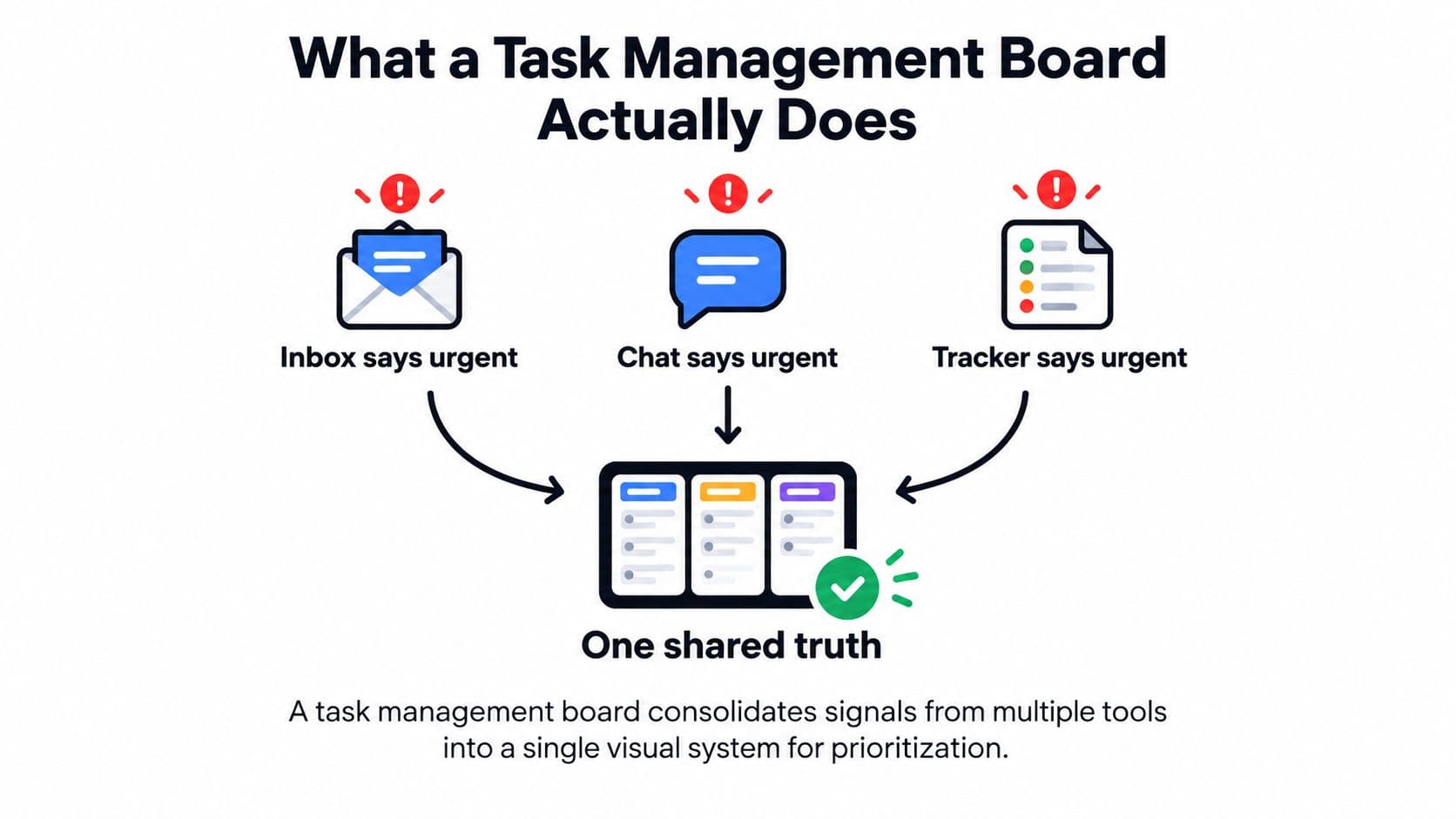
Say a client request arrives by email, a teammate flags a blocker in chat, and a manager adds a deadline in the tracker. If those details stay scattered, people must keep checking several places and asking each other what's current. On a shared board, each piece of work becomes a card that can be prioritized, assigned, and moved through agreed stages.
That visibility matters because coordination is a memory problem as much as a planning problem. When a card names an owner and makes its status clear, teammates don't need to reconstruct the story from old messages or interrupt the owner for a routine update. They can look, understand what's happening, and ask for help only when a real decision or obstacle needs attention.
The board also helps a team recover after interruptions. A person returning to a task can see its context, what remains, and who's waiting, instead of spending time piecing the work back together from memory.
Working model: Treat the board as a shared map of work, not a warehouse for every idea anyone has ever had.
That distinction is useful when a task has several people involved or changes hands more than once. A resource such as book the forever task map can help readers think about organizing ongoing responsibilities alongside a team's day-to-day workflow.
From the Factory Floor to Your Laptop
The board didn't begin as a software feature. Its roots reach back to manufacturing, where people needed a practical way to see what work was needed and where it was getting stuck.
Toyota's history describes how the company introduced its supermarket method in 1954 after studying a report on replenishment practices at a Lockheed aircraft plant in the United States. The idea was to replenish what had been used rather than produce everything according to a fixed forecast. Toyota later added production instruction cards with details such as the product name, product number, and quantity. Those cards helped make the method a form of kanban, a word meaning “signboard.” (Toyota's account of its production system)
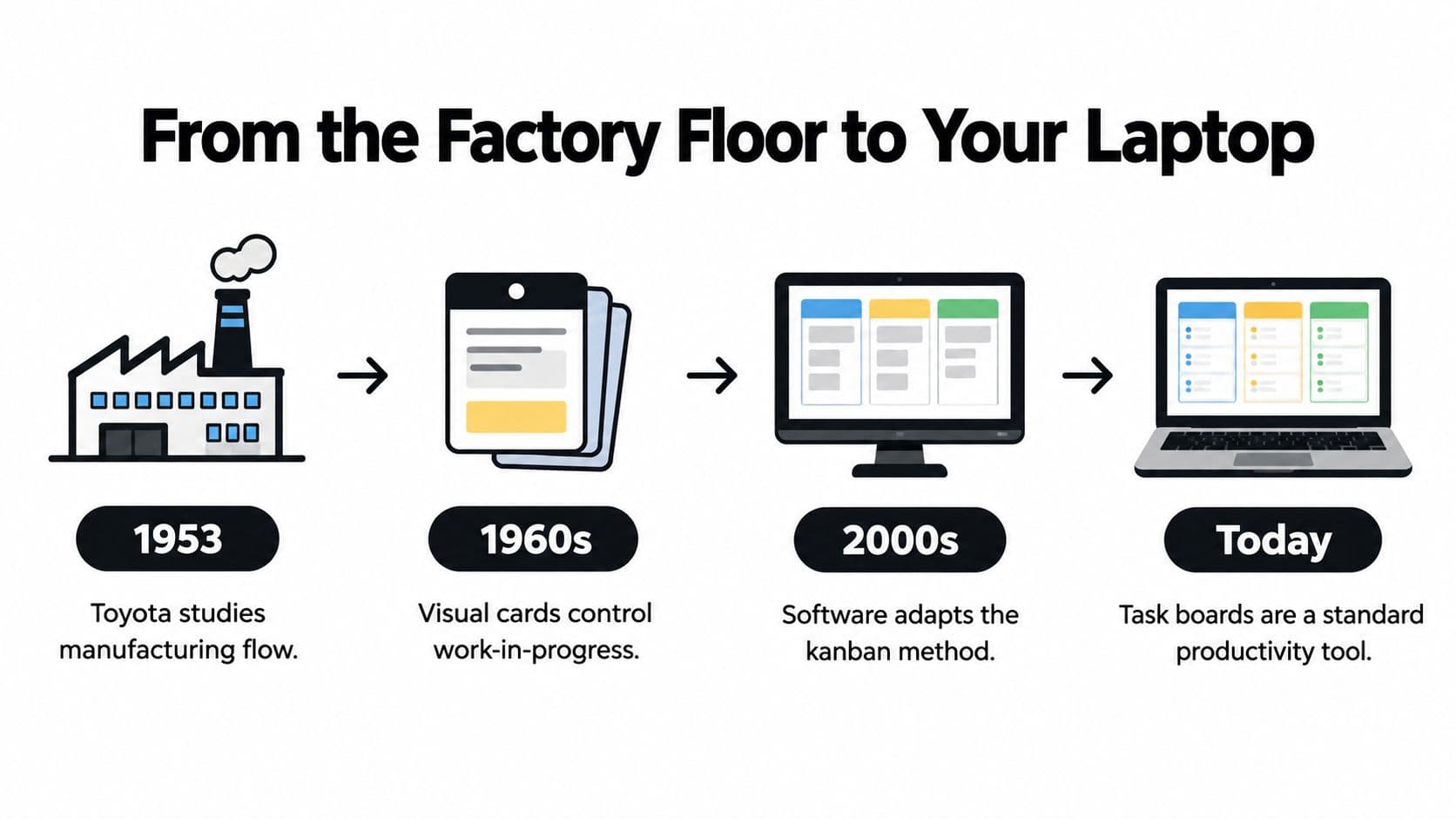
On a factory floor, a downstream station signaled what it needed from the station before it. The signal mattered: work moved because there was demand for it, not because someone had started another batch. Toyota reports that kanban management had been adopted across all its plants by 1963. That history shows the board's basic logic at scale: represent work as visible units, show where each unit stands, and use clear signals to decide when more work should begin.
A modern team might use columns called Backlog, In Progress, and Done instead of production stations. The setting has changed, but the operating idea is familiar. A card represents a piece of work; its position communicates progress; and a full stage can tell the team to resolve a bottleneck before adding more.
That's a useful story to tell a team that sees boards as decoration. The board's purpose is to coordinate the movement of work, not just to make tasks look organized. For managers connecting this approach to product work, SigOS's Agile guide for product managers offers another perspective on aligning planning with execution.
The Four Board Types You Will Meet
A board's shape should match the kind of decision people need to make. If the main question is “What's moving?”, a visual flow may help. If it's “What fits this week?” or “What's due when?”, another view may be more useful.
Kanban is the river of cards. Work flows across columns such as To Do, Doing, and Done, making it a natural starting point for continuous work like support requests or ongoing operations. It can become noisy, though, if the board collects every idea without clarifying what's ready to start.
Scrum uses a similar visual arrangement, but connects it to a fixed sprint and a planned body of work. It suits a team that agrees on a near-term goal and wants to review progress together. The timer provides a boundary, but it doesn't automatically make the work manageable. If the team keeps adding tasks during the sprint, the board may look orderly while the commitment becomes unreliable.
Table or list view behaves like a spreadsheet or a well-kept checklist. People can sort and filter work by owner, due date, or category, then make updates across many items. It's useful for someone who wants precision and quick scanning, but it can make handoffs and bottlenecks less obvious than a flow view.
Calendar view acts like a planner. It helps people see when work is expected and whether deadlines collide, which is useful when schedules matter more than the order of workflow stages. A calendar can show that tasks have dates, but it won't necessarily reveal why work is waiting.
If you're working solo and need to choose a next action, try a simple list or Kanban view. A small team coordinating ongoing work can start with Kanban; teams committed to fixed planning cycles may prefer Scrum. If stakeholders mainly ask when something will be done, a calendar view can make deadlines easier to discuss. Fluidwave's visual task management guide offers more context on matching task views to how work needs to be seen.
| Board type | Shape | Best for | Watch out for |
|---|---|---|---|
| Kanban | Cards moving through columns | Continuous work and visible handoffs | A cluttered backlog can hide what's ready |
| Scrum | A Kanban-style board tied to a sprint | Teams planning around a shared cycle | New work can undermine the sprint plan |
| Table or list | Rows with sortable fields | Filtering, tracking details, and bulk edits | Workflow bottlenecks may be harder to spot |
| Calendar | Tasks placed against dates | Deadline visibility and schedule planning | Dates alone don't show why work is blocked |
Why Limits Matter More Than Labels
A colored label can describe a task. It can't stop a team from starting too many tasks at once. A work-in-progress limit, or WIP limit, does that by capping how many items may occupy a workflow stage.
When a column reaches its limit, the team has to deal with what's already there before pulling more work in. That might mean finishing an item, splitting a task that's too large, or resolving a blocker. The rule counters a familiar failure: everyone starts something, but not enough work gets finished.
Atlassian recommends setting WIP limits collaboratively, then adjusting them after observing how many items typically sit in each status across several sprints. The limit shouldn't be a badge or a management decree. It's a working control that helps the team respond to congestion. (Atlassian's guidance on Kanban WIP limits)
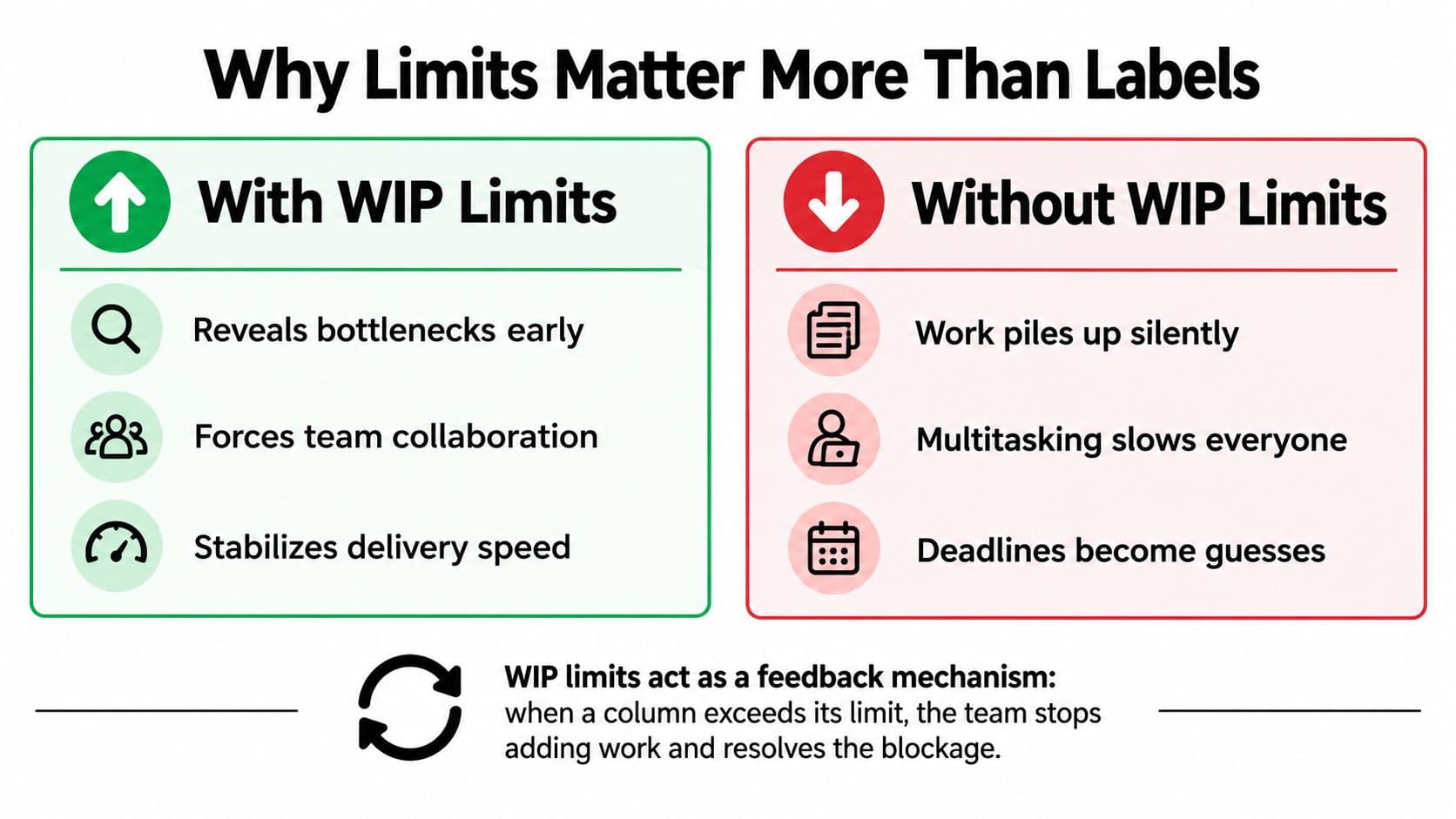
There's a trade-off, so teams shouldn't assume that tighter limits always mean more output. Research on Kanban and Constant WIP systems finds that regulating WIP can reduce the time a job takes to pass through a system, while also reducing total throughput and increasing the share of time workers spend waiting or processing each job. In practice, a team may prefer shorter cycle times or higher total throughput, depending on its work and commitments. (Research on Kanban and Constant WIP systems)
A useful board makes that trade-off visible through a few measures: cycle time, throughput, blocked-task age, and queue size. If Review keeps filling up, the answer may be to improve review capacity or clarify approval rules, not to add more labels. Set separate limits for stages with different bottlenecks rather than assuming every column needs the same cap.
Practical rule: When a stage is full, don't quietly add another card. Decide together what must move, change, or stop first.
For more examples of how to use this control, see Fluidwave's guide to work-in-progress limits.
Setting Up Your First Board Without Overbuilding It
Your first board should be simple enough that a teammate can understand it without a tour. Start with a small workflow, then add detail only when the work repeatedly gets stuck or people need information the board doesn't show.
A practical starter can use Backlog, To Do, In Progress, Review, and Done. Backlog holds ideas that aren't ready; To Do contains work the team has chosen to start; In Progress is active work; Review means someone needs to check the result; Done means the agreed outcome has been met. Combine stages if your workflow doesn't need all of them.
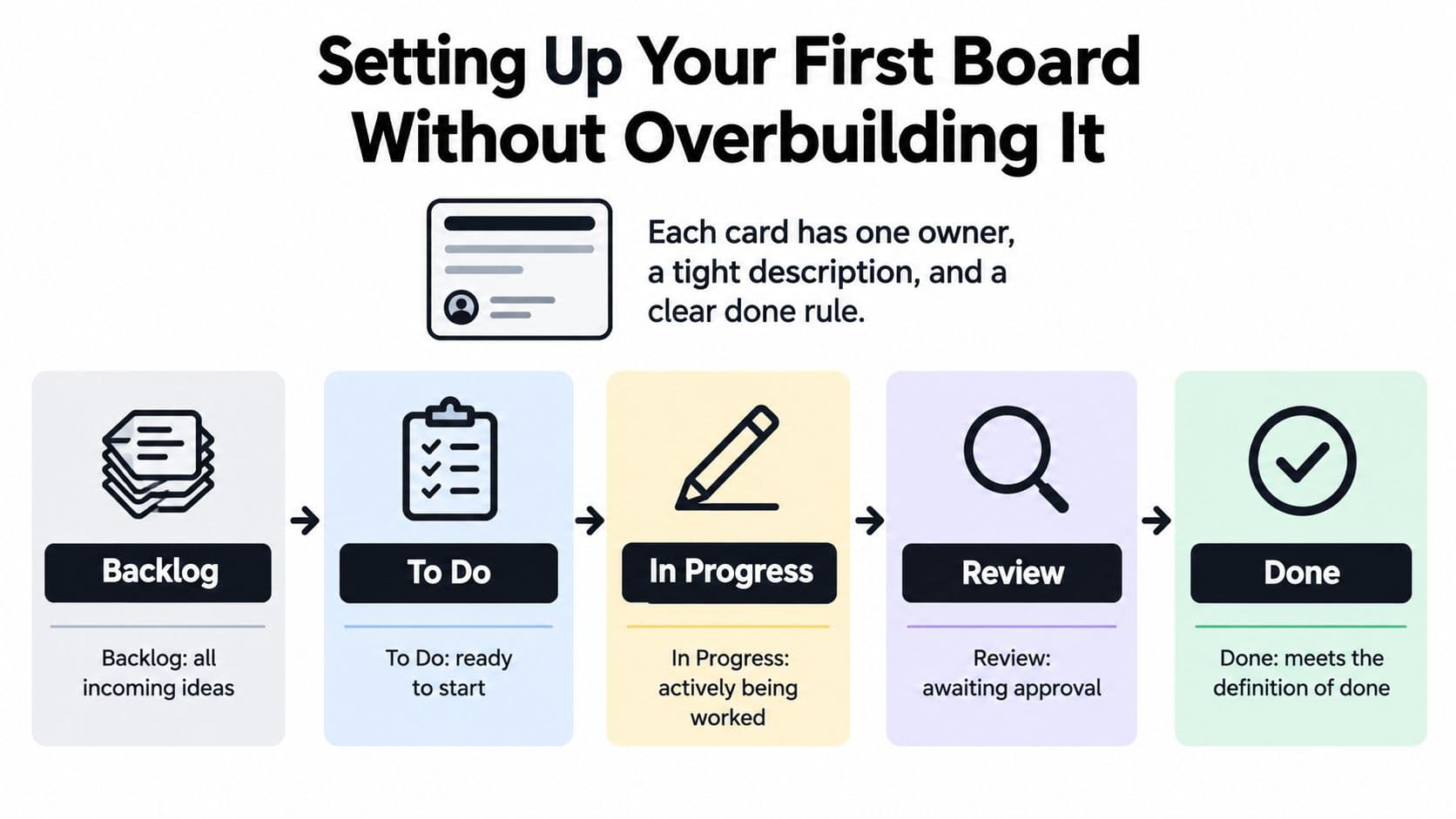
Keep each card readable. A useful card has a clear outcome in its title, a short description, one owner, relevant context or dependencies, and a definition of done. Put a deadline on it when the work has a real date constraint. If “prepare launch materials” is too broad to finish or hand off, split it into separate outcomes that someone can complete and review.
Delegation also needs more than a name in the owner field. Project Management Institute material describes delegation as assigning responsibility, delegating authority, and creating accountability. On a board, that means clarifying who owns the task, what decisions they can make, and how progress or completion will be reviewed. (PMI material on delegation and shared authority)
Start with rules people will follow. A task board that requires a dozen fields for every small request may create more admin than clarity. Add automation or extra tags only when a repeated handoff or update is consuming attention.
For an initial check, look at ownership, priority, blockers, and whether cards reflect the state of work. As the team builds a routine, review cycle time, throughput, blocked-task age, and queue size. The board should help people see what to do next, not turn board maintenance into another major project.
Two Board Layouts You Can Copy Today
A solo founder's board has a different job from a team board. One person may need help recovering a planned task after an urgent request; a team needs shared visibility into handoffs and review work. Here are two layouts that make those differences concrete.
A focus-and-recovery board for one person
Maya runs a small consultancy and is juggling client delivery with sales and administration. She captures new requests in Inbox, then sorts them into planned work. A small Doing lane holds only a few active cards, so she can see what she's chosen to focus on. Waiting On holds tasks blocked by a client response or a colleague's input.
The key addition is Recovery. If a client call or urgent correction displaces a task Maya planned to work on, she moves it there with a short note about where to resume. The task doesn't vanish into an old message, and she doesn't have to pretend the interruption never happened.
A shared board for a small operations team
A small operations team might use Ranked Backlog, In Progress, Review, and Done. The backlog is ordered by value and urgency, not by who added an item most recently. In Progress has a limit per person, making it easier to spot when one teammate is carrying too much active work. Review shows what needs another person's decision; Done collects completed work for a regular archive.
When an incoming request arrives, the team can decide whether it should replace existing work, wait in the backlog, or be escalated under an explicit rule. That keeps the board honest about changing priorities rather than letting urgent requests slip into active work without discussion.
Start with the layout that fits your coordination problem. A solo board can grow to include shared ownership when collaborators join; a team board can split by project when one view becomes hard to scan. Don't add lanes just because the software allows them. Add one when it helps people make a decision or resume work.
Designing a Board for Real Human Brains
A board can become harder to use when people try to control every task with another label, checklist, or reminder. More detail isn't automatically more support. For someone already juggling messages and deadlines, every required field can become another barrier to recording the work.
That matters for people with different executive-function needs, including ADHD. A qualitative study of working adults with ADHD described challenges with time management, planning and prioritization, multitasking, working memory, focus, distraction management, and emotional regulation. Participants also called for personalized interventions and workplace accommodations. (Qualitative study of working adults with ADHD)
A thoughtful board lowers the cost of taking the next step. Give people a quick capture inbox so they can record a task without filling out a form. Let the board surface a clear next action, and offer filters that help someone choose work by context or energy. When priorities shift, make rescheduling straightforward and neutral, rather than treating every moved card as a personal failure.
Interruptions deserve a place in the system, too. Microsoft's 2025 Work Trend Index reports that employees using Microsoft 365 are interrupted by a meeting, email, or notification approximately every two minutes during the workday, about 275 interruptions per day. It also reports that half of meetings occur during the 9–11 a.m. and 1–3 p.m. periods. Those figures make a tidy-looking workflow an incomplete picture of many people's days. (Microsoft's breakdown of the infinite workday)
Separate planned work from interrupt-driven work. Record why a task was displaced, protect focus blocks where possible, and use a Recovery lane so people can see what needs attention after an interruption. If the team wants to understand whether the board is helping, note interruption frequency, time to resume, and whether tasks are repeatedly reopened. The point isn't to measure people's attention for its own sake. It's to see whether the workflow makes it easier to return to meaningful work.
Keeping Your Board Honest Over Time
A board is useful only while people trust what it shows. Stale cards, unclear owners, and crowded columns are signs that it has stopped reflecting the workflow. When that happens, don't start by adding more automation. First, ask which rule people aren't following and whether the board makes the next action clear.
A small set of habits can keep the system grounded:
- Protect focus: Keep a visible lane for active work and make interruption handling explicit.
- Limit work in progress: Agree on stage limits and respond when a column fills.
- Review the signal: Watch cycle time, throughput, blocked-task age, queue size, and the cost of interruptions.
- Clear completed work: Archive finished cards regularly so active work stays easy to scan.
- Check the board itself: Revisit its columns, rules, and fields as the workflow changes.
A global survey of 9,615 knowledge workers reported that employees spend 60% of their time on “work about work,” including communicating about work, finding information, switching applications, managing changing priorities, and chasing status updates. The same report estimated 103 hours per year in unnecessary meetings, 209 hours on duplicative work, and 352 hours talking about work. These figures support keeping task status, ownership, priority, and context together where teammates can find them, rather than reproducing updates across conversations. (Asana's discussion of work about work)
Once the basics are stable, consider whether automation can remove repetitive updates, whether a capable assistant should take ownership of delegated work, or whether separate project boards would make priorities easier to see. Keep changes tied to a real coordination problem. A useful feedback loop helps the team observe what's happening, adjust a rule, and check whether the adjustment makes work easier to complete. (Fluidwave's guide to feedback loops)
If you're setting up a board for yourself, create the simplest layout that helps you choose and resume your next task. If you're leading a team, agree on owners, stage meanings, and the rule for handling urgent work before inviting everyone in.
Fluidwave combines task views such as Kanban, list, calendar, table, and cards with workflow automation and access to human virtual assistants for delegation. If you want one place to organize work and decide what to hand off, visit Fluidwave and explore whether its approach fits your workflow.
Focus on What Matters.
Experience lightning-fast task management with AI-powered workflows. Our automation helps busy professionals save 4+ hours weekly.