Compare 10 Kanban Cards Template options, from printable PDFs to digital boards, with fields and use-case notes for teams and freelancers.
October 31, 2026 (Today)
10 Kanban Cards Template Picks for Teams in 2026
Compare 10 Kanban Cards Template options, from printable PDFs to digital boards, with fields and use-case notes for teams and freelancers.
← Back to blog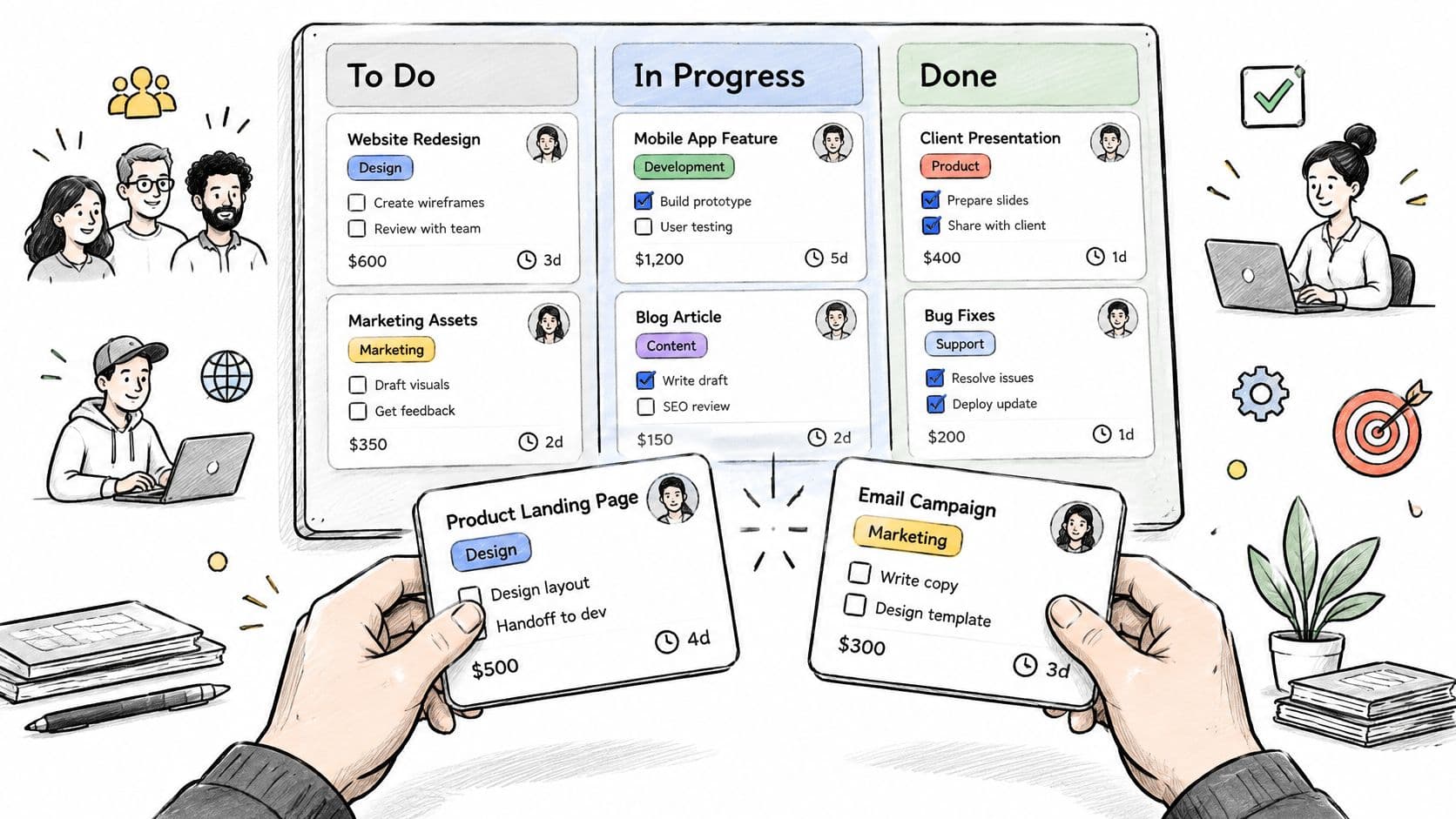
You've got a board open, half the cards say something vague like "follow up" or "fix page," and nobody can tell who owns what, what's blocked, or what done really means. So you add more columns. That doesn't help, because the board was never the weak part. The card is where most Kanban boards fall apart.
It's common to pick a layout first and fill in cards later, then wonder why nobody updates them. A useful Kanban cards template forces the right details up front without turning every task into a form filling exercise. That's the test I'm using here, not how pretty the columns look in a screenshot.
This list covers ten options, from printable production cards you'd run through a shared office printer to digital boards with budgets, tags, and dependencies. For each one, I'm looking at the fields you get, who those fields suit, and where the template gets in your way. If you're coming from manufacturing, it's worth seeing production scheduling examples from freispace alongside these, because the original cards were scheduling signals first.
That history matters more than people think. Toyota introduced the first documented "supermarket method" in its head-office machine shop in 1953, and by 1954 its instruction cards carried the product name, product number, and required quantity, according to Rework's history of Kanban. The card wasn't a label. It was a trigger that told someone to produce or move something. Keep that in mind as you compare templates. The best ones still do that job.
1. Fluidwave Homepage
Fluidwave is the pick I'd start with if your cards keep stalling because you're the bottleneck. It combines AI powered task management with on-demand human assistance, so a card isn't just something you stare at. You can organize tasks in table, list, calendar, Kanban, or card views, drag them between status columns, and let the system help you decide what deserves your attention next.
The field that changes things here is delegation. When a task doesn't need you personally, you set a budget and timeline on it and hand it to a human assistant, paying per completed task with no subscription required for delegation. That's a different kind of card field from a due date or a label. It turns a card that would sit in In Progress for two weeks into work that leaves your plate.
Who It Suits Best
Busy professionals, founders, and freelancers get the most from this setup, especially if you need a board that stays calm rather than dense. The interface is built for focus, which matters if a wall of labels and checklists makes you close the tab. You can keep cards lean, switch to calendar view when timing matters more than status, and collaborate in real time when a teammate needs context.
- Multiple views in one place: Kanban, calendar, list, table, and card views suit different planning styles without rebuilding your data.
- Pay per task delegation: You only pay for completed work, and there's a free-forever tier to start with.
- Automated workflows: Repetitive sorting and prioritization get handled for you instead of eating your morning.
The honest trade-offs are cost and clarity. Delegation costs vary depending on the tasks and budgets you set, so heavy users should watch spending. The available details also don't spell out free tier limits or exactly which assistant expertise you'll get for a given task. Neither is a deal breaker, but test with a few small delegated cards before you move your whole workload over.
2. Smartsheet Free Kanban Card Templates
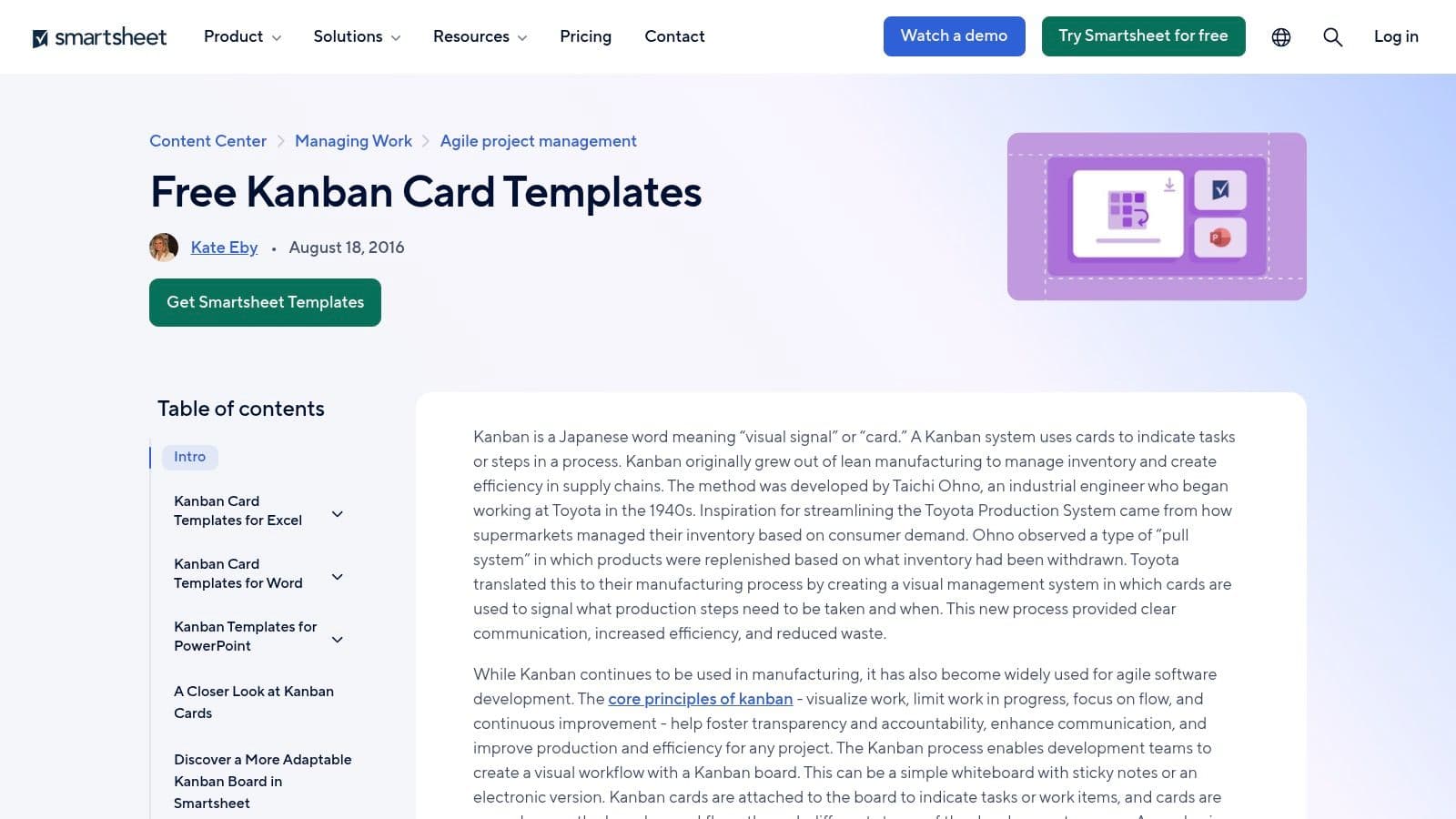
Smartsheet's free Kanban card templates are the grab and go option for people who live in Microsoft Office. You get editable files for Excel, Word, and PowerPoint, covering manufacturing, inventory, and general project work. There's no new tool to learn and no account to set up before you print your first sheet.
The range is the selling point. You'll find production cards, withdrawal cards, stockroom cards, and simple card formats, plus PowerPoint board templates if you need something presentable for a meeting. Because the files are fully editable, you can strip out fields you won't use and enlarge the ones your team reads at arm's length on a wall.
- Familiar file types: Anyone who can open Excel can edit and print these today.
- Free to download: No budget conversation needed for a first experiment.
- Format variety: Different card types suit different jobs instead of forcing one generic layout.
The downside is maintenance. Every update is manual, and the collection mixes board templates with card templates, so you'll spend a few minutes picking the right file. For a solo setup, the guidance on using a Kanban board for personal use pairs well with these printables. Once two or three people need to edit the same cards daily, though, a static file starts to feel like bookkeeping rather than a working system.
3. LeanSuite Printable Production and Withdrawal Cards
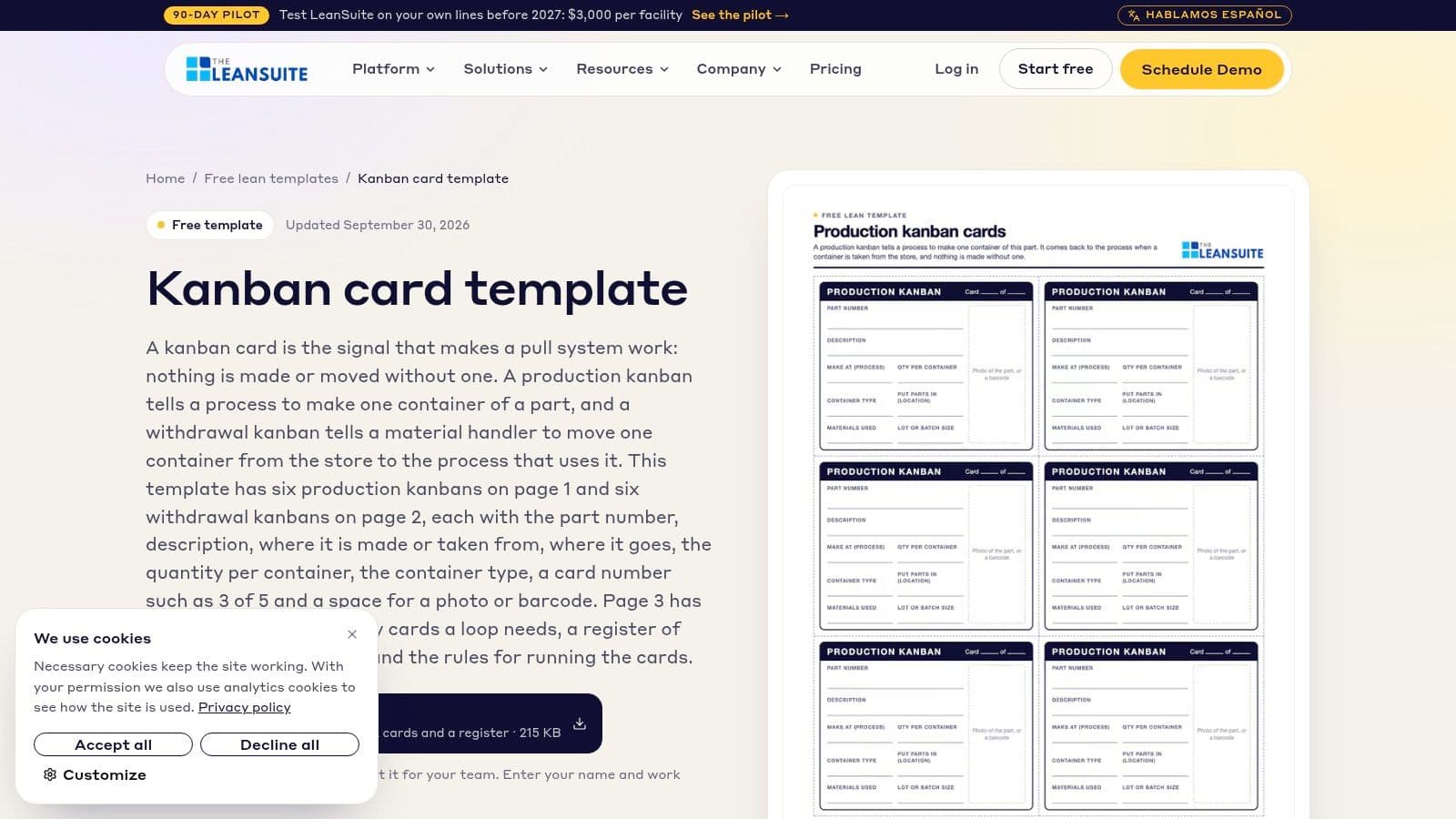
LeanSuite's Kanban card template is built for physical pull systems, and it doesn't pretend otherwise. The three page PDF gives you six production cards and six withdrawal cards, a card register, and guidance for calculating how many cards a loop needs. If you run a stockroom or a small production cell, this is closer to the actual thing than most downloads.
That production and withdrawal split comes straight from Toyota practice. MIT's teaching material on the Toyota Production System describes a withdrawal kanban that specifies the quantity a downstream process should take, and a production-ordering kanban that specifies the quantity the preceding process should produce. LeanSuite's fields reflect that logic, with part number, description, quantity, location, container type, and card number, plus space for a photo or barcode.
A card that doesn't say how many, from where, and in what container isn't controlling inventory. It's just a note.
The historical payoff for getting this right was real money. A 1954 report on Lockheed's supermarket method in a United States aircraft plant put the saving at $250,000 in one year, as noted by Art of Lean's overview of kanban pull systems. Treat that as context, not a promise for your workshop.
The letter size PDF prints cleanly on US printers, which sounds trivial until you've fought a misaligned template. The trade-offs are narrow focus and a small gate. It isn't suited to personal tasks or typical office projects, and you'll need to give a name and work email to download it.
4. Lean Starter Kit Kanban Card Designer
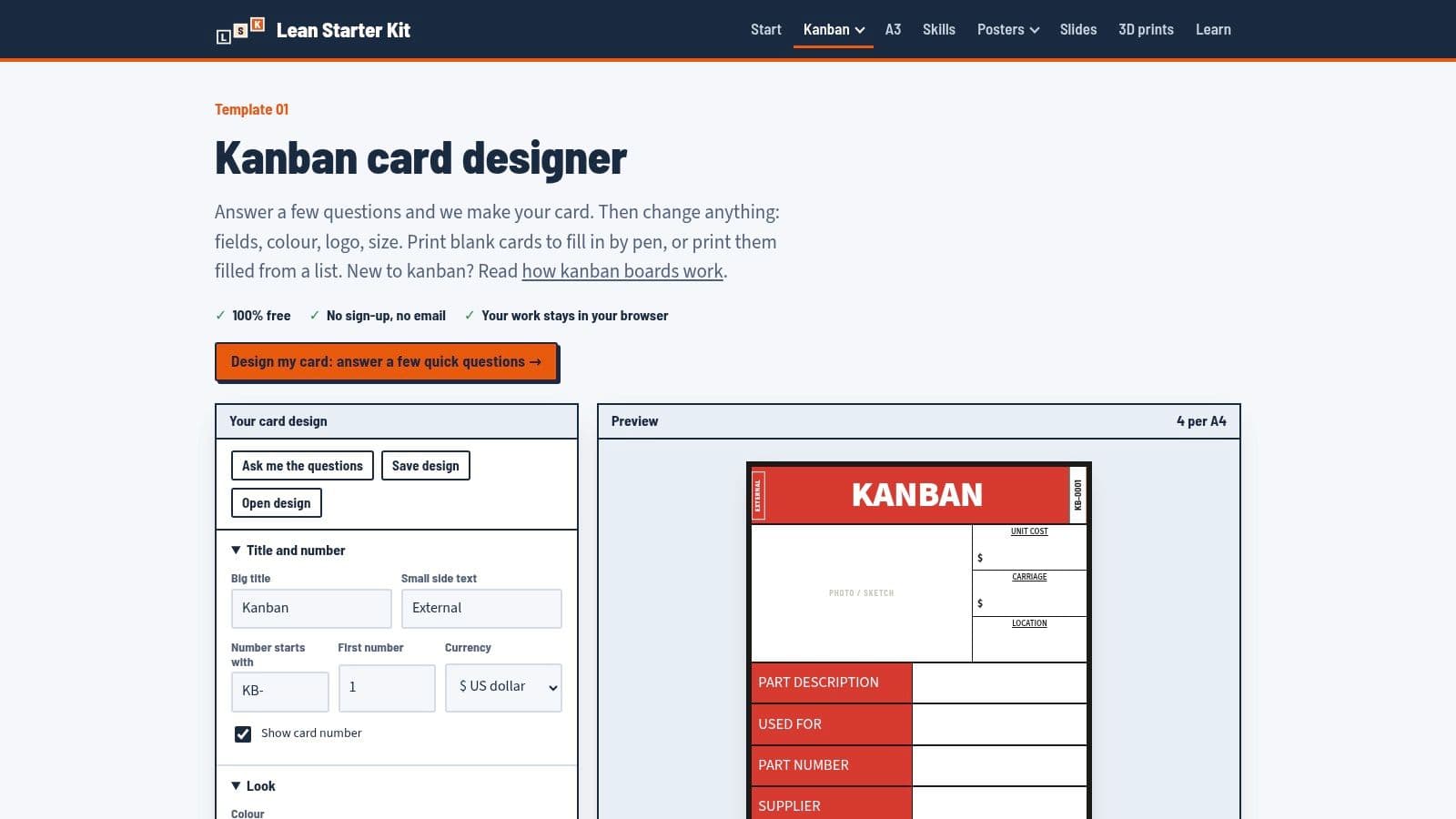
Static PDFs frustrate me because the field you need is always the one that's missing. Lean Starter Kit's card designer fixes that by letting you build the card in your browser first. You can adjust fields, colors, logo, and card size, then print blank cards for handwriting or generate a full set populated from a list.
There's no account or email required, and the provider says your work stays in the browser. For a small operation that wants its own part numbers and bin locations on every card, that combination of control and zero friction is hard to beat. The prefilled option saves time when you're setting up dozens of SKUs at once.
Where It Gets Awkward
Printing is where you'll spend your patience. Run a test sheet before committing to card stock, because browser print scaling can shift margins enough to ruin a batch. Check that barcodes or small text stay legible at the size you chose.
The focus stays firmly on inventory and replenishment, so don't expect digital project tracking, assignees, or due date reminders. If your cards live on bins and shelves, that's fine. If your cards represent client work with deadlines, you'll outgrow this quickly and should look at the digital options further down the list instead.
5. Kanban.Global Printable Board With Cut-Out Cards
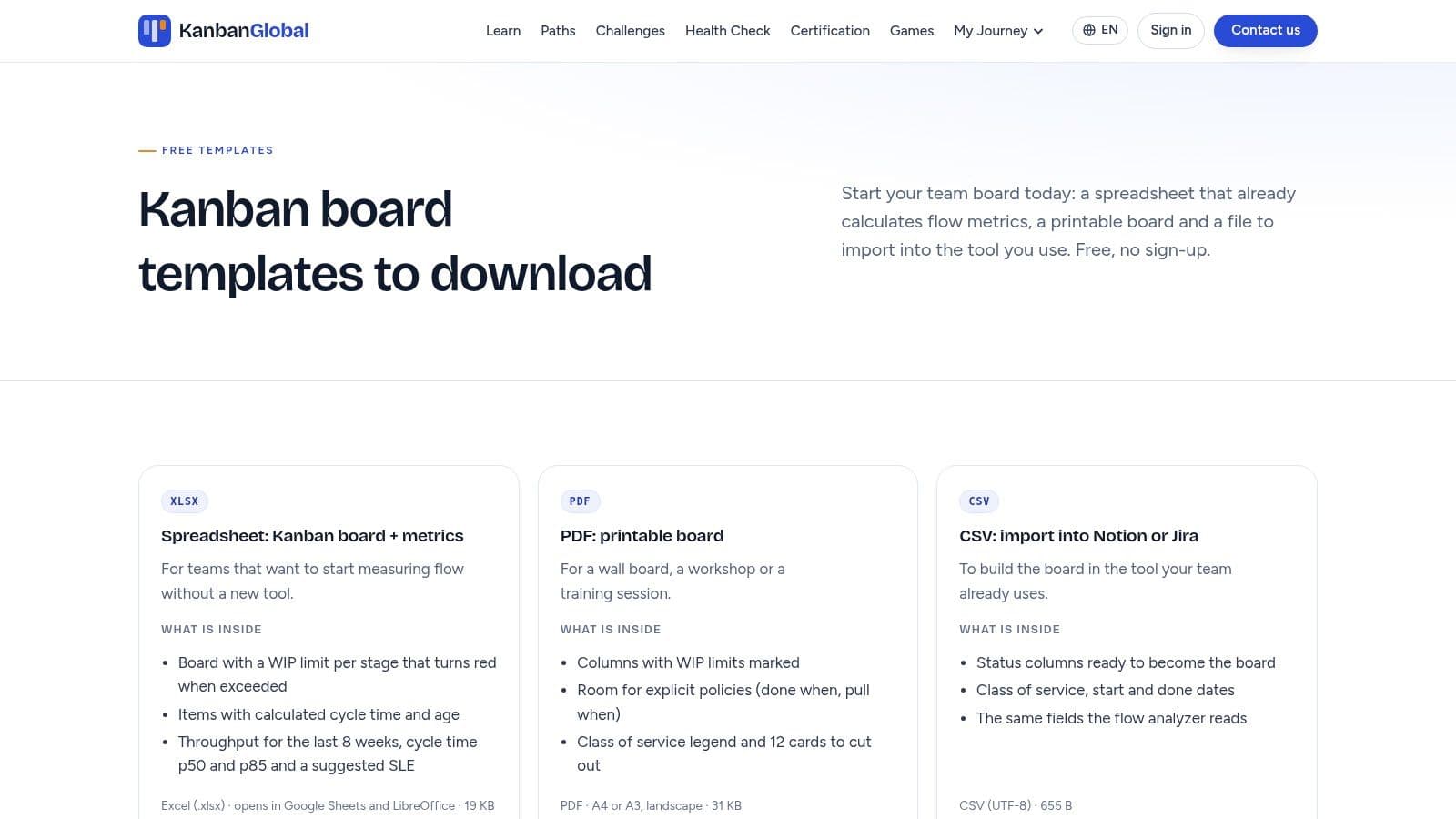
Most templates give you cards and leave the board to you. Kanban.Global's printable templates package both together, with an A4 or A3 board, marked WIP limits, explicit policy areas, and 12 cut-out cards. There's also a spreadsheet version that calculates cycle time and throughput, plus a CSV version for importing items into tools like Notion or Jira. No signup is required to download any of it.
The printed WIP limits are what make this more than arts and crafts. The Official Kanban Guide from Kanban University defines a WIP limit as the maximum number of work items allowed in a specified part of the system, and it can apply to columns, swimlanes, people, or the whole board. When a column is full, nothing new enters until capacity frees up. Printing that number on the board makes the rule visible to everyone standing in front of it.
If you want the reasoning spelled out before you set your own numbers, this explainer on work in progress limits is a good companion read. It'll help you pick a starting limit instead of copying the template defaults blindly.
The compromises are modest. The cards are part of a board template rather than a standalone designer, so customization is limited. The metrics spreadsheet may also be more machinery than a casual team needs. For a first physical board in a workshop or classroom, though, this is the most complete free starter kit on the list.
6. Miro Kanban Template Collection
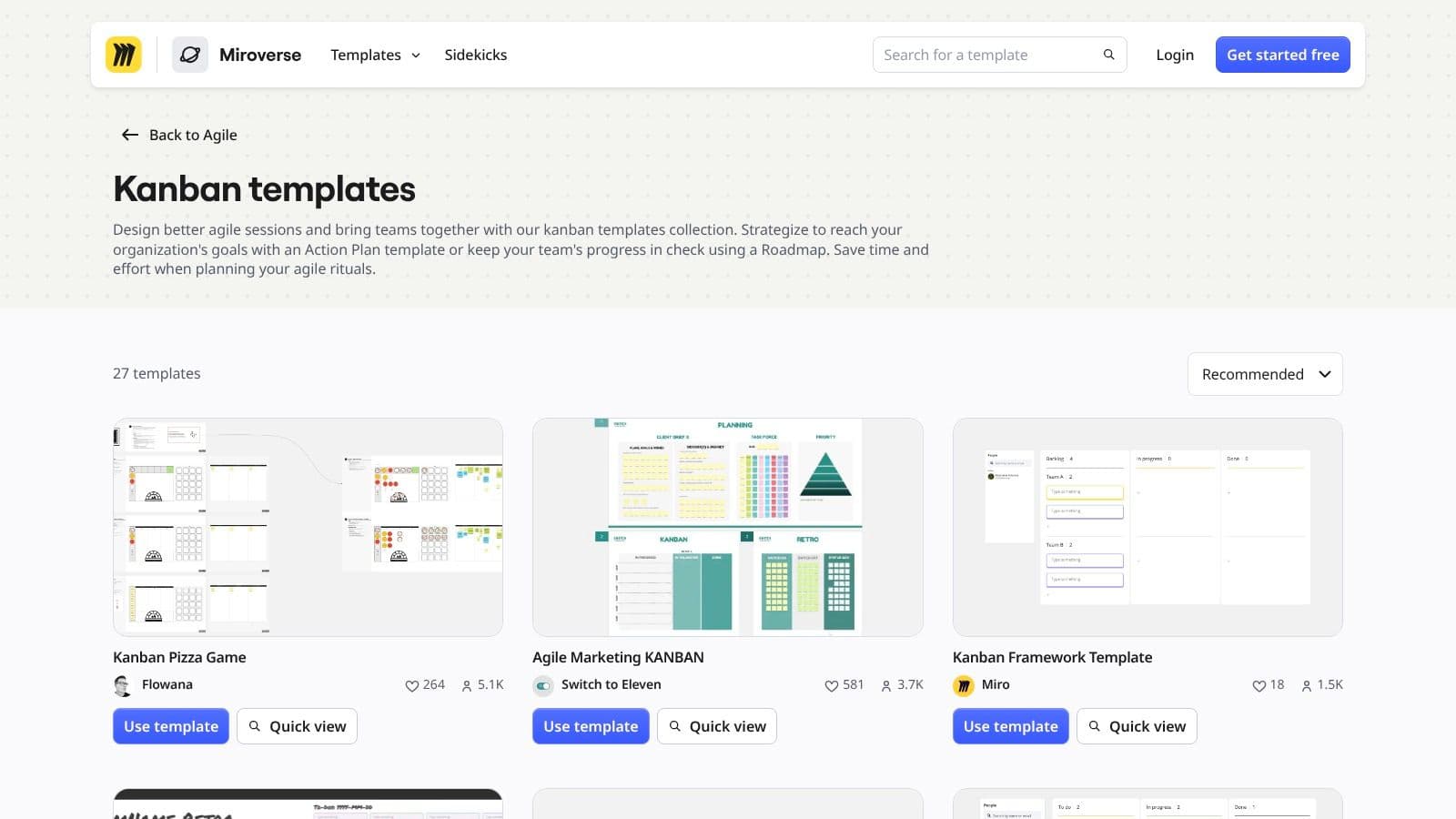
Remote teams can't gather around a wall, and that's where Miro earns its place. Miro's Kanban Framework Template had reported 1,500 uses as of 2026, and the wider collection covers different workflows and workshop formats. Cards sit on an infinite canvas alongside diagrams, sticky notes, and whatever else came out of your planning session.
That canvas is both the strength and the problem. In a live workshop, dragging cards into columns while everyone watches and comments in real time works beautifully. You can add swimlanes, sketch a process next to the board, and keep the messy thinking visible instead of tidying it away into a database. For retros and kickoff sessions, I wouldn't reach for anything else on this list.
- Workflow specific starters: You begin from a layout shaped for your kind of work, not a blank grid.
- Real time collaboration: Distributed teams can move cards together during a call.
- Mixed content: Cards live next to diagrams and notes, which suits planning heavy work.
Day to day task management is a different story. This isn't a print ready card generator, and the open canvas can feel like more tool than you need if you just want simple cards that stay tidy. You'll also need a Miro account to use the templates. Treat Miro as your planning and workshop surface, then move committed work into a stricter system where cards can't drift off into empty canvas space.
7. ClickUp Kanban Folder Template
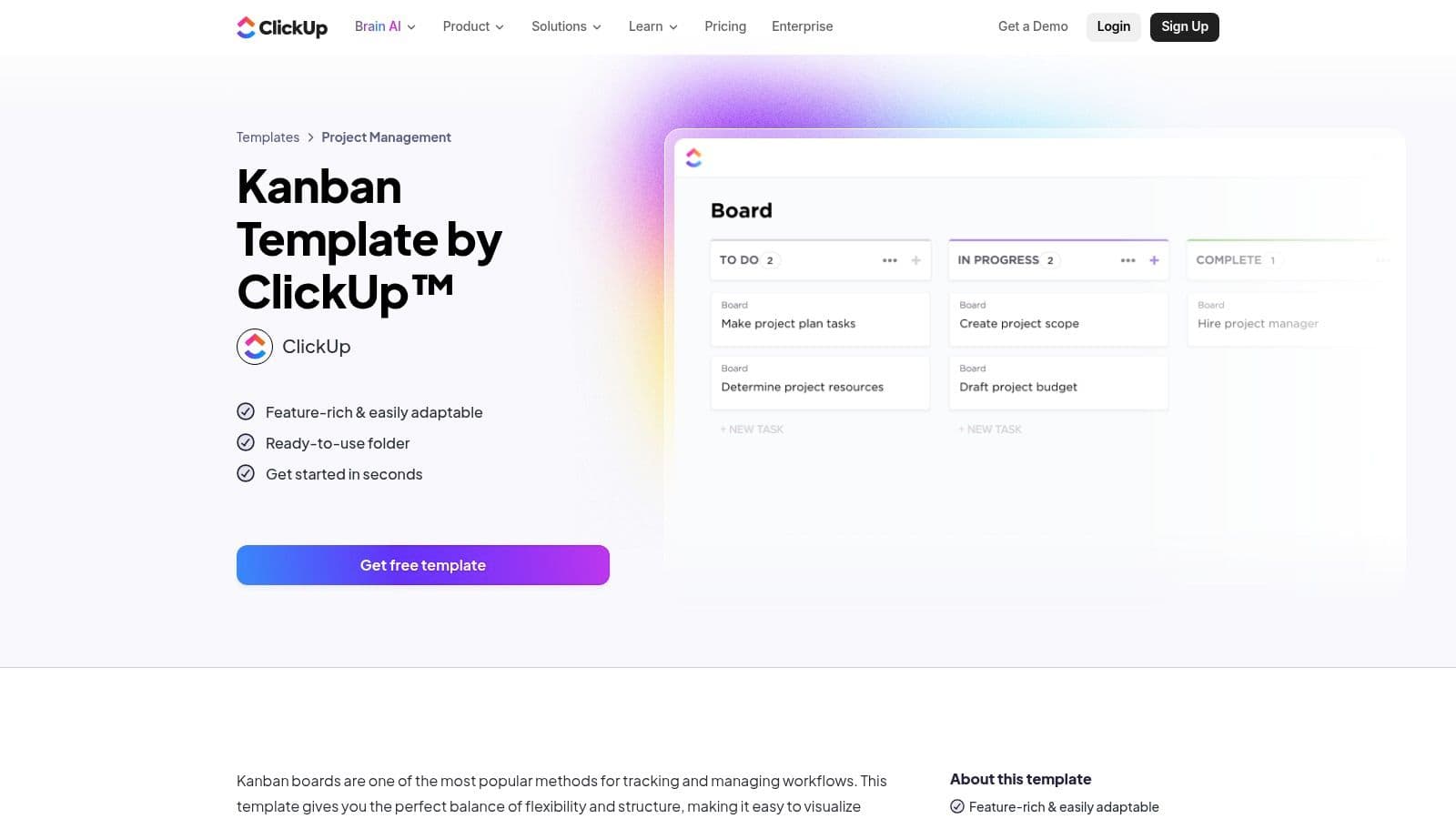
Say your team handles client work where one card hides five subtasks and two dependencies. A printable card can't carry that, and ClickUp's Kanban Folder template is built for exactly that weight. Cards connect to full tasks with custom statuses like open, in progress, review, blocked, and closed, plus tags, assignees, priorities, and dependencies.
The depth is useful when it's needed. A blocked status that's visible on the board beats a comment buried inside a task, and custom fields let you track things like client, effort, or cost without hacking the card title. ClickUp says Board view is available on its Free Forever plan, so you can test the workflow before paying.
Field test: If a field doesn't change a decision, prevent rework, or clarify ownership, leave it off the card no matter how easy the tool makes it to add.
That warning matters most here. ClickUp gives you so many fields and views that setup can swallow an afternoon, and feature limits vary by plan once you grow. It also requires a ClickUp workspace, so there's nothing to print and pin up. Pick this when your cards carry real operational detail. Skip it when you just need a calm personal board, because the configuration overhead will annoy you within a week.
8. Asana Kanban Board Template
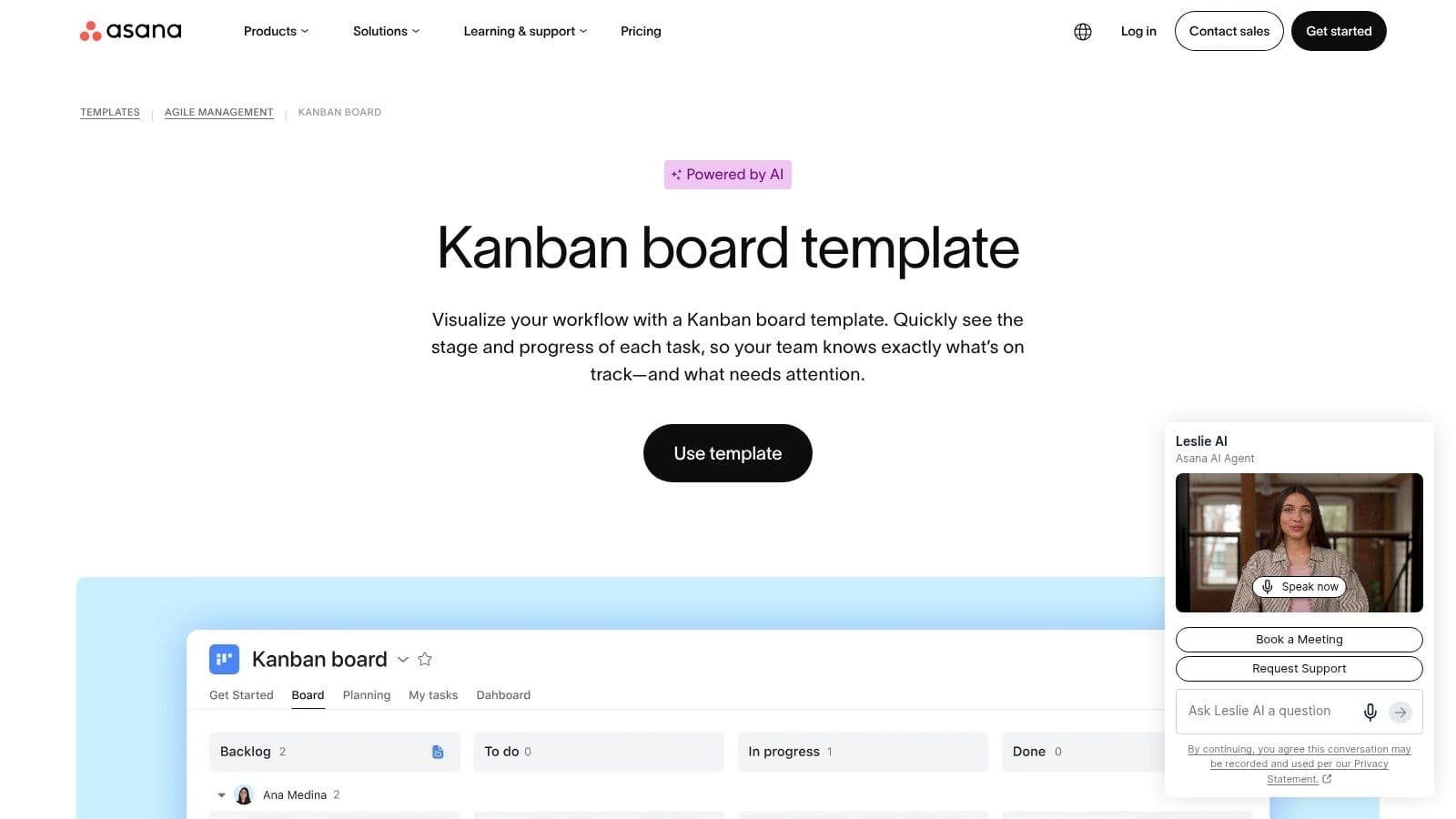
Teams already living in Asana shouldn't bolt on a separate card system. Asana's Kanban board template turns tasks into cards that move between workflow stages, with assignments and due dates attached to real tasks rather than floating sticky notes. Custom views, swimlanes, and rules that automate routine steps round it out for software, marketing, and Agile teams.
The quiet advantage is the split between team and personal views. Managers see the board and spot the column that's piling up, while individuals can focus on their own assigned cards without the whole project's noise. Rules help too, since moving a card can trigger the kind of small updates people forget to make manually. If you're setting this up for the first time, the walkthrough on how to use a Kanban board covers the column and limit decisions you'll face in the first hour.
There are limits to know upfront. This isn't a downloadable card sheet, so wall based teams get nothing to print. Some automation, reporting, and AI capabilities depend on your plan, and feature availability varies enough that you should check your tier before promising your team a workflow. For an Asana shop, though, the convenience of cards tied directly to assigned, dated tasks beats exporting data into a separate board tool every time.
9. monday.com Kanban Software Development Template
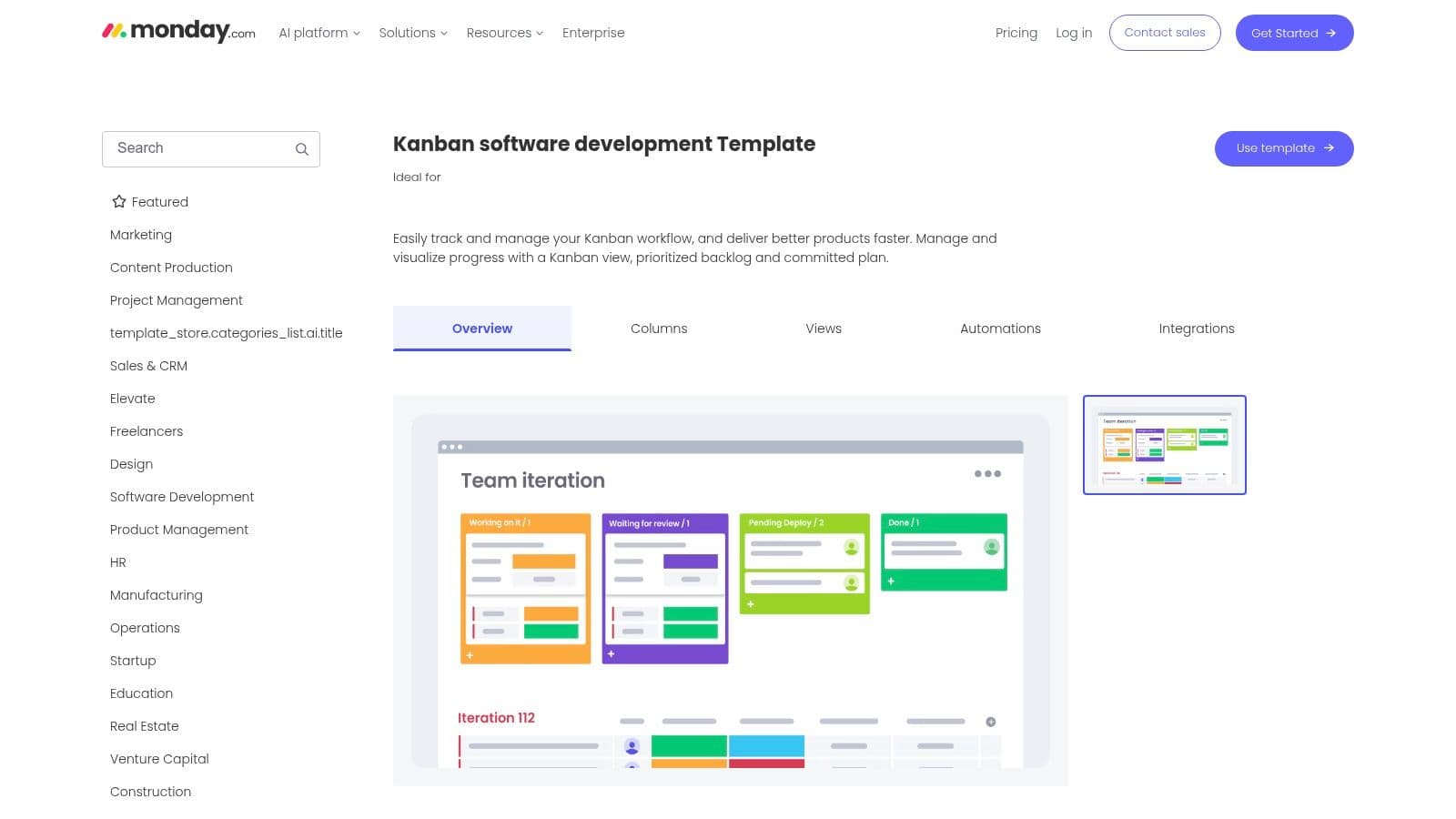
Software teams have a specific problem this template handles well, which is separating "we might build it" from "we've committed to it." monday.com's Kanban software development template pairs a prioritized feature backlog with a committed work board, so the board only shows work the team has taken on. Ready-made stages can be customized, and the views highlight work in progress and lead time.
That flow visibility has solid reasoning behind it. A quantitative case study of more than 8,000 work items produced over four years by five software teams, catalogued by SINTEF's publication record, found that lower WIP was associated with shorter lead times. The researchers couldn't identify one universally optimal limit, since WIP also correlated with productivity. Translation for your board, make the limit configurable, watch your own lead times, and adjust instead of copying another team's number.
Who Should Skip It
Anyone outside software, mostly. The structure assumes features, backlogs, and development stages, which makes it a poor fit for personal task management or nontechnical teams who'd spend their time renaming everything. It's digital only with no printable card sheets, and you'll need a monday.com account.
Within its lane, though, it does the job properly. The backlog and committed plan split alone prevents the common failure where a board becomes a wish list and nobody trusts the In Progress column anymore.
10. Notion Project Workflow Kanban Template
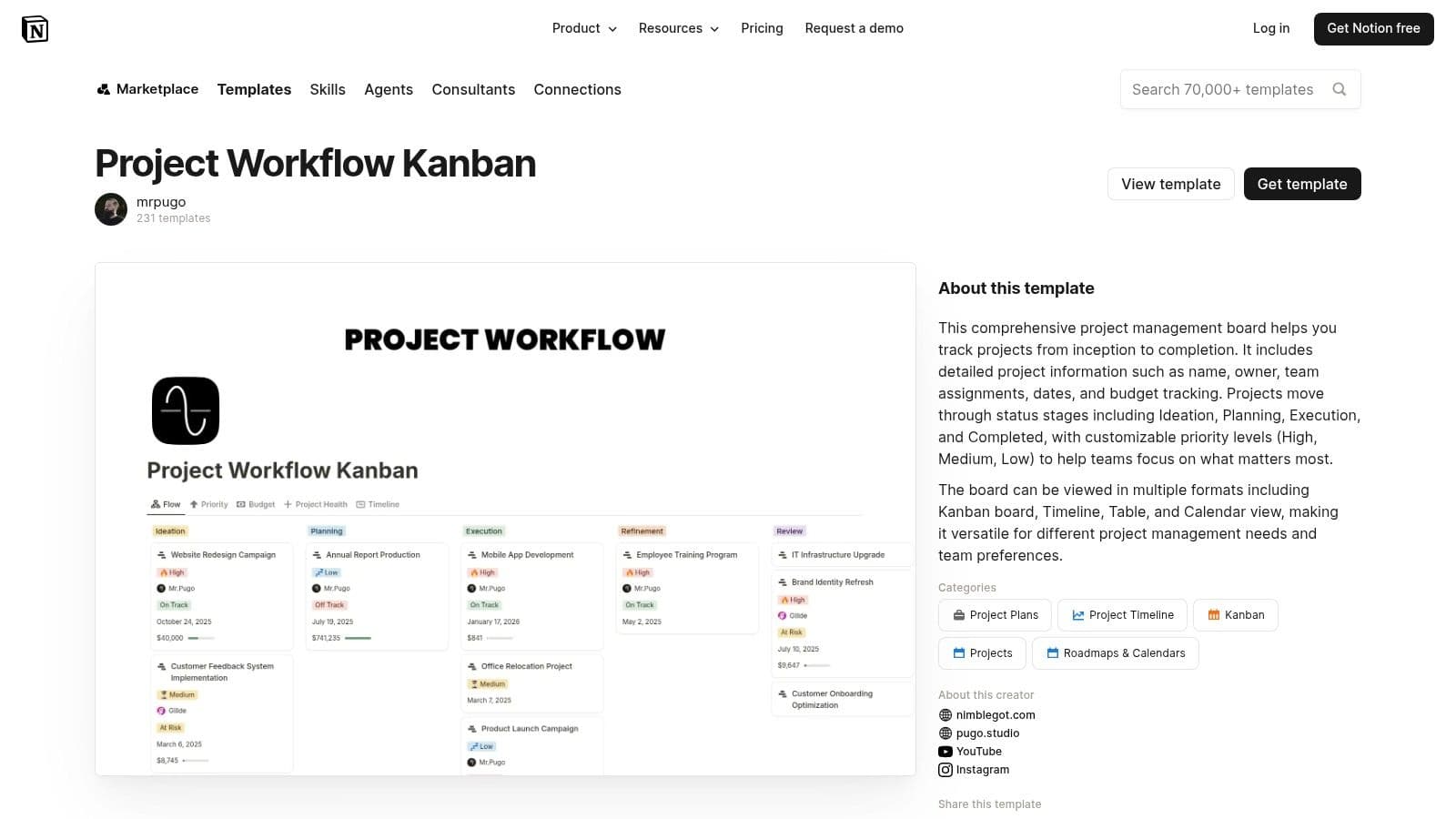
Notion's Project Workflow Kanban template treats each card as a project record rather than a sticky note. Cards move through stages like ideation, planning, execution, and completion, and they can carry owner, team, dates, priority, and budget. Because everything sits in one database, you can flip between Board, Timeline, Table, and Calendar views without re-entering anything.
That budget field deserves attention if you're a freelancer or a small studio. Seeing cost on the card itself, next to the owner and deadline, stops the quiet drift where a project looks fine on the board while it's bleeding hours. Configurable card properties also let you choose what shows on the front face, which is the closest any tool here gets to letting you design for quick scanning. Project documentation lives alongside the cards, so context doesn't scatter across drives. The Marketplace listing includes user feedback, which helps you judge the template before committing.
The caveats are about ownership and format. It's a community template, so setup quality and support depend on the creator rather than Notion itself. Check the current price and access requirements on the listing before you build plans around it. And like the other digital picks, there's no printable card layout, so it's wrong for a warehouse wall. For knowledge work where the card needs to hold real project context, it's one of the strongest options here.
How the ten kanban cards template options compare on format, best use, and access
| Item | Format | Best for | Access requirement |
|---|---|---|---|
| fluidwave Homepage (Recommended) | Digital task management and delegation platform | Organizing, prioritizing, and delegating everyday work | Free-forever tier; delegation is pay per task |
| Smartsheet, Free Kanban card templates | Editable Excel, Word, and PowerPoint templates | Customizing and printing cards for projects, manufacturing, or inventory | Free download; use with Office tools |
| LeanSuite, Printable production and withdrawal cards | Three-page printable PDF | Manufacturing pull systems and inventory replenishment | Name and work email required to download |
| Lean Starter Kit, Kanban card designer | Browser-based card designer with print options | Customizing blank or prefilled physical Kanban cards | No account or email required |
| Kanban.Global, Printable board with cut-out cards | Printable PDF, spreadsheet, and CSV | Physical Kanban boards or importing work into digital tools | No signup required |
| Miro, Kanban template collection | Collaborative digital boards | Shared visual planning for teams and workshops | Miro account required |
| ClickUp, Kanban Folder template | Digital board connected to project tasks | Managing detailed team tasks and workflows | ClickUp workspace required; plan limits vary |
| Asana, Kanban board template | Digital card-based board | Tracking assigned work across team workflow stages | Asana account; feature availability varies by plan |
| monday.com, Kanban software development template | Digital software-development board | Managing software backlogs, committed work, and flow | monday.com account required |
| Notion, Project Workflow Kanban template | Digital board connected to a project database | Managing project stages alongside documentation and other views | Check listing for current price and access requirements |
Choose the Card Fields You Will Actually Fill In
The best Kanban cards template is the one you keep updating after the first busy week, not the one with the most fields. Start with the fewest fields that answer the questions you ask every day. A useful starting point is owner, next step, due date, and status, with budget added when money is at stake. Everything else has to earn its place.
That restraint matters more than most template guides admit. Wrike's guide to Kanban cards covers the standard anatomy of title, owner, description, due date, and attachments, but completeness isn't the same as clarity. If you have ADHD or you're overloaded, a dense card front slows you down at the exact moment you need to act. A verb led title, one outcome, one owner, and one clear next action will beat a card stuffed with labels and checklists almost every time.
Design the Front Face for Scanning
Put the decision making fields on the front and hide the reference material one click or one flip away. Use text labels for priority instead of relying on color alone, keep contrast readable, and stick to a small, consistent vocabulary so "urgent" means the same thing on every card. If you delegate work, add just enough context that another person can start without messaging you three questions first.
- One next action per card: If you can't name it, the card isn't ready to move.
- Visible WIP limits: A limit nobody can see is a limit nobody respects.
- A field budget: Add a field only when it changes a decision, prevents rework, or clarifies ownership.
Test your chosen layout for one week on a real workload, not a tidy sample project. Watch which fields you fill in and which ones stay blank, then cut the blanks without sentiment. Teams in other fields run the same discipline on their pipelines, and if you want a useful parallel from hiring, you can compare pipeline management software for recruiters to see how stage based tools handle the same visibility problem.
Match the template to the work in front of you. Print LeanSuite or Lean Starter Kit cards when physical stock needs a pull signal. Use Kanban.Global for a first wall board with limits built in. Pick ClickUp, Asana, monday.com, or Notion when cards need subtasks, budgets, or shared digital access. And when the main problem is that too many cards have your name on them, a template that lets you delegate the card itself is worth more than another column.
Stop letting cards with your name on them pile up in In Progress. Fluidwave gives you Kanban, calendar, list, and card views with AI assisted prioritization, plus human assistants you can hand tasks to with a budget and timeline, paying only per completed task. Start on the free tier, build a board with only the fields you'll fill in, and delegate the first card you've been avoiding.
Focus on What Matters.
Experience lightning-fast task management with AI-powered workflows. Our automation helps busy professionals save 4+ hours weekly.