Learn how to add page in word using blank pages, page breaks, and section breaks. Get shortcuts, troubleshooting, and tips for clean document formatting. Fast
June 13, 2026 (1mo ago)
Master How to Add Page in Word
Learn how to add page in word using blank pages, page breaks, and section breaks. Get shortcuts, troubleshooting, and tips for clean document formatting. Fast
← Back to blog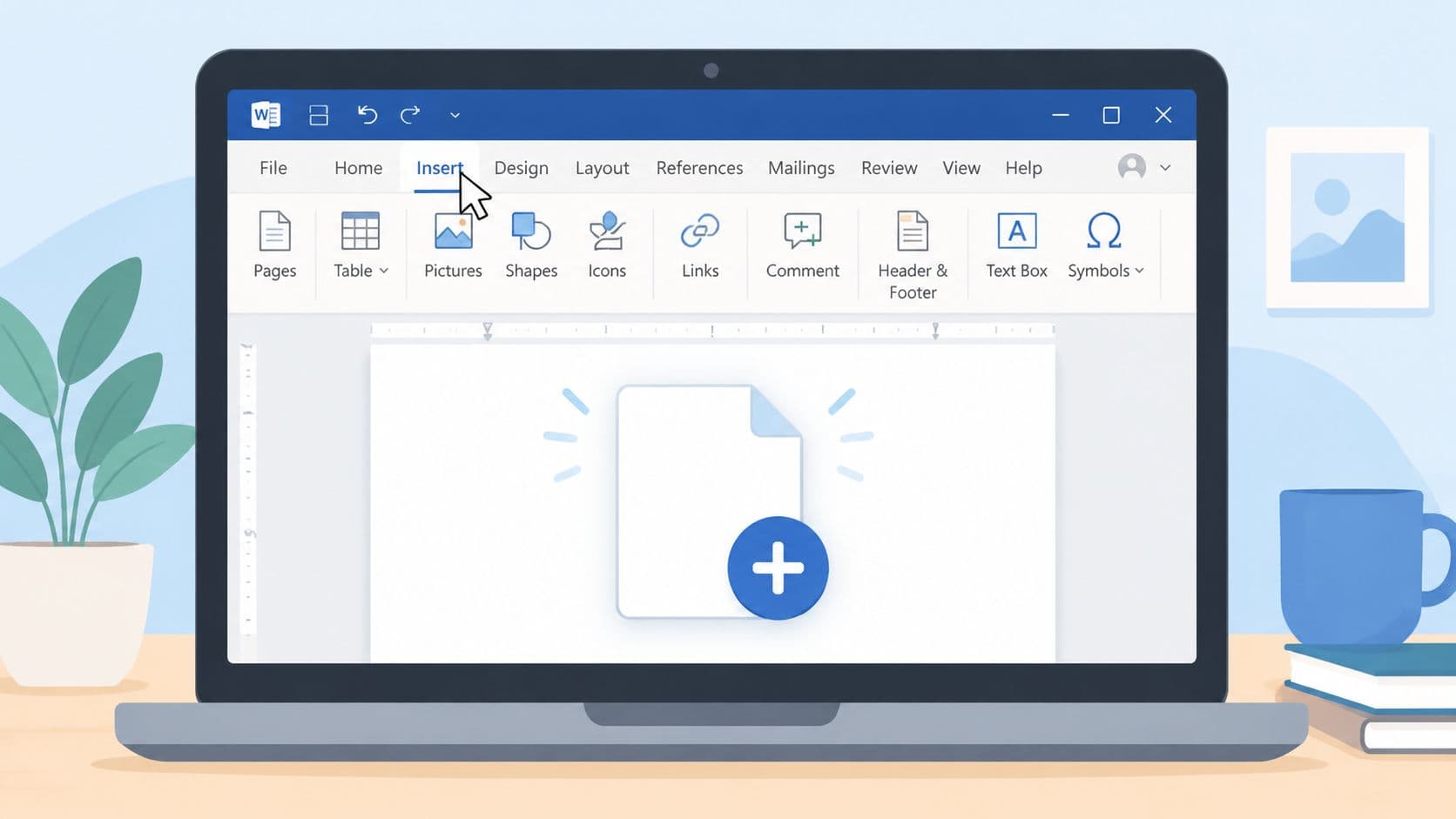
You're usually not trying to “add a page in Word” in the abstract. You're trying to fix a real document problem.
A title page has to go in front of a report that's already written. A chapter needs to start cleanly on a fresh page. A table landed at the top of page one and now there's nowhere obvious to put an introduction. In that moment, a lot of people do the same thing. They press Enter until Word gives up and pushes content onto the next page.
It works for about five minutes.
Then you edit an earlier paragraph, the spacing shifts, and the page you “made” slides out of place. That's the point where Word starts feeling unpredictable, even though the actual issue is usually the method, not the software. Word gives you three different tools for page control, and each one exists for a reason: Blank Page, Page Break, and Section Break.
Use the right one, and the document stays stable. Use the wrong one, and you inherit formatting problems that keep coming back.
Stop Hitting Enter Repeatedly
You add a few blank lines to push a heading onto page two. It looks fine until someone inserts one sentence on page one and the whole layout slips.
That is the problem with using Enter as a page tool. Word treats those returns as ordinary paragraphs, so they expand, collapse, and move as the document changes. In short files, you might get away with it for a while. In reports, proposals, manuals, and anything that goes through revisions, it creates cleanup work that keeps coming back.
Practical rule: If the next content must stay at the top of a new page, insert a break. Do not build spacing by hand.
The reason matters. Blank Page, Page Break, and Section Break all push content forward, but they do different jobs. A blank page gives you a literal empty page to work on. A page break starts the next content on a fresh page without changing formatting rules. A section break starts a new page and gives that next part of the document its own layout settings, such as headers, footers, columns, or page numbering. Choosing the right one now prevents strange gaps, broken numbering, and headers that refuse to match later.
I see the same mistake around title pages and front matter. People try to force the layout with repeated Enters because it feels faster than using the proper command. It is slower once edits start. If you rely on keyboard workflows, the same principle shows up in other apps too. Good shortcuts save time only when they trigger the right function, not a visual workaround. That is why clean document control pairs well with habits like these Chrome keyboard shortcuts for faster desktop work.
Here's the video version if you want a quick visual walkthrough before changing anything in your file:
What usually works badly
- Pressing Enter repeatedly. It creates spacing that shifts during edits.
- Forcing a title page into place with blank lines. The layout often breaks after even minor revisions.
- Using a section break when a page break would do. That adds separate formatting rules you may not notice until headers, footers, or page numbers change.
- Trying to insert text above a table at the top of page one by pressing Enter. If a document starts with a table, Word can resist that approach. In that case, use a proper break or insert a paragraph before the table instead of stacking returns.
What works reliably
- Use Blank Page when you need a page that should stay empty until you fill it.
- Use Page Break when the next heading, chapter, or block of content should always begin on a new page.
- Use Section Break when the next page needs different formatting rules from the pages before it.
That small distinction is what keeps Word predictable.
The Quickest Ways to Add a New Page
For everyday work, Word gives you two fast options on the Insert tab. They sound similar, but they solve different problems.
Use Blank Page when you need an actual empty page
Insert > Blank Page creates an empty page at the cursor position. It can go at the beginning, middle, or end of the document. That's useful when you need room for something standalone, like a cover page, a full-page chart, or a page you'll fill in later.
A lot of users mix this up with a page break. They're not the same. A blank page gives you a literal empty page to click into and type on. GeeksforGeeks' walkthrough on inserting a blank page in Word shows that distinction clearly.
Use Page Break when content should continue on the next page
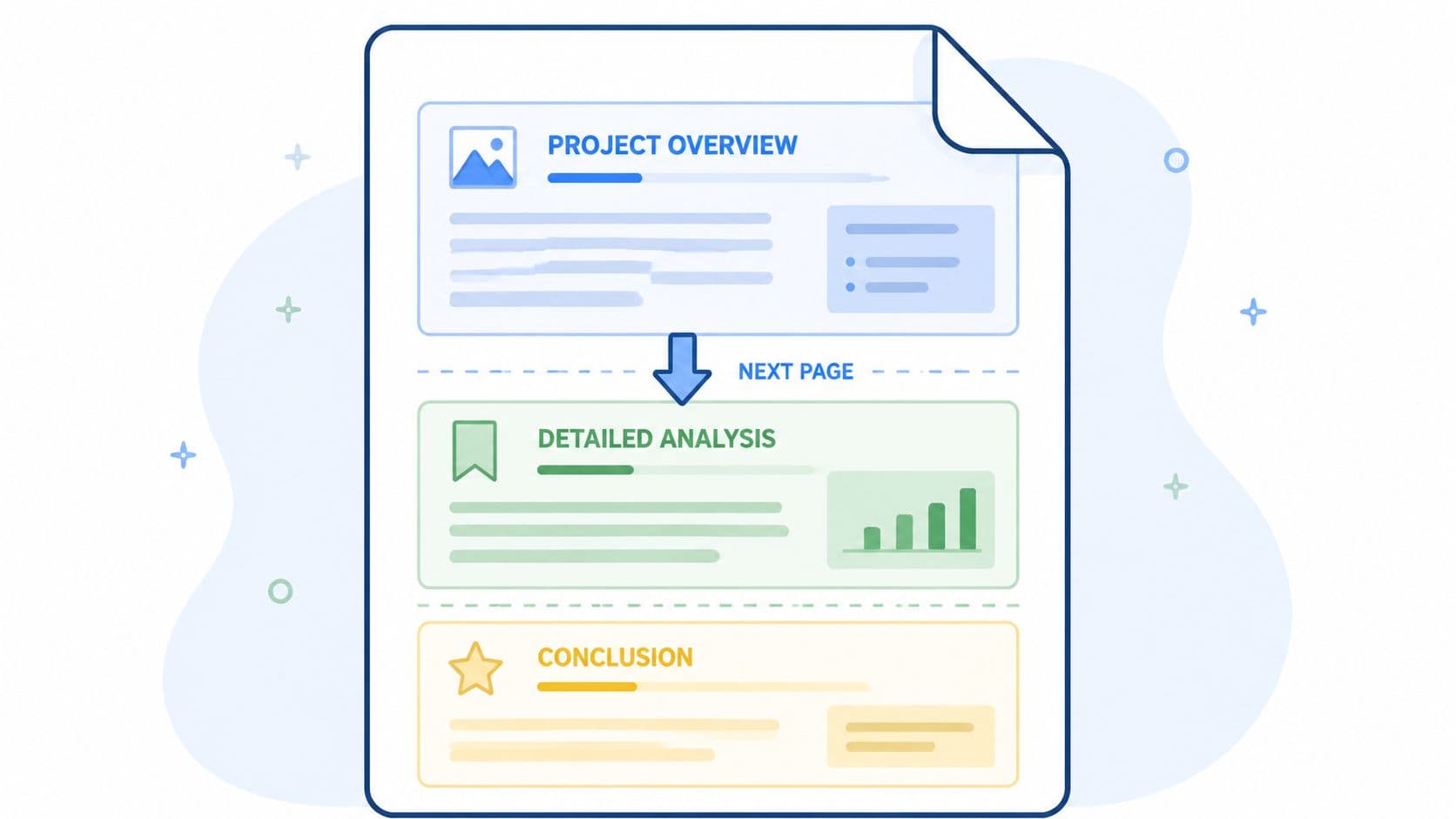
A Page Break tells Word, “start whatever comes next at the top of a new page.” This is the cleaner choice for chapters, new sections of a report, or any heading that shouldn't drift if earlier text changes.
This is the method I trust most in working documents because it preserves layout as the file evolves. The most reliable way to add a new page without disturbing later content is to insert a page break, which forces the next content to begin on a new page and keeps the layout stable even if earlier text grows later, as demonstrated in this Word tutorial on page breaks.
A page break is for flow. A blank page is for space.
Keyboard shortcuts for page breaks
If you do this often, stop opening menus every time.
| Action | Windows Shortcut | macOS Shortcut |
|---|---|---|
| Insert a page break | Ctrl+Enter | Cmd+Return |
If you like memorizing high-value shortcuts, this roundup of Chrome keyboard shortcuts has the same kind of practical, speed-first mindset.
A simple decision test
Use this quick filter before you click anything:
- Need a clean page to place content later? Choose Blank Page.
- Need the next paragraph or heading to begin on a fresh page? Use Page Break.
- Need different headers, footers, numbering, or layout rules? You're already in section-break territory.
That last one is where most “why is Word doing this?” headaches begin. It's also where professional formatting starts.
Advanced Page Control with Section Breaks
A Section Break doesn't just push content to a new page. It creates a new formatting zone inside the same document. That's the difference that matters.
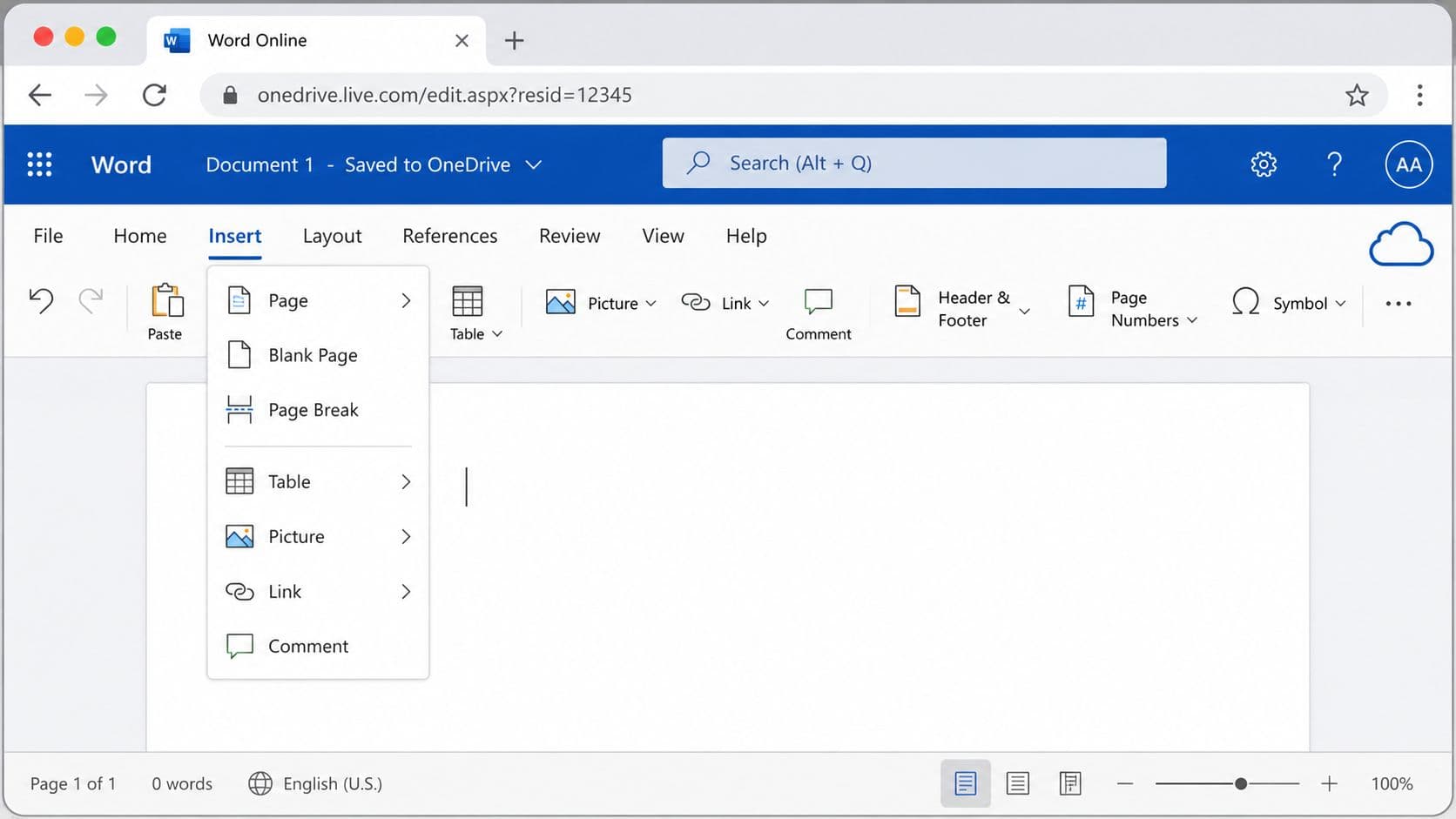
If you've ever needed a title page with no number, front matter in Roman numerals, and the main report starting at page 1, a page break won't get you there by itself. Word handles that kind of document by using section breaks and separate footer settings. Training materials show this workflow for formal reports and dissertations, including Roman numerals for preliminaries and Arabic numerals for the main text, using section breaks and unlinked footers in this tutorial on page and section formatting in Word.
When section breaks are the right tool
Use a section break when the next page needs different rules, such as:
- Different page numbering. Roman numerals in front matter, Arabic numerals in the body.
- Different headers or footers. A title page, appendix, or chapter opener often needs its own setup.
- Different layout behavior. One part of the file may need formatting that shouldn't affect the rest.
That's why I think of section breaks as document boundaries, not just page boundaries.
The header and footer piece most people miss
Word's page setup gets much more flexible once sections are involved. A nuanced user need is how adding a page interacts with headers, footers, and odd/even layouts. Word can place numbers on different sides for odd and even pages, and the first page can be exempted with Different First Page, which is especially useful for title pages and executive documents, as shown in this tutorial on odd, even, and first-page numbering options.
If the page needs different numbering rules, don't force it with manual edits. Create a new section.
A practical workflow
For a business report, a clean setup usually looks like this:
- Insert the title page.
- Add a Next Page Section Break after it.
- Set the new section's header or footer the way you want.
- If needed, unlink it from the previous section.
- Format page numbers for that section only.
If you build recurring documents, turning that structure into a reusable file saves a lot of cleanup later. This guide on how to make a template is useful when you want the same page logic every time you start a new report.
Adding Pages in Word Online
You are halfway through a draft in the browser, the next section needs to start cleanly, and pressing Enter ten times is already creating uneven spacing. Word Online can handle that job well, as long as you choose the right tool for the reason you need the new page.
What you can do in the browser
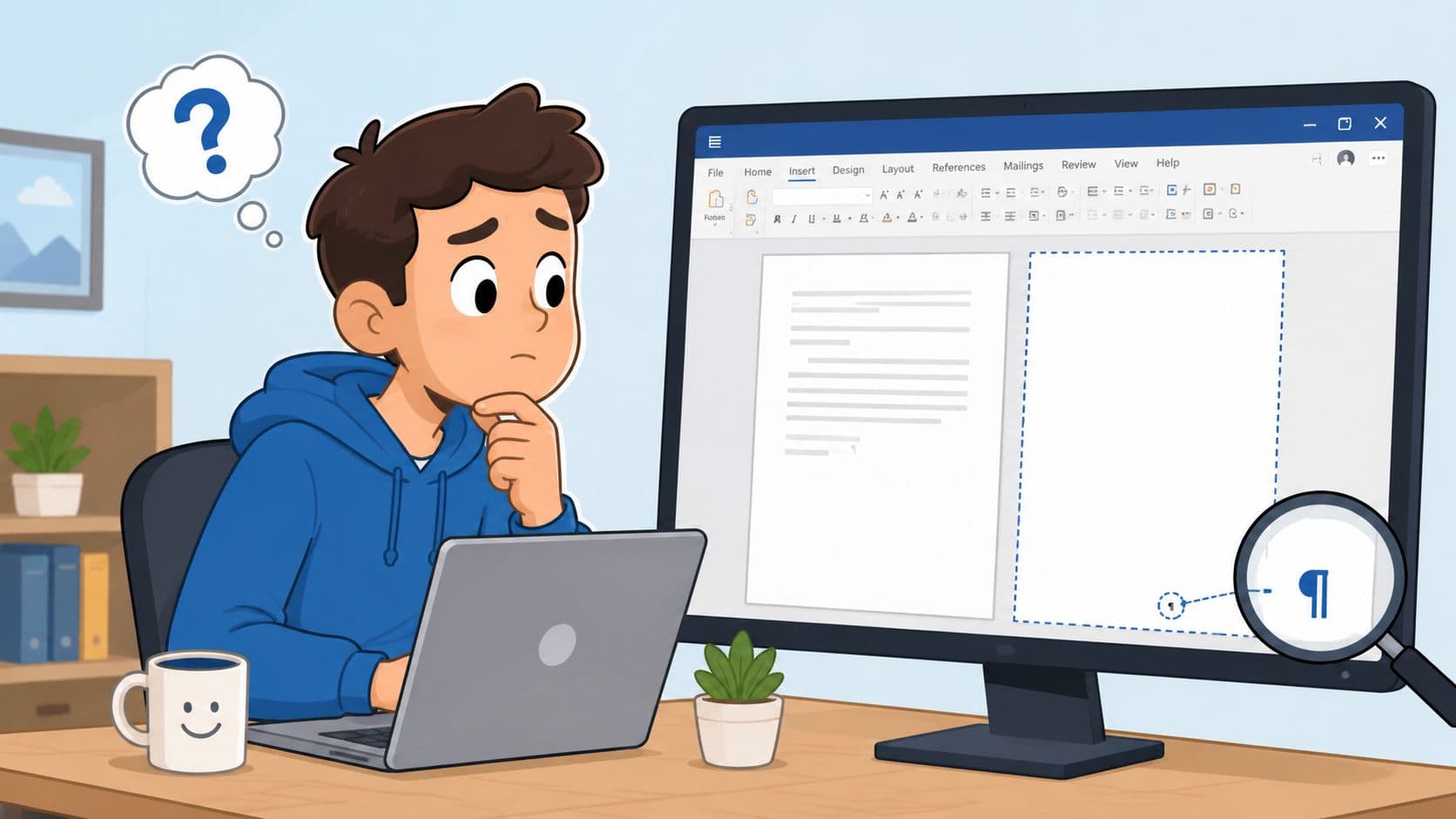
In Word for the web, the two page controls that matter are still there on the Insert tab: Blank Page and Page Break.
Use Blank Page when you want Word to insert an empty page immediately, usually because you need visible space now for drafting, notes, or a cover-style placeholder.
Use Page Break when the primary goal is structure. It pushes the next paragraph to a new page and keeps that intent attached to the text, which is usually the safer choice for reports, proposals, and anything that will keep changing.
That distinction matters. A manually added blank page can become awkward later if earlier content expands or shrinks. A page break tends to age better because it tells Word where the next block should start.
Word Online also handles basic page numbering well enough for shared drafts and simple business documents, including page totals in headers or footers.
What Word Online does well, and where it stops
For routine editing, the web version is fast and dependable. It covers the common jobs: start the next section on a new page, add a temporary blank page, and clean up extra empty paragraphs that created an unwanted page.
It gets less comfortable when layout rules start to differ across the document. If one part needs different headers, different numbering behavior, or other section-level control, I switch to desktop Word instead of forcing the browser version to do a job it was not built for.
That handoff saves time.
If a page appears unexpectedly in Word Online, the fix is usually simple. Turn your attention to what created it: an extra paragraph, a page break, or content that pushed forward. The same logic applies in the browser as on desktop. Find the formatting mark causing the page, then remove that cause instead of editing around it.
Solving Common Page Problems
Most page problems in Word aren't mysterious. They're just hidden.

Delete the page by finding what created it
When Word shows a blank page you didn't ask for, the cause is usually one of these:
- Extra paragraph marks
- A page break
- A section break
- Layout behavior around tables
Turn on the Show/Hide button on the Home tab so you can see paragraph marks and breaks. Once those formatting marks are visible, the problem usually stops looking random.
Hidden formatting is usually the real author of the “mystery” blank page.
Then delete the extra marks or break carefully. If it's a section break, pause before deleting it. Removing a section break can also remove the section formatting tied to it.
The table-at-the-top problem
This is one of the most annoying edge cases, and most basic tutorials skip it.
If a document starts with a table at the very top of page one, Word may resist adding a blank page before it in the usual way. Microsoft community guidance notes that documents starting with a table may require a workaround, and one method is to use the paragraph formatting option page break before on the table itself in this Microsoft Answers discussion.
What to do when a table blocks the new first page
Try one of these approaches:
-
Use Page Break Before on the table
- Click in the table.
- Open Paragraph settings.
- Go to Line and Page Breaks.
- Check Page break before.
-
Insert an empty paragraph above the table
- If Word allows it, place the cursor before the table.
- Add a paragraph mark.
- Then insert a page break.
-
Avoid forcing it with repeated Enter presses
- That usually makes the file harder to manage, especially if the table later changes size.
If the page numbers go strange after adding pages
This usually points to document structure, not numbering itself. Word's numbering tools are tied to headers, footers, and sections. On Windows, users can insert page numbers from the Insert tab, choose location and style, and use Different First Page or Format Page Numbers to start numbering at a specific value such as 0 on the second page, as shown in this page-numbering guide.
If numbering suddenly restarts or disappears, check whether you inserted a section break and whether the footer is linked to the previous section. That's usually where the answer is.
Best Practices for Clean Document Formatting
Good Word formatting comes down to one habit. Stop improvising page layout, and start choosing the right control on purpose.
Use Page Break when text should continue on a new page. Use Blank Page when you need empty space inserted at the cursor. Use Section Break when the next page needs its own numbering, header, footer, or layout logic. That one decision prevents most document drift.
The rules worth keeping
- Default to structure, not spacing. Manual blank lines are temporary. Breaks are durable.
- Show hidden formatting when something looks wrong. The ¶ button saves time.
- Build repeatable documents as templates. Reports, proposals, and manuscripts get easier once the structure is baked in.
If your work extends beyond business documents into manuscripts, this guide to professional book formatting is a useful reference for seeing how page control, sections, and numbering fit into longer-form publishing. For everyday digital workflow cleanup, this quick read on how to paste a link is another small but practical efficiency win.
Once you stop fighting the page and start controlling the document structure, Word gets calmer. What's more, your files stay editable.
If you want the same kind of control over your tasks, drafts, and day-to-day work, Fluidwave helps you organize what needs attention next, delegate busywork, and keep projects moving without losing focus.
Focus on What Matters.
Experience lightning-fast task management with AI-powered workflows. Our automation helps busy professionals save 4+ hours weekly.