Learn how to paste a link on any device. Our simple guide covers desktop, mobile, creating clickable text, and pasting as plain text for clean formatting.
June 8, 2026 (2mo ago)
How to Paste a Link: A Simple Guide for Every Device
Learn how to paste a link on any device. Our simple guide covers desktop, mobile, creating clickable text, and pasting as plain text for clean formatting.
← Back to blog
You've probably done this today already. You found a page you wanted to send to a coworker, a friend, or your own future self, copied the web address, and then paused for half a second wondering, “Do I just paste the whole thing here?”
Most of the time, yes. But how to paste a link well is a little more useful than it seems. A link can be pasted as a raw URL, turned into clickable text, cleaned up so it doesn't drag ugly formatting into your document, or checked before sharing so it doesn't send someone to the wrong place.
The Simple Art of Sharing Information
Sharing information online often comes down to one small action. You copy a web address, then paste it into a message, doc, note, or task so someone else can reach the same place you found.
That feels ordinary now because the web made it ordinary. The World Wide Web was publicly released in 1991, and by the early 2000s most browsers had turned hyperlink handling into a basic user action rather than a technical chore, as noted in this library guide on persistent linking and proxy access. That shift is why link sharing now sits at the center of daily communication, from quick chats to documented workflows.
The small skill matters because a pasted link can do more than point somewhere. In some systems, it becomes the clean path that helps a teammate open the right file, the right article, or the right task context without extra back and forth. If your team struggles with scattered updates and missing context, this broader problem shows up clearly in common communication and teamwork breakdowns.
A good link saves the next person a search.
Pasting Links The Universal Methods
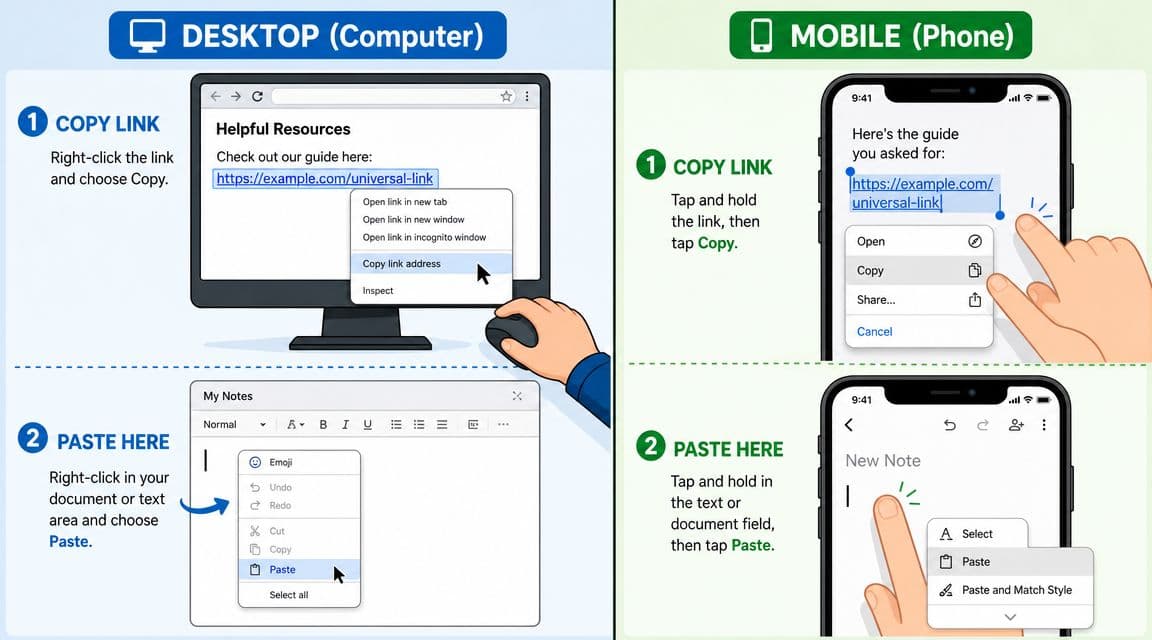
The mechanics are simple once you know where your device expects the paste command. The same idea works almost everywhere: first copy the link, then place your cursor where you want it, then paste.
On Windows and Mac
On a desktop or laptop, the fastest method is usually keyboard-based.
- Copy the link. Highlight the URL in your browser's address bar, then press Ctrl+C on Windows or Cmd+C on Mac.
- Click where the link should go. That might be an email draft, a Slack message, a Google Doc, or a note app.
- Paste it with Ctrl+V on Windows or Cmd+V on Mac.
That works for raw links. If you want to turn words into a clickable hyperlink instead of dropping in a long web address, many editors use a slightly different workflow. A practical guide from ClickHelp notes that the most reliable approach is to select the text, open the insert-link box with Ctrl+K or Cmd+K, and paste the full address, including https://, because leaving off the protocol is a common reason links break in editors and documents in this step-by-step hyperlink guide.
If keyboard shortcuts aren't your thing, right-clicking works too:
- Right-click the copied link source if you need to copy again.
- Right-click inside the destination field.
- Choose Paste.
That method is slower, but it's easier when you're learning.
On iPhone and Android
Phones and tablets use touch instead of keys, but the idea stays the same.
Tap and hold on the copied item or in the destination field until the menu appears. Then tap Paste. If you're copying from the browser address bar first, tap the address, choose Copy, move to the app where you want the link, tap and hold, and paste.
A lot of people get tripped up on mobile because the paste option only appears after a brief hold. If it doesn't show up, tap once to place the cursor, then try again with a longer press. If you want extra help with selection handles, cursor placement, and clipboard habits on Apple devices, this guide to advanced iPhone text handling is a useful companion.
Practical rule: If paste isn't showing up, first make sure you actually copied the link. Then click or tap into a text field that accepts typing.
A short demonstration can make the motion easier to remember:
A few places people get stuck
The confusing part usually isn't the paste command itself. It's the setting you're pasting into.
| Situation | What to do |
|---|---|
| Email or chat | Paste directly into the message box |
| Google Docs or Word | Paste the URL, or select text and add it as a hyperlink |
| Browser address bar | Paste, then press Enter or Return |
| Task or note app | Paste into the description, comments, or title only if that app supports links |
If you work in Chrome all day, it also helps to build speed with browser shortcuts beyond copy and paste. This roundup of Chrome keyboard shortcuts for faster navigation pairs nicely with link handling because moving quickly between tabs, address bars, and docs is half the battle.
Pro Tips for Cleaner More Effective Links
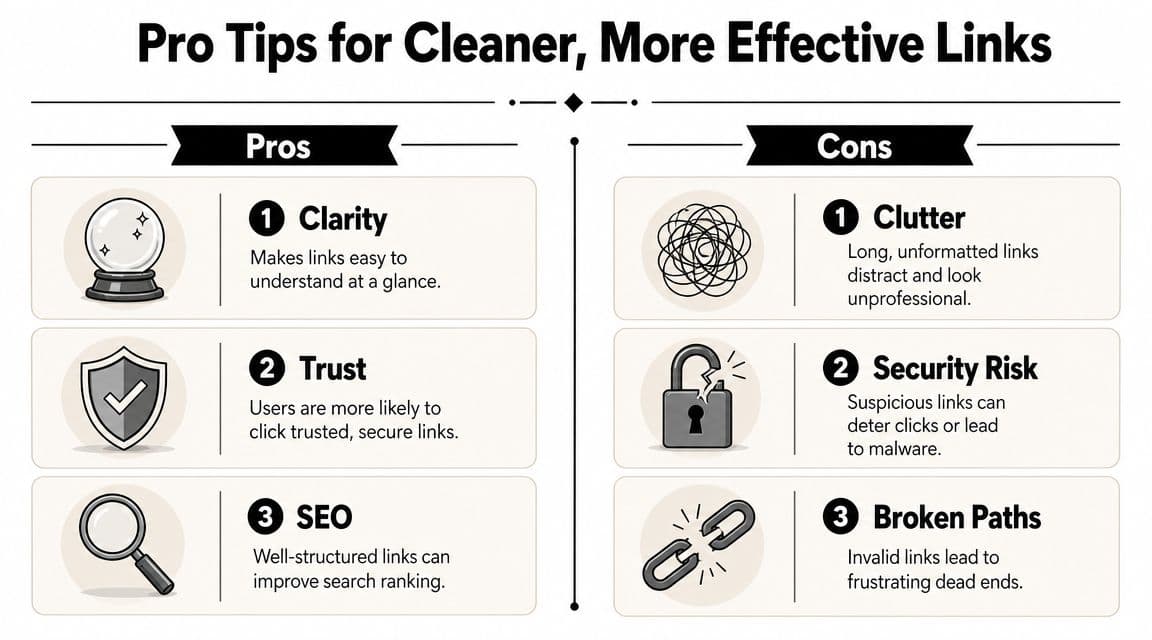
A pasted link doesn't have to stay messy. Once the basic action is automatic, the next step is making the result easier to read and safer to share.
Use anchor text instead of dumping the full URL
Raw URLs are fine in a quick message. They're often the wrong choice in polished writing.
If you're writing a report, email, or knowledge base article, it's cleaner to link a phrase that tells the reader what they'll open. Compare these two examples:
- Messy: https://example.com/folder/reports/q4-summary-final
- Cleaner: Read the Q4 summary
That second version is easier to scan and easier to trust. It also helps people using accessibility tools because the link text gives context.
Good anchor text usually answers one question: What will I get if I click this?
Better examples:
- Download the onboarding checklist
- Watch the customer interview
- Open the revised budget sheet
Weaker examples:
- Click here
- This
- Link
Meaningful link text helps readers decide whether to click before they click.
Know when to paste as plain text
Not every paste should carry formatting with it. Sometimes a copied link arrives with styling, color, title formatting, or unexpected hyperlink behavior from the source app.
Paste as plain text helps. It removes extra formatting so you only bring over the characters you want.
That matters because link behavior changes across apps. Microsoft Edge, for example, offers different paste modes, including a default link paste, a plain-text URL paste, and a settings-level default, which shows that pasting a link is a context-dependent workflow rather than one identical action everywhere, as explained in Microsoft's URL paste behavior documentation for Edge.
To offer a simple explanation:
- Use normal paste when you want the app to create a clickable link automatically.
- Use plain text paste when formatting gets weird or when you want the bare URL only.
- Use insert link tools when you want custom anchor text.
Check the destination before you send it
A link is only useful if it goes where you think it goes. Before you share one, test it.
Try this quick checklist:
- Open it once yourself. Make sure it lands on the intended page.
- Look for obvious misspellings in the domain name. Small changes can point to the wrong site.
- Match the label to the destination. If your text says “project brief,” the link should open the project brief, not a homepage.
- Avoid vague wording when the destination matters. “Meeting notes from Tuesday” is better than “doc.”
This step is especially important when you're forwarding links in group chats, client emails, or shared documents. A clean-looking link builds confidence. A vague or misleading one creates hesitation.
Pasting Links for Productivity in Fluidwave
In work tools, links stop being just references. They become instructions, evidence, and shortcuts to action.
A simple example: you create a task called Review Q4 Marketing Report. If the task only has a title, the next person still has to ask where the report lives. If the Google Docs link, dashboard URL, and relevant comment thread are pasted into the task description, the work starts immediately.

A practical workflow that keeps tasks clear
Here's a clean way to use links inside a task system:
- Name the task clearly. Example: “Approve homepage hero copy.”
- Paste the working link in the description. Add the draft URL, source doc, or asset folder.
- Add one sentence of context. Say what the person should review or decide.
- Use comments for follow-up links. If someone shares a revised version later, place it in the thread instead of replacing everything.
That keeps the task readable while preserving the trail of decisions.
If you build repeatable work, templates help a lot. A reusable structure for client handoffs, content reviews, or approval cycles works better when the right placeholders already exist. This guide on how to make a task template is useful if you want standard sections for links, notes, and deliverables.
Why this matters in real team work
The benefit isn't just tidiness. It's reduced ambiguity.
A pasted link can answer questions before they're asked:
- Which file are we using?
- Where is the current version?
- What reference should I follow?
- Which page needs approval?
That's especially useful for creators, marketers, and assistants who juggle many moving parts. If you also manage publishing workflows, this article on how to streamline content for creators is a helpful example of how centralizing links and assets can reduce friction across channels.
Beyond Pasting A Quick Recap
The basic action is easy. Copy the link, place your cursor, paste it. The useful part is knowing what kind of paste fits the moment.
Sometimes the best move is dropping in the raw URL so someone can open it fast. Sometimes it's better to turn that URL into clear anchor text so your message reads naturally. And sometimes the smartest choice is pasting as plain text so you don't drag a mess of formatting into your work.
The safety piece matters just as much as the mechanics. Guidance from security and accessibility experts stresses that you should check a link's target before sharing it and use meaningful link text instead of vague labels, a point highlighted in this link safety and accessibility discussion. That habit protects both you and the person receiving the link.
A thoughtful link saves time, reduces confusion, and makes digital communication feel more considerate. That's true in personal messages, client emails, shared docs, and task systems alike.
If you want a calmer way to manage tasks, links, and collaboration in one place, try Fluidwave. It's a practical option when you need your work context, notes, and next steps connected instead of scattered across tabs and chats.
Focus on What Matters.
Experience lightning-fast task management with AI-powered workflows. Our automation helps busy professionals save 4+ hours weekly.