Master your workflow with this cheat sheet of 10 essential Chrome keyboard shortcuts. Learn OS-specific tips and hacks for busy professionals.
May 14, 2026 (2mo ago)
10 Chrome Keyboard Shortcuts to Boost Productivity
Master your workflow with this cheat sheet of 10 essential Chrome keyboard shortcuts. Learn OS-specific tips and hacks for busy professionals.
← Back to blog
If your day lives inside Chrome, you already know the pattern. One tab for your task board. One for email. Five for research. Two more for docs you swear you'll close in a minute. Then the browser turns into a pile of half-finished decisions, and every mouse move costs more attention than it should.
That's the problem chrome keyboard shortcuts solve. They don't just save clicks. They protect focus. Google built Chrome around speed and keyboard-first use from the beginning, and its shortcut system has been part of that design since launch on September 2, 2008, according to Chrome's official keyboard shortcut documentation. In practice, that matters most when your browser is the control panel for your work.
For professionals using a task platform like Fluidwave, the browser isn't separate from the workflow. It is the workflow. You're opening a task, checking a reference page, delegating work, reviewing a comment, searching for a client detail, then moving right back to execution. Every unnecessary reach for the mouse breaks the chain.
That's why I treat browser shortcuts as operating rules, not trivia. The useful ones are the ones you can wire into your daily system immediately, especially if you're handling lots of tabs, juggling meetings, or trying to reduce context switching. If you also work across multiple displays, Direct AI's guide to splitting monitors pairs well with the habits below because screen layout and keyboard control reinforce each other.
1. Ctrl+T (Cmd+T on Mac) - Open New Tab
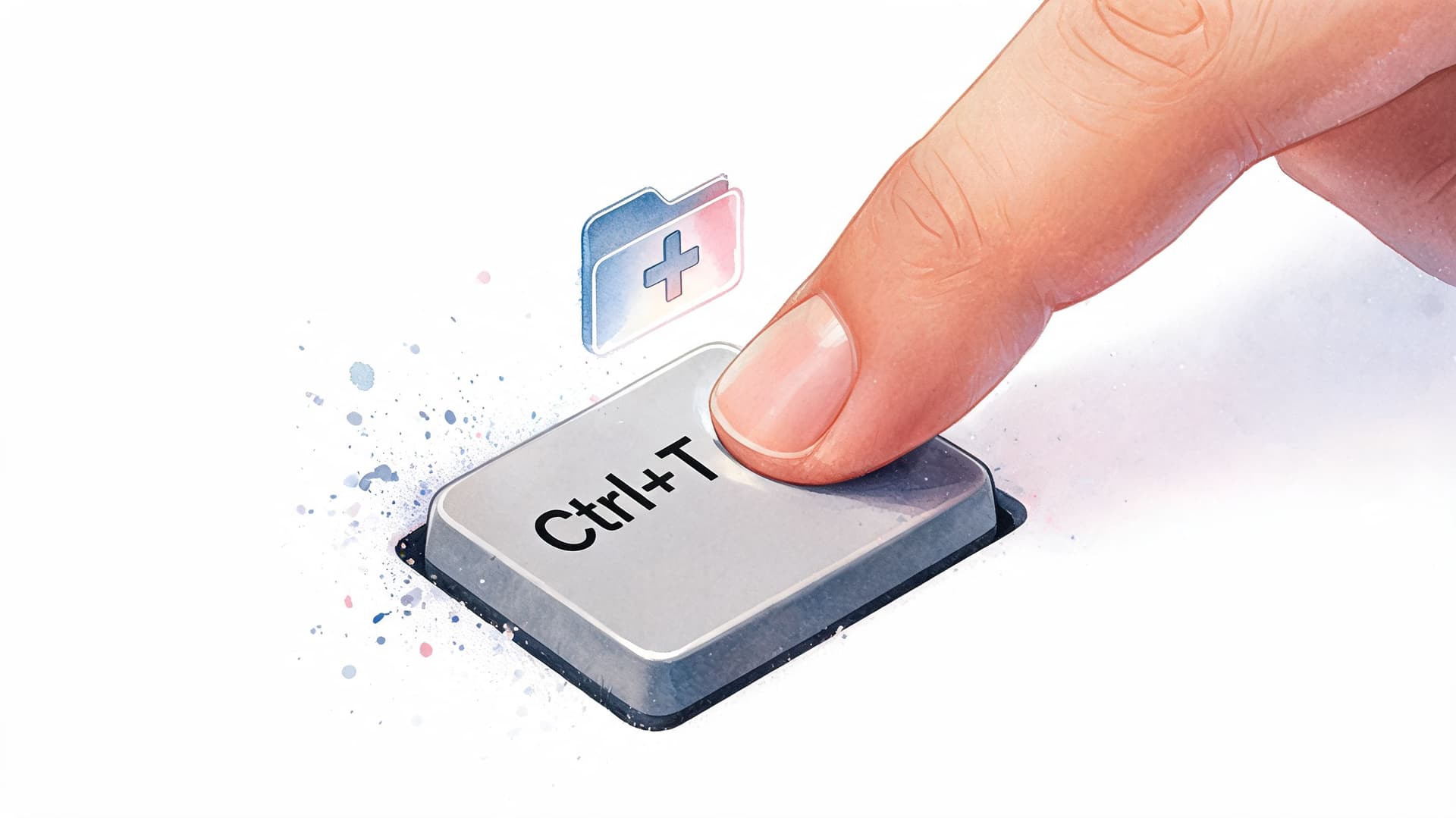
You are in the middle of a task review, a stakeholder asks for a source, and you need to check one page without losing the work already open. Ctrl+T handles that instantly. It gives you a clean workspace for the next action while keeping your main tab in place.
That matters in a professional workflow because the browser is usually carrying the task itself. In Fluidwave, I use Ctrl+T to protect the current task view, open the supporting page, grab what I need, and return before the thread breaks. No clicking the plus icon. No deciding whether to overwrite the current tab. Just a fast branch from the work in front of you.
Used well, Ctrl+T reduces hesitation. Used carelessly, it creates tab debt.
Where it earns its keep
The best use case is parallel context. One tab holds the task. The new tab holds the reference, search, or document needed to finish it.
- Task research: Keep Fluidwave open while checking specs, client notes, or a source page in a separate tab.
- Execution support: Open a fresh tab to verify one detail, then return to the task and record the answer.
- Delegation prep: Pull up source material before assigning work so the handoff includes the right links and instructions.
This shortcut becomes more valuable when it supports a repeatable process. Pair it with task automation ideas for recurring work in Fluidwave so each new tab exists for a clear reason, not because your attention drifted.
Practical rule: Open a new tab to complete the current task faster. If the tab does not help you finish, do not create it.
One more trade-off is worth being honest about. Ctrl+T feels productive because it is fast, and that speed can hide bad habits. If you already have too many tabs open, the better move is often to find the tab you need or close finished work first, not add another layer of clutter.
2. Ctrl+W (Cmd+W on Mac) - Close Current Tab
Ctrl W is how you keep Chrome from turning into a digital junk drawer. Open tabs feel harmless, but they become open loops. The fastest way to keep your browser usable is to close a tab the second it has finished its job.
This matters after task completion. You research a deliverable, update Fluidwave, delegate the next step, then leave the source tab sitting there. Do that all afternoon and your tab bar starts competing with your priorities. Ctrl+W lets you clean up in real time instead of promising yourself a reset later.
Tom's Guide includes reopening closed tabs among Chrome's standout time-savers in its roundup of shortcut habits, which is useful context because the fear of closing the wrong tab is what stops many people from building tab hygiene in the first place. That safety net makes Ctrl+W easier to use aggressively and intelligently, as noted in Tom's Guide's Chrome shortcut overview.
The trade-off
Used well, this shortcut sharpens focus. Used carelessly, it creates rework.
Here's the clean rule set I recommend:
- Close finished research: If you've already extracted the information into Fluidwave, shut the tab.
- Protect essential pages: Pin tabs you must not lose, such as your main task dashboard or calendar.
- Move first, close second: If multiple similar tabs are open, switch deliberately before hitting
Ctrl W.
One real-world example. After a planning block, close every support tab except the one that holds your active task list. That small reset makes the next work block feel lighter.
Close tabs with intent, not emotion. Frustration makes people wipe out useful context.
What doesn't work is mass-closing tabs while you're still mid-process. If you haven't captured the next action or delegated the work, the tab may still be earning its place.
3. Ctrl+Tab (Cmd+Option+Right on Mac) - Jump to Next Tab
You are halfway through a work block. Fluidwave holds the active task, the client brief is in the next tab, and your source doc sits after that. In that setup, Ctrl+Tab is not just tab switching. It is the shortest route through the work you already decided to do.
The shortcut only pays off when tab order is deliberate. I recommend treating Chrome like a workstation, not a pile of open pages. Put Fluidwave first as the control panel. Keep the materials needed for the current task immediately to the right. Push email, chat, analytics, and background reading farther down the line.
Build a tab order that matches the job
Ctrl+Tab works best when each tab has a role in the sequence.
- Anchor tab first: Keep Fluidwave at the left so you can return to your task hub without thinking.
- Execution tabs next: Place docs, specs, spreadsheets, and reference pages beside it.
- Interruptions later: Leave Slack, inboxes, and lower-priority dashboards farther right.
That layout cuts friction in a way a bigger tab cleanup never will. It also reduces the small but constant tax of context switching during focused work, especially when interruptions force you to re-enter the task.
There is a trade-off. A fixed tab order takes a minute to set up at the start of a session. Skip that step, and Ctrl+Tab becomes random movement through browser clutter. Use it with intention, and it supports a repeatable workflow loop: task in Fluidwave, supporting info, action, back to task.
For ADHD users and anyone managing frequent interruptions, that predictable loop matters. Returning to the same anchor tab each time lowers the mental work required to figure out where you were and what comes next.
4. Ctrl+Shift+T - Reopen Closed Tab
This is the rescue shortcut. Ctrl+Shift+T reopens the last closed tab, and it saves more stress than almost any other Chrome command because accidental closures happen most often when you're moving fast.
Chrome formalized advanced tab management early, and version 5 marked the arrival of Ctrl+Shift+T, according to the historical context summarized in the verified data. That feature mattered because it turned tab cleanup from a risky act into a reversible one. Once you trust the recovery path, you close more confidently and work with less hesitation.
In real use, this is what happens. You close a Fluidwave task detail page, a source doc, or a message thread with instructions you still needed. Instead of digging through history or trying to remember the path back, you hit Ctrl+Shift+T and continue.
Why professionals rely on it
The best use case isn't carelessness. It's speed with a safety net.
- Accidental tab closure: Recover the tab immediately before opening anything else.
- Mid-project cleanup mistakes: Reopen a research tab you dismissed too early.
- Meeting interruptions: Restore the exact page you lost when you had to move quickly.
Google reported Chrome reaching 70 million monthly active users in 2010 in a company blog post referenced in the verified data, and that growth period lined up with the browser maturing into a serious productivity environment. Shortcut recoverability was part of the appeal.
The people who keep clean tab bars aren't magically more organized. They just trust their recovery tools.
Sloppiness is no excuse for inefficiency. If you repeatedly close and reopen the same pages, the effective fix is better tab structure, not faster recovery.
5. Ctrl+L (Cmd+L on Mac) - Jump to Address Bar
You are halfway through a task review in Fluidwave, then remember you need the client brief, a pricing doc, and one quick search before the next meeting starts. Reaching for the mouse every time breaks pace. Ctrl+L keeps the transition tight by putting your cursor in the address bar immediately.
That matters because the address bar is a command field, not just a place to paste URLs. Use it to jump back to Fluidwave, search Chrome history suggestions, open a bookmarked document, or run a web search from the same spot. In a real workflow, this shortcut helps you switch destinations without the visual drift that comes from hunting around the browser chrome.

Best use cases
Use Ctrl+L when the next move is already clear and you want to act on it fast.
- Return to your operating hub: Jump straight back to Fluidwave and resume task execution from your dashboard or a saved workspace view.
- Launch research without detours: Type a client name, ticket number, or deliverable directly into the bar instead of opening a search page first.
- Reset after distraction: If you have drifted into a page that is no longer useful,
Ctrl+Lgives you a clean starting point for the next action.
The bigger gain is system-level. Professionals who work quickly do not treat the browser as a pile of tabs. They treat it as a controlled path between task manager, source material, and output. That is the same logic behind practical productivity habits for focused work.
One combo earns its keep every day. Hit Ctrl+L, then Ctrl+A if the current URL stays selected inconsistently on your setup, then type the next destination. It is a small habit, but it removes one more point of friction from repeated task switching.
Mouseing up to the address bar is not disastrous. It is just slower than it needs to be, and that cost shows up dozens of times in a normal workday.
6. Ctrl+F (Cmd+F on Mac) - Open Find in Page

When a page is long, scrolling is usually the wrong move. Ctrl+F opens Find in Page so you can jump to the exact word, client name, task ID, or phrase you need.
This shortcut is especially useful inside work platforms. If you're scanning a long Fluidwave list view, checking comments, or reviewing a loaded document in Chrome, searching beats hunting. It also reduces rereading, which matters when your energy is already split across multiple projects.
The practical difference is simple. Searching makes the page answer your question. Scrolling makes you look for it.
Where it saves the most time
Use Ctrl+F when the page has density, repetition, or lots of similar entries.
- Task verification: Search a client name before approving or delegating a task.
- Comment review: Jump to a keyword in a long discussion thread.
- Reference checks: Find a spec, code, term, or requirement on a busy page.
For broader output gains, Fluidwave's productivity guide connects well with this shortcut because both push you toward direct retrieval instead of visual drift.
A related habit that works well is using Ctrl+G to move to the next match once the search is open. That keeps your navigation linear and fast.
Search first. Scroll only when you don't know what you're looking for.
What doesn't work is forcing Ctrl+F onto pages with poor structure or dynamic content that loads as you move. In those cases, use the app's native search if it's stronger than the browser search.
7. Ctrl+H (Cmd+Y on Mac) - Open History
Ctrl+H opens browsing history, which makes it a recovery tool, a memory aid, and sometimes a lifesaver after interruptions. If a meeting cut your workflow in half and you can't remember which page you were on, history often gets you back faster than trying to reconstruct the path manually.
This shortcut is useful when your work comes in bursts. You review a client brief, jump into a call, come back an hour later, and the exact tab is gone. Ctrl+H gives you a second chance at your own recent context.
I don't recommend living in browser history. That's a sign your workflow lacks structure. But for retrieval, it's excellent.
Smart ways to use it
History works best as a short-term trail, not a primary navigation system.
- Recover a session path: Search recent visits for a project name or task platform.
- Reconnect after interruptions: Find the page you were reading before a call hijacked your attention.
- Audit your own work: Review what you touched during a planning or research block.
For neurodivergent users, this can also function as an external memory aid. If attention shifted hard, history gives a visible breadcrumb trail back into the task.
What doesn't work is using history as a substitute for bookmarks, pinned tabs, or a stable home base like Fluidwave. Those tools prevent confusion. History only repairs it after the fact.
8. Ctrl+Shift+M - Switch Chrome User
If you use one Chrome profile for everything, work and personal browsing tend to bleed into each other. Ctrl+Shift+M helps by switching between Chrome users, which is one of the cleanest ways to separate contexts without logging in and out of services all day.
This shortcut is especially valuable for consultants, founders, team leads, and virtual assistants. One profile can hold your company's Fluidwave workspace, bookmarks, extensions, and pinned tabs. Another can hold personal accounts or a separate client environment. The separation reduces mistakes.
The hidden value here is psychological. Profiles create hard edges. When you switch profiles, your browser stops showing you unrelated tabs, saved accounts, and distractions from another role.
How to make profile switching useful
This shortcut only pays off if the profiles are set up deliberately.
- Name profiles clearly: Use labels like Work, Personal, Client A, or Team Ops.
- Change visual themes: Different colors reduce mistakes at a glance.
- Pin role-specific tabs: Keep the right Fluidwave workspace pinned in each profile.
A real example. A manager might keep one profile for internal team planning and another for client-facing delivery. Same browser, different operating environment.
What doesn't work is creating multiple profiles and then filling all of them with the same tabs and extensions. If nothing changes, the shortcut doesn't solve anything. Distinct profiles need distinct purposes.
9. Ctrl+N - Open New Window
Ctrl+N opens a new Chrome window, which is different from opening a new tab. Tabs keep things connected. Windows create separation. That distinction matters when one set of tasks shouldn't visually compete with another.
This is one of the best shortcuts for compartmentalized work. You can keep your main Fluidwave dashboard in one window and open a second window for urgent research, client review, or admin work. The shift is immediate. The clutter stays contained.
According to the verified data, Ctrl+N is one of Chrome's foundational window-management shortcuts, part of the keyboard-centric workflow that made the browser popular with heavy desktop users. In practical terms, the shortcut works because it changes the size of the problem. A crowded tab bar is hard to control. Two purpose-built windows are often easier.
When a new window beats a new tab
Use Ctrl+N when visual isolation is more valuable than tab proximity.
- Separate urgent work: Put a high-priority delegation or review session in its own window.
- Use multiple displays well: Keep one window on each monitor for cleaner focus.
- Create role boundaries: One window for planning, another for execution.
For ADHD users, windows can act like containers for attention. One window means one category of work. That's often easier to maintain than one giant browser instance full of mixed signals.
What doesn't work is opening extra windows without assigning each one a job. Multiple windows only help when each has a clear purpose. Otherwise you've just multiplied the chaos.
10. Ctrl+Shift+Delete - Open Clear Browsing Data
This shortcut opens Chrome's Clear Browsing Data screen. It's less glamorous than tab and navigation shortcuts, but for anyone handling sensitive work, shared machines, or client transitions, it matters.
Virtual assistants, contractors, and teams moving between accounts should be especially mindful of this. Browser residue sticks around. Cookies, cached data, and recent history can blur boundaries between sessions if you don't manage them deliberately.
The key here is restraint. Clearing everything all the time is usually overkill. You can create unnecessary sign-outs, lose convenience, and interrupt your own workflow. But when you've finished a sensitive client session or need a clean handoff, this shortcut gets you to the right control panel fast.
Before using the next shortcut, it helps to see the interface in action:
Use it surgically
This is one of those chrome keyboard shortcuts that rewards judgment.
- Clear recent session data: Use a limited time range when switching between client contexts.
- Remove site-specific baggage: Focus on cookies and cached data when login behavior gets messy.
- Protect shared environments: Clean up after handling confidential material on a non-private machine.
A good real-world example is a VA finishing one client's delegated work before moving into another client environment. A fast cleanup step can prevent account confusion and reduce privacy risk.
What doesn't work is treating data clearing as routine maintenance for every minor issue. It's a reset tool, not a productivity shortcut in the same sense as tab movement or search. Use it when security, privacy, or session integrity require it.
Top 10 Chrome Keyboard Shortcuts Comparison
| Shortcut | Implementation Complexity 🔄 | Resource Requirements | ⚡ Speed / Effectiveness ⭐ | 📊 Expected Outcomes | 💡 Key Tips |
|---|---|---|---|---|---|
| Ctrl+T (Cmd+T) - Open New Tab | Very low, built-in, no setup | None beyond a keyboard; works across profiles | Very high ⚡ ⭐⭐⭐, instant tab creation | Enables parallel browsing and multitasking; risk of tab hoarding | Combine with Ctrl+Shift+T; use Tab Groups; close tabs after tasks |
| Ctrl+W (Cmd+W) - Close Current Tab | Very low, immediate action | None | High ⚡ ⭐⭐⭐, instant closure | Reduces distractions and tab accumulation; risk of accidental close | Use Ctrl+Shift+T to recover; pin important tabs; check before closing |
| Ctrl+Tab (Cmd+Opt→) - Jump to Next Tab | Low, cycles by tab order | None | High ⚡ ⭐⭐, fast but order-dependent | Keyboard navigation reduces mouse use; can disorient with many tabs | Organize tabs by priority; use Ctrl+Shift+Tab; use tab groups |
| Ctrl+Shift+T - Reopen Closed Tab | Low, relies on session history | None; depends on recent session state | Very high ⚡ ⭐⭐⭐, quick recovery | Prevents accidental data loss; restores recent context; limited scope | Habit-check after closures; can reopen multiple in reverse order |
| Ctrl+L (Cmd+L) - Jump to Address Bar | Low, built-in | None; familiarity with URLs/search helps | High ⚡ ⭐⭐, fast URL/search entry | Enables rapid navigation; may interrupt flow if URLs unknown | Set Fluidwave as search engine; use Ctrl+A; use bookmarks |
| Ctrl+F (Cmd+F) - Find in Page | Low, page-local search | None | Very high ⚡ ⭐⭐⭐, fast in-page retrieval | Dramatically reduces time locating details; limited to current page | Use Ctrl+G / Shift+Enter; combine with native search for large volumes |
| Ctrl+H (Cmd+Y) - Open History | Low, built-in | None; mindful of privacy | Moderate ⚡ ⭐, opens quickly; review takes time | Recovers past context; can be overwhelming; privacy trade-offs | Search history for "fluidwave"; manage and prune history regularly |
| Ctrl+Shift+M - Switch Chrome User | Low–moderate, requires profile setup | Requires multiple Chrome profiles configured | High ⚡ ⭐⭐, instant profile switch | Isolates work contexts and credentials; can confuse active profile | Name profiles clearly; use distinct themes; pin Fluidwave per profile |
| Ctrl+N - Open New Window | Low, built-in | Higher system resources for extra windows | High ⚡ ⭐⭐, opens window instantly but consumes RAM | Complete workspace isolation; good for multi-monitor; increased resource use | Use Ctrl+Shift+N for incognito; assign windows to virtual desktops |
| Ctrl+Shift+Del - Clear Browsing Data | Low, opens settings dialog | No extra tools; careful selection needed to avoid data loss | Moderate ⚡ ⭐, dialog opens fast; clearing may take time | Improves privacy/security; risk of removing saved passwords/autofill | Use time-range selector; preserve passwords; clear cookies selectively |
From Shortcuts to a Cohesive System
At 9:00 a.m., the browser often turns into a pile of half-finished work. One tab holds the task list, three hold research, one is a message you still need to answer, and two more are open because closing them felt risky. Knowing shortcuts helps, but the true gain comes from giving each shortcut a job inside your workflow.
The fix is straightforward. Start with two shortcuts tied to work you already do every day. If your browser is mainly a staging area around your task hub, use Ctrl+T to open what you need and Ctrl+W to clear it the moment it has served its purpose. If your day involves heavy review, use Ctrl+Tab to move through active material and Ctrl+F to pull details from long pages without breaking focus.
Shortcuts stick when they follow a trigger. New task that needs outside context, press Ctrl+T. Finished with the source and logged the next step in Fluidwave, press Ctrl+W. Need one line from a dense document, press Ctrl+F. Need to jump back to your command center fast, press Ctrl+L and go straight there.
That is how muscle memory forms.
Trying to memorize all ten shortcuts at once usually fails because the learning cost shows up before the time savings do. A better approach is to build from high-frequency actions, then add one recovery move like Ctrl+Shift+T. That single shortcut changes behavior more than people realize because it removes the fear of closing the wrong tab and lets you work faster with less hesitation.
There is also a practical cognitive benefit. Keyboard-first browsing cuts out dozens of tiny mouse decisions: where the tab is, whether you clicked the right one, how far you need to scroll, which window is active. That reduction matters in real work. Executives handling back-to-back meetings, founders switching between operations and sales, freelancers juggling client contexts, and professionals with ADHD all pay a focus tax when the browser stays noisy.
Fluidwave works well at the center of this setup because it gives Chrome a fixed home base. Tasks, priorities, collaboration, and delegation stay anchored in one place. Shortcuts then handle movement around that core instead of helping you move faster through tab clutter. The result is a workflow with less friction and fewer loose ends.
Keep the method simple. Leave your task hub visible. Open reference material only when the task calls for it. Close tabs aggressively once the next action is captured. Search before scrolling. Split profiles or windows when work contexts should stay separate. Recover mistakes quickly and keep moving.
Used this way, Chrome stops being a holding area for digital leftovers. It becomes an operating layer around a system you can trust.
If you want a task hub that matches a keyboard-first workflow, Fluidwave is worth a look. It combines AI-driven task management, deep-focus design, collaboration, and on-demand virtual assistant delegation in one place, so the shortcuts you use in Chrome support a cleaner system instead of just helping you move faster through clutter.
Focus on What Matters.
Experience lightning-fast task management with AI-powered workflows. Our automation helps busy professionals save 4+ hours weekly.