Compare 7 to do template options for personal, daily, weekly, team, and ADHD-friendly planning, with practical editing and download guidance.
September 18, 2026 (1d ago)
7 to Do Template Picks for Personal and Team Work
Compare 7 to do template options for personal, daily, weekly, team, and ADHD-friendly planning, with practical editing and download guidance.
← Back to blog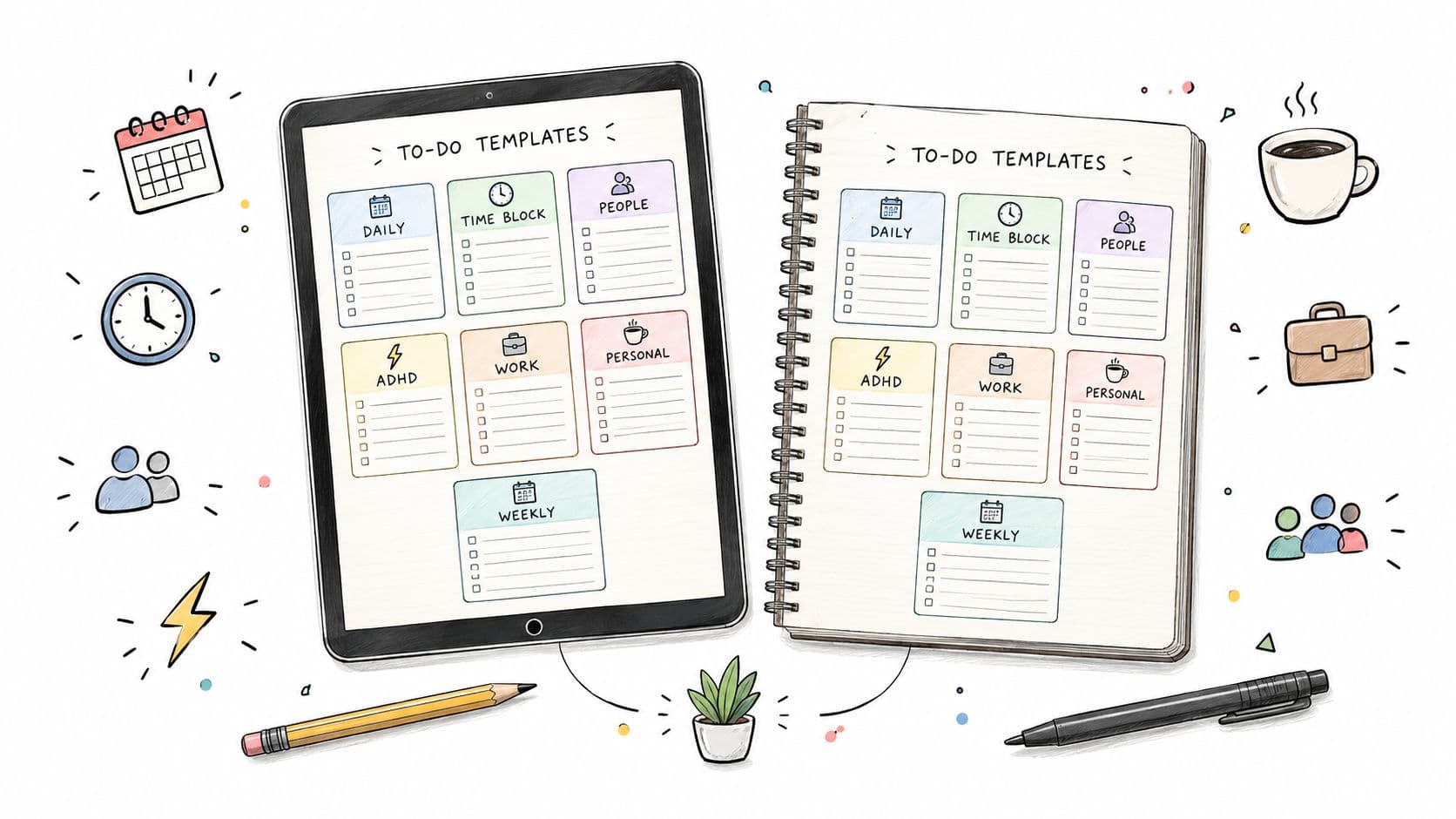
You've got tasks scattered across notes, messages, email, and spreadsheets, yet you still don't know what deserves your attention first. That usually isn't a motivation problem. It's a workflow problem. The right to do template depends on how many tasks you manage, whether other people need to contribute, which view helps you think clearly, and how much maintenance you're willing to tolerate.
The seven options below cover distinct working styles, from AI-assisted prioritization and focused personal lists to visual boards, flexible databases, structured team projects, and printable spreadsheets. You'll find practical choices for daily planning, weekly reviews, team coordination, and ADHD-friendly task management. If your work includes social campaigns, compare your task system with this guide to social media manager KPIs and tools. Before downloading or duplicating anything, verify each provider's current availability, plan limits, and exact setup steps on its website.
1. Fluidwave Eisenhower Matrix for AI-assisted prioritization
A long task list becomes useful only after you decide what deserves action, scheduling, delegation, or removal. Fluidwave's Eisenhower Matrix tool is the strongest pick when prioritization itself is the bottleneck.
The tool uses the urgent and important framework to classify tasks with AI assistance, then presents them across list, table, Kanban, calendar, or card views. That combination matters because you can start with a quick capture, inspect the four priority groups, and switch to the view that best fits the next stage of work. Automated rules can promote or demote tasks as conditions change, which reduces repetitive triage.
Fluidwave also connects prioritization with execution. A task in the delegate quadrant can be handed to a vetted virtual assistant, with a budget and deadline set before work begins. You pay for completed work, while progress tracking and collaboration features keep the handoff visible.
Who benefits and how to customize it
This is built for executives, founders, freelancers, and teams handling competing priorities. It's also a good fit for people with ADHD or other executive-function challenges because the system turns an undifferentiated list into clearer next actions.
Write task names with enough detail for classification. “Prepare client update” gives the system more context than “client.” Add deadlines, owners, and relevant notes, then create rules for recurring work or changing urgency. For more guidance on applying the method, use these Eisenhower Matrix examples.
Practical rule: If a task is vague, rewrite it as a visible outcome before relying on automated prioritization.
The trade-off is complexity and cost control. AI classification depends on task clarity, so you'll still need to correct ambiguous entries. Frequent delegation can also increase spending, which makes budgets and oversight essential. Choose Fluidwave when you need the system to help decide what happens next, not merely record what you've already decided.
2. Asana for structured team projects
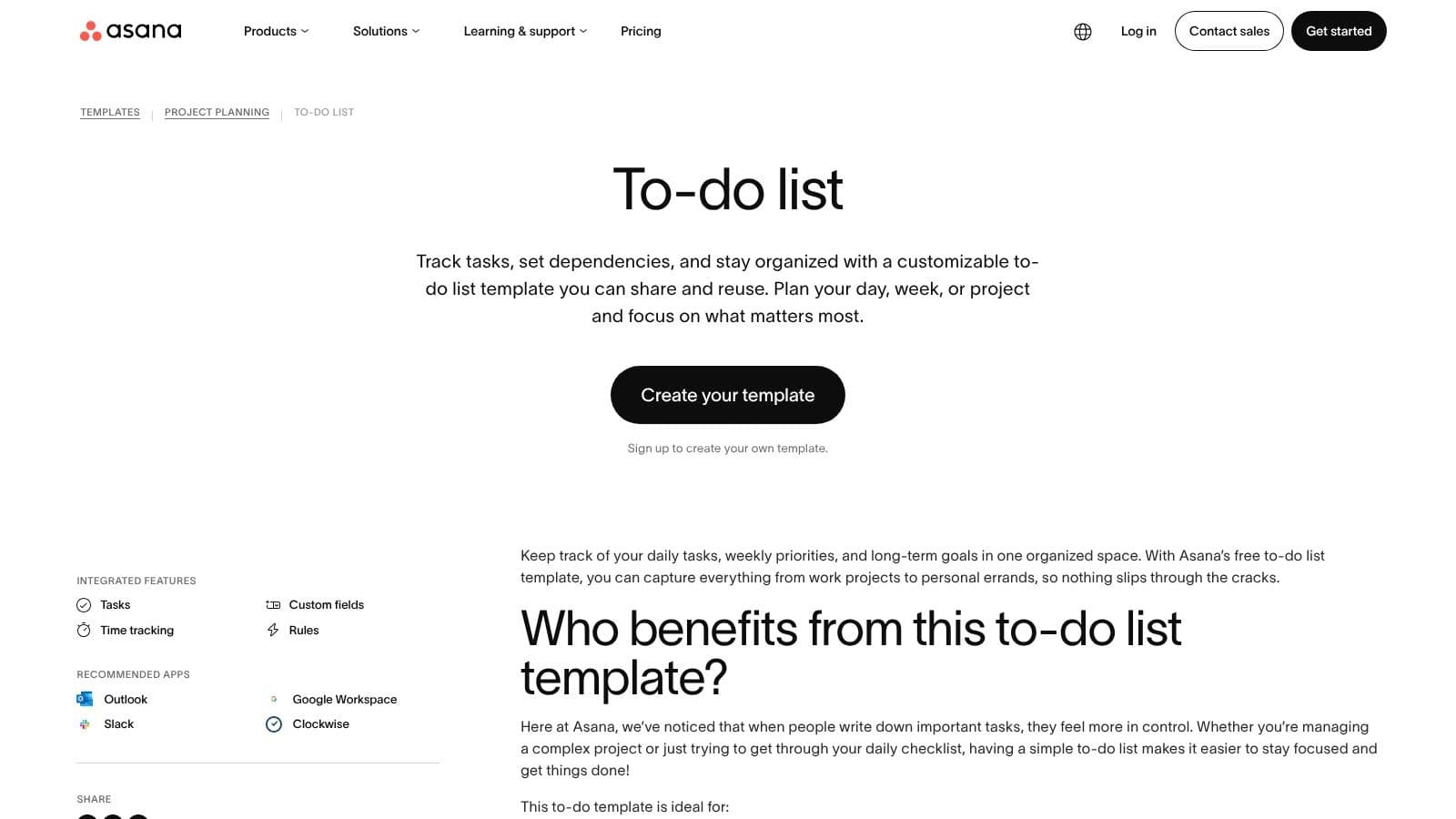
Asana is the best choice when a simple checklist needs to grow into coordinated project work. Its to-do list template gives you a reusable starting point with tasks, subtasks, assignees, due dates, and dependencies.
You can begin with a personal list, then add custom fields, rules, time tracking, and integrations with tools such as Google Workspace, Outlook, and Slack. List, Calendar, and Timeline views let different users work from the same project without forcing everyone into one format.
Customize before the project gets heavy
Start by deleting fields your team won't maintain. Keep only the information needed for ownership, timing, status, and handoffs. Add dependencies when one task blocks another, rather than turning every sequence into a formal project plan. These choices follow the same principle explained in this guide to task management templates, structure should reduce friction, not create administration.
Asana works especially well for marketing calendars, product launches, onboarding, and cross-functional work. A manager can assign tasks, monitor deadlines, and move from a basic list to Timeline planning as the project becomes more involved.
The downside is that Asana can feel oversized for a solo list of errands or recurring personal tasks. Advanced capabilities such as portfolios, goals, and resource management may also depend on higher-tier plans, so confirm current plan access before designing your workflow around them. Choose Asana when accountability and dependencies matter more than minimalism.
3. Todoist for focused recurring tasks
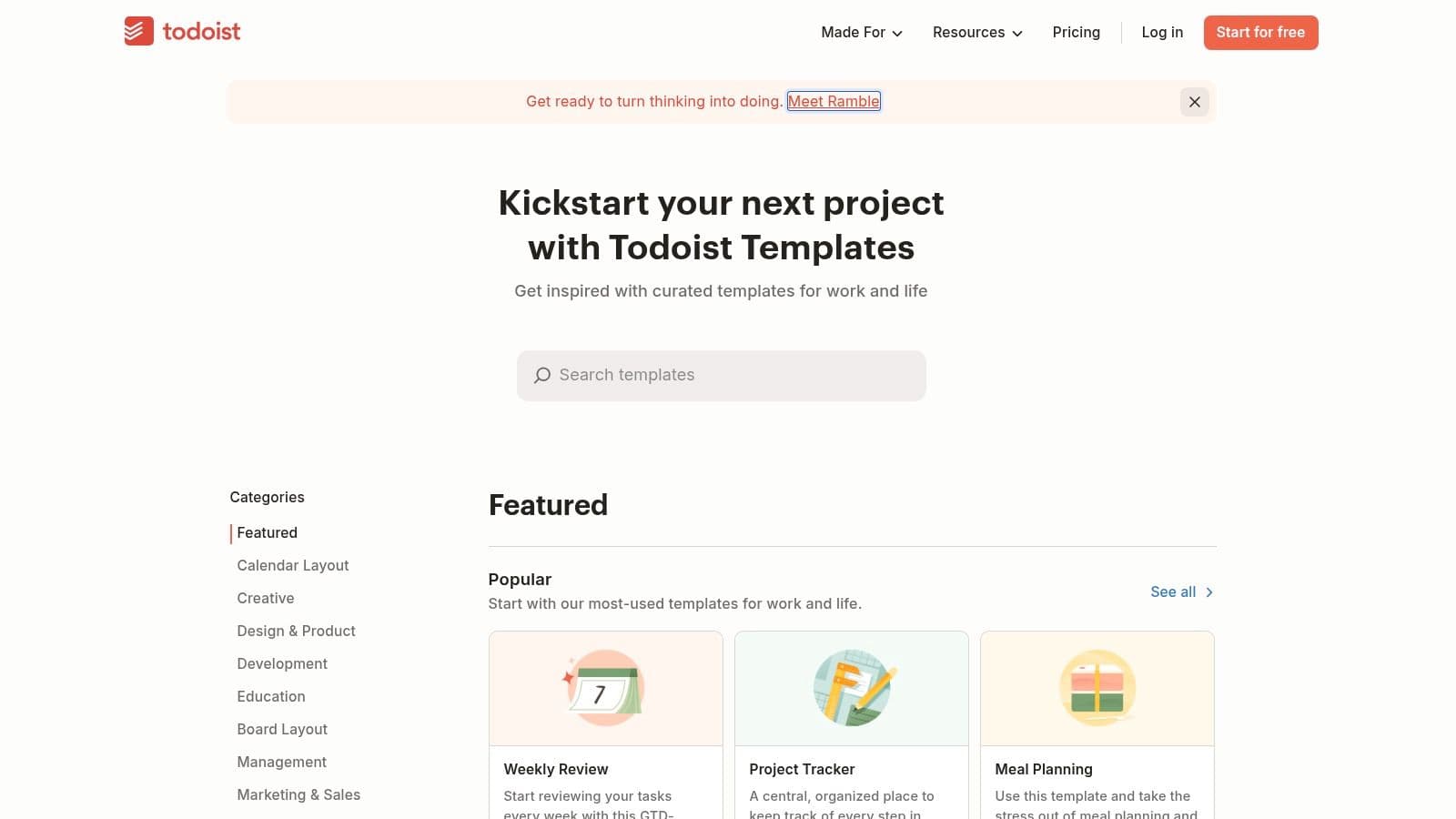
Todoist is the cleanest recommendation for people who want to capture tasks quickly and return to a focused list without building a project-management system. Its official template library includes ready-made projects and checklists for personal routines, business activities, learning, meeting preparation, and onboarding.
A template imports directly into a Todoist project, so you can edit labels, priorities, and recurring due dates immediately. Todoist's natural-language date entry also makes recurring work easy to maintain. Type a task with a date or repetition pattern, then let the app place it into the right schedule.
Keep the system intentionally small
Todoist benefits people who need a daily agenda, weekly reset, household list, or recurring professional routine. Customize a template by removing categories you won't review and keeping labels meaningful. For example, separate “waiting,” “deep work,” and “quick action” only if those distinctions change what you do.
It's also suitable for small teams that need shared checklists without the overhead of a full project suite. The interface stays task-focused, and the template gallery gives non-project-management users a fast starting point.
Todoist becomes limited when your workflow depends on complex dependencies, detailed resource planning, or extensive administrative controls. It also makes sense to check current Business plan rates and features before upgrading, because plan terms can change. Choose Todoist when the value lies in consistent capture and recurring execution, not elaborate dashboards.
4. Notion for flexible databases and connected work
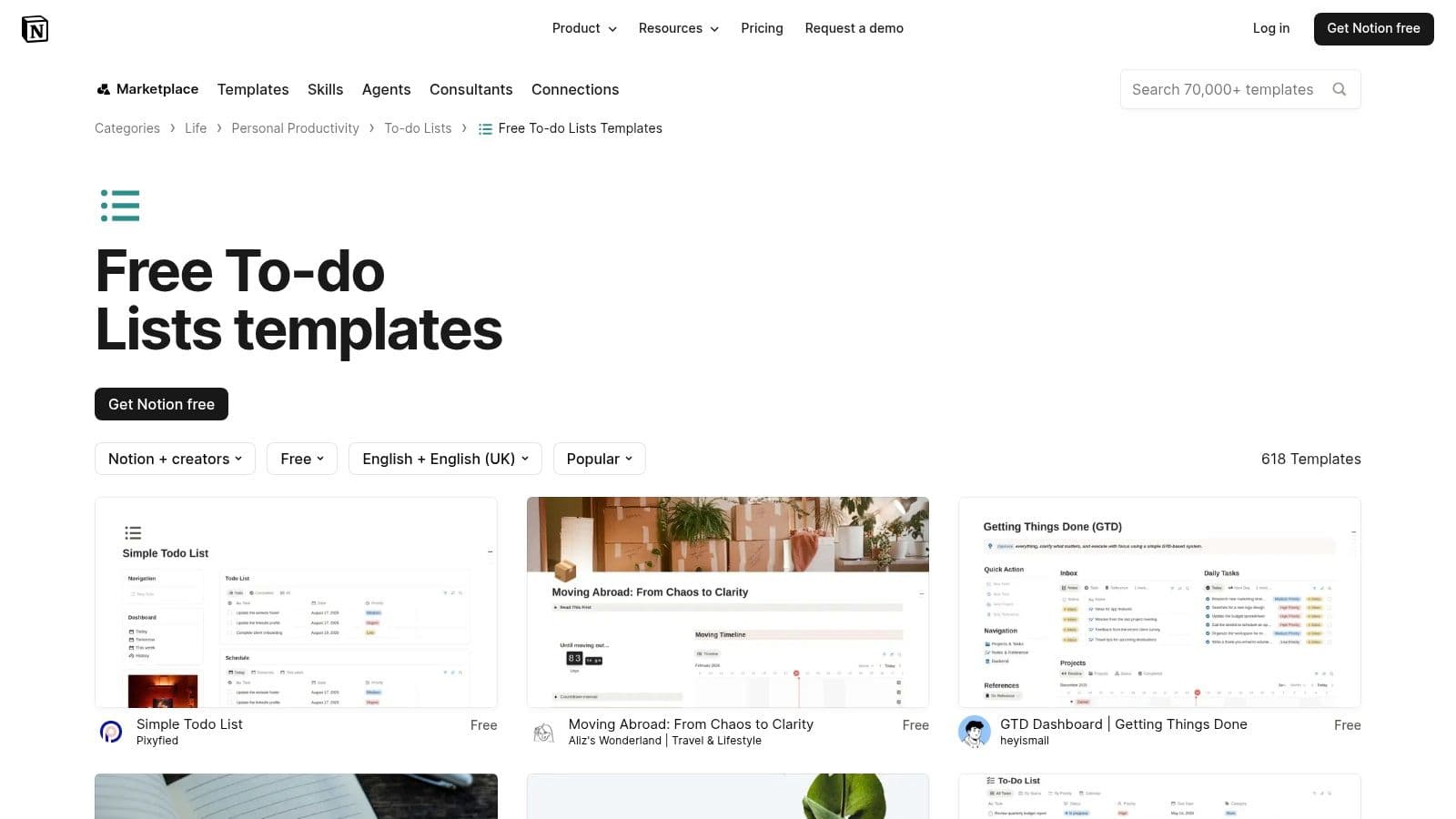
Notion is the right fit when tasks live alongside project notes, research, meeting records, and documentation. Its free to-do list templates range from simple daily checklists to databases, matrices, and team boards that you can duplicate into a workspace.
The core advantage is flexibility. Add properties for priority, status, owner, project, effort, or deadline, then create Table, Board, or Calendar views from the same database. Filters can show only overdue work, a specific project, or tasks assigned to one person.
Build a database you'll actually use
Notion works particularly well for content teams, founders, consultants, and knowledge workers who want tasks connected to context. A content calendar can hold the task, draft, brief, feedback, and publication details in one workspace. A personal system can combine daily actions with a weekly review page and reference notes.
Customize in stages. Begin with task, status, priority, and due date. Add subtasks, dependencies, or formulas only after you've identified a real need. Too many properties make capture slower and encourage users to bypass the system.
That flexibility is also Notion's central weakness. A blank database invites endless design, and advanced AI or automation features may require paid credits or higher plans. Choose Notion when you want to shape the system around your work. Don't choose it for a quick checklist if you're likely to spend more time designing views than completing tasks.
5. ClickUp for scalable task operations
ClickUp suits teams that want a to-do template today and a more advanced workflow later. Its online to-do list templates support personal lists, daily planning, reusable checklists, and task structures with subtasks, assignees, due dates, and priorities.
You can save a list or checklist as a template and apply it manually or through Automations. Home, List, Calendar, and Board views allow users to work from different perspectives while keeping the underlying tasks connected. That makes ClickUp useful for agencies, operations teams, and growing businesses that expect their process to become more detailed.
Decide whether you need the depth
ClickUp's strength is its ability to turn repeated work into a standard operating process. Create a template for client onboarding, apply it when a new project starts, and assign each step without rebuilding the checklist. Teams can also add priorities, owners, and views as coordination needs grow.
The interface can feel dense for a personal list, especially if you activate features you don't need. New users may need onboarding to understand the overlap between Spaces, Lists, tasks, checklists, views, and Automations. That setup cost is justified when several people depend on consistent execution. It's unnecessary if you only need a short list of personal actions.
Choose ClickUp for structured team work with repeatable processes. Keep the first template narrow, then add automation only after people reliably use the manual version.
6. Trello for visual flow
Trello is the best visual option for people who understand work by seeing it move. Its template gallery includes community-created boards, and any board can become a reusable template for a workflow such as To Do, Doing, and Done.
Each card can hold a task, due date, checklist, comments, attachments, and Power-Ups. Butler automation can handle routine board actions, while Quick Add options make it easier to capture new cards before an idea disappears.
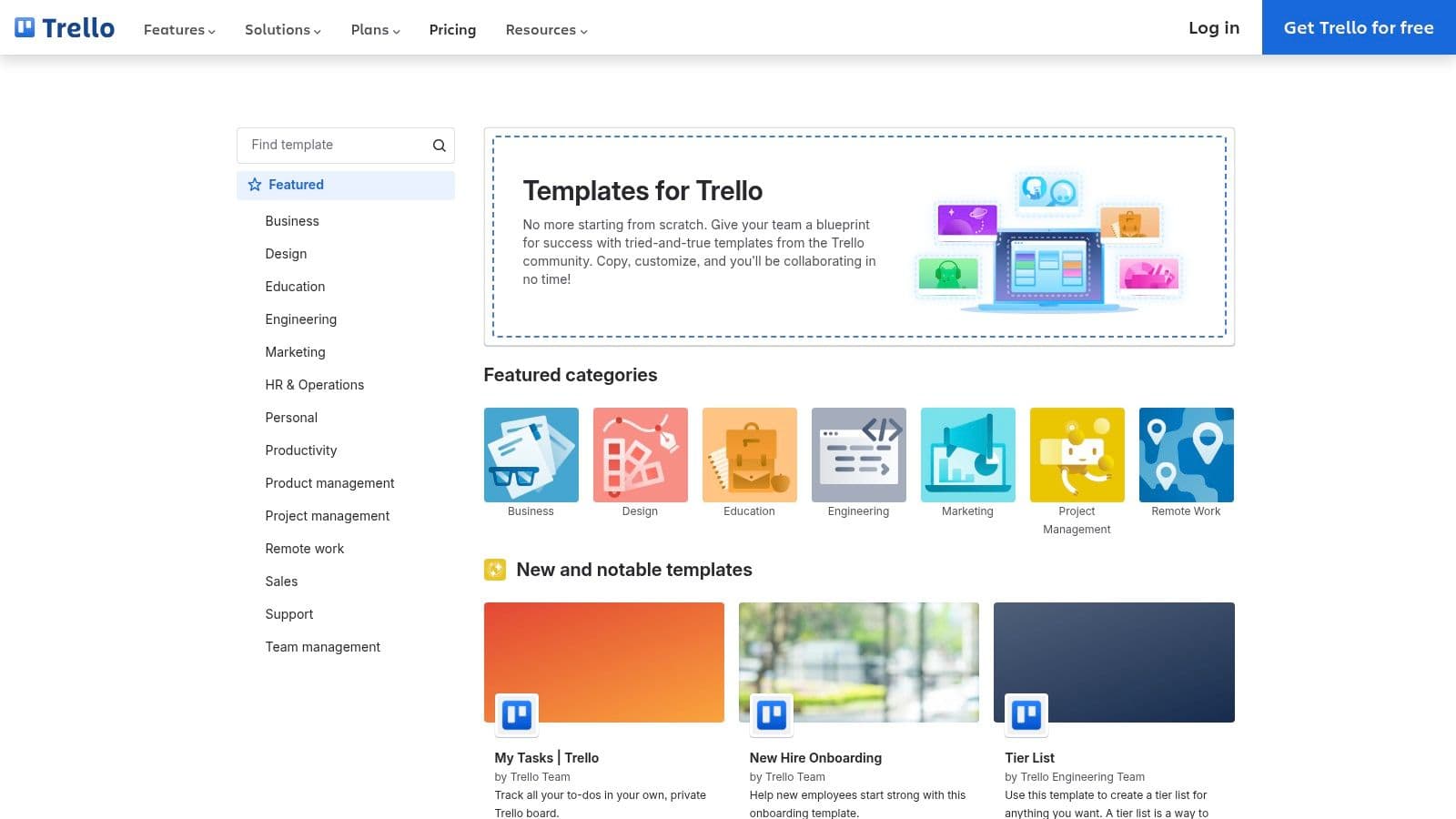
Use columns to show decisions
Trello works for personal planning, editorial pipelines, lightweight launches, and small teams. Customize the board around a meaningful workflow rather than generic categories. A content team might use Ideas, Drafting, Review, Scheduled, and Published. A freelancer might use Backlog, This Week, Waiting, and Done.
Put detailed action steps inside checklists, but keep the card title specific enough to understand at a glance. Archive completed cards regularly, and agree on what each column means. Without that hygiene, boards become crowded and stop showing the truth about current work.
Trello's simplicity is its advantage, but it can become a limitation when you need complex dependencies, detailed reporting, or broad resource planning. Calendar and additional views may depend on Premium plans, and advanced administration and security controls require paid access. Choose Trello when movement and visibility matter most, not when you need a full operational database.
7. Microsoft Excel for editable and printable grids
Excel remains the practical choice for people who want a familiar grid, offline access, printing, or an artifact they can share outside a task app. Microsoft's Excel to-do list templates include simple lists, project-oriented layouts, and progress-focused formats for web and desktop use.
You can add owners, statuses, priorities, deadlines, dropdowns, conditional formatting, and progress bars. Excel also fits naturally into Microsoft 365 workflows, which makes it convenient for teams already working in spreadsheets and shared documents.
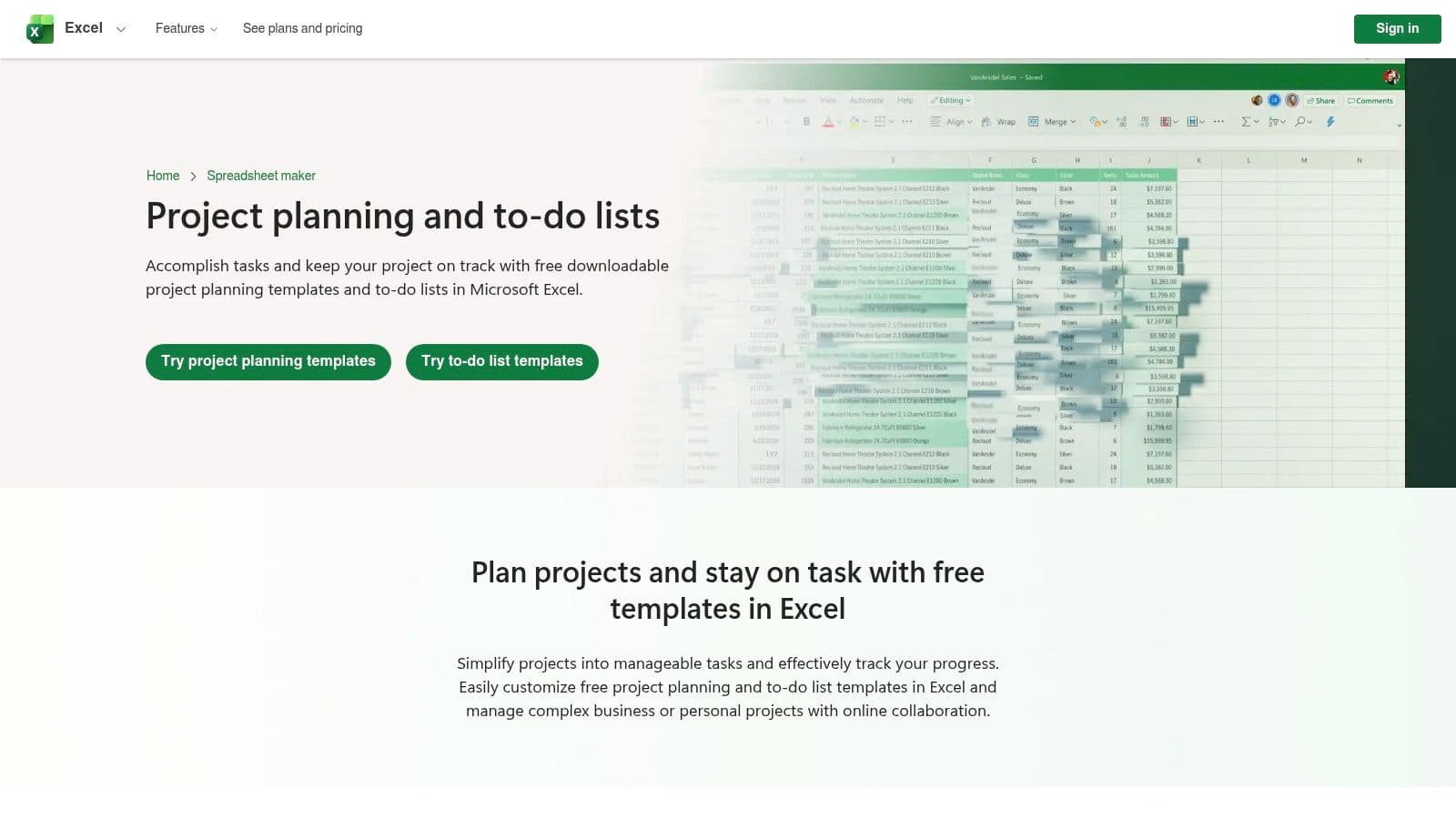
Keep spreadsheet logic readable
Use columns for task, owner, status, priority, deadline, and notes. Apply color sparingly so formatting signals a decision rather than decorating the sheet. This guide to color coding in Excel can help you make visual cues consistent.
Excel is especially useful for printable daily sheets, shared planning grids, simple project registers, and teams that need exportable records. It's less effective when people need native assignment notifications, conversational updates, automatic dependency management, or a live operational dashboard.
A spreadsheet also depends heavily on disciplined editing. If several people change rows without a clear process, status information can become stale. Choose Excel when familiarity, flexibility, and printability outweigh automation.
Top 7 To-Do Template Tools Comparison
| Tool | 🔄 Implementation Complexity | 💡 Resource Requirements | ⚡ Speed / Efficiency | 📊 Expected Outcomes | ⭐ Ideal Use Cases & Key Advantage |
|---|---|---|---|---|---|
| Tools - Eisenhower Matrix (Fluidwave) | Moderate, AI auto-classifies; minimal setup but needs clear task text | Fluidwave account; budget for pay-per-task virtual assistants | High, automatic sorting, rules, one-click delegation | Clear priorities, reduced manual triage, reclaimable hours | ⭐⭐⭐⭐⭐ Best for teams wanting automated prioritization with built-in delegation and analytics |
| Asana | Low→Moderate, template ready; advanced features require configuration | Asana account; higher-tier plans for portfolios/resources | Good, templates + automations speed recurring setup | Scales checklists into portfolio-level project tracking | ⭐⭐⭐⭐ Best for teams that need reusable templates and strong integrations |
| Todoist | Low, one-click template import and simple setup | Todoist account; basic plan sufficient for many users | Very fast, quick import, natural-language dates | Fast personal or small-team checklists and routines | ⭐⭐⭐ Best for individuals and small teams wanting quick, focused task setup |
| Notion | High, highly flexible, requires design and setup time | Notion workspace; some paid templates/features for advanced automation | Moderate, slower initially, powerful once configured | Customizable task systems combined with docs and knowledge bases | ⭐⭐⭐⭐ Best for teams needing integrated docs + fully customizable workflows |
| ClickUp | Moderate→High, rich feature set; automations and template configuration | ClickUp account; onboarding/training recommended for teams | High when configured, automations streamline workflows | Scalable workflows from simple to complex project management | ⭐⭐⭐⭐ Best for teams that need deep templating and automation capability |
| Trello | Low, simple board/card model, easy to copy templates | Robust free tier; Power-Ups or Premium for extra views/integrations | Fast for kanban-style boards; limited for complex tracking | Visual, low-friction task boards for quick coordination | ⭐⭐⭐ Best for lightweight visual boards and quick team adoption |
| Microsoft Excel (Templates) | Low→Moderate, familiar spreadsheet setup; customization via formulas/formatting | Excel (web/desktop); Microsoft 365 for collaboration and sharing | Moderate, quick to create but largely manual to maintain | Grid-style, printable lists and exportable trackers | ⭐⭐ Best for teams preferring spreadsheets, printable lists, or exportable artifacts |
Choose the Template You'll Actually Maintain
The strongest template is the one that matches how you make decisions every day. Choose Fluidwave when you need AI-assisted prioritization, multiple views, collaboration, and delegation. Choose Todoist for focused recurring tasks and personal routines. Choose Trello when work becomes clearer as cards move across a board.
Pick Notion when tasks need to live beside documents, notes, and databases. Choose Asana or ClickUp for structured team work, dependencies, ownership, and repeatable processes. Choose Excel when you need an editable or printable grid that works with familiar Microsoft tools.
Template choice also depends on the problem you're trying to solve. A person with ADHD may need fewer fields, visible next actions, and a low-friction daily view rather than a feature-rich workspace. A project manager may need ownership, dependencies, reporting, and repeatable task structures. A founder may need prioritization and delegation because the issue isn't capturing work, it's deciding what not to do personally.
Use this implementation sequence:
- Duplicate or create the template: Start with the provider's official duplication, download, or creation control.
- Remove unused fields: Delete properties, columns, views, and statuses nobody will maintain.
- Define a review rhythm: Decide when you'll process new tasks, review deadlines, and clear completed work.
- Test before automating: Run the workflow for one week, then add rules, integrations, or recurring actions only where they solve a demonstrated problem.
Operational templates work best when teams measure adoption rather than treating the file or workspace as finished. One legal-operations benchmark uses an 85% or higher template usage rate, with a target of 70% of eligible users actively using a new template within 60 days, as described in this template adoption KPI resource. You don't need to copy that benchmark blindly, but you should know whether people use the system.
Template-based workflows can also reduce cycle time by 40% to 60% compared with custom drafting when the structure is well designed and broadly adopted, according to the same source. Treat that as a reason to simplify and standardize, not as permission to add more fields. Confirm current plan restrictions, sharing rules, and edit, duplicate, or download controls before rolling a template out to a team. For broader workflow inspiration, browse this executable context templates collection.
Fluidwave combines AI-assisted task organization, multiple work views, real-time collaboration, and human virtual assistant delegation in one workflow. If your main challenge is deciding what to tackle next and handing off work without losing visibility, visit Fluidwave and build a task system you'll keep using.
Focus on What Matters.
Experience lightning-fast task management with AI-powered workflows. Our automation helps busy professionals save 4+ hours weekly.