Learn how to create, manage, and optimize swimlanes in Visio with our step-by-step guide. Master horizontal vs. vertical layouts and avoid common pitfalls.
June 22, 2026 (2mo ago)
Creating Swimlanes in Visio: A Practical How-To Guide
Learn how to create, manage, and optimize swimlanes in Visio with our step-by-step guide. Master horizontal vs. vertical layouts and avoid common pitfalls.
← Back to blog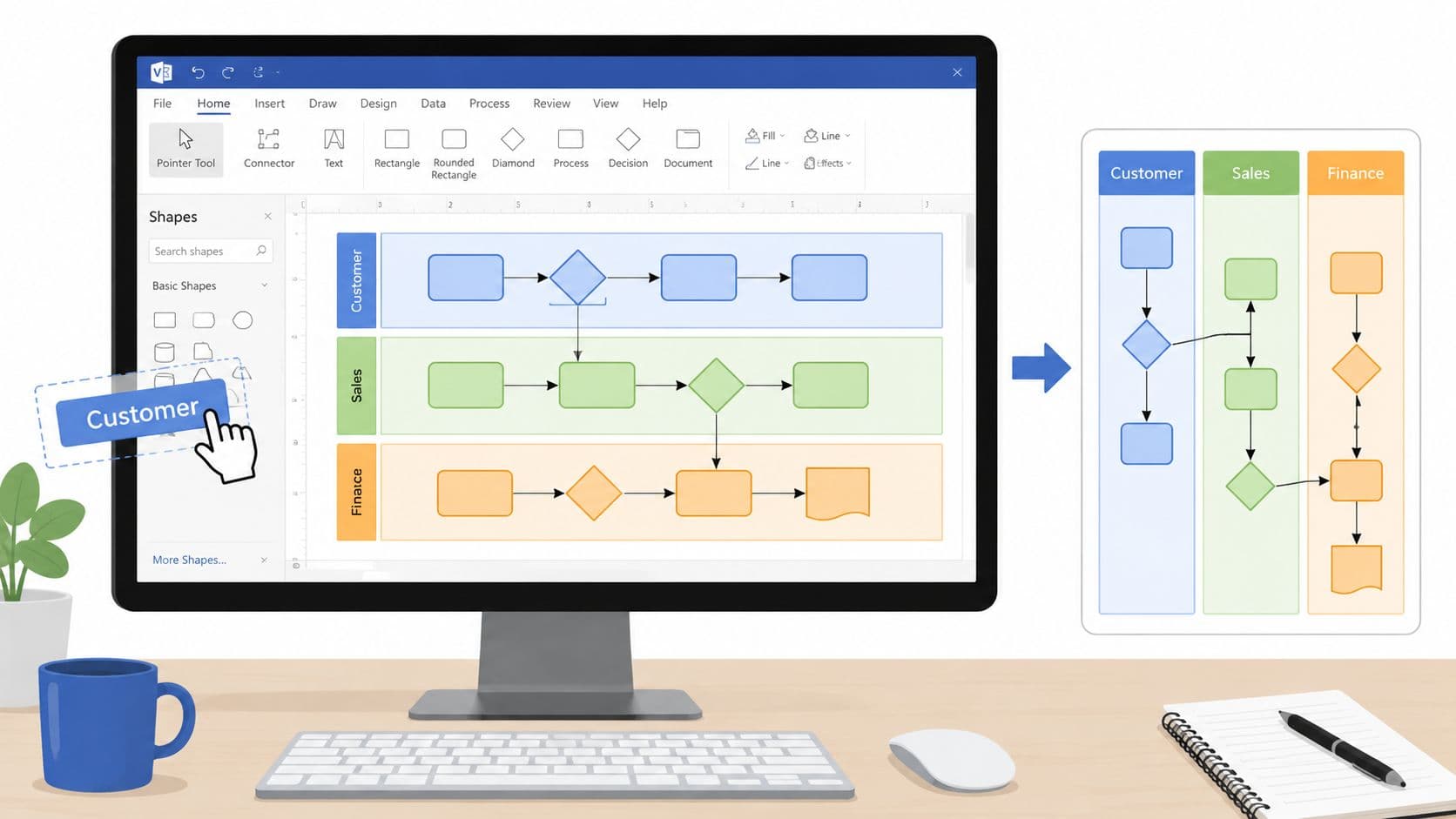
A lot of teams start looking at swimlanes in Visio only after a process has already gone sideways.
A handoff gets missed. Sales thinks Operations owns the next step. Operations assumes Finance is waiting on approval. A new hire asks how a request moves through the business, and three people give three different answers. At that point, the problem isn't just documentation. It's ownership.
That's where Visio helps, if you use it with the right mindset. A swimlane diagram isn't just a cleaner flowchart. It's a way to show who does what, when work changes hands, and where confusion is built into the process.
Why Your Team Needs Swimlanes for Process Clarity
The biggest value of a swimlane diagram is simple. It turns vague process talk into visible responsibility.
When a standard flowchart shows only sequence, people can still argue about ownership. A box says “Review request,” but whose review is that? Legal? Finance? A team lead? Once that same step sits inside a lane labeled with a role or department, the conversation changes. Ownership stops being implied and starts being explicit.
That matters most in cross-functional work. Onboarding, approvals, incident response, procurement, customer support. These processes break down at the handoff points, not usually inside one person's task list. If your team is also cleaning up service workflows, it helps to pair process maps with operational structure, which is why Halo AI's guide to ticketing systems is useful reading alongside swimlane work.
A good swimlane map also exposes where your process is doing too much talking and not enough moving. If work bounces across lanes repeatedly, you're looking at friction. If one lane is packed with decisions while others only wait, you've found a bottleneck.
Practical rule: If a team can't point to the owner of the next step in under a few seconds, the process isn't clear enough.
I've found that teams often try to solve this with meeting notes, SOPs, or a long checklist. Those help, but they don't replace a visual map of accountability. A written procedure tells people what should happen. A swimlane diagram shows how work travels.
For a strong example of what process documentation should support in day-to-day operations, look at this process documentation example from Fluidwave. It's the same principle. Clarity only helps if people can use it in real work.
Creating Your First Visio Swimlane Diagram
Microsoft doesn't label the feature as “swimlanes” in the template picker. In Visio, the built-in format is the Cross-Functional Flowchart. That naming matters because if you start from a generic flowchart, you'll spend more time forcing structure onto the page than mapping the process.
Start with structure, not shapes
Open Visio and choose the Cross-Functional Flowchart template. Before you add a single task box, decide what each lane represents. Department, role, system, or team. Don't mix those in the same diagram unless you have a very good reason.
A practical setup usually starts with one of these:
- Roles when you need accountability. Example: Requester, Manager, Finance, IT.
- Departments when the audience thinks in org units.
- Systems when the process is heavily automated and handoffs happen between tools as much as between people.
Microsoft's guidance shows that you add a lane by dragging a Swimlane shape from the Cross-Functional Flowchart stencil, then rename the lane by double-clicking its label in the diagram. Microsoft also shows that lane geometry is editable. You can change width by dragging a separator line, change length by dragging the end line, and move an entire swimlane with its contents by dragging the lane label in the Visio swimlane support video.
Choose orientation before the diagram gets crowded
This early choice is more important than it looks. If you expect a process with lots of sequence and only a few owners, one orientation will read better than the other. If you expect many owners and fewer steps, the opposite may be true.
Use this quick decision frame:
| Situation | Better starting choice |
|---|---|
| Many handoffs across teams | Horizontal lanes often read more naturally |
| Strong stage progression | Vertical lanes can feel cleaner |
| Wide screens and slide decks | Horizontal usually fits better |
| Printed process packs | Vertical can sometimes scale better |
Label the lanes before you map the work
This is one of those small habits that prevents a messy diagram later. Name every lane first. Add phases only if they help. Then leave the process shapes alone for a minute and ask one question: does the structure match how the business thinks about the work?
If not, fix it now. It's much easier to adjust an empty framework than a populated one.
Adding and Structuring Your Process Flow
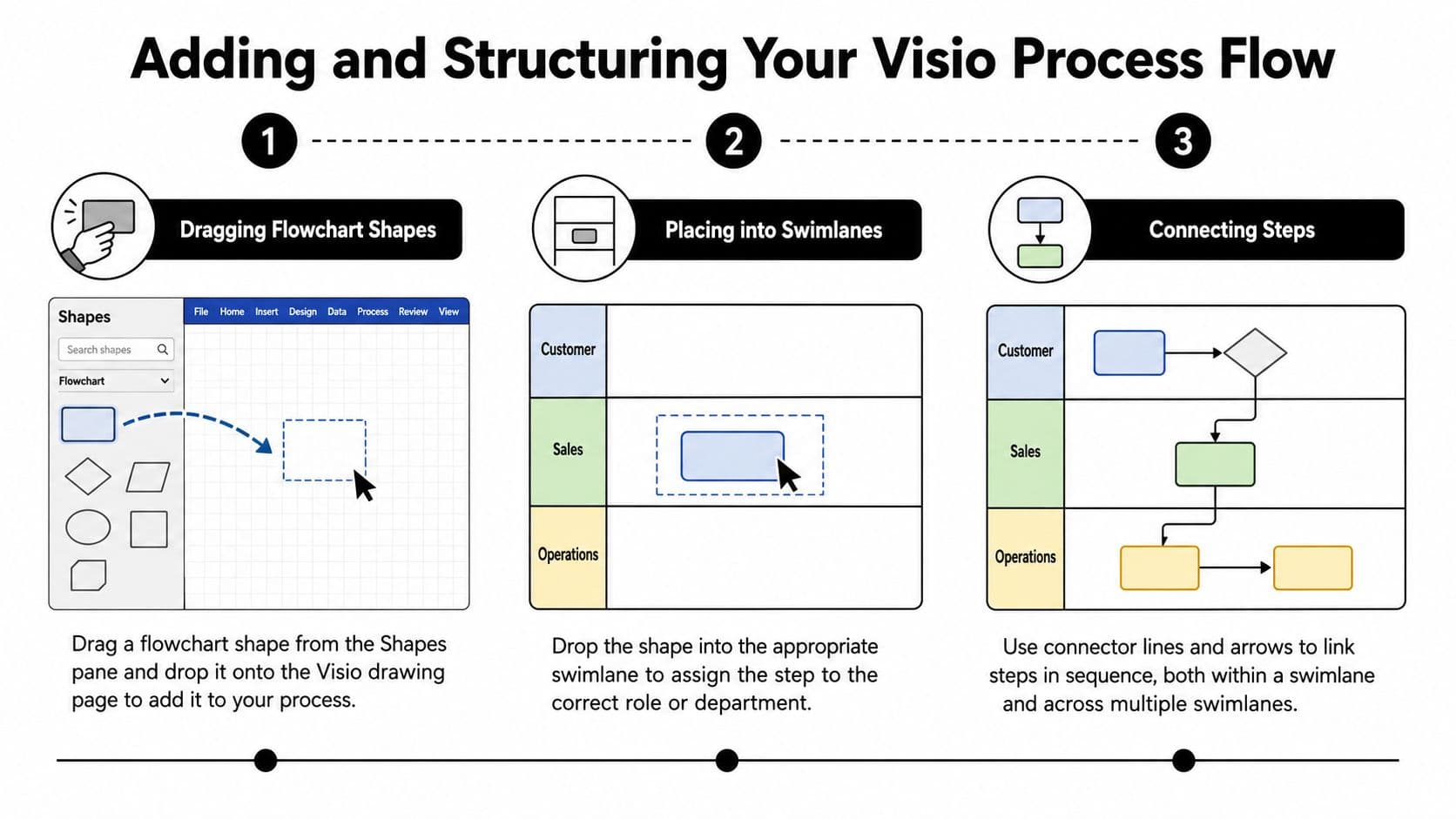
Once the lane structure is right, start placing the process itself. The order matters more than it might seem. The cleanest workflow is to add and rename the swimlanes first, then drag process shapes into the correct lanes, and only after that connect them. Lucid explanations of this workflow also note that lanes can be resized by dragging separator lines and moved with their contents by dragging the label bar in this Visio swimlane walkthrough.
Build from a real example
Take a simple order fulfillment process. You might have lanes for Sales, Operations, Finance, and Shipping. Start by dropping the first few shapes into the lanes where the work takes place:
- Sales receives the order.
- Finance checks payment status.
- Operations confirms stock.
- Shipping dispatches the order.
That sounds obvious, but people often cheat by placing shapes where they think the process should live, not where the work is really done. Swimlanes in Visio are most useful when they reflect reality, not aspiration.
Connect the handoffs clearly
The power of a swimlane diagram shows up when arrows cross lane boundaries.
A connector that stays inside one lane usually represents local execution. A connector that moves into another lane represents a handoff, approval, dependency, or transfer of control. Those crossings are what you should study when the process feels slow or fragile.
The line between lanes is often where the real process problem lives.
Use standard flowchart shapes consistently. A process box for actions. A decision shape where the path branches. A data-related shape only when the input or output matters to understanding the workflow. Don't overload the page with symbols just because Visio offers them.
Keep the diagram readable
A readable swimlane diagram is tighter than most first drafts. If every shape has a paragraph of text inside it, the map isn't doing its job.
A few practical habits help:
- Name actions with verbs. “Approve invoice” reads better than “Invoice approval.”
- Keep labels short. Put detail in supporting notes if needed.
- Align shapes manually when necessary. Visio can help, but tidy spacing still needs judgment.
- Reserve connector labels for exceptions. If every arrow has text, the page gets noisy fast.
If you want a broader reference on how flowcharts support process mapping beyond Visio alone, this guide to flowcharts and process mapping is a useful companion.
Don't map the whole universe
One mistake I see all the time is trying to capture every exception, every workaround, and every departmental variation in the first draft.
Clovis Research makes a practical recommendation here. Start with a small, real process slice of 10–20 steps and expand from there. They also frame swimlane diagrams as cross functional flowcharts that make ownership, handoffs, and approvals visible “in 1 glance,” and they recommend maintaining the process as a dataset so the diagram can be regenerated as the workflow changes in their swimlane diagram guidance.
That's good discipline. If the first version can't be read easily, it won't be used.
Choosing Between Horizontal and Vertical Swimlanes
The right orientation changes how people understand the process before they read a single label.
Horizontal swimlanes usually work best when the main story is ownership across functions. A process moves left to right, and each row shows who handles a step. This layout feels natural for hiring, approvals, customer support escalation, or any workflow where people need to follow the handoffs across teams.
Vertical swimlanes fit better when stages dominate the conversation. If the audience thinks in terms of phases, gates, or milestones, vertical lanes can make that progression easier to scan. Product delivery, release cycles, or implementation stages can work well this way.
Use the audience to decide
Here's the practical test. Ask what question the diagram needs to answer first.
| Primary question | Better fit |
|---|---|
| Who owns each step? | Horizontal |
| What stage are we in? | Vertical |
| Where does work cross teams? | Horizontal |
| How does work move through milestones? | Vertical |
That's why I rarely let the default layout decide for me. The best orientation is the one that makes the first read obvious to the people using the map.
A short visual walkthrough can help if you're deciding how to set up the page:
What usually doesn't work
The weak choice is the one that fights the page.
If you put many long sequential steps into a cramped vertical layout, the diagram becomes tall and awkward. If you put too many owners into horizontal lanes without enough width, each lane gets compressed and labels start competing with shapes.
Pick the orientation that gives the process room to breathe. Not the one that looked fine on the blank template.
Editing and Reorganizing Diagrams Without Breaking Them
Most basic guides stop being useful at this point.
Creating swimlanes in Visio is straightforward. Restructuring them after the process changes is where teams get burned. A role gets removed, a phase changes, a handoff moves to another team, and suddenly the diagram that looked polished becomes fragile.
The dangerous assumption
A lot of users assume swimlanes behave like ordinary shapes. They don't.
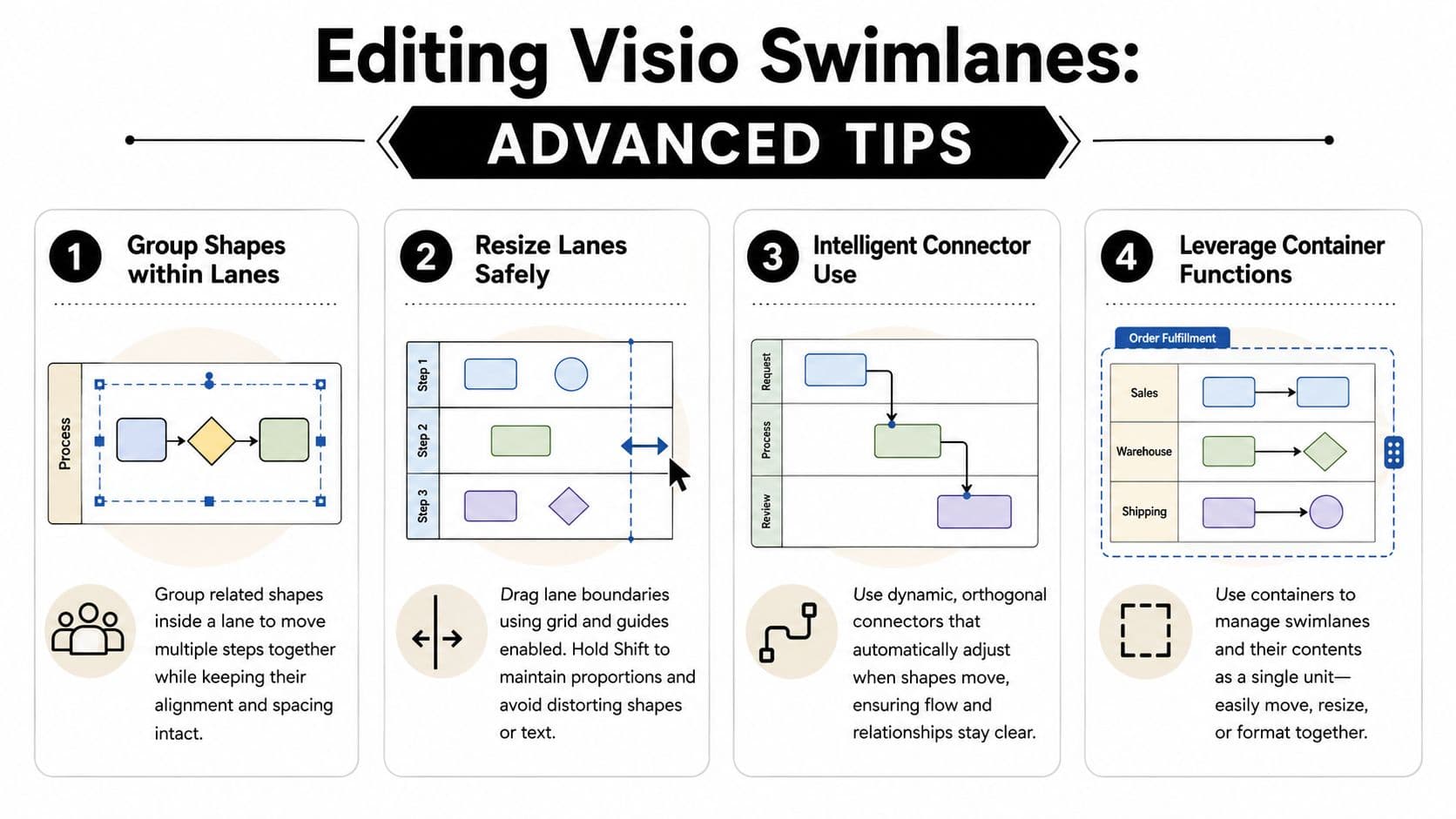
Microsoft notes that swimlanes can be dragged to change order, but deleting a swimlane also deletes the shapes inside it. Separate guidance also points out that phases are not moved the same way as swimlanes, so reorganizing phases often takes more manual work in Microsoft's swimlane editing guidance.
That's the trap. The structure looks flexible until you make a major change.
What works when lanes need to move
For light edits, resizing is easy enough. If a lane needs more room, adjust its boundary. If the order of lanes needs to change and the diagram is still simple, moving the lane can work.
For nontrivial changes, I use a safer approach:
- Insert first, delete later. Add the new empty lane before you remove the old one.
- Transfer content in a controlled pass. Move shapes and review connectors as you go.
- Check decisions and crossings last. Those are the first places layout damage shows up.
A separate expert walkthrough notes that moving lanes or phases is not always as freeform as users expect, and recommends inserting an empty lane or phase and then transferring contents when relocating separators or restructuring a cross-functional flowchart in this practical Klariti tutorial.
Phases are usually the bigger headache
Teams often think swimlanes are the problem, but phases are frequently trickier.
If your diagram uses phases to show time periods, review gates, or delivery stages, moving one phase boundary can ripple across the whole page. Connectors may still point correctly, but the visual logic can get muddy. In those cases, I usually duplicate the structure I want, shift content in groups, then clean up connectors afterward.
That sounds slower, but it's safer than trying to force a major rearrangement in place.
If the process changes often, treat the diagram as something you maintain, not something you finish.
Start smaller so maintenance stays possible
Scope discipline proves its worth. If your first map tries to capture the entire enterprise workflow, every future edit becomes expensive.
A smaller process slice is easier to maintain, easier to validate with stakeholders, and less likely to collapse under revisions. That's one reason I prefer building an initial version from a manageable chunk of work and then expanding only after the ownership pattern is stable.
A few maintenance habits make a big difference:
- Keep lane names stable. Rename only when the ownership model changes.
- Save milestone versions. Especially before restructuring lanes or phases.
- Review connector logic after every move. The diagram can look right while the flow is wrong.
- Rebuild when necessary. Sometimes a clean redraw is faster than rescue work.
Visio is strong when process ownership is relatively stable. Once the workflow needs constant reorganization, the convenience drops and the upkeep becomes more manual. That's not a flaw so much as a planning signal. If the process is still changing every week, map the stable core first.
Mastering Your Workflow with Clear Process Maps
The core value of swimlanes in Visio isn't the diagram itself. It's the conversation the diagram makes possible.
A good map shows ownership clearly, makes handoffs visible, and gives teams a shared version of the process they can use. That's what helps with onboarding, handoff analysis, process improvement, and operational clarity. The software matters, but the discipline matters more. Choose the right structure, keep the labels honest, and don't pretend a complicated process is simple just because the boxes line up neatly.
When teams get this right, they spend less time arguing about what should happen next and more time improving what happens now. That's the point of process mapping.
If your work also touches operating models, accountability, and workflow redesign, it's worth building that skill alongside broader business process analysis practices. Swimlanes are one tool, but they're a very practical one when used well.
If you're trying to turn process clarity into day-to-day execution, Fluidwave is worth a look. It helps teams organize tasks, delegate work, and keep workflows moving without losing sight of ownership, which is exactly what a good process map is supposed to support.
Focus on What Matters.
Experience lightning-fast task management with AI-powered workflows. Our automation helps busy professionals save 4+ hours weekly.