A practical Fluidwave step by step tutorial covering setup, task views, automation, virtual assistant delegation, and focus tips for busy professionals.
September 6, 2026 (1mo ago)
Fluidwave Step by Step Tutorial for Smarter Task Management
A practical Fluidwave step by step tutorial covering setup, task views, automation, virtual assistant delegation, and focus tips for busy professionals.
← Back to blog
Monday starts with fifteen unread emails, three Slack messages about the same client deliverable, back-to-back meetings, and a sticky note reminding you to follow up on last week's invoice. You answer the loudest request first, lose the thread of the deliverable, open the invoice, then switch back to Slack before you've completed anything that requires sustained thought.
That pattern isn't a character flaw. It's a workflow problem. A practical step by step tutorial should reduce decisions, expose dependencies, and make the next action obvious. The research-process models used by university libraries follow the same logic, with Georgetown's guide listing 15 ordered steps from defining a question to evaluating, synthesizing, and citing information (Georgetown University Library research guide). Structured instruction works because complex work becomes a sequence of manageable actions rather than one intimidating block.
For busy and neurodivergent professionals, the pressure is greater. Scattered inputs create hidden work, delegation can consume more budget than expected, weak priorities invite constant interruption, and every context switch makes deep focus harder to recover. This guide uses Fluidwave's task, delegation, automation, and visibility mechanics to address those four problems without pretending that another dashboard will fix an unclear operating model.
Why Your Monday Already Feels Overbooked
At 9:07 a.m., the operations lead in this example has already made dozens of tiny decisions. Which email deserves a response? Is the client deliverable urgent, or merely visible? Should the invoice follow-up go to finance? Can the afternoon meeting move? Each decision seems minor, but together they consume the attention needed for meaningful work.
The problem isn't just volume. It's that every request arrives with different context, urgency, and ownership. Email holds one part of the story, Slack holds another, the calendar hides the remaining available time, and the sticky note carries a task with no owner or deadline. The operations lead becomes the integration layer, manually translating conversations into work.
Four costs hiding inside the task list
- Scattered inputs: Requests live across email, chat, notes, and meetings, so the same task gets interpreted repeatedly.
- Invisible delegation costs: Assigning work feels free until someone needs clarification, a revision, or approval.
- Weak prioritization: A full list doesn't explain what should happen first or what can wait.
- Focus erosion: Frequent switching prevents a person from staying with research, writing, analysis, or planning long enough to finish.
A useful task system must do more than collect items. It needs to preserve the brief, identify the owner, show the deadline, and provide a clear route for exceptions. That is why ordered instruction remains useful beyond education. W3Schools presents its Statistics Tutorial as 36 tutorial pages, a modular structure that lets learners move through discrete concepts instead of confronting one uninterrupted guide (W3Schools Statistics Tutorial). The same principle applies to operations: separate intake, prioritization, execution, review, and closure.
Operational rule: If a task requires you to remember its context outside the system, the system hasn't captured the task yet.
Fluidwave fits this problem when used as a work hub rather than a passive list. Conversations can become tasks, tasks can be assigned, recurring decisions can become workflows, and delegated work can move through an approval gate. The practical benefit isn't a prettier view. It's fewer decisions held in one person's head.
The rest of the process depends on disciplined setup. If the workspace starts as a dumping ground, automation will accelerate confusion. If ownership and priority are clear from the beginning, the same mechanics can protect attention and make delegation economically visible.
Setting Up Your Fluidwave Account the Right Way
Start with one project that matters soon. Don't import your entire professional life before you know how the workspace should behave. A current client launch, operations cleanup, or recurring reporting cycle gives you enough real work to test the system without turning setup into another project.
Create the workspace
- Open the Fluidwave homepage and select Start Free.
- Register with a work email or a Google account.
- Confirm the verification link before creating tasks.
- Use a stable, up-to-date browser and enable two-factor authentication.
- Name the workspace after the team or operating area, not after a temporary campaign.
The name matters because it sets the boundary for future work. “Operations” will remain useful after one client launch ends. “April launch sprint” may not.
Add only the essentials first
Choose the Operations template, invite your first three collaborators, and import a small, representative task set from CSV or a connected email account. Review imported tasks before assigning them. Old reminders and vague email subjects can create false urgency if they enter the workspace unchanged.
If calendar pressure is part of the problem, connect the schedule deliberately rather than importing every historical event. The Fluidwave guide to syncing with Google Calendar can help you decide which calendar information belongs in the working view.
The free tier is suitable for testing a single workspace and limited automations. That makes it a practical environment for testing delegation economics before paying for more capacity. You can observe which tasks consume attention, which handoffs need better briefs, and which repeated decisions deserve automation.
Establish hygiene before adding complexity
Set notification windows so the system doesn't compete with deep work. Define a default priority scheme, such as low, normal, high, and urgent, then write a short internal rule for each label. Finally, schedule a 30-minute weekly review block to archive stale items, inspect workload, and adjust the rules.
A simple post-setup checklist:
- Access: Confirm account verification, two-factor authentication, and collaborator permissions.
- Scope: Keep the first workspace tied to one real operating area.
- Intake: Import only tasks you can classify and assign.
- Alerts: Set quiet periods and reserve urgent notifications for genuine exceptions.
- Review: Protect the weekly review block before the calendar fills.
The setup is complete when a new task has a predictable home, owner, priority, and next action. It isn't complete merely because the account exists.
Choosing the Right View for Each Kind of Task
Views aren't interchangeable decoration. Each one answers a different operational question, and using the wrong layout creates friction at the exact moment you need clarity.
Table View is the planning surface for a dense backlog. Filters and sorting help during quarterly audits, recurring operations reviews, and virtual assistant assignment. List View keeps fields visible while you create or revise many tasks, making it useful for weekly planning and CSV cleanup.
Board View is better when status is the main question. A content pipeline or sprint review benefits from moving cards between stages because the team can see flow without opening every task. Fluidwave's guide to using a Kanban board is useful when a team needs to define those stages before relying on drag-and-drop movement.
Calendar View exposes deadlines against meetings. A board may show that six tasks are in progress, but a calendar reveals that four of them collide with the same client review. Timeline View adds sequence and dependencies, which makes it valuable for launches where one delayed action affects the next.
| View | Best For | Example Task |
|---|---|---|
| Table | Filtering and sorting dense work | Assigning research tasks to a virtual assistant |
| List | Bulk creation and weekly planning | Importing and editing a recurring task set |
| Board | Status reviews and visual flow | Moving a content item from Draft to Review |
| Calendar | Deadline and meeting conflict checks | Checking deliverables before a client call |
| Timeline | Dependencies and sequencing | Mapping a multi-step product launch |
Use a personal convention
A consistent convention reduces the temptation to change layouts whenever work feels difficult:
- Planning happens in Table, where filters expose missing owners and priorities.
- Daily execution happens in List, where the next actions remain visible.
- Cross-team review happens in Board, where status changes are easy to scan.
- Deadline checking happens in Calendar, where capacity meets time.
- Project mapping happens in Timeline, where dependencies need attention.
This arrangement isn't mandatory. It's a starting point that separates planning from execution. People who struggle with time estimation may benefit from reviewing ways to find balance with these time tips before setting deadlines and focus blocks.
The trade-off is simple. Switching views adds a small action, but forcing one view to handle every task adds continuous friction. Choose the view based on the question you're asking, not on which layout looks most familiar.
Building Automated Workflows That Buy You Time
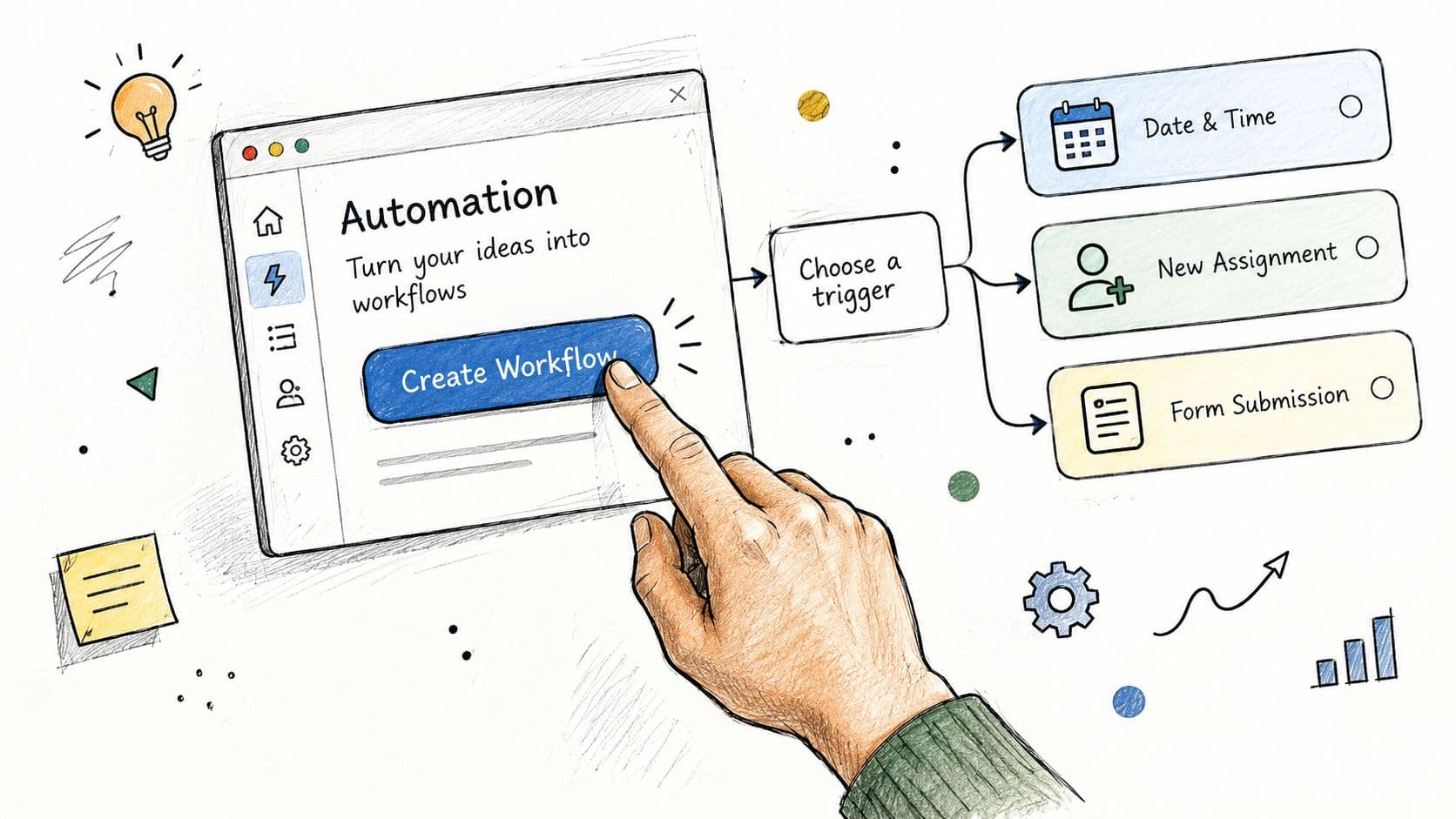
Automation should remove repeated triage, not replace judgment. Start in the left sidebar, open Automations, and select Create Workflow. The first decision is the trigger, because a vague trigger creates a vague workflow.
Available trigger patterns include an incoming task assignment, a status change, an approaching due date, or a specific tag being applied. Choose one event that reliably signals the work you want to standardize.
Build the rule in sequence
- Choose the trigger: For example, a task receives the
client-urgenttag. - Set conditions: Limit the rule to the relevant project, client, or task type.
- Stack the actions: Set priority to High, assign the on-duty specialist, add an operational tag, and move the item to the correct project list.
- Notify the right channel: Post to the
#client-requestsSlack channel or send an email only when human attention is required. - Test with a sample task: Confirm every action before activating the workflow.
Fluidwave's workflows run sequentially, so action order matters. Assigning a specialist before notifying the channel gives the notification useful ownership context. Moving a task to a project list before a downstream rule checks that list can also affect what happens next.
Practical rule: Automate decisions that repeat. Keep exceptions visible to a person.
Fluidwave materials describe automated workflows as saving roughly four hours per week, but that claim should be treated as a workflow-design benchmark, not a guaranteed personal result. The time comes from eliminating repeated sorting, assignment, tagging, and notification decisions. Automation won't write a nuanced client response or resolve an unclear brief.
A useful starting workflow is: when a task tagged client-urgent is created, set priority to High, assign it to the on-duty specialist, and post it to the designated Slack channel. If a task arrives without enough information, the workflow should flag it for clarification instead of distributing it faster.
For reusable patterns, the Fluidwave workflow template examples provide a starting point. Adapt each template to your actual ownership rules, then test it with harmless sample data.
Review automation after the first real work cycle. Disable rules that produce duplicate alerts, assign work to the wrong person, or move tasks before their context is complete.
Delegating Without Drowning the Budget
Delegation only creates value when the economics are visible before the task leaves your queue. Otherwise, a low-value task can become expensive through unclear instructions, revisions, and approval time.
Begin in Members settings by recording the virtual assistant's hourly rate. Add a project-level budget cap and configure a warning when 80 percent of that cap has been consumed. The warning is a control point, not a judgment. It gives the manager time to pause, revise scope, or move work before the budget is exhausted.
Price the work before assigning it
Use this formula for each task:
Estimated hours × hourly rate + 15 percent revision buffer = working task budget
Record the result in a custom field. If the brief changes, update the estimate before the assistant continues. A budget that remains frozen while scope expands is not a budget, it's a historical note.
Require three items before submission:
- A brief: State the outcome, audience, format, and acceptance criteria.
- A reference link: Provide the source material, examples, or existing documentation needed to work independently.
- A deadline: Include the delivery date and any review time required before the final use.
An incomplete brief should return to intake automatically. That may feel slower at first, but it protects the assistant from guessing and protects the manager from paying for avoidable revisions.
Compare cost categories, not slogans
A typical research task can be evaluated through the cost factors below. The table deliberately avoids a made-up dollar total because the result depends on the actual rate, scope, and review requirement.
| Cost Factor | In-House Specialist | Delegated Virtual Assistant |
|---|---|---|
| Direct labor | Staff time at the internal loaded rate | Estimated task hours at the recorded assistant rate |
| Context gathering | Often spread across meetings and messages | Reduced when the brief and reference link are complete |
| Management time | Internal coordination and follow-up | Intake, clarification, and approval time |
| Revision exposure | Absorbed inside the team's schedule | Controlled through the revision buffer and acceptance criteria |
| Budget control | Department or project allocation | Task budget and project cap with an 80 percent warning |
| Completion gate | Manager or peer review | Payment release after the deliverable meets the brief |
The value is the approval gate. Payment should be released only after the submitted research meets the agreed brief. This protects quality without turning every assignment into a live supervision session.
Delegation isn't automatically cheaper. It works when the task is bounded, the outcome is inspectable, and the assistant can proceed without repeated clarification. Keep ambiguous strategy work with the person who owns the decision. Delegate structured research, data gathering, formatting, and repeatable administrative work when the brief makes success observable.
Monitoring Progress Without Micromanaging
Four people are running two client projects at the same time. The manager could schedule another status meeting, send individual messages, or open the project Board and look at the work itself.
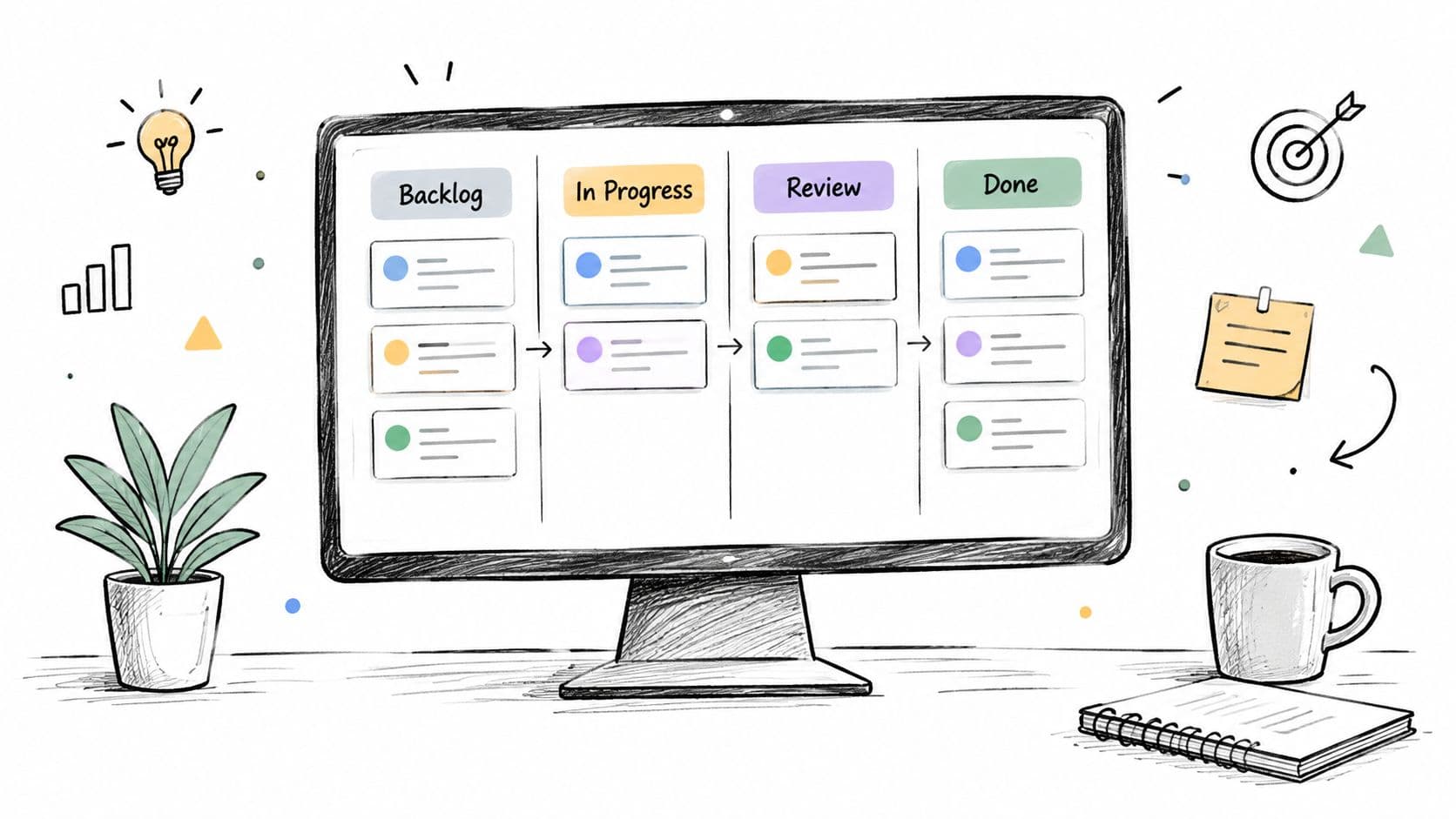
The Board has four columns: Backlog, In Progress, Review, and Done. One project has several items in progress, but only one has moved to Review. That tells the manager more than a general “we're on track” message because it shows where work is accumulating.
Let the workflow carry the status
The manager opens the Activity feed and sees comments, file uploads, and status changes in one stream. Instead of pinging each person throughout the day, they check once in the morning and once in the afternoon. A missing reference file becomes visible through the activity history, and a late handoff appears as a stalled card rather than a vague concern.
The Workload view provides the next decision. One team member has several active tasks across both projects, while another has room for a new assignment. The manager rebalances the work based on visible capacity instead of asking everyone to justify their schedule.
Two lightweight rules keep the system honest:
- Idle work raises a flag: Any task inactive for more than 48 hours needs a review of its blocker, owner, or priority.
- Done requires evidence: A completed task includes a short completion note before it closes.
Those rules shouldn't become surveillance. Their purpose is to surface exceptions early, while the person closest to the work still has enough context to resolve them.
Quiet visibility beats constant checking. The system should show where attention is needed without making every worker perform progress for a manager.
The trade-off is that a visible workflow demands consistent updates. If people leave tasks in In Progress after finishing them, the Board becomes misleading. Keep status changes easy, define what each column means, and review the rules when the team repeatedly misuses a stage.
Staying Focused and Closing the Loop
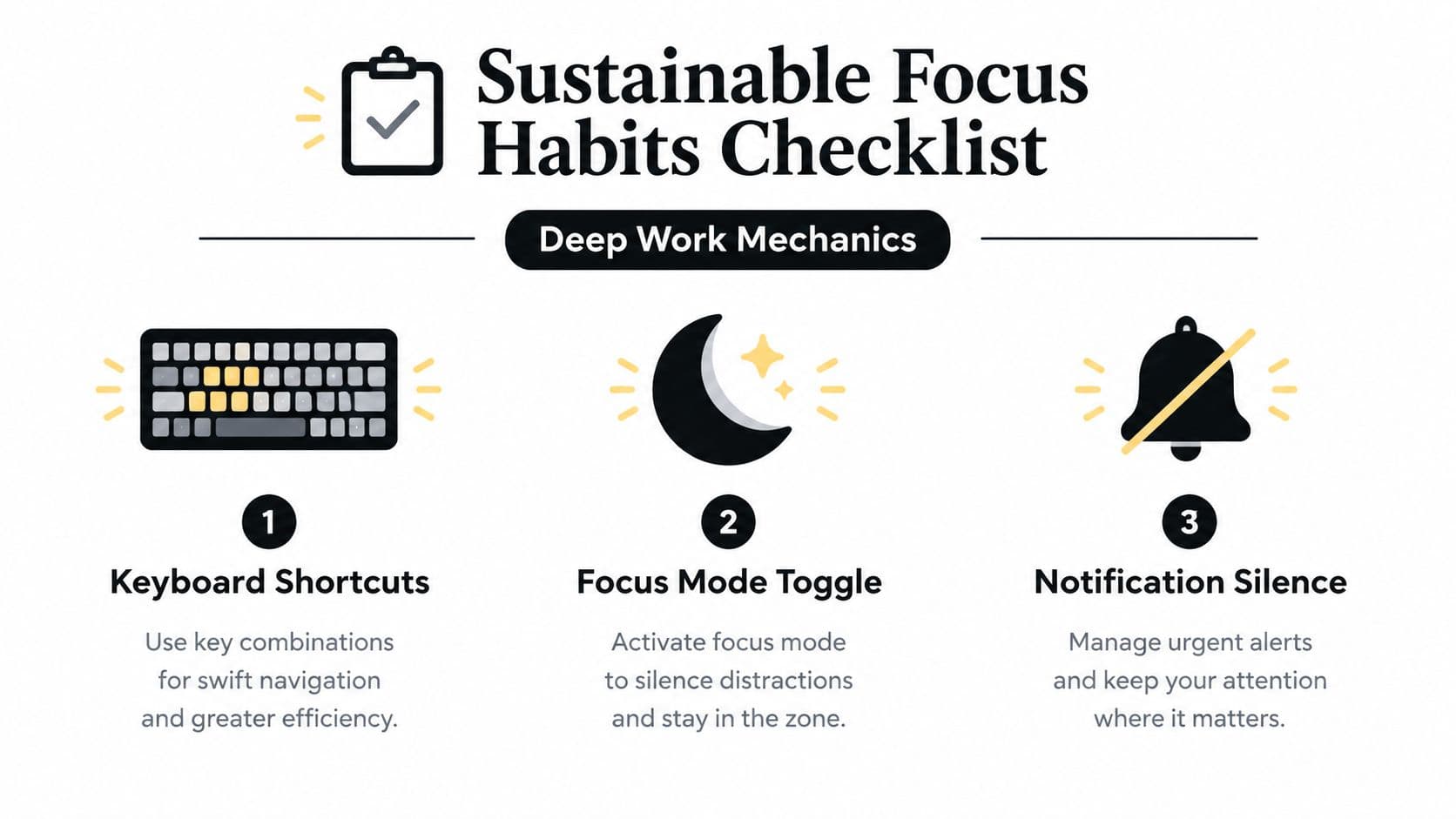
Task management supports focus only when it reduces interruption at the moment work requires concentration. Use keyboard shortcuts for navigation, a focus-mode toggle during deep work, and notification controls that silence non-urgent alerts. The aim isn't to ignore the team. It's to separate urgent exceptions from ordinary activity.
Accessibility settings deserve the same operational attention as permissions and budgets. Use high-contrast themes, reduced-motion settings, larger text scaling, and task labels that work with screen readers. Clear labels such as “Review invoice reference” are easier to act on than shorthand like “Invoice thing,” especially when a person returns to the task after an interruption.
Three ADHD-aware templates
Daily three: At the start of the day, select three outcomes that matter. Give each one a clear next action, a realistic time block, and a visible priority. Keep everything else in the backlog unless it changes the day's actual obligations.
Weekly reset: Review overdue tasks, delegated items awaiting approval, stalled work, and upcoming deadlines. Close duplicates, rewrite vague tasks, and move work to the correct owner before the next planning cycle begins.
Brain-dump triage: Capture every open loop without sorting it immediately. Then classify each item as do, delegate, defer, delete, or clarify. Only the items with a defined next action should enter the active execution list.
People who need additional support can pair these mechanics with practical recovery strategies for focus, especially after an interruption or an overloaded day. Recovery is part of the workflow, not a reward for finishing perfectly.
Use this closing routine:
- Friday review: Check completed work, unresolved blockers, delegated deliverables, and budget warnings.
- Monday priority ritual: Select the day's three meaningful outcomes before opening low-value communication.
- Focus protection: Silence routine notifications and define the conditions that can interrupt deep work.
- Loop closure: Add completion notes, approve finished delegated work, and archive items that no longer matter.
- System adjustment: Change one rule when the same failure repeats, rather than adding another reminder.
A step by step tutorial is useful only when it survives a busy week. The durable version combines ordered actions with branching decisions, clear ownership, accessibility, and a deliberate stopping point. That is how a task system becomes an aid to attention instead of another source of demands.
Fluidwave combines task organization, multiple work views, automation, collaboration, and delegation with approval controls, so you can turn scattered requests into an operating routine that protects deep focus. Start with one real project, apply the setup and review habits above, and visit Fluidwave to build a workspace that makes the next action and the next owner clear.
Focus on What Matters.
Experience lightning-fast task management with AI-powered workflows. Our automation helps busy professionals save 4+ hours weekly.