Learn how to set reminders you won't ignore. This guide covers setting effective reminders on any device and using smart tools to reduce your mental load.
May 15, 2026 (4mo ago)
How to Set Reminders That Actually Work in 2026
Learn how to set reminders you won't ignore. This guide covers setting effective reminders on any device and using smart tools to reduce your mental load.
← Back to blog
You swipe away a reminder that says “follow up.” It disappears. Ten minutes later, Slack pings, your inbox fills again, and the task is gone from your head.
That's the core issue with most reminder advice. It teaches button presses, not follow-through. Plenty of people already know how to set reminders. What they don't have is a system they trust when work gets noisy, priorities shift, and their own alerts start blending into the wallpaper.
If you've ever ignored a notification from yourself, then felt weirdly guilty about it later, you're not disorganized. You're dealing with a bad reminder design problem. The fix isn't more alerts. It's better prompts, better placement, and fewer reminders that matter.
Why Most Reminders Fail and What to Do About It
Most reminders fail because they ask your future self to do extra thinking.
A vague alert like “email Sarah” or “budget” doesn't trigger action. It triggers a small moment of friction. You have to remember which Sarah, which budget, what the next step is, and whether now is even the right time. In a crowded workday, that's enough for your brain to defer it.
A lot of tutorials stop at mechanics and don't address reminder fatigue. That gap matters because digital overload is real, and frequent prompts can become easier to dismiss over time rather than more useful, as discussed in this piece on why reminders become easy to ignore.
Reminder blindness is a design issue
People often assume the answer is to add another alert. Then another. Then a recurring one “just in case.” That usually makes things worse.
Your brain learns fast. If a notification rarely arrives with enough context to support immediate action, you stop treating it as meaningful. That's reminder blindness. The alert still appears, but it no longer changes behavior.
Practical rule: If a reminder makes you think before it makes you act, it's too weak.
This gets even harder for people who struggle with task initiation, overwhelm, or inconsistent executive function. If that's your experience, practical frameworks around systems to beat ADHD action gaps can help explain why “simple reminder” advice often falls flat in real life.
What actually works
A useful reminder does three things:
- It arrives at the right moment when you can act, not just when you might remember.
- It includes enough context so you don't need to reconstruct the task.
- It matches the importance of the work so every task doesn't scream at the same volume.
That's the shift. Don't ask, “How do I set reminders?” Ask, “How do I create prompts that survive a busy day?”
The Anatomy of an Unforgettable Reminder
A strong reminder is more than a timestamp. It's a compact instruction set for your future self.
Best-practice guidance on reminder setup emphasizes that reminders work better when they include a specific date, time, project context, and any people involved, and when they live in a system that syncs across devices. It also points to lists and tags as a way to surface the right reminder at the right time instead of turning your task list into a pile of vague notes, as explained in this guidance on building context-rich reminders.
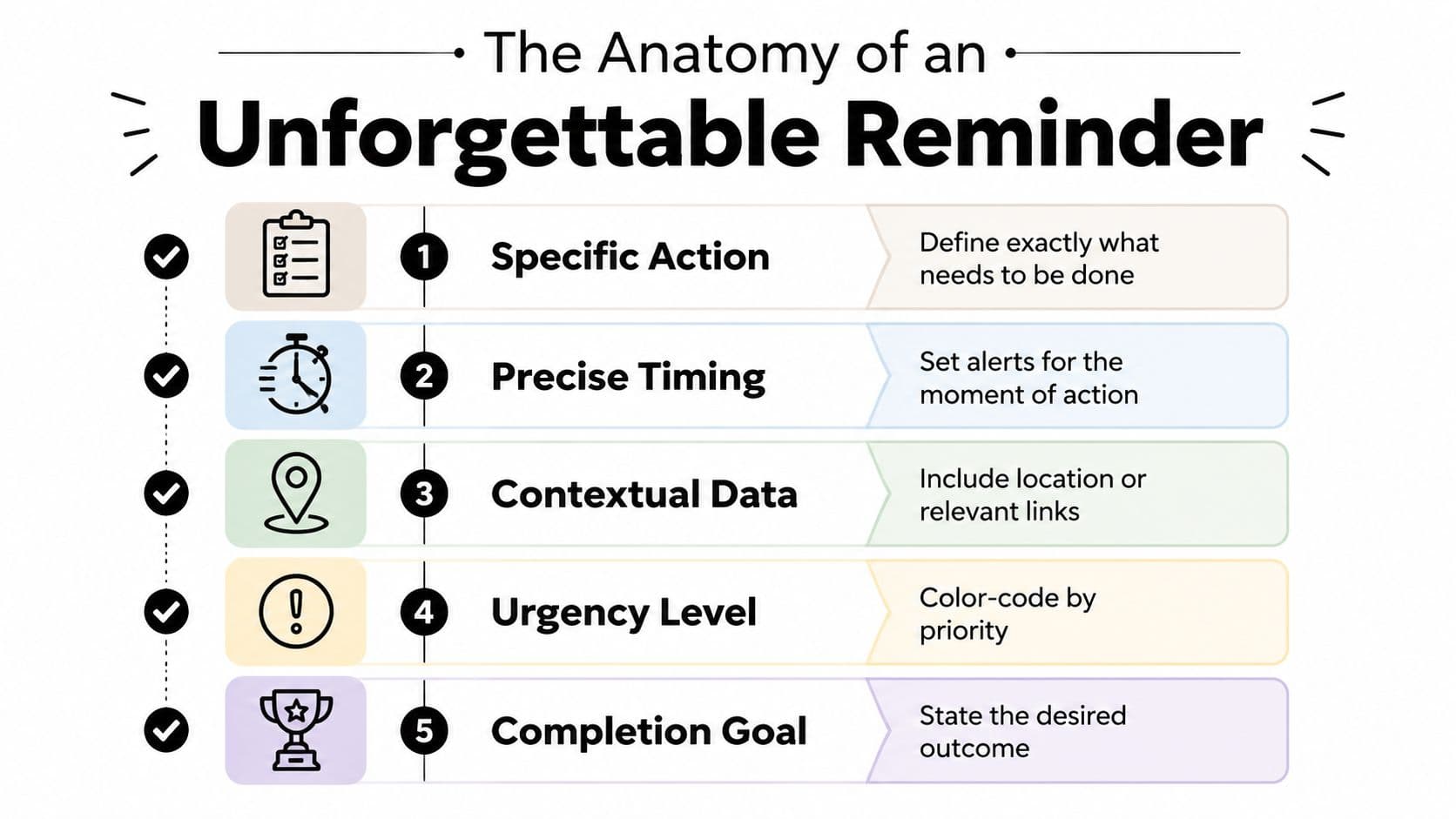
The five parts that matter
Here's the checklist I use when deciding whether a reminder will help.
-
Specific action
Start with a verb. Not “invoice” but “send revised invoice.” Not “doctor” but “call clinic to confirm Thursday appointment.” -
Precise timing
Set the reminder for the moment of action, not the moment of abstract awareness. If you need the document before a meeting, the reminder should fire when you still have room to prep, not at the meeting start. -
Contextual data
Add the project name, client, link, file, or location. A reminder that says “Review Q3 budget proposal in Drive before 3 PM” is far more useful than “review budget.” -
Urgency level
Not every task deserves the same treatment. A soft nudge is enough for low-stakes admin. A hard alert belongs on deadlines, handoffs, and anything expensive to miss. -
Completion goal
Include why the task matters. “Send draft to legal so contract can go out today” is clearer than “send draft.”
Weak reminder versus strong reminder
A weak reminder:
- Call John
A strong reminder:
- Call John about Q3 budget proposal. Open shared doc first. Do it before 3 PM so finance can approve vendor payment today.
Same person. Same task. Very different likelihood of follow-through.
A good reminder should remove interpretation, not create it.
A quick quality test
Before saving any reminder, ask:
| Question | If the answer is no |
|---|---|
| Can I tell exactly what to do? | Rewrite with a verb |
| Do I know why it matters? | Add the outcome |
| Can I act from my phone if needed? | Add the link or note |
| Would this still make sense tomorrow? | Add project or person context |
If a reminder fails two of those checks, it isn't ready yet.
Setting Reminders on Your Go-To Platforms
You hear the alert, swipe it away, and tell yourself you will handle it in five minutes. By lunchtime, it is gone from your head. That is not a motivation problem. It is usually a platform mismatch.
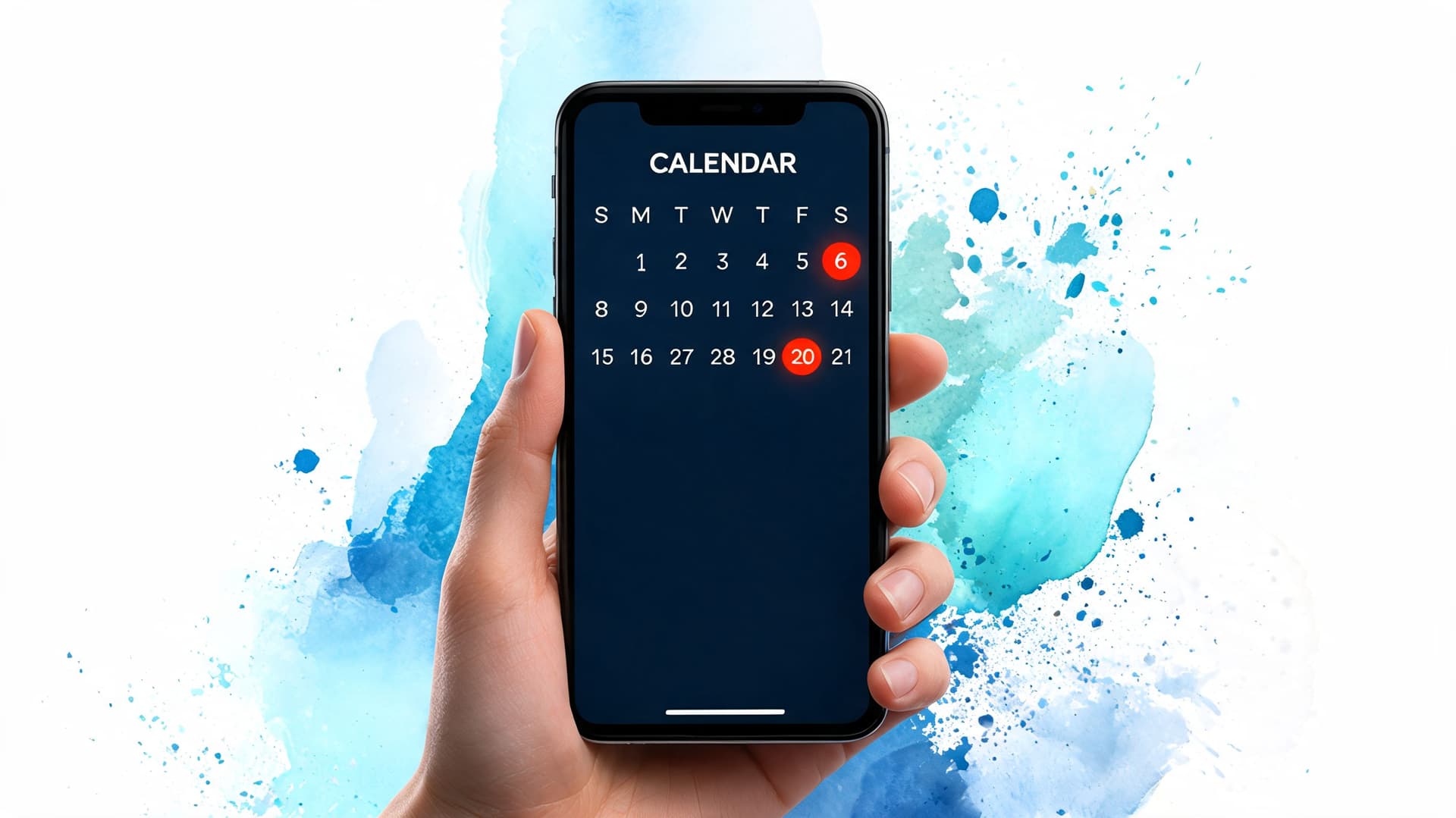
Different reminder tools train different behaviors. Phone reminders are good at catching you in the moment. Calendars are good at protecting time. Task apps are better for work that has dependencies, handoffs, or a long tail of follow-up. Reminder blindness sets in fast when the tool and the job do not match.
Apple Reminders, Google Calendar, Outlook, and task managers all work. They just fail in different ways if you ask them to carry the wrong kind of load.
iPhone and Apple Reminders
Apple Reminders is strongest for personal commitments, quick follow-through, and prompts tied to daily life. It works well when the action starts and ends with you.
Apple lets you add a date, time, list, tags, priority, notes, and location or message-based triggers in Apple Reminders. That flexibility helps, but only if you stay selective. If every task gets a high-priority alert, the app becomes wallpaper.
Use Apple Reminders for:
- Personal admin like paying a bill, sending a form, or calling a doctor
- Time-sensitive actions like leaving for an appointment or taking medication
- Location-based prompts when the task only matters in a specific place
- Lightweight capture when you need to get something out of your head fast
A simple rule helps here. If the reminder should reach you wherever you are, and no one else needs to see it, Apple Reminders is often the right home.
Google Calendar and Outlook
Calendars are for commitments with a clock attached. Meetings, prep blocks, deadlines that need protected time, and recurring responsibilities belong here.
In Google Calendar, create the event, set the start time, and put the working link, meeting note, or source email in the description. That keeps the reminder attached to the work instead of forcing you to hunt for context after the alert fires. If your tasks and meetings keep drifting apart, sync tasks with Google Calendar so your deadlines show up where you already pay attention.
Outlook works well in teams that live inside email and meetings all day. Put the reminder on the calendar event itself, especially for reviews, check-ins, and anything that needs preparation before the meeting starts. In practice, this reduces one common failure point. People ignore floating reminders faster than event-based prompts tied to a real block of time.
The trade-off is simple. Calendar reminders are strong for scheduled work, but weak for vague to-dos you have not placed on the calendar yet.
Task apps and project tools
Task managers earn their keep when the work has sequence, ownership, or collaboration. A deadline is only part of the job. Someone has to draft, review, approve, send, and follow up.
Use a task app or project tool when:
- The task has multiple steps
- Another person owns part of the work
- You need comments, files, or status in one place
- Completion may happen any time before the due date, not at one exact hour
This is also where many reminder systems subtly fail. People put team work in personal reminder apps, then wonder why alerts feel disconnected from the actual job. If the task lives in Asana, ClickUp, Trello, or your CRM, the reminder should usually live there too.
If your real bottleneck is getting people to choose a time, not remembering to chase them, it helps to find your ideal scheduling solution. Good scheduling software removes a whole category of manual reminders.
A short walkthrough can help if you want to compare your setup against a basic workflow.
The fast rule for choosing the platform
- Use mobile reminders for personal tasks, errands, and immediate prompts
- Use calendar reminders for events, appointments, and protected work blocks
- Use task tools for multi-step work, shared ownership, and follow-up chains
The goal is not to stuff every reminder into one app. The goal is to place each reminder where you are most likely to act on it before your brain learns to ignore it.
Advanced Reminders for Complex Workflows
You remember the big deadline. The work still slips because the actual failure point was smaller. A handoff sat waiting for approval, a follow-up depended on someone else replying, or a recurring check landed at the wrong time and got swiped away with the rest of your notifications.
Basic reminders are fine for simple tasks. Complex work needs a system that matches how the work moves. The goal is to reduce reminder blindness by tying each prompt to a trigger, a place, and a next action.

Recurring reminders that respect real work
Recurring reminders fail when they repeat on a schedule but ignore the actual rhythm of the job.
Set the reminder to the decision point, not just the date. A monthly finance review belongs on the first workable day people can act on it. Team status prep belongs late enough that information is fresh, but early enough that problems can still be fixed before the meeting. Client follow-up belongs after the interaction that creates the need, not as a vague repeating note that floats through the week.
That difference matters.
I've seen people create daily or weekly repeats for tasks they are avoiding, then train themselves to dismiss the alert on sight. Recurrence should cover predictable responsibility. It should not serve as a parking lot for unresolved guilt.
Context-specific triggers
Advanced reminders work when they appear inside the workflow, with enough context to make action easy.
That usually means attaching the reminder to the record that already holds the work. Put the prompt in the calendar event that contains the meeting notes. Add it to the CRM contact with the last conversation visible. Build it into the project task that already has files, comments, and owners attached. The reminder should answer three questions immediately: What is this, why now, and what happens next?
Poorly placed reminders create friction fast. A desktop alert with no reference forces you to reconstruct the task from memory. A phone notification during focused work gets cleared and forgotten. A reminder that arrives in the wrong app often dies there.
That same principle is why some teams use tools that combine tasks, automation, and follow-up logic. If you're sorting out what should remain manual versus system-driven, this overview of an AI personal assistant workflow can help you map that boundary.
Three advanced patterns worth using
| Reminder type | Best use | Common mistake |
|---|---|---|
| Recurring | Reviews, reporting cycles, renewals, prep work tied to a known cadence | Repeating vague tasks with no defined output |
| Location-based | Pickups, site visits, travel prep, errands linked to a physical place | Using a radius so broad that alerts fire when the task still cannot be done |
| Communication-based | Follow-up after meetings, approvals, waiting on replies, outreach sequences | Sending a reminder without the message thread, owner, or deadline attached |
A strong setup reduces re-deciding. Each reminder should point to one concrete action in the moment it appears. That is how complex workflows stay visible without turning into background noise.
Stop Managing Reminders and Start Delegating Them
There's a ceiling on how much personal reminding any professional can do before the system collapses under its own weight.
At some point, the issue isn't that you need better notifications. It's that too many tasks still depend on you personally noticing, remembering, initiating, checking, and following up. That's a cognitive load problem, not just a reminder problem.
The better question
Instead of asking, “How do I remember all of this?” ask, “Which of these tasks should stop depending on my memory altogether?”
That changes everything.
Some tasks still belong with you. Strategic decisions, sensitive communication, final approvals. But a surprising amount of work doesn't. Status checks, scheduling follow-ups, collecting documents, nudging vendors, confirming logistics, and updating trackers can often be moved out of your head and into a system.

What delegation changes
When people overuse reminders, they usually create alerts for every stage of a task:
- Remember to follow up
- Remember to check if they replied
- Remember to escalate
- Remember to send the next message
That's four reminders for one responsibility. It works for a while, then turns into self-generated noise.
A different model is to convert the reminder into a delegated workflow. For example, instead of “follow up on invoice,” assign a concrete outcome: contact the client, confirm status, and report back by a set day. Your role shifts from task executor to reviewer.
The cleanest reminder is often the one you no longer need because the work is already moving.
A tool like how virtual assistants fit into modern workflows becomes relevant in this context. The strongest systems reduce the number of open loops competing for your attention. In practice, that can mean using a platform such as Fluidwave for task organization, auto-prioritization, and delegation to human virtual assistants on a per-task basis, rather than trying to prop up an overloaded workflow with more alerts.
What should be delegated first
Start with tasks that are:
- Repeatable and easy to define
- Follow-up heavy with low strategic value
- Admin-driven and prone to getting postponed
- Easy to verify once completed
If you're still personally managing reminders for every small handoff, your system is doing too much remembering and not enough redesign.
Building Your Personal Reminder System
Monday starts with good intentions. By Thursday, the same phone that was supposed to keep you on track has trained you to swipe alerts away without reading them. That is reminder blindness. It happens when every task gets the same treatment and your brain learns that a notification usually means "not now."
A reliable reminder system uses levels. The goal is simple: match the reminder to the job, so each alert arrives in the right place, with the right urgency, and as little noise as possible.
Use the lightest tool that can still hold the context you need. A one-off errand can live in a basic phone reminder. Work with deadlines, recurring dates, or other people belongs in a calendar or task manager that stays synced. Repeated admin, handoffs, and status checks usually signal a design problem, not a memory problem. Those tasks need a template, an automation, or a delegated owner.
The pattern is consistent across the tools people rely on every day. Reminder systems keep adding priority, grouping, recurrence, and cross-device sync because a plain time-based ping is rarely enough. Good systems support context, not just timing.
A simple reminder audit
Review your current reminders and sort them into three groups:
-
Tier 1
Quick personal prompts. Errands, one-time calls, simple admin. -
Tier 2
Important work with deadlines, recurrence, or collaboration. Put these in calendars or shared task tools. -
Tier 3
Multi-step tasks, follow-up chains, and operational work that should be automated, templated, or delegated.
Then check for friction. If a reminder keeps getting snoozed, ask why. Is the task unclear? Is the timing wrong? Does it belong in a different tool? Is it really a project, not a reminder?
That small review changes a lot. You stop treating every obligation like a notification problem and start building a system you can trust.
Trust returns when each reminder has a single job. Some alerts should make you act now. Some should help you plan. Some should disappear because the process no longer depends on your memory.
If your reminders keep multiplying but follow-through does not, offload the operational layer. Fluidwave combines task management, prioritization, and delegation so fewer responsibilities depend on you manually remembering every next step.
Focus on What Matters.
Experience lightning-fast task management with AI-powered workflows. Our automation helps busy professionals save 4+ hours weekly.