Tired of juggling schedules? Learn how to Google Calendar merge calendars using display overlays, export/import, or sync tools. A clear guide for professionals.
June 5, 2026 (4mo ago)
Google Calendar Merge Calendars: The Definitive Guide
Tired of juggling schedules? Learn how to Google Calendar merge calendars using display overlays, export/import, or sync tools. A clear guide for professionals.
← Back to blog
You're probably here because “merge calendars” sounds simple, but Google Calendar makes it oddly slippery. You've got a work calendar, a personal calendar, maybe a shared family calendar, maybe an old account you're trying to retire, and you want one clean place to plan your week without missing meetings or exposing details you'd rather keep separate.
That's where most guides stop too early. They show a few clicks, call it a merge, and skip the part that matters in real life: are you trying to see everything in one view, or are you trying to permanently combine the events into one calendar? Those are different jobs. They create different risks. They're useful in different situations.
Understanding Your Merge Options
Most Google Calendar merge problems start with one bad assumption. People use the word merge as if Google Calendar has one native merge button. It doesn't.
In practice, there are two distinct methods. One is an overlay, where you display several calendars together in one grid. The other is a true merge, where you export one calendar and import its events into another. Google Calendar's interface itself reflects that distinction. You can check or uncheck calendars under “My calendars” and “Other calendars” to show them together in one view, but that doesn't physically combine them into one dataset, as described in this overview of how Google Calendar handles merged views and export/import workflows.
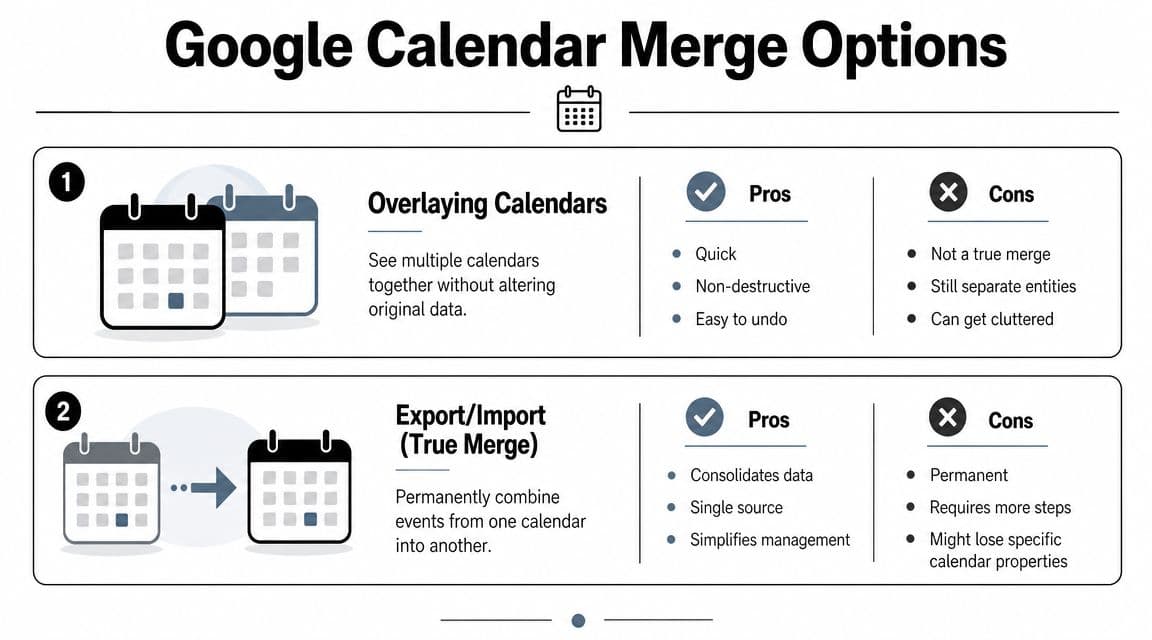
Overlay is like tracing paper
Think of overlaying calendars like stacking transparent sheets on top of each other. You see everything at once, but each calendar stays separate.
That's usually the right answer when you want visibility across contexts. A founder might want to see investor calls, internal team meetings, and personal appointments in one place. A manager might want to view a teammate's schedule without taking ownership of it. A household might want a shared planning screen without collapsing everyone's calendars into one blob.
A few situations fit this method well:
- Daily planning across roles. You want your work and personal schedules visible in one grid.
- Team coordination. You need to check availability without moving or copying anyone's data.
- Low-risk setup. You want something easy to undo if it gets messy.
If your broader workflow also includes Apple devices, it helps to understand how cross-platform syncing behaves before you start. This guide on how to connect iCal to Google Calendar is useful because platform overlap often gets mistaken for a true merge.
Import is like making a photocopy
Export and import is different. It creates a copy of events from one calendar and places them into another. The destination becomes a static snapshot of the source at the moment of import, not a live mirror. That means you gain consolidation, but you also take on maintenance.
Practical rule: If you need ongoing updates, don't import. If you need one calendar to become the long-term home of old events, import makes sense.
Privacy and ownership begin to hold significance. Imported events now live in the target calendar. Shared calendars don't change ownership. Imported events do.
If you're building a collaborative setup instead of a one-time consolidation, a separate guide on creating a shared calendar for teams or households is often more useful than forcing a merge that creates future cleanup.
The Quick Method Overlaying Calendars for a Unified View
If your real problem is constant tab-switching, use the overlay method. It's the fastest way to get a reliable command center for your day.
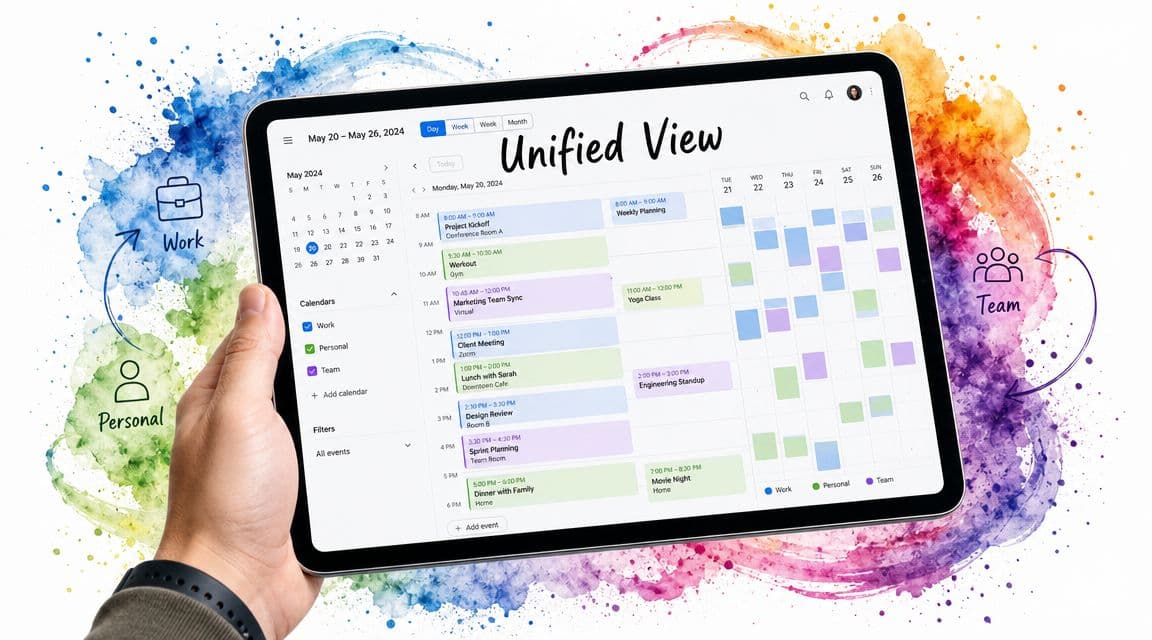
What to do in Google Calendar
Open Google Calendar on desktop and look at the left sidebar. You'll see your existing calendars listed under the account, and each one has a checkbox. Checking a calendar adds it to the grid. Unchecking it removes it from view without deleting anything.
For most professionals, the setup looks something like this:
- Turn on every calendar you actively use. That usually includes work, personal, project, and any household calendar.
- Add calendars shared with you. If a coworker or assistant shares access, their calendar can appear in your list.
- Subscribe to useful external calendars. Holidays, travel schedules, and team calendars can all sit in the same view.
- Assign distinct colors. Don't pick five shades of blue and expect your brain to sort it out on a busy Tuesday.
Why this works better than people expect
The overlay method provides an essential benefit: conflict detection at a glance. If your personal dentist appointment sits right on top of a client call, you catch it early. If a team offsite overlaps with a family event, you can negotiate before the day implodes.
What it doesn't do is reduce the number of calendars you own. You still have multiple sources, multiple permission models, and multiple places where events originate.
You're not simplifying the underlying system. You're simplifying the way you see it.
That's still valuable. For many people, it's enough.
A short walkthrough helps if you prefer to watch the clicks before changing anything:
How to keep the view from becoming visual noise
Overlaying fails when everything is technically visible but mentally unreadable.
Use these habits:
- Reserve one strong color for non-movable commitments. That might be client meetings or executive reviews.
- Use softer colors for reference calendars. Holidays and informational calendars shouldn't visually overpower your real appointments.
- Hide low-value calendars during focus blocks. If a calendar doesn't affect the next few hours, turn it off temporarily.
- Keep naming clear. “Marketing” and “Marketing Copy” shouldn't require guesswork.
If you need one practical benchmark, it's this: when you open the week view, you should be able to tell what's fixed, what's flexible, and what's just context within a few seconds. If you can't, the issue usually isn't Google Calendar. It's calendar sprawl.
Performing a True Merge with Export and Import
A true merge is for consolidation, not convenience. Use it when you're shutting down an old calendar, combining historical records, or moving events into a single long-term calendar you intend to keep.
Google Calendar supports this manually through an export and import workflow. The reliable version is done in the web app, not mobile. The documented process is to open Settings, use Import & export, export source calendars as a ZIP archive, extract the .ics files, and import them into the destination calendar while explicitly choosing the target calendar in the import dialog, as outlined in this guide to exporting and importing Google Calendar data.
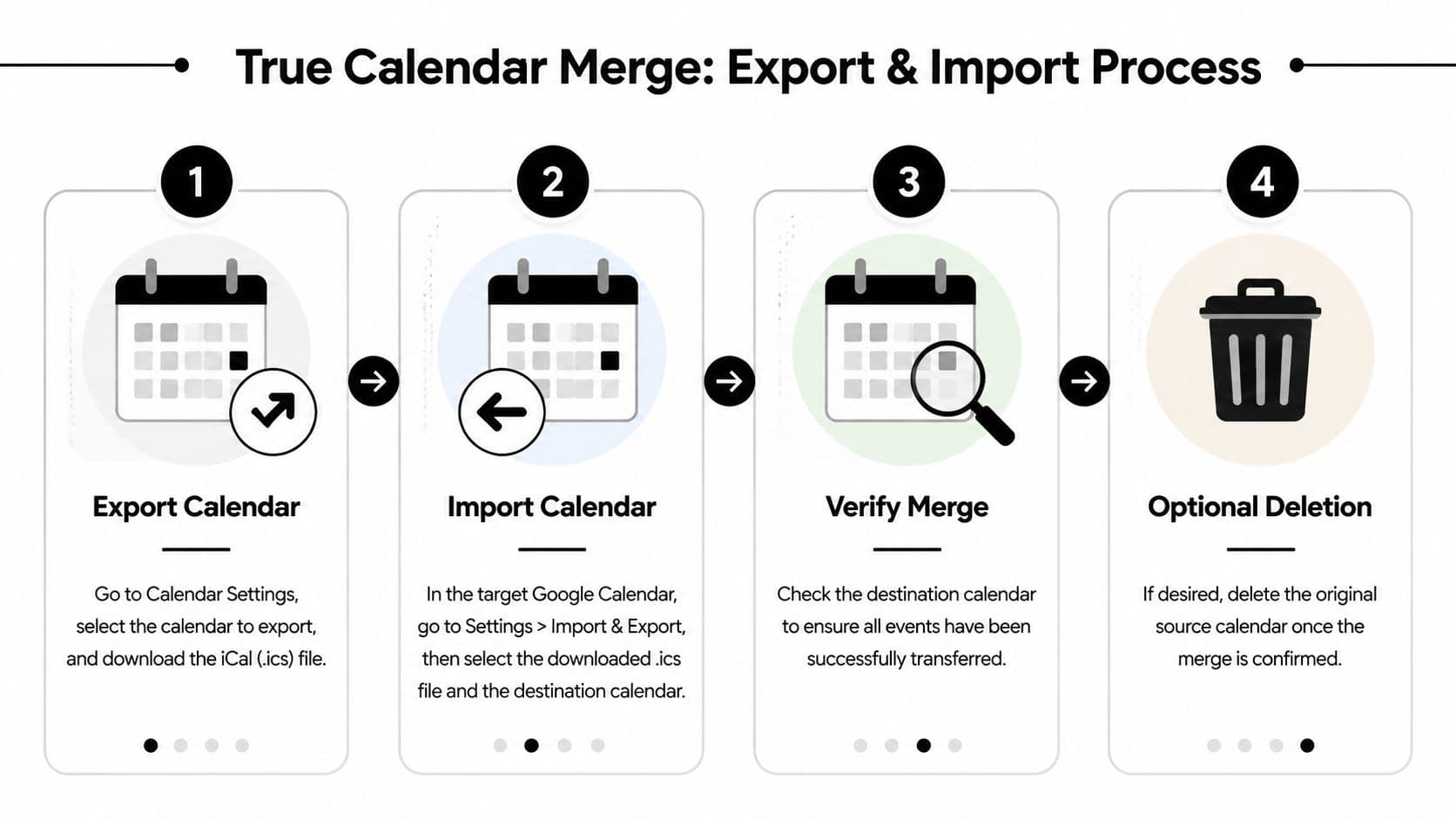
When a true merge is the right move
This method makes sense in a few common situations:
- You're retiring an old account. Maybe you changed companies or consolidated multiple Google accounts.
- A project calendar has reached end-of-life. You want the events preserved inside a main archive calendar.
- You want one calendar to become the single record. Not just one view, but one place where the copied events live.
It's a poor fit when the source calendar is still active and changing every day. In that case, importing creates drift. The source keeps changing. The imported copy doesn't.
The safest manual workflow
Use a desktop browser. Mobile won't give you the same import and export controls.
Follow this order:
-
Choose the destination calendar first
Decide exactly where the copied events should end up. Don't start exporting until you know the final destination. -
Open Google Calendar settings on the web
Go to the source account or source calendar environment and locate the export controls. -
Export the calendar data
Google delivers the export as a ZIP archive. That's normal. Don't try to import the ZIP directly without checking what's inside. -
Extract the ZIP and identify the
.icsfiles
This step matters more than most guides admit. An export can contain multiple calendar files, so you need to know which file belongs to which source before importing anything. -
Return to Import & export in the destination calendar
Select the.icsfile you want to bring in. -
Pick the target calendar carefully
This is the mistake that causes cleanup work later. If you choose the wrong destination, events land in the wrong calendar and can be harder to sort out than people expect. -
Import and then verify before doing anything else
Open calendar views that show the imported date range. Spot-check recurring events, all-day events, and known appointments. -
Only then decide whether to keep or remove the original source calendar
Never delete first and verify later.
A related reference on how to export a Google Calendar cleanly can help if you want a separate walkthrough focused on the extraction side of the process.
The operational consequences nobody mentions enough
A true merge changes the nature of your calendar setup.
Here's the simplest comparison:
| Method | What you get | What you give up |
|---|---|---|
| Overlay | Live visibility across calendars | No single combined dataset |
| Export/import | One consolidated copy of events | Ongoing sync from the source |
That trade-off is the whole game. People often choose import because it feels cleaner. Then they discover that updates made later to the original calendar don't magically appear in the destination.
Imported calendars are records. Shared calendars are windows.
What to verify before calling it done
Check for these specific issues after import:
- Recurring events. Confirm the series looks right across future dates.
- Calendar placement. Make sure the events went into the intended destination, not a stray calendar.
- Duplicate appearance. If the source calendar is still visible and you also imported it, you may be seeing both versions.
- Context loss. Some visual organization choices may need to be rebuilt manually.
A true merge is useful, but it's not forgiving. Treat it like a migration, not a convenience feature.
Advanced Calendar Management and Automation
Once you've handled the basic Google Calendar merge calendars question, the next problem usually isn't merging. It's governance.
You need a calendar setup that respects privacy, avoids stale copies, and doesn't force someone to repeat manual imports every time a schedule changes. That's the point where simple tactics stop being enough.
Privacy is the real decision point
One of the most underanswered issues is how to combine calendar visibility without exposing too much detail or creating permanent duplication. Shared calendars can reveal event information unless permissions are restricted, while import/export creates a separate copy that can drift or duplicate data later, a tradeoff reflected in Google Calendar guidance and related discussion around merging calendars while managing privacy and duplication.
That matters in real settings:
- Executives may need an assistant to see availability but not meeting notes.
- Freelancers may want client-facing scheduling without exposing personal event titles.
- Teams may need project visibility without giving everyone full detail access.
If that sounds familiar, don't ask only “How do I merge these?” Ask, “Who needs to see what?”
When permissions beat merging
Sometimes the cleanest setup is no merge at all.
Use permission-based sharing when you need:
- Availability only. People can schedule around your calendar without reading the contents.
- Selective visibility. One calendar can remain private while another is fully shared.
- Ongoing collaboration. Calendars that stay active are usually better shared than copied.
That's especially true when calendars represent different roles. A founder's investor calendar, internal operations calendar, and personal calendar may all need to coexist, but not all with the same visibility rules.
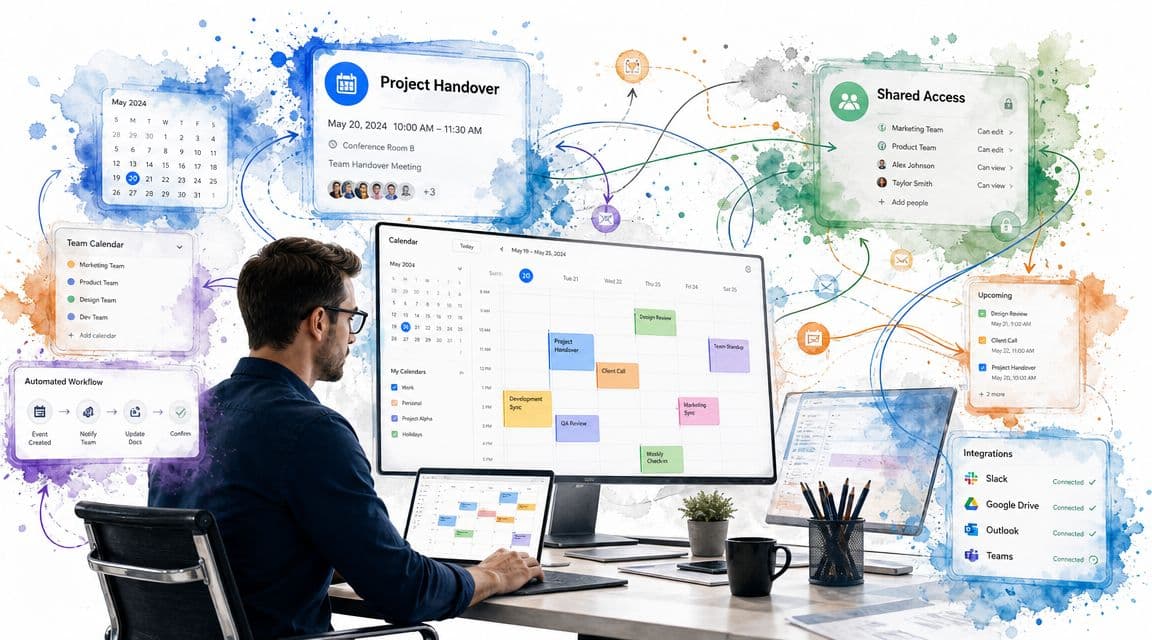
When to graduate to automation
Manual export/import works for one-time cleanup. It becomes a bad habit when you need repeated updates.
That's when teams usually move to one of these approaches:
- Dedicated sync tools for ongoing cross-calendar visibility
- Scripts for custom reporting or scheduled transfers
- Workflow systems that treat calendar data as part of a broader planning process
A practical example is using calendar data alongside task planning. If you're blocking focused work after consolidating your calendar view, a structured effective time management tool can help turn calendar visibility into an actual weekly plan rather than a crowded schedule grid.
For teams that want a reporting-style merged view rather than a destructive event copy, syncing Google Calendar into a broader workflow system can be more useful than repeated imports. Fluidwave, for example, describes Google Apps Script workflows that pull events from one or more calendars into a consolidated sheet or workflow layer, which fits reporting and coordination better than a one-time merge.
The sign you need automation isn't complexity by itself. It's repetition. If you're doing the same import again and again, you're solving a live-sync problem with a static-copy tool.
Troubleshooting Common Merge Problems
Even a careful merge can go sideways. Here's the first-aid version.
Duplicate events after import
Symptom: You see the same meeting twice in your calendar view.
Cause: You imported events into a destination calendar while the original source calendar is still turned on in the overlay view, or you imported the same .ics file more than once.
Solution: Turn off the source calendar temporarily and check whether the duplicates disappear. If they do, the issue is visual overlap, not duplicate storage. If duplicates remain in the destination calendar, review what was imported and remove the extra copy before repeating anything.
Events show at the wrong time
Symptom: Meetings land in the wrong hour.
Cause: Time zone handling can create mismatches during migration, especially when calendars were created or managed across regions.
Solution: Check the time zone settings on both the source and destination calendars before importing additional files. Then spot-check a few known events before you treat the merge as complete.
Imported events landed in the wrong calendar
Symptom: The events exist, but not where you expected them.
Cause: The wrong target calendar was selected during import.
Solution: Pause before importing the next file. Verify the destination name in the import dialog every time, especially if several calendars have similar names.
Colors look wrong or disappeared
Symptom: Your old visual system didn't survive the merge.
Cause: Visual organization doesn't always translate the way people expect during a copied-event workflow.
Solution: Rebuild the color structure intentionally. Use the merge as a chance to simplify your scheme instead of recreating every old category.
Frequently Asked Questions About Merging Calendars
Can I do a true merge on the mobile app
No. The reliable export/import workflow is web-only. If you need a true merge, use Google Calendar in a desktop browser.
What happens to recurring events when I import them
They usually come over as part of the imported calendar data, but you should verify a few recurring series after import. Don't assume every pattern looks exactly the way you expect without checking future dates.
Is overlaying calendars the same as merging them
No. Overlaying gives you a unified view. It does not create one native calendar from multiple calendars.
Should I share or import
Share when you need live visibility. Import when you need a one-time consolidation into a destination calendar. If privacy matters, sharing permissions often matter more than the merge itself.
Can I automate this with scripts
Yes, in some setups. Scripts can help with reporting, synchronization, or custom workflows. That makes sense when your need goes beyond a one-time cleanup and into ongoing calendar operations.
What's the safest way to avoid a mess
Start with a clear goal. If you only need one screen to view everything, overlay. If you need one calendar to permanently hold copied events, import carefully and verify before deleting anything.
If your calendar problem is really a workflow problem, Fluidwave is worth a look. It combines task management, calendar-oriented planning, automation, and human assistant support, which makes it useful when merged calendars alone aren't enough to keep work, deadlines, and delegation organized.
Focus on What Matters.
Experience lightning-fast task management with AI-powered workflows. Our automation helps busy professionals save 4+ hours weekly.