Juggling multiple schedules? Learn how to combine Google Calendars with our step-by-step guide on overlays, importing, and real-time sync tools for 2026.
July 5, 2026 (3mo ago)
How to Combine Google Calendars: A Practical 2026 Guide
Juggling multiple schedules? Learn how to combine Google Calendars with our step-by-step guide on overlays, importing, and real-time sync tools for 2026.
← Back to blog
You open Google Calendar to book a meeting, see a free hour at 2 PM, and then remember your personal account has a dentist appointment sitting in a different tab. That's how double-booking starts. Not because you're disorganized, but because your schedule is split across places that don't talk to each other well.
For busy professionals, one calendar view isn't a nice extra. It's basic operating infrastructure. If you manage work, family, travel, client calls, or a side business, you need a reliable way to combine Google Calendars without creating more mess than you solve.
The catch is that Google Calendar still doesn't give you a native real-time merge between different accounts. The official route is export and import, which creates a static copy rather than a live connection, as discussed in this Google Support community thread. That leaves you with three practical options: overlay, import, or sync.
Each solves a different problem. If you only need one view, use overlay. If you need ownership of the events in one account, use export and import. If you need calendars to keep matching without constant babysitting, use a sync tool. If you also time block your week, a unified view makes that system much easier to trust, especially if you already use a method like Google Calendar time blocking.
Why a Single View of Your Time Matters
Most calendar problems aren't calendar problems. They're visibility problems.
Executives miss commitments because one account holds the meeting and another holds the travel block. Founders overbook because investor calls live on one calendar while personal obligations sit on another. Freelancers lose focus because they keep checking three separate schedules before saying yes to anything.
What actually breaks when calendars stay separate
A split calendar setup creates friction in small ways all day long:
- Scheduling gets slower: You have to cross-check multiple accounts before accepting anything.
- Context gets weaker: You see a meeting, but not the prep time, commute, or personal obligation around it.
- Boundaries get harder to defend: Work can spill into personal time when your full day isn't visible in one place.
- Planning quality drops: Weekly reviews become guesswork instead of clean decision-making.
When people say they want to combine Google Calendars, they usually mean one of three things. They want to see everything together, move everything into one account, or keep multiple calendars aligned automatically. Those are different goals, and the wrong method creates extra cleanup later.
A clean calendar system reduces mental load more than it saves clicks.
The three methods that matter
Here's the practical version:
| Method | Best for | What you get | Main downside |
|---|---|---|---|
| Overlay | Viewing work and personal calendars together | Real-time shared view | You don't own the source events |
| Export and import | Consolidating old calendars into one account | Permanent copy in destination account | No future sync |
| Sync tool | Keeping calendars aligned continuously | Ongoing automation | More setup and tool dependence |
That's the key decision. Not “how do I merge calendars,” but what kind of merge do I need.
The Quick Overlay for a Temporary Combined View
If your goal is to see multiple calendars together, overlay is the fastest answer. It's the method I recommend most often for people who want one dashboard without moving ownership of events.
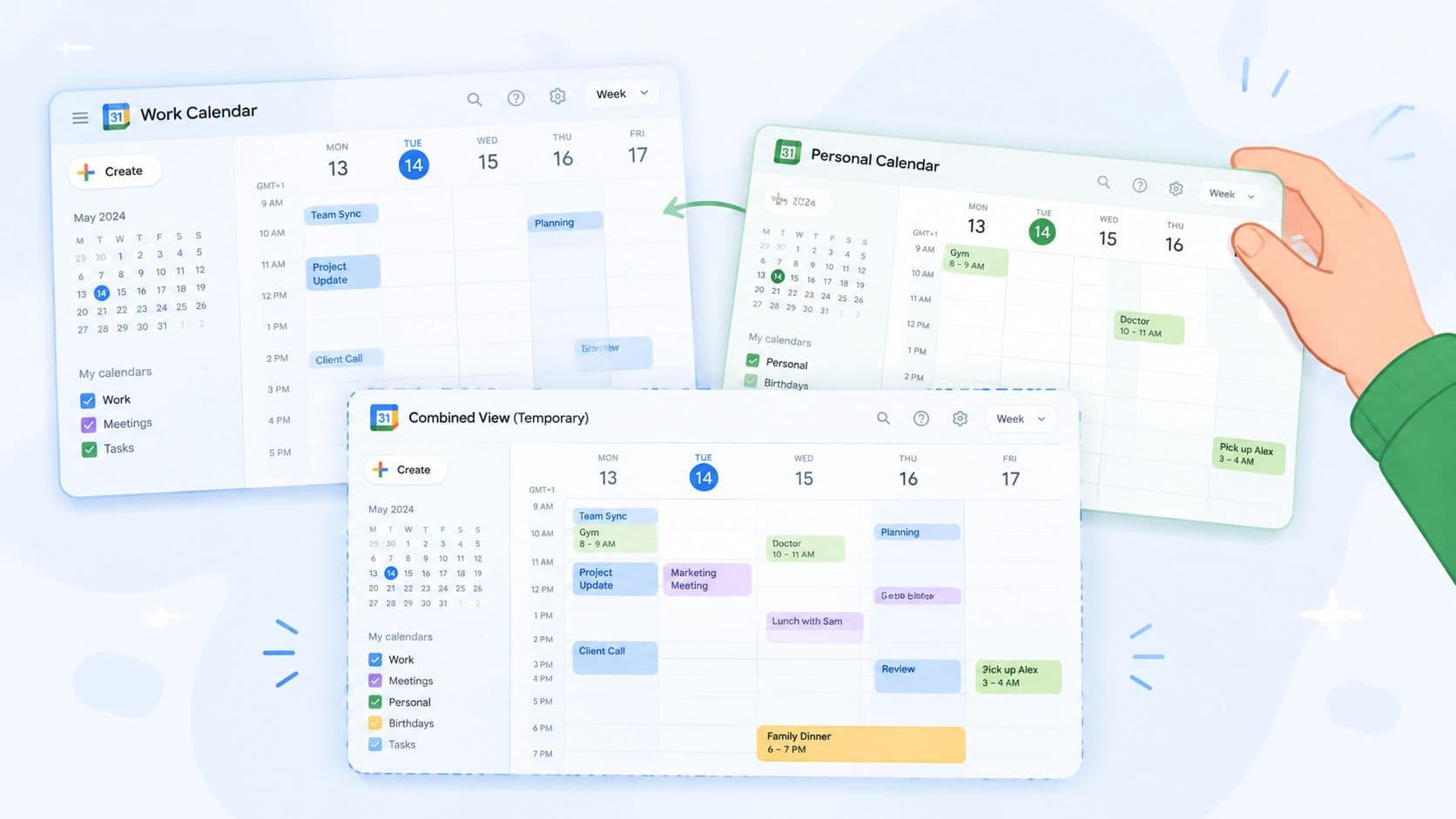
The overlay approach works by sharing one calendar with another account, then displaying both in the same interface. It does not create duplicates. It also stays current. Once shared, changes made in the source calendar appear in the destination view in real time, as described in this Google Workspace discussion on shared calendar overlays.
How to set it up
Use these steps from the source calendar:
- Open Google Calendar on desktop.
- Find the calendar you want to share under My calendars.
- Click the three-dot menu, then open Settings and sharing.
- In the sharing area, choose Add people.
- Enter the email address of the destination Google account.
- Pick a permission level such as See all event details if you want the full content visible.
Then switch to the destination account. The shared calendar should appear in the sidebar. In some setups, you may add it through the plus button next to Other calendars, depending on how it was shared.
Permission choice matters
It's common for people to get sloppy and regret it later.
If you only need availability, share less. If you need event titles, locations, and notes to make decisions, use the permission that shows details. For work calendars, I usually tell clients to separate visibility needs from ownership needs. Overlay is good at visibility. It's not good at ownership.
When to use this method: Choose overlay when you want to view a partner's schedule, compare your work and personal commitments side by side, or give yourself one live planning screen without permanently moving data.
Why overlay works well
Overlay solves a real problem with minimal effort.
- It's fast: You can set it up in minutes.
- It's live: Edit the source calendar and the combined view updates.
- It's clean: No import means no duplicate event copies from the setup itself.
- It preserves structure: Work stays work. Personal stays personal.
For a lot of people, that's enough. If you're managing separate roles and just need one trustworthy visual schedule, overlay is often the right answer.
Where overlay falls short
The weakness is simple. You're still relying on the original calendar.
If someone removes your access, deletes the source calendar, or shuts down the account, the events disappear from your combined view. That makes overlay a poor choice for account migrations, offboarding, or archiving important project history.
It also doesn't solve permanent consolidation. You're seeing multiple calendars together, but you haven't merged the data into one owned calendar.
Permanently Merging Calendars with Export and Import
If you need one account to own the events, export and import is the method that gets you there. This is the right move when you're leaving an old role, consolidating calendars after a transition, or building a single master calendar you control.
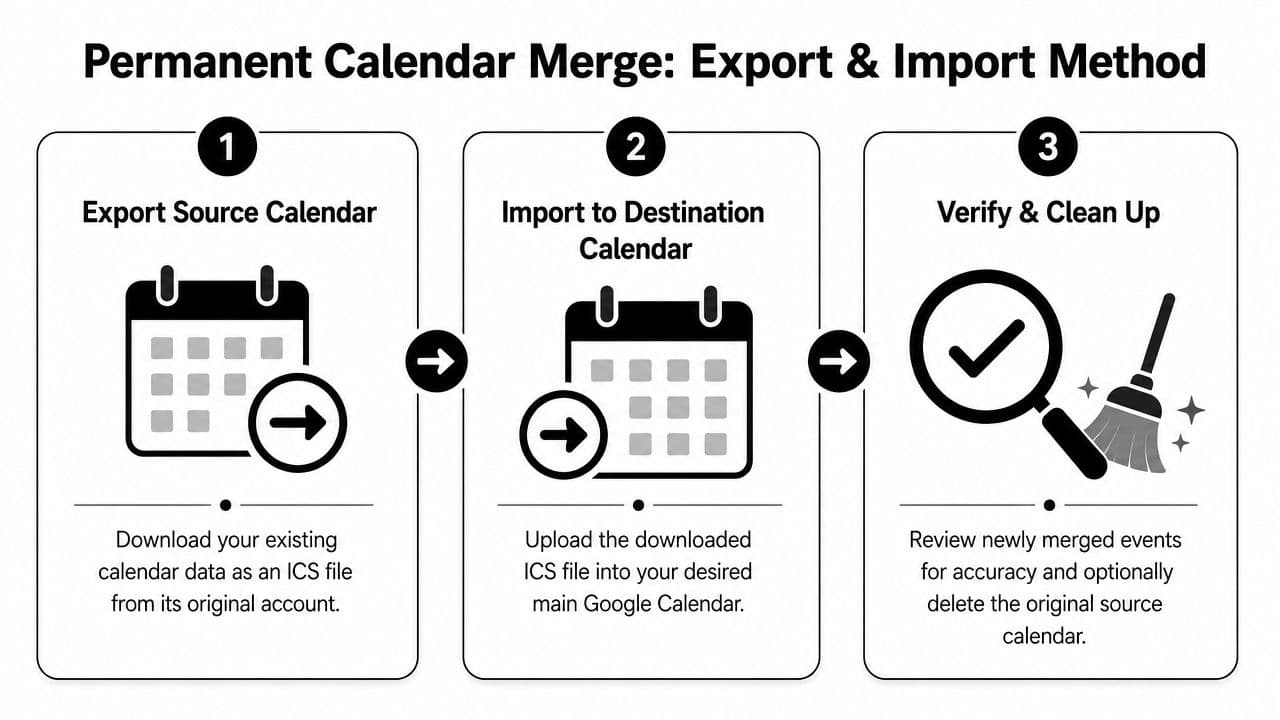
Google's native merge functionality is really an export-import process using ICS files. You export the source calendar, download a ZIP file, extract the ICS file, and then upload it into the destination calendar. It's not a living merge. It's a point-in-time transfer. If you want a walkthrough with screenshots, this guide on how to export a Google Calendar is a useful companion.
The cleanest way to do it
Here's the process I use for clients who need a permanent move:
- In the source Google account, open Settings.
- Go to Import & export.
- Click Export to download the ZIP file containing the calendar data.
- Extract the ZIP file on your computer.
- Switch to the destination Google account.
- Return to Settings, then Import & export.
- Upload the extracted .ics file into the calendar you want to use as the destination.
If you're moving multiple calendars, repeat that process for each account and each ICS file. Some people create a fresh destination calendar first, often named something like “Master View,” so the imported data stays separate from an existing personal calendar until cleanup is finished.
What this method does well
Export and import is still the most reliable manual method when ownership matters.
- You gain control: The destination account now has its own copy of the events.
- You can retire old accounts: Useful when switching jobs or closing a legacy account.
- You avoid dependency on sharing permissions: The imported events remain even if the source account disappears.
That's why many people use this approach when they want to unify multiple Google calendars into one account they fully control.
The trade-offs you need to respect
This is the part people underestimate. Import is not sync.
Google's help flow and practitioner guides make it clear that once you import an ICS file, future changes in the source calendar do not keep updating in the destination. You've made a copy. If the source calendar changes tomorrow, your imported version won't know.
The second issue is cleanup. According to Krisp's guide to merging Google Calendars, approximately 15% of recurring events may fail to carry over correctly if time zones differ, and duplicate entry error rates can reach 20% in multi-account setups without prior cleanup. Those aren't edge cases. They show up often enough that I treat post-import review as mandatory.
The post-import review that saves headaches
After import, do a manual pass. Don't skip it.
- Check recurring events first: Weekly meetings, monthly reminders, and repeating holds are the most likely to break.
- Look for time zone drift: If one account was set differently, imported times can look right at first glance and still be wrong.
- Remove duplicates: This is common if the calendars were previously shared or partially mirrored.
- Assign colors intentionally: Work, personal, and client calendars should read clearly in one glance.
Practical rule: Treat export and import as a migration project, not a button click.
A lot of people also benefit from a short weekly review after the merge. A manual 10 to 15 minute Sunday check can catch outdated entries and duplicates created by the static transfer process, especially if you imported several calendars at once, as noted in this walkthrough on Google Calendar merge limitations.
Best use cases for import
Use export and import when:
- You're changing accounts permanently: Old employer account to personal archive, or old personal account to a new main account.
- You need record ownership: The destination account must keep the event copies.
- You can tolerate cleanup: You're willing to verify recurring events and remove duplicates.
Don't use it if your main requirement is “keep both calendars updated forever.” That's not what import does.
Real-Time Syncing with Automation Tools
When manual upkeep starts breaking down, automation becomes the adult solution. This is the category for people who can't afford to babysit duplicate schedules and can't rely on a shared overlay alone.
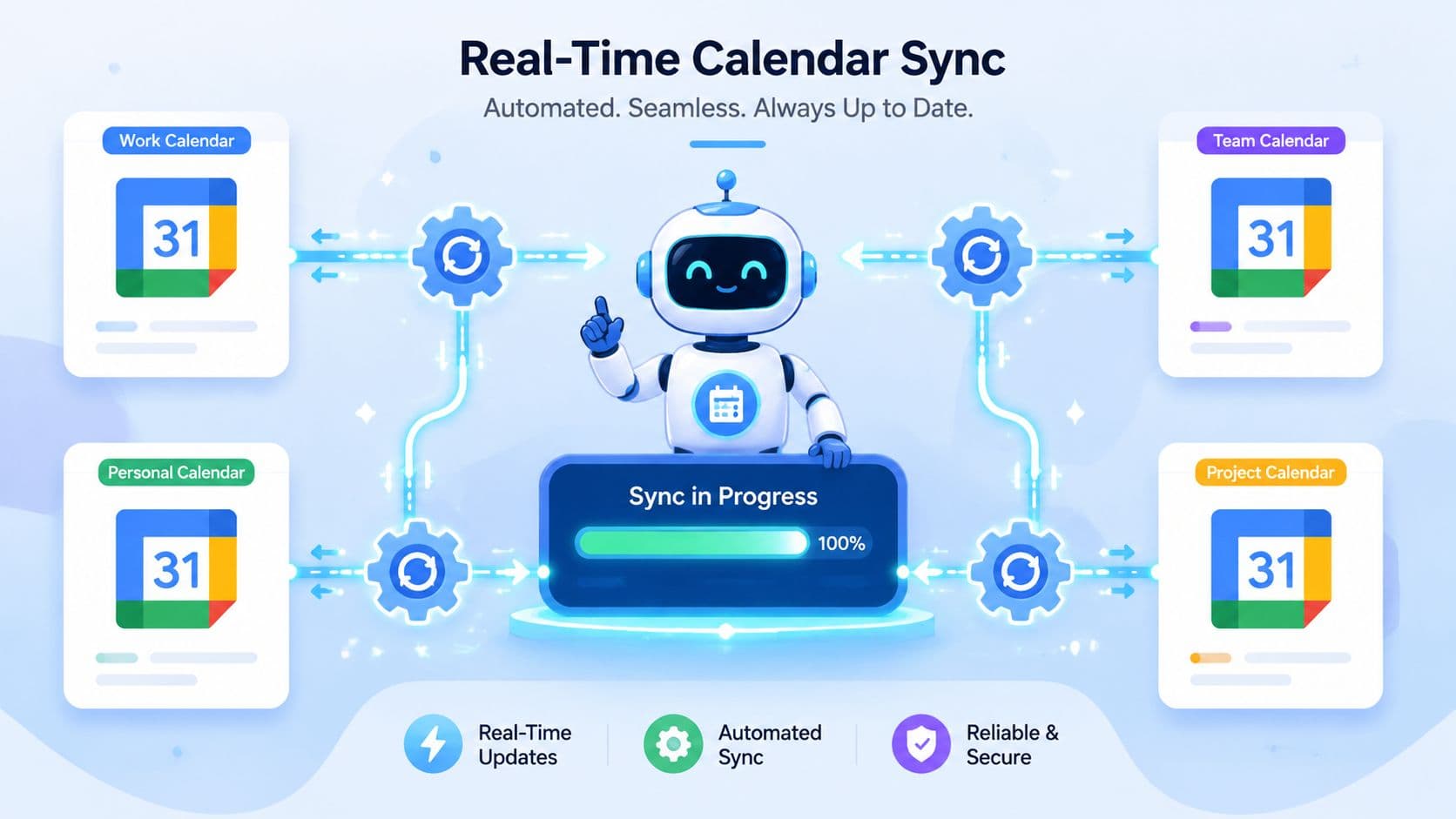
Tools in this category include dedicated calendar sync services and broader automation platforms such as Zapier or IFTTT. The model is simple. One calendar change acts as a trigger, and the tool creates or updates the related event in another calendar. If you already automate other systems, this kind of setup fits naturally alongside future AI automation platforms that coordinate work across apps.
Why sync tools exist
Overlay gives you visibility. Import gives you ownership. Sync tools try to give you continuity.
That matters for professionals who keep separate work and personal accounts but need availability reflected across both without exposing every private detail. It also matters when two executives share support staff, or when contractors maintain client calendars separate from personal planning systems.
Some tools support multi-way synchronization, which means changes can move in both directions. That's the setting you want if both calendars remain active. If the tool only copies one way, the system becomes fragile fast.
What the data says about common mistakes
The strongest case for sync tools is consistency. According to the referenced YouTube walkthrough on multi-way sync tools, real-time merging tools that copy availability can achieve a 98% success rate in conflict prevention when configured correctly, while the common one-way sync trap can lead to a 40% failure rate in capturing new events from one of the accounts in this video on calendar synchronization.
That lines up with what I see in practice. Most failures don't happen because sync is a bad idea. They happen because the setup is wrong. Someone chooses one-direction copying when they needed both calendars to stay active. Then they trust the mirror, book against stale data, and blame the tool.
A practical setup checklist
If you're using a sync tool, sanity-check these points before you rely on it:
- Multi-way vs one-way: If both calendars will receive new events, choose multi-way.
- What gets copied: Some tools sync only busy status. Others can carry more context.
- Privacy settings: Decide whether event titles and descriptions should transfer.
- Calendar scope: Sync only the calendars that matter. Don't mirror everything by default.
A good starting point for people exploring this route is to think in terms of workflows, not just calendars. If you already connect scheduling to task systems, this article on syncing with Google Calendar shows how calendar connectivity fits into a broader work setup.
Watch a live example
Seeing a sync workflow in action makes the trade-offs much clearer.
The privacy problem most people run into
Here's the nuance that separates casual users from people with real calendar complexity. Many sync tools are best at sharing availability. They're weaker when you need full event details kept private across accounts.
That means you may be able to mirror busy blocks without exposing titles, notes, or meeting context. For some users, that's perfect. For others, especially executives with dense schedules or ADHD professionals who rely on event titles and notes to understand what a block signifies, availability alone isn't enough.
If your scheduling system depends on context, “busy” is often too vague to be useful.
When sync tools are worth the effort
Use a sync tool when:
| Situation | Fit for sync tools |
|---|---|
| You actively use two accounts every day | Strong fit |
| You need updates to keep flowing without manual imports | Strong fit |
| You only need one-time migration | Weak fit |
| You want zero third-party dependence | Weak fit |
The setup is more involved than overlay or import. There may also be subscription cost depending on the tool. But for people running a high-volume schedule, the reduction in manual checking is usually worth it.
Choosing Your Method and Advanced Considerations
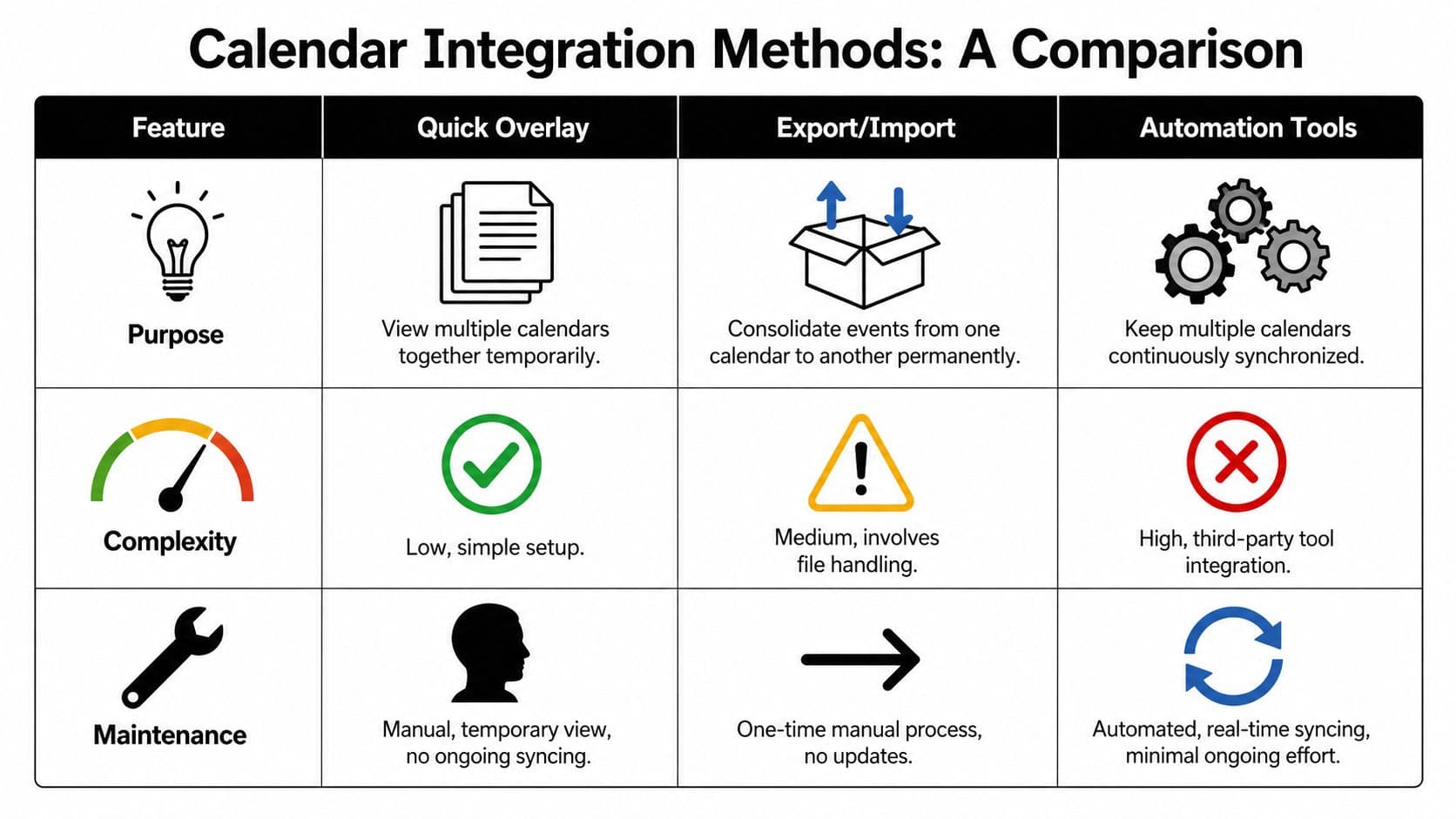
Users don't need every method. They need the right one for the job in front of them.
A simple decision table
Use this as your cheat sheet:
| Question | Quick Overlay | Export and Import | Automation Tools |
|---|---|---|---|
| Do you need real-time updates? | Yes, for viewing shared calendars | No | Yes |
| Do you need event ownership in one account? | No | Yes | Depends on the tool |
| Do you want the easiest setup? | Yes | Moderate | No |
| Are you merging for account migration? | No | Yes | Usually no |
| Do you need ongoing maintenance? | Very little | Manual review after import | Front-loaded setup, then lighter maintenance |
| Best for | Work and personal side-by-side | Consolidating calendars permanently | Keeping separate calendars aligned |
What to choose in real situations
If you're separating work and personal life, start with overlay. It gives you one view without forcing the two calendars into one ownership bucket. That's usually the cleanest setup for professionals who want visibility and boundaries at the same time.
If you're closing an old account or absorbing a project calendar into your main account, use export and import. That's the right move when permanence matters more than live updates.
If you manage parallel schedules that both stay active, use a sync tool. This is common for executives with company and personal Google accounts, founders with multiple brands, or consultants who keep client calendars separate from private planning.
The best method is the one that matches your need for permanence, privacy, and real-time updates. Not the one with the fewest clicks.
The advanced issue most guides miss
There's one hard problem that still doesn't have a clean mainstream answer. According to Koalendar's analysis of Google Calendar merging options, no mainstream guide explains how to merge full event details in real time while keeping calendars private. Most available solutions fall into one of two camps. Export and import gives you details, but not real-time updates. Sharing or free-busy syncing gives you live visibility, but often hides the details people need for context.
This matters more than many guides admit.
For confidential work, you may not want to expose titles and descriptions broadly. But if you hide all details, your personal planning system becomes less useful. “Busy” doesn't tell you whether the block is a board meeting, a school appointment, or travel time. For neurodivergent professionals and anyone who relies on precise context to move through the day, that missing detail creates friction fast.
My practical recommendation
If privacy is the top concern, keep detailed calendars separate and use overlay or privacy-safe sync for availability. If context is the top concern, consolidate with import or use a tool that gives you finer control over what gets copied. If both privacy and full detail matter equally, expect compromises. Today's options still force a choice somewhere.
Unifying Your Workflow Beyond Just Calendars
A combined calendar helps you see your time. It doesn't automatically help you use that time well.
A significant payoff comes when your calendar connects to the rest of your workflow. Meetings should tie back to tasks, prep work, follow-ups, and delegation. Otherwise, even a beautifully combined calendar can still leave you reacting all day instead of running the day.
A better way to think about calendar consolidation
Choose your method based on the job:
- Use overlay when you want one live view.
- Use import when you need permanent ownership.
- Use sync when separate calendars must stay aligned continuously.
Then ask the harder question. Once your time is visible, where does the actual work go?
That's where many busy professionals discover the next bottleneck. The calendar is organized, but the action items still live in email threads, chat messages, and scattered notes. If you're cleaning up surrounding systems too, it can also help to streamline your email communications using spreadsheets so repetitive outreach doesn't keep spilling back into your calendar as administrative clutter.
A good calendar setup gives you clarity. A good workflow system turns that clarity into execution.
If you want your schedule and your tasks to live in the same place, Fluidwave is worth a look. It combines calendar-aware task management, automation, and human delegation support so you can move from “I can see my week” to “my week is under control.”
Focus on What Matters.
Experience lightning-fast task management with AI-powered workflows. Our automation helps busy professionals save 4+ hours weekly.