Build a calendar task list template that actually fits your week. Real setup steps, customization tips, and ADHD-friendly tweaks included.
August 8, 2026 (3mo ago)
Calendar Task List Template: How to Build One That Works
Build a calendar task list template that actually fits your week. Real setup steps, customization tips, and ADHD-friendly tweaks included.
← Back to blog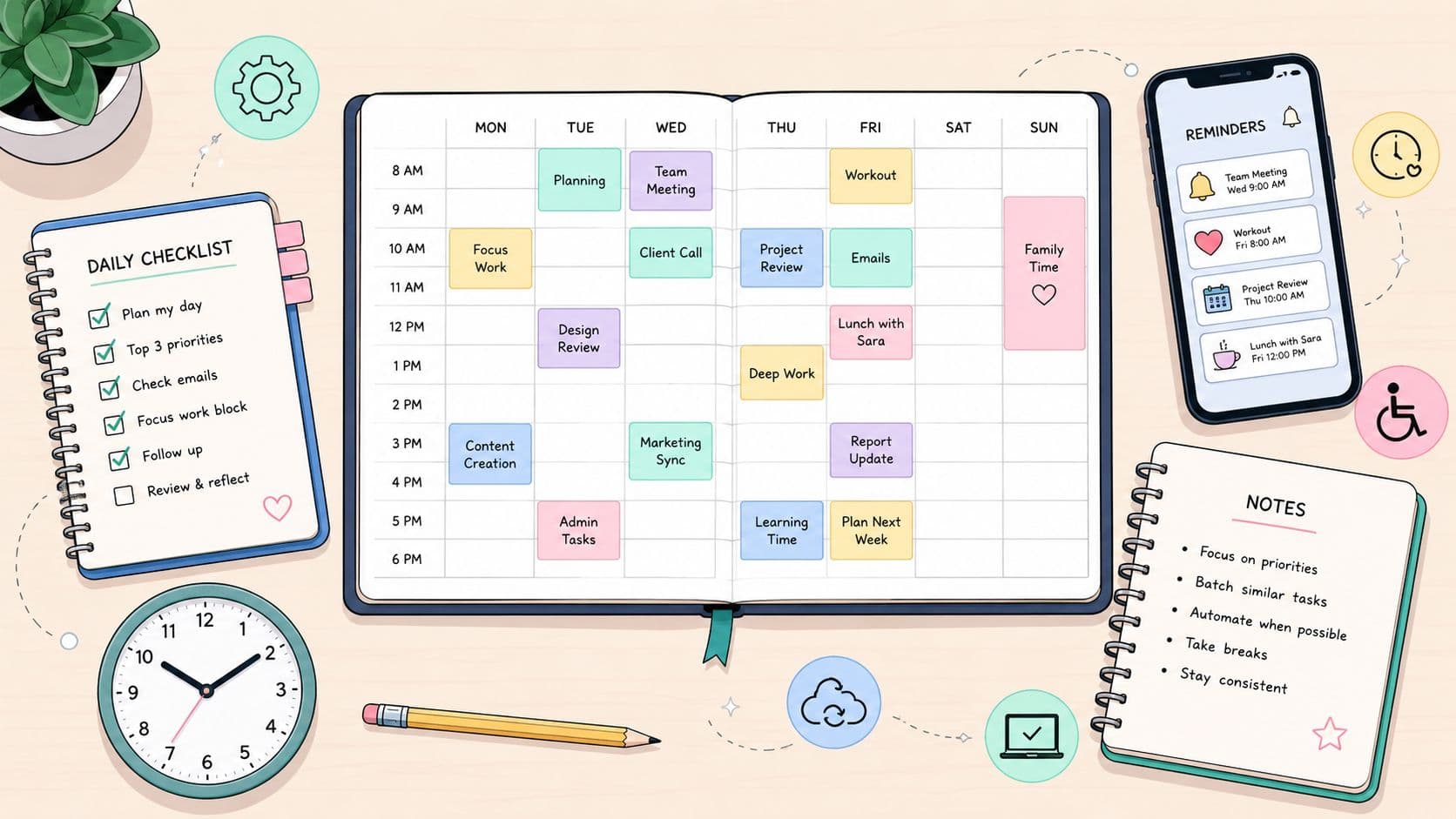
Monday starts with a clean spreadsheet, a few bright status colors, and the confidence that this time the week won't spiral. By Wednesday, the same calendar task list template is stuffed with overdue work, half-finished drafts, and meetings that never left the page. The problem usually isn't the template design. It's that the template was treated like decoration instead of a way to make hard decisions about time, energy, and ownership.
A calendar-based planner only holds up when it does three jobs at once. It has to show what's due, show who owns it, and make it obvious what shouldn't be scheduled at all. That's the difference between a tidy list and a system that survives real work, real interruptions, and a bad Tuesday. If you're trying to rebuild your weekly setup without overpromising on what it can carry, the pattern in Madeira Remote's coliving balance guide is a useful mindset shift, and this burnout-avoidance guide pairs well with the same thinking.
Why Most Calendar Templates Fall Apart by Wednesday
The first version always looks smarter than it is. A manager opens a fresh calendar task list template on Monday, fills every empty slot, adds a color for each priority, and feels organized for about forty-eight hours. Then the week arrives, a meeting runs long, one task takes twice as long as expected, and the calendar becomes a wall of red because nothing in it accounted for capacity.
The hidden assumptions that break the week
Most templates assume you already know exactly how long each task will take. They also assume your energy stays flat from morning to afternoon, which isn't how most schedules work. The third assumption is even more expensive, that everything must stay on your own plate.
That's why a polished calendar can still fail. A list that looks balanced on screen can hide an impossible day, especially if it mixes deep work, admin, and meetings with no buffer. The calendar looks full, but the person using it is just overbooked.
Practical rule: if every open slot is filled, the template is already lying to you.
A better setup treats the calendar as a decision tool, not a display board. Task fields, time logic, and delegation need to work together so the plan reflects reality before the week starts. The shift from printable checklists to spreadsheet-style planning, with date logic and reusable layouts, is what made this format useful in the first place, as Microsoft's project-planning guidance shows in its column-based approach to task, description, due date, priority, and status fields (Microsoft Excel project planning and to-do lists).
The cleanest way to think about it is simple. Build the fields first, then the scheduling logic, then the capacity rules, then the handoff logic. If one part is missing, the template becomes a pretty trap.
The Five Core Fields Your Template Actually Needs
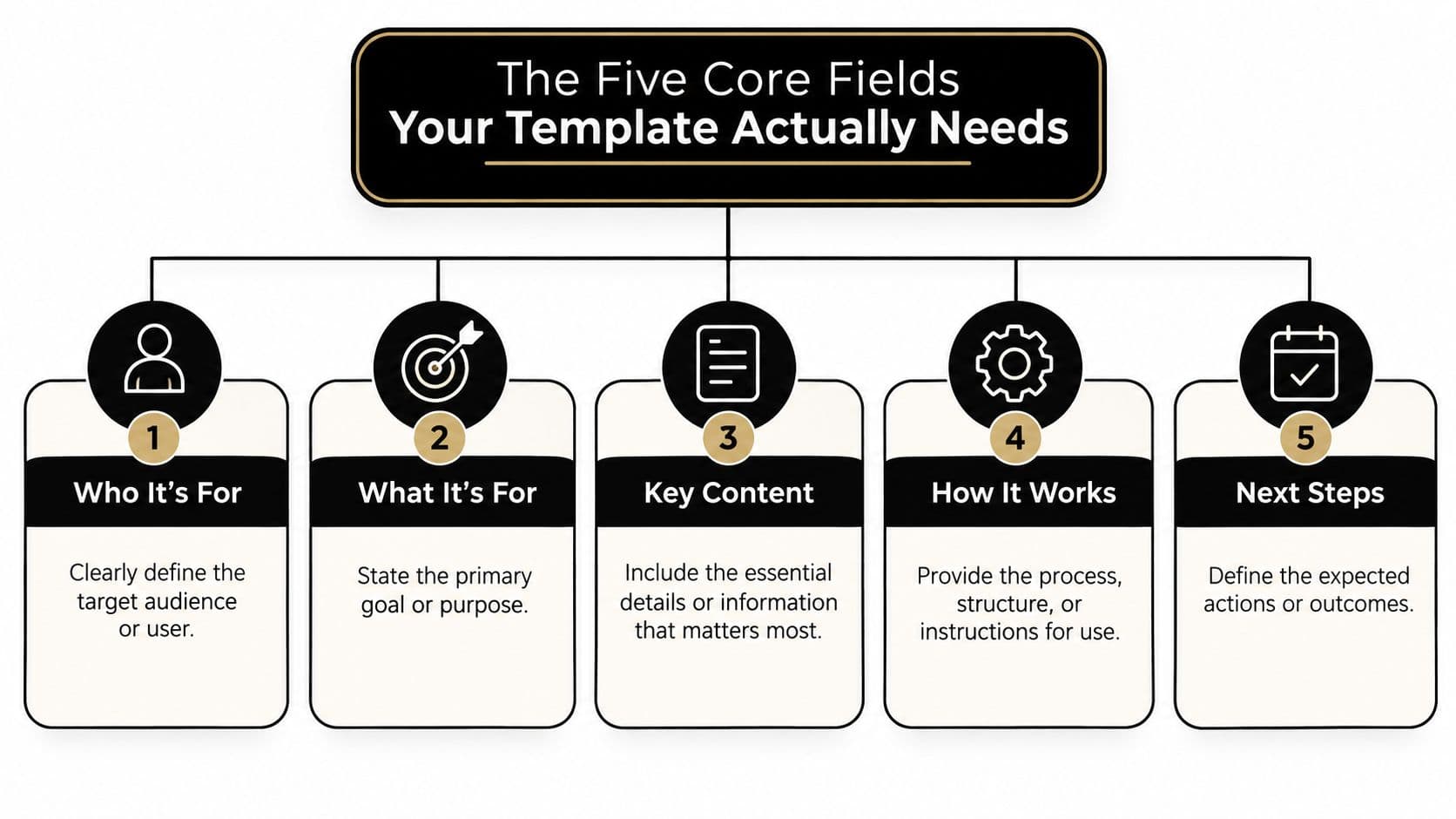
A useful calendar task list template doesn't need twenty columns. It needs five that never get debated once the week is underway, task name, owner, priority, status, and due date. TeamGantt's task-list guidance makes those the core columns, and it also recommends controlled dropdowns for status, priority, and owner so the sheet stays sortable instead of turning into a pile of free-text noise (TeamGantt task list template).
What each field protects you from
Task name prevents ambiguity. If the line item is vague, the next person spends time decoding it instead of doing it.
Owner prevents orphaned work. A task without a named owner usually becomes everyone's problem, which means it becomes no one's priority.
Priority keeps the day honest. Use a controlled set, not a loose label someone can interpret three ways before lunch.
Status should be blunt. “Not started,” “in progress,” and “complete” work better than decorative checkmarks because they tell you where the task stands. Zoom's task-tracker guidance calls out task owner, due dates, and priority levels as essential for staying on schedule, and it pairs those with a status indicator and progress indicator for coordination (Zoom task tracker template).
Due date is the anchor. Without it, the task can drift forever.
Add notes only when they clarify action
A notes column is worth keeping if it helps someone else pick up the task cold. That's where “done looks like” belongs, along with constraints, links, or special context. Lucen Software recommends notes or descriptions for team projects and also suggests breaking larger work into smaller actionable items, which is exactly what keeps a template usable when somebody else has to execute it (Lucen Software task list timeline).
A template is most useful when the next person doesn't need a meeting to understand the task.
For a more detailed field layout and tracker structure, see this project tracker format guide. The point isn't more decoration, it's better separation between task identity, ownership, and execution details.
Building the Template in Google Sheets or Excel
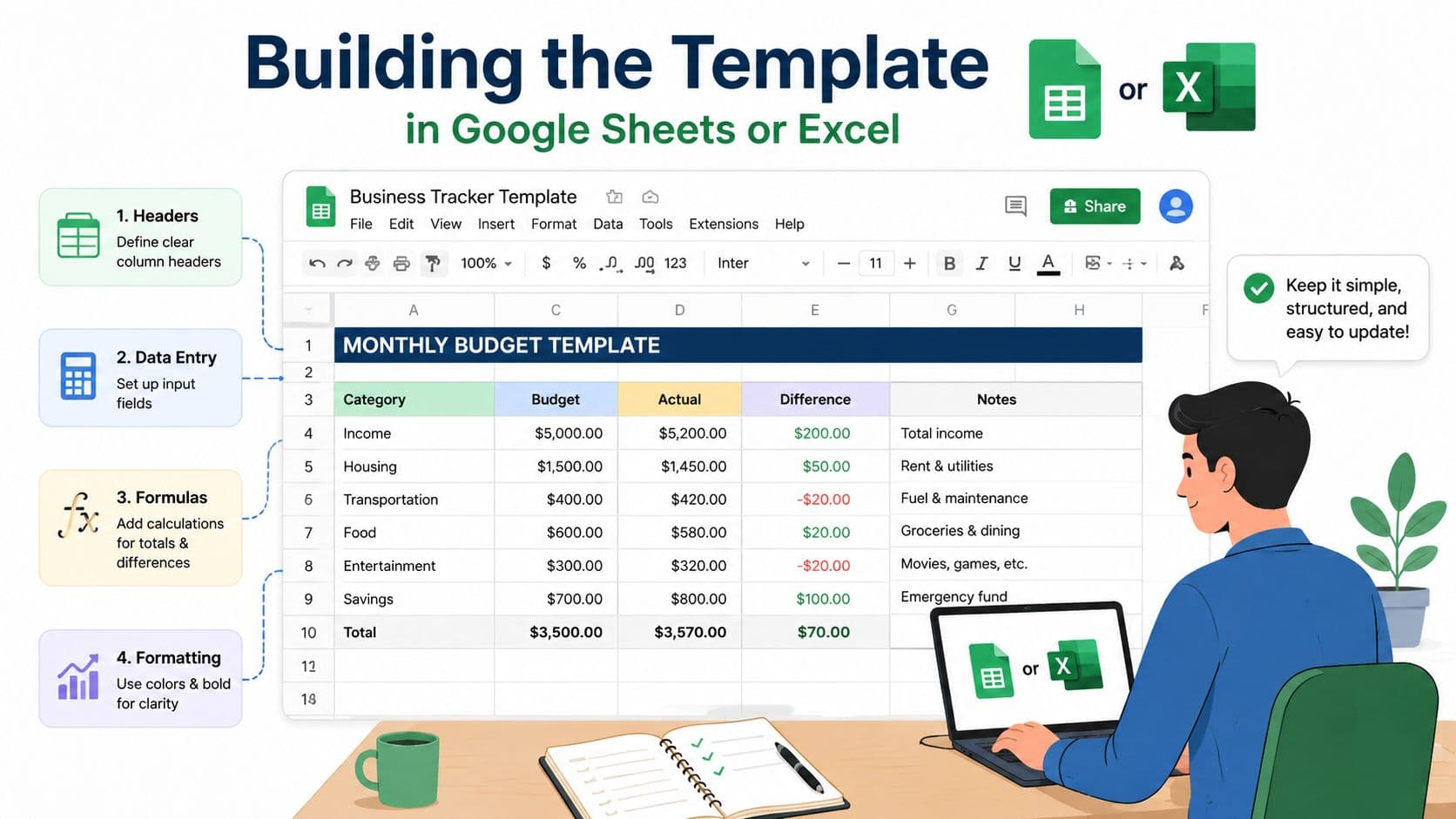
Start with a single header row, then lock the structure before anyone starts typing into it. A clean order is task name, owner, priority, status, due date, notes. If you want the sheet to behave like a planning system instead of a notebook, freeze that top row and turn the core fields into dropdowns wherever possible.
A simple setup that stays usable
In Google Sheets or Excel, create a status list with three values, not started, in progress, and complete. Do the same for priority if your team uses a small controlled set, then apply conditional formatting so the status cell changes color automatically. That way, you can scan the sheet in seconds without re-reading every line.
Use the calendar view or a date-sorted tab as the working surface. The date column should drive the layout, not just sit there as another piece of metadata. Microsoft's scheduling guidance and schedule-template approach both center the editable parts of the plan around dates, time slots, task names, deadlines, and team assignments, which is the right direction for a reusable template (Microsoft schedule templates).
The progress block that keeps the sheet honest
Google Sheets checklist tutorials commonly calculate completion by dividing checked tasks by total tasks, so 5 completed tasks out of 10 equals 50%, and zero completed tasks means 0% completion (Google Sheets checklist demo). That logic is simple enough to copy into a summary cell or dashboard block. If you're tracking by status instead of checkboxes, the same idea still works, the dashboard just counts status values instead of ticks.
A useful dashboard block usually includes three things:
- Completion rate
- Tasks by status
- Tasks by category or week
That summary layer matters because it turns the sheet into a review tool. Microsoft's guidance around schedule templates emphasizes regular status updates and overall completion analysis, which is exactly what the dashboard supports.
If your work is growing beyond one sheet, move to a dedicated tool that offers table, list, calendar, Kanban, and card views. Fluidwave is one option in that category, with a calendar view for date-based work and task templates for repeated workflows. For teams that need the structure to repeat cleanly, that kind of multi-view setup reduces the amount of manual reformatting you do every week.
For a deeper build-out on spreadsheet structure, see this Excel database walkthrough. It helps when you're deciding whether the sheet should behave like a list, a tracker, or a lightweight database.
Capacity Planning Deciding What to Leave Off the Calendar
A crowded calendar is not the same thing as a productive one. The mistake is assuming that if you can see every task, you've planned well. In practice, a good calendar task list template leaves room on purpose, because that's where the work gets finished.
Track real time before you lock the template
Asana's time-management guidance is blunt about the part most templates skip, be realistic about how long tasks take, and base estimates on actual time logs rather than wishful thinking (Asana time management templates). That's the core of capacity planning. Log a normal week, compare what you thought would happen to what really happened, then rebuild your template around those numbers and not your best intentions.
Reserve lower-energy blocks for admin work, inbox triage, and small follow-ups. Put buffers between meetings so the whole day doesn't collapse when one call runs long. Monday, Asana, and Calendar.com all push in the same direction, use realistic buffers, owner fields, and meeting prep and follow-up so the schedule stays synchronized (Monday weekly schedule template).
If tomorrow's plan holds more than six hours of focused work, something has to move.
Make trade-offs visible before the day starts
The simplest way to expose overload is with three tags, must-do, should-do, and could-do. That gives you a clean way to pull work out of the calendar without pretending it disappeared. If the day is already full, the “could-do” items are the first ones to leave.
Use this gut-check when you review tomorrow's plan:
- Protect the meetings that are fixed.
- Keep the work that has a real deadline.
- Move the rest into a later block or a lighter day.
That habit makes the template a planning filter. It also prevents the common failure mode where every task looks equally urgent until the week breaks under the weight of it.
Time Blocking, Recurring Rules, and Calendar Sync
Once the fields are stable, the template needs scheduling logic that doesn't depend on constant babysitting. Time blocking is the easiest place to start. A vague line like “work on proposal” becomes a specific block on the calendar, which forces the task to compete with the rest of the day instead of floating in the background.
Use recurring work instead of retyping it
Recurring tasks should be built into the system, not copied by hand every week. Monthly reviews, weekly reporting, invoice checks, content publishing, and other repeatable work belong in rules, not in memory. The recurring monthly task planner example in the research brief points out that repeat workflows need separate inputs for start month, start year, weekly start date, categories, one-time tasks, and recurrence rules, which is why static weekly lists never quite fit repeated work.
The meeting pattern matters too. Calendar.com's workflow adds a prep task and a follow-up task around every meeting invite, which keeps the calendar and task list synchronized instead of leaving those jobs to chance. The prep item protects the meeting itself, and the follow-up item keeps action from evaporating after the call.
Sync without duplicating everything
Work and personal calendars should be visible together only if the overlap helps you make better decisions. If you mirror every event into every view, the calendar gets noisy fast. The goal is a single planning surface with enough context to avoid double booking, not a duplicate of your entire life.
A weekly reset keeps drift from compounding. Fifteen minutes every Friday is enough to close finished work, push undone tasks, and recalculate what can realistically fit next week. That small ritual matters more than a fancy template skin because it keeps the system alive after the first bad day.
Delegating Tasks to a Virtual Assistant Without Breaking the Template
Delegation usually fails for one reason, the task was written for the original owner's brain. A virtual assistant can't pick up a vague item and read your intent from it. The task needs context, a deadline, a clear owner, and a definition of done before it becomes handoff-ready.
What belongs on your side and what can move off
Routine admin, scheduling, inbox triage, research, and repetitive coordination are strong candidates for delegation. Strategic decisions, relationship-heavy conversations, and work that depends on your judgment usually should stay with you. That split keeps the template clean and keeps the assistant from being stuck waiting on decisions they can't make.
Use the template itself as the handoff contract. The owner field should be filled in, the due date should be specific, and the notes field should describe what finished work looks like. If you can attach access details, reference links, or examples, do it there instead of chasing context over chat.
A pay-per-task model makes delegation easier to budget because it ties the cost to the work completed. Fluidwave uses that kind of model, and it also supports task delegation through a network of human virtual assistants, which fits this workflow when you want a task handed off without turning it into a permanent overhead line.
The handoff checklist that prevents back-and-forth
Before assigning a task, make sure the assistant has:
- Context for why the task matters
- Access to the tools or files needed
- Deadline and any intermediate checkpoint
- Definition of done in plain language
That checklist is boring on purpose. Boring handoffs are cheaper than messy ones, and messy ones usually cost more in follow-up than in the original task itself.
ADHD and Neurodivergent-Friendly Template Tweaks
A template gets easier to use when it has less visual friction. For ADHD and other neurodivergent processing styles, fewer columns usually beat more columns, because the sheet stops looking like an audit trail and starts looking like a next action list. The point isn't to make the template simpler than the work, it's to make it easier to re-enter after a break.
Make the next action obvious
A binary status often works better than a multi-step progress bar. Done and not done are harder to misread when the brain is tired or scattered. Time estimates also work better in minutes than abstract units, because “30 minutes” is easier to plan around than “small task.”
Keep only two tasks highlighted as next-up. If three or four items are flashing at once, the template becomes another source of decision fatigue. The same goes for color, use it sparingly so it guides attention instead of competing with it.
For workplace adjustments that support scheduling and sensory needs, this guide to sensory and scheduling adjustments is a useful companion read. It fits especially well if your week breaks down when the environment gets noisy, crowded, or unpredictable.
Quick comparison of core template features
| Field | What It Holds | Why It Matters | Accessibility Note |
|---|---|---|---|
| Task Name | The actual work item | Prevents ambiguity | Use plain language |
| Owner | Who is responsible | Prevents orphaned tasks | Keep one name per row |
| Priority | Urgency or importance | Helps rank the day | Use a small controlled set |
| Status | Not started, in progress, complete | Shows progress at a glance | Prefer binary or very short labels |
| Due Date | The deadline or time anchor | Keeps work from drifting | Place it beside the task name |
Five small tweaks that help a tired brain
- Increase font size: If the sheet makes you squint, you won't use it for long.
- Reduce visible columns: Hide anything that doesn't help today's decision.
- Use one reset ritual: Clear completed work and rebuild tomorrow in one short pass.
- Keep notes short: Long paragraphs belong elsewhere, not in the task row.
- Choose stable colors: Bright enough to distinguish, calm enough not to distract.
A template should lower friction, not add another layer of admin. If the first thing you feel when opening it is resistance, the design needs to change.
Fluidwave gives you a calendar view, task templates, recurring workflow support, and delegation through human assistants in one place, so the planning surface and the execution layer don't drift apart. If your current calendar task list template keeps collapsing under real-world overload, try rebuilding it around fields, capacity, and handoff instead of decoration. Visit Fluidwave and see how a clearer template can turn into a system that survives the week.
Focus on What Matters.
Experience lightning-fast task management with AI-powered workflows. Our automation helps busy professionals save 4+ hours weekly.