Explore 10 practical task automation examples for personal and team workflows, with triggers, outcomes, and tips for setting each one up in 2026.
October 13, 2026 (6d ago)
10 Task Automation Examples for Personal and Team Use
Explore 10 practical task automation examples for personal and team workflows, with triggers, outcomes, and tips for setting each one up in 2026.
← Back to blog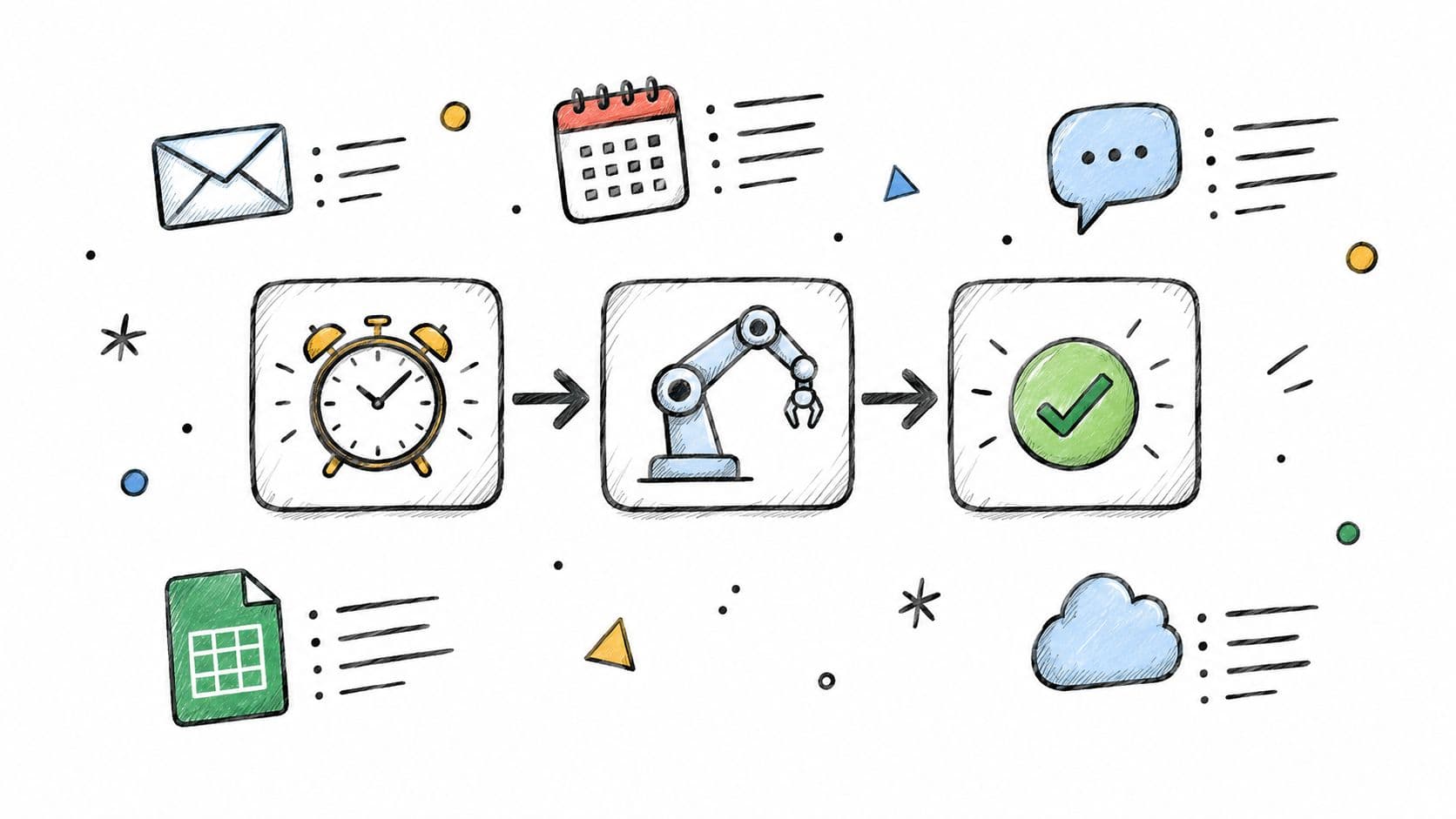
A client request is buried in an inbox. The recurring report was due this morning, but nobody remembered who owned it. Yesterday's meeting ended with plenty of agreement and no clear owner for anything. That's where a busy day starts leaking time.
Each gap can be closed with a rule that watches for a trigger and acts on it. A starred email can become a task. A calendar event can create preparation work. A completed card can notify the next person and start the billing process. These are small changes, but they give routine work a visible path instead of relying on memory.
The task automation examples below cover personal workflows, freelance work, and team operations. Each one includes the trigger, the chain of actions it sets off, the failure mode to watch for, and the setting that keeps it reliable. For broader business workflows, see these business process automation examples.
1. Email-to-Task Capture
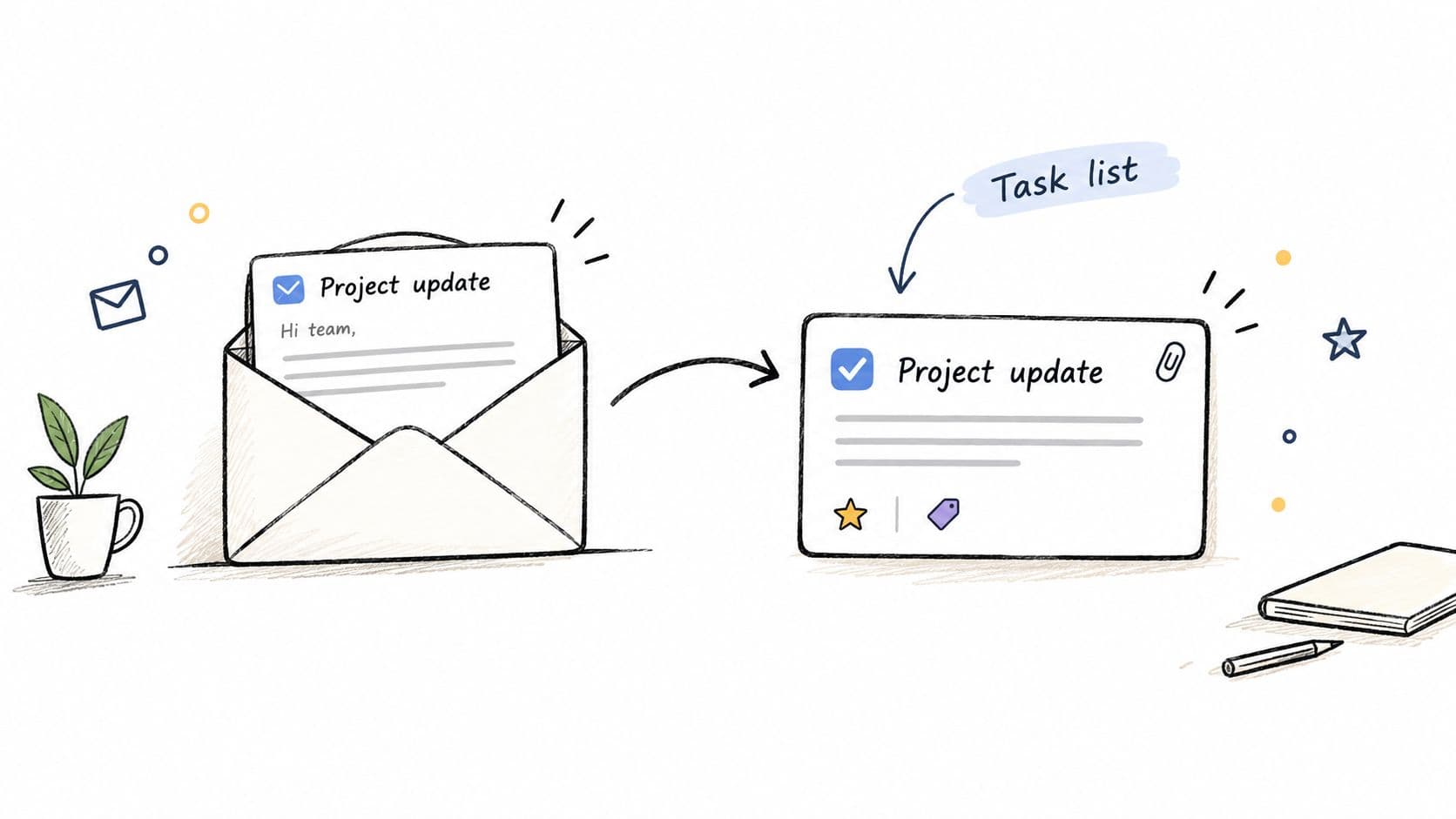
Email-to-task capture works when your inbox has become your task manager. The trigger might be a star, a label, a specific sender, or a forwarding address. Once it fires, the workflow creates a task, uses the email subject as the title, copies the body into the notes, and may attach the original message or suggest a due date from the text.
A freelancer might forward a client request to a dedicated task address so it appears in a project inbox. A team member might star a message in Gmail and use a Zapier flow to create a task in Asana or Todoist. Fluidwave also supports routing client requests into a task board, where captured work can be organized and auto-prioritized.
The rule that keeps capture useful
The common failure is capturing too much. If every email becomes a task, the task list becomes another inbox and important work gets buried again. Start with one narrow trigger, such as a label called “Action,” and send new items to a review section before they reach your daily list.
Practical rule: Put the sender's name in the task title. “Priya, revise proposal” is much easier to scan than “Revised proposal.”
You can find more ideas in these workflow automation examples. The setting that matters most is a deliberate review step. Automation should preserve the request, not decide blindly that every message deserves immediate attention.
2. Recurring Task Generation
Recurring task generation removes routine work from your memory. A schedule creates a fresh task for a weekly report, monthly invoice run, quarterly review, or daily check-in. Each task can include an owner, checklist, due date, and supporting links, so the work starts with the same baseline every time.
Consider a freelance designer who creates a Monday task to send progress updates to each client. An operations team might generate a month-end close checklist on the first business day of every month. If the previous task was missed, the next one still appears. That visibility is more useful than assuming an unfinished task will somehow remain top of mind.
The trigger is time. The action is task creation with the right template. The failure mode is template drift. A checklist that matched the process last year may now include obsolete approvals, duplicate steps, or missing owners.
Keep the recurrence honest
Review recurring templates each quarter and remove steps that no longer apply. Set the due date after the generation date so the owner has space to plan rather than receiving an overdue task immediately.
A separate label for recurring work also helps. During a busy week, you can filter these tasks without confusing them with new client requests or urgent exceptions. The reliability setting is template ownership. Someone must be responsible for maintaining the template, not just using it.
3. Form Submission to Task Intake
A form turns an unstructured request into a task with usable fields. When someone submits it, the workflow can create a project card with the title, priority, budget, deadline, category, and attachments already mapped. The recipient can accept, reassign, or decline the work without retyping the request.
A freelance copywriter might use a client intake form that creates a project card containing the word count, deadline, and brand guidelines. A startup founder could collect beta-user feature requests and send them directly to a categorized backlog. In both cases, the form acts as the front door and the task system becomes the record of work.
Ask only for the information that changes the next action
Long forms fail because requesters skip them or enter meaningless answers. Ask for the minimum needed to start, then follow up for detail after the task has an owner. Use dropdowns for priority and category so the resulting tasks can be filtered consistently.
Test the form yourself before sharing it. Submit a realistic request and inspect the resulting task, including field mapping, attachments, notifications, and formatting. The failure mode to watch for is false precision. A requester may select “high priority” because the option exists, not because the work needs immediate attention.
The reliable setting is an intake owner. One person should review submissions, correct unclear fields, and route exceptions before they become commitments.
4. Calendar-Triggered Preparation Tasks
A calendar event can create the work required to make that event useful. When a meeting with a particular label, title, or calendar color is added, the workflow creates a preparation task tied to it. The task might ask someone to review the last proposal, check open items, and draft an agenda before the call.
An executive assistant-style workflow could create a one-page board summary the day before any event labeled “Board.” A project manager might have each sprint review create a task to update the status board. The trigger is the calendar entry, the action is preparation, and the outcome is less rushed work immediately before the meeting.
Use the calendar as a controlled signal
A naming convention such as “PREP:” or a dedicated calendar color makes the rule easier to understand. Schedule preparation earlier than you think you need it. If the task appears too close to the meeting, it competes with the same last-minute interruptions the automation was meant to prevent.
Skip recurring standups where preparation adds no value. That exception matters because a rule that creates unnecessary tasks quickly trains people to ignore automated notifications. The failure mode is trigger overreach. Not every calendar event represents work, and not every meeting needs a checklist.
The reliable setting is a narrow event filter. Start with one event type, monitor the results, and expand only when the task created is consistently useful.
5. Deadline-Based Priority Escalation
A task can change priority as its due date approaches. A deliverable due in two weeks might remain medium priority, then move to high priority within 48 hours. The system can also place it in a focused view or notify the owner when the escalation condition is met.
A solo consultant might have unpaid invoices move to the top of the list several days before a payment deadline. A marketing team could escalate campaign tasks to critical when the launch date enters its final week. This is a practical form of auto-prioritization because it applies time pressure consistently instead of relying on someone to sort tasks manually.
Escalate urgency, not importance
The main failure is treating every approaching deadline as an emergency. Use two or three escalation levels rather than a long set of granular priorities. Pair the rule with a daily view that shows only high-priority items, so the escalation changes what someone does rather than merely changing a color.
Review escalated tasks at the end of each week. If many tasks become urgent at once, the issue may be unrealistic planning rather than weak automation. Adjust the due dates, dependencies, or workload instead of creating another notification.
The reliable setting is an exception path. If a deadline changes, the owner must be able to pause or reset the escalation without fighting the rule.
6. Kanban Status-Change Triggers
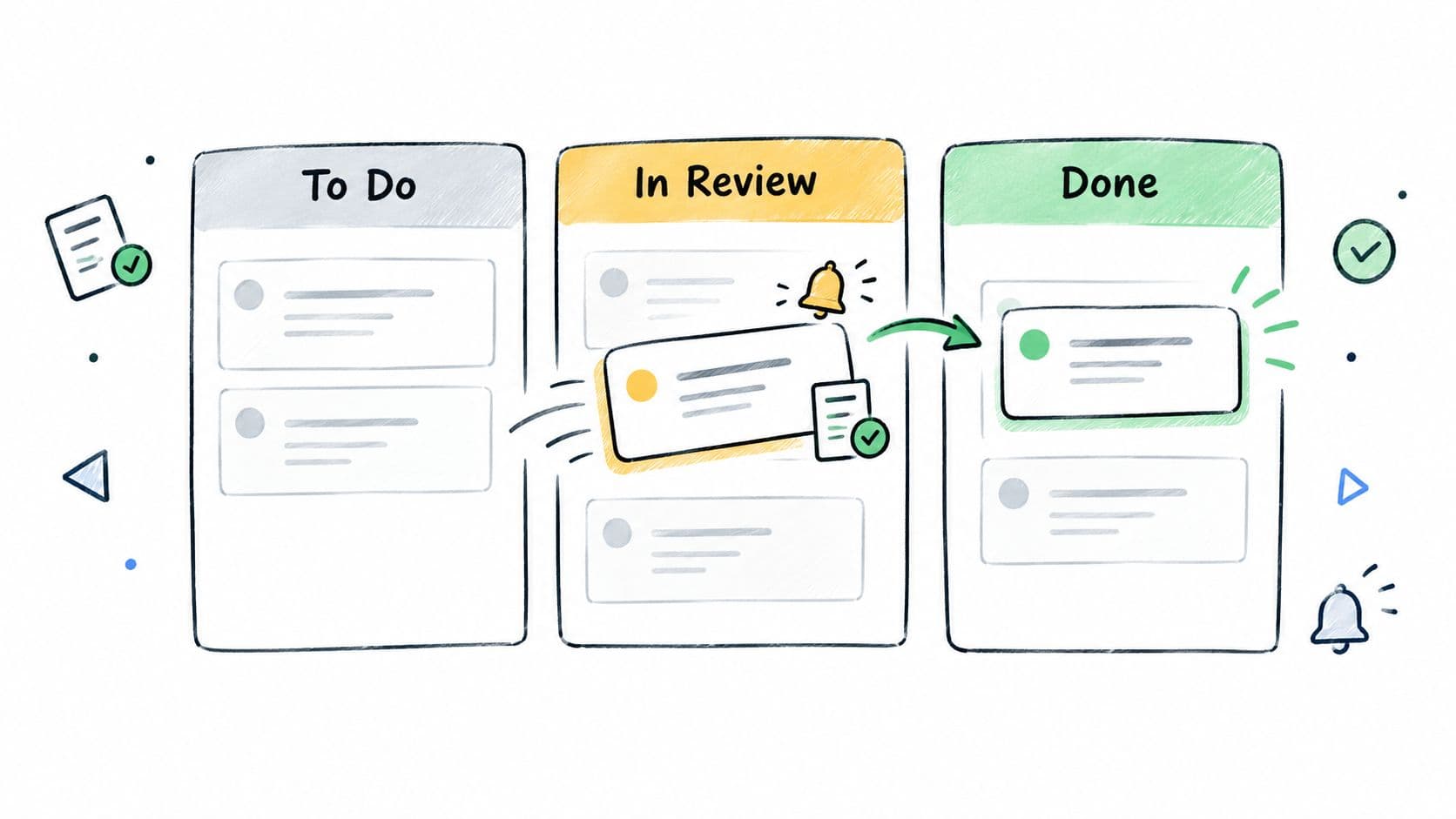
A Kanban board can do more than display status. Moving a card to a new column can notify the next person, assign an owner, create a follow-up task, or send an update to a client. When a design card moves to “Ready for Review,” the reviewer can be notified. When it reaches “Done,” the system might create an invoice task.
A content team could assign an article to the publishing lead when it moves to “Edited.” A software team might use Trello automation so cards moved to “Shipped” post an update in a Slack channel. These rules work because the board already represents the team's process.
Define what each column means
The failure mode is semantic drift. One person moves a card to “Ready for Review” when the draft is complete. Another uses it when they want someone to glance at unfinished work. The same trigger then produces inconsistent actions.
Document the entry condition for every column. Keep names short and stable because automation rules depend on them. Start with one or two triggers that solve an actual handoff problem, rather than automating every possible movement.
A status change should represent a decision or handoff, not merely where someone happened to leave a card.
Teams using Microsoft Planner can also consult this UK guide to Microsoft Planner when designing board-based workflows. The reliable setting is a shared definition of done for each transition.
7. Chat Message to Task Conversion
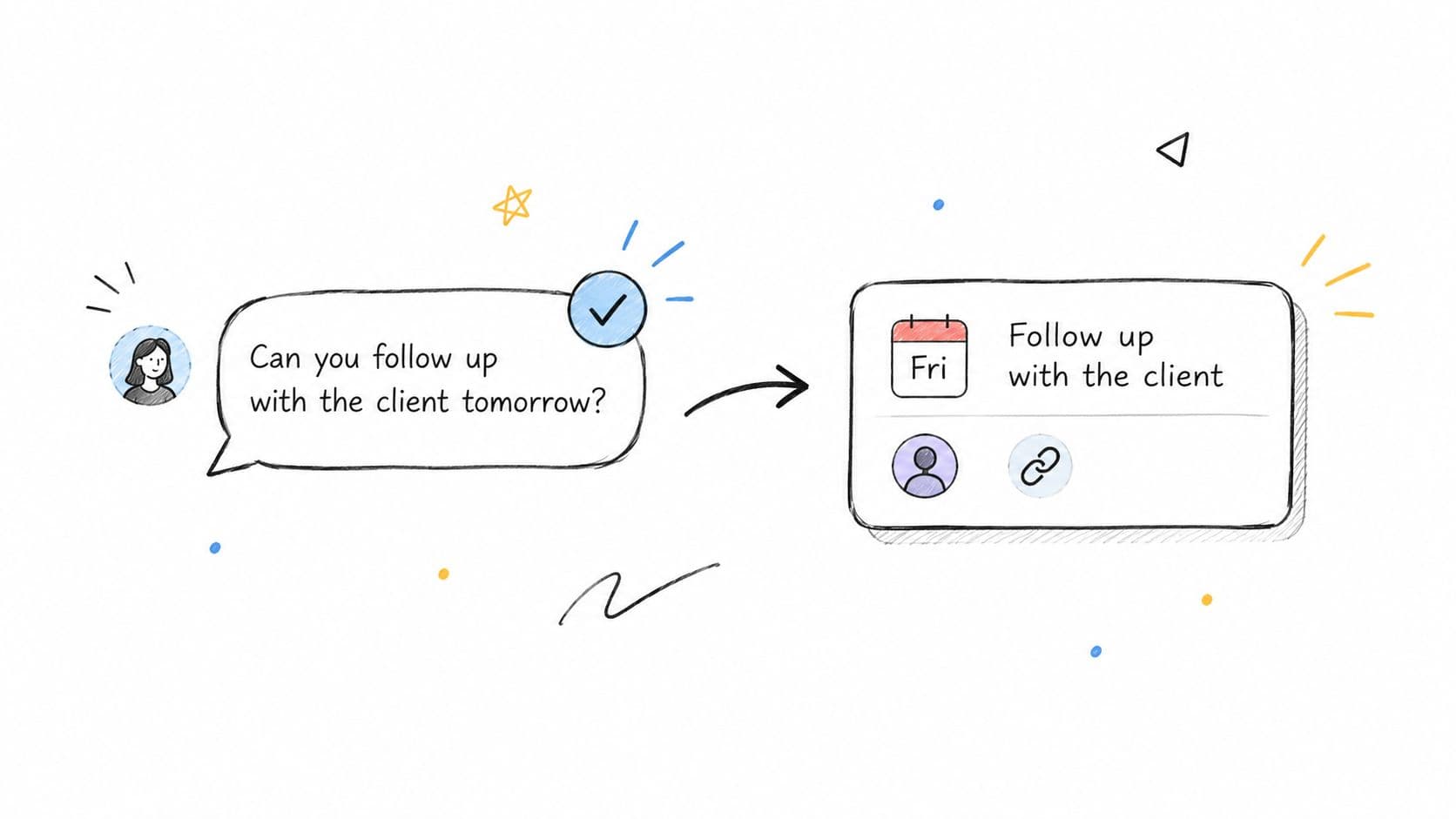
Chat is fast, but it has a poor memory. A request in Slack or Microsoft Teams can disappear inside a long thread unless someone converts it into a tracked task. A reaction, emoji, or command can preserve the message text, mentioned person, and due date in a task system.
A product team might use a checkmark reaction to turn a message into a Jira bug ticket. A remote team could use Slack Workflow Builder to turn a form-style request posted in a channel into a task. The trigger is a deliberate reaction or command, and the action is a visible record that survives the conversation.
Require a clear signal
Use one reaction emoji for task creation and explain it to the team. If people use the same emoji casually, the rule will create accidental work. Vague dates also need attention. “By Friday” can be clear in a live conversation but ambiguous when the task is saved across time zones or after a holiday.
Ask the requester to confirm the deadline before the task is created when the wording is unclear. Archive completed chat-generated tasks each week so the board doesn't become a second transcript of every conversation.
For teams building broader request flows, these automated workflow solutions show how triggers and follow-up actions can be connected. The setting that keeps this reliable is intentional activation. A task should be created because someone marked a request for action, not because the system guessed that a conversation sounded important.
8. Meeting Notes to Action Items
A transcription workflow can turn a recorded meeting into a summary and a set of action items. The system identifies decisions, owners, and deadlines, then sends each action into a task manager. Fireflies.ai could send action items to Asana after an investor call. Otter.ai could produce a client summary that feeds a shared task list for a consulting team.
The trigger is the meeting recording. The chain is transcription, summarization, action-item extraction, task creation, and notification. It works best when participants speak clearly and the meeting ends with explicit commitments. It works badly when people debate possibilities and the software treats every suggestion as an assigned task.
Keep a person in the approval loop
Tell participants that the meeting is being recorded and obtain consent. Review the generated tasks for the first several meetings, checking names, dates, decisions, and ownership. Even after the workflow is familiar, a human should verify sensitive or consequential actions before they reach an external party.
End each meeting by saying who owns each action item and when it is due. That spoken confirmation gives the transcription tool a much cleaner signal and gives participants a chance to correct the record.
The failure mode is false confidence in a polished summary. A concise note can still omit a qualification or assign the wrong owner. The reliable setting is a short review task assigned to the meeting owner.
9. CRM Deal-Won Onboarding Workflow
Marking a deal as won should start delivery work immediately. A CRM trigger can create a kickoff task, document-collection checklist, account setup task, and welcome-email reminder, then assign each step to the right person. The delivery team gets a standard handoff instead of waiting for someone to write a separate email.
A marketing agency might use HubSpot workflows to create onboarding tasks for a new retainer client. A freelance developer could have a closed Pipedrive deal create a project folder, kickoff call task, and invoice schedule. The trigger is a sales status change, and the outcome is a consistent start for the client.
Build onboarding by service package
A universal onboarding template usually becomes a cluttered list full of irrelevant steps. Create one template per service package, then include a task for someone to review the automated welcome message before it goes out.
Track how long onboarding takes and adjust the template when the same delay repeats. The failure mode is treating “won” as equivalent to “ready for delivery.” Payment details, access credentials, scope confirmation, or client documents may still be missing.
The reliable setting is a readiness check. The workflow can create the work, but a named person should confirm that the client is ready for kickoff and that no unresolved sales promise has been lost in the handoff.
10. Delegation Handoff with Completion Review
Delegation automation should cover the full path from assignment to acceptance. When a task goes to an outside assistant, the workflow sends the brief, deadline, reference files, and acceptance criteria. When the assistant marks it complete, the system notifies the delegator, creates a review task, and releases payment only after approval.
An executive could delegate research summaries to a virtual assistant and approve payment after checking the sources and format. A small agency might send social graphics to a freelancer, then review each graphic against a checklist before closing the task. The trigger is assignment, the chain is delivery and review, and the safeguard is a clear approval step.
Make acceptance visible
Write the acceptance criteria into every brief. Specify the required format, length, sources, file type, or revision limits rather than assuming the assistant knows what “done” means. Set a review window, such as 48 hours, so approval doesn't stall the next step.
The failure mode is automatic completion without meaningful review. A submitted file is not necessarily an accepted file. Feedback should stay attached to the task so revisions remain traceable and the same issue doesn't need to be explained again.
Fluidwave is designed for this kind of handoff, combining task management with delegation to virtual assistants and pay-per-task work. The reliable setting is approval before payment. It protects both sides by keeping the request, delivery, feedback, and acceptance in one record. More guidance is available in this resource on how to delegate tasks effectively.
Comparison of 10 Task Automation Examples
| Workflow | 🔄 Implementation complexity | ⚡ Resource requirements | 📊 Expected outcomes | 💡 Ideal use cases | ⭐ Key advantages |
|---|---|---|---|---|---|
| Email-to-Task Capture | Low, simple rules, occasional tuning | Low, email + task tool; optional Zapier | Better capture of requests; risk of task clutter | Individuals who use inbox as todo; client request routing | ⭐⭐⭐⭐, reduces manual copying; keeps email context |
| Recurring Task Generation | Low, schedule + templates | Low, scheduler + template library | Routine work appears reliably; can accumulate if ignored | Monthly reports, invoicing, checklists, routine ops | ⭐⭐⭐⭐, ensures consistency; reduces memory reliance |
| Form Submission to Task Intake | Medium, map fields and routing rules | Medium, form builder + integrations | Standardized, complete requests; fewer clarifications | Client intake, support requests, feature submissions | ⭐⭐⭐⭐, structured intake; reduces back-and-forth |
| Calendar-Triggered Preparation Tasks | Medium, calendar rules and sync | Low–Medium, calendar + PM tool integrations | Timely prep tasks; less last-minute scrambling | Busy calendars, executive prep, client meetings | ⭐⭐⭐, protects prep time; links tasks to events |
| Deadline-Based Priority Escalation | Medium, thresholds & priority rules | Medium, PM system with automation + monitoring | Urgent items surface automatically; possible alert fatigue | Teams with many competing deadlines or launches | ⭐⭐⭐⭐, keeps time-sensitive work visible |
| Kanban Status-Change Triggers | Low, column-based triggers, needs governance | Low, Kanban tool with automation features | Automated handoffs and follow-ups; fewer manual updates | Teams already working in columns (design, dev, content) | ⭐⭐⭐, streamlines stage handoffs and notifications |
| Chat Message to Task Conversion | Low, reaction/command setup, permissioned | Low, chat + PM integration; admin setup | Captures informal action items with context; date-parsing errors possible | Remote teams using Slack/Teams for coordination | ⭐⭐⭐, fast capture from conversations; low friction |
| Meeting Notes to Action Items | High, transcription + NLP + validation | High, AI transcription, integrations, consent management | Rapid summaries and assigned actions; accuracy varies | Teams with frequent meetings needing follow-up | ⭐⭐⭐⭐, saves note-taking time; improves accountability |
| CRM Deal-Won Onboarding Workflow | Medium, CRM triggers + templated task bundles | Medium, CRM + PM integration; role templates | Consistent client onboarding; faster handoff to delivery | Sales-driven orgs, agencies, freelancers onboarding clients | ⭐⭐⭐⭐, scales onboarding; reduces handoff gaps |
| Delegation Handoff with Completion Review | Medium, multi-state workflow + approval/payment ties | Medium, PM platform with payment/budget features | Traceable delegation and pay-on-approval; review delays possible | Platforms or teams delegating to external assistants | ⭐⭐⭐⭐, enforces acceptance criteria; clear accountability |
Pick One Workflow to Automate This Week
Teams don't need a full automation stack on day one. They need one rule that removes a repeated manual action and behaves predictably under normal pressure. Start with the workflow that creates the most avoidable follow-up, not the one that looks most impressive in a product demonstration.
If your inbox is where requests disappear, start with email-to-task capture. If routine work gets missed, use recurring task generation. If handoffs break after meetings or sales calls, choose meeting action items or CRM onboarding. A small team that works from a Kanban board may get more value from one status-change trigger than from adding another reporting tool.
Keep the first trigger narrow. Use one label, one event type, one calendar convention, or one status transition. Write down what the rule should do when the input is incomplete, duplicated, late, or outside the normal process. Those exceptions are where most automation projects fail.
Measure the result in operational terms. Did the task arrive with the right owner? Did someone review it? Did the workflow create duplicate work? Did the team spend less time chasing status? For finance workflows, the value may be faster processing and clearer approvals. For delegation, it may be fewer revision cycles and a cleaner record of acceptance.
Human review still matters. McKinsey Global Institute's analysis of approximately 2,000 work activities across 800 occupations found that automation generally replaces activities within jobs rather than eliminating entire occupations. It estimated technical automation potential for about 49% of paid work activities worldwide, while fewer than 5% of occupations could be fully automated because most roles combine tasks that require different forms of judgment, communication, and physical complexity. The McKinsey executive summary supports a useful operating principle: automate the repeatable step, keep people responsible for exceptions and decisions.
Safety needs the same discipline. ISACA's 2025 poll of 3,029 digital-trust professionals found that only 28% of organizations had a formal, complete AI policy, while 32% provided no AI training and only 22% trained all employees. ISACA's research on AI use and training points to a practical requirement for any intelligent workflow: define what information may be shared, who approves outputs, how errors are detected, and what happens when the automation fails.
Review the rule after two weeks. Keep it if it removes work without creating hidden cleanup. Change the trigger if it creates noise. Delete it if the process itself no longer makes sense. A short list of reviewed and tuned rules will outperform a long list nobody maintains, and the same logic scales from a solo inbox to a whole delivery team.
Fluidwave combines automated task workflows with organized views and delegation to virtual assistants, so requests can move from trigger to review without disappearing. Create a focused workflow for one of these task automation examples, then visit Fluidwave to see how it can support personal and team task management.
Focus on What Matters.
Experience lightning-fast task management with AI-powered workflows. Our automation helps busy professionals save 4+ hours weekly.