Discover the 12 best collaboration tools for remote teams. Our in-depth guide covers pricing, features, and use cases to help you choose the right platform.
November 30, 2025 (10mo ago)
12 Best Collaboration Tools for Remote Teams in 2025
Discover the 12 best collaboration tools for remote teams. Our in-depth guide covers pricing, features, and use cases to help you choose the right platform.
← Back to blog
The whole remote and hybrid work thing isn't just a trend anymore; it's a fundamental change in how we get things done. While the flexibility is awesome, it also creates a massive challenge: how do you keep everyone on the same page, talking clearly, and pushing projects forward when you're not in the same room? The right digital tools aren't just a nice-to-have; they're the actual infrastructure that bridges the distance, turning a scattered group of people into a tight-knit, productive team. Without a solid tech stack, projects stall, communication breaks down, and the team just falls out of sync.
Finding the right platform is about more than just picking a popular name. It's about matching specific features to how your team actually works, your size, and your goals. A startup founder needs something fast and scalable, while a busy exec needs a clear dashboard and reports. A freelancer needs a tool that plays nice with different clients, and a manager has to make sure both real-time chats and heads-down work can happen smoothly. This guide is designed to cut through the marketing fluff and help you find the best collaboration tools for remote teams** based on what they're actually good for.
We'll break down the leading platforms, including Asana, Slack, Trello, and our own Fluidwave, among others. Each review will cover:
- Key Features & Limitations: An honest look at what each tool does best and where it kind of misses the mark.
- Ideal Use Cases: Clear advice on who this platform is really for, from creative agencies to big-shot project managers.
- Pricing & Integration: The practical details you need to figure out if it fits your budget and works with the software you already use.
We'll also give you some direct recommendations for specific needs, like the best tool for neurodivergent users or the top pick for editing documents together in real time. While this article focuses on the big all-in-one collaboration suites, great teamwork also depends on solid communication. To get a better handle on that side of things, you might find a detailed comparison of the 12 Best Remote Team Communication Tools for 2025 useful. Now, let's find the tool that will help your team do its best work, from anywhere.
1. Fluidwave
Fluidwave sells itself as an intelligent command center for modern professionals, which makes it a really interesting contender among the best collaboration tools for remote teams. It combines AI-driven task management with a smart human delegation model, creating a unique setup designed to boost productivity and give you your time back. The platform's real strength is how it automatically analyzes, prioritizes, and organizes tasks, helping you cut through the noise and focus on what actually matters.

This AI-first approach is paired with a super clean and responsive user interface that's all about helping you focus. For teams, Fluidwave provides unlimited shared workspaces and real-time updates, making sure everyone stays aligned without needing constant check-in meetings. The platform’s flexible task views—including Kanban, calendar, and list—let each team member manage their work in a way that best suits their personal style, which is a huge deal for neurodivergent users or those with ADHD.
Key Features and Use Cases
- AI-Powered Task Prioritization: Fluidwave’s AI scans your to-do list to automatically highlight the most important items. This is perfect for busy executives and startup founders who need to quickly see what's mission-critical without sorting through everything manually.
- Flexible Project Views: You can easily switch between Table, List, Calendar, Kanban, and Card views. Project managers can use the Kanban view for agile sprints, while freelancers might just want a simple list or calendar to keep track of client deadlines.
- Integrated Delegation Network (Coming Soon): The real standout feature is its planned marketplace of human virtual assistants. You'll be able to delegate tasks on a pay-per-task basis right from the platform, giving you a scalable way to offload work without the commitment of a new hire.
Pricing and Access
Fluidwave’s pricing is refreshingly simple. It offers a Free Forever plan that gives you full access to all the core features. If you want to support the platform and get rid of ads, there's a one-time premium payment of $34.95 for lifetime access. This no-subscription model is a huge plus for freelancers and startups watching their budgets. The platform is available on the web and as a macOS app, with integrations for Google Calendar and Todoist.
Our Assessment
Fluidwave is a fantastic choice for individuals and teams who want an intelligent, distraction-free space to work. While the full power of its human delegation network is still on the horizon, its current AI features and user-focused design already offer a ton of value. It’s a great tool for anyone who loves smart automation and a clean, minimalist look. That said, teams that absolutely need native mobile apps might find the current mobile web support to be a bit of a drawback.
Website: https://fluidwave.com
2. Microsoft Teams
Best for Enterprises Embedded in the Microsoft Ecosystem
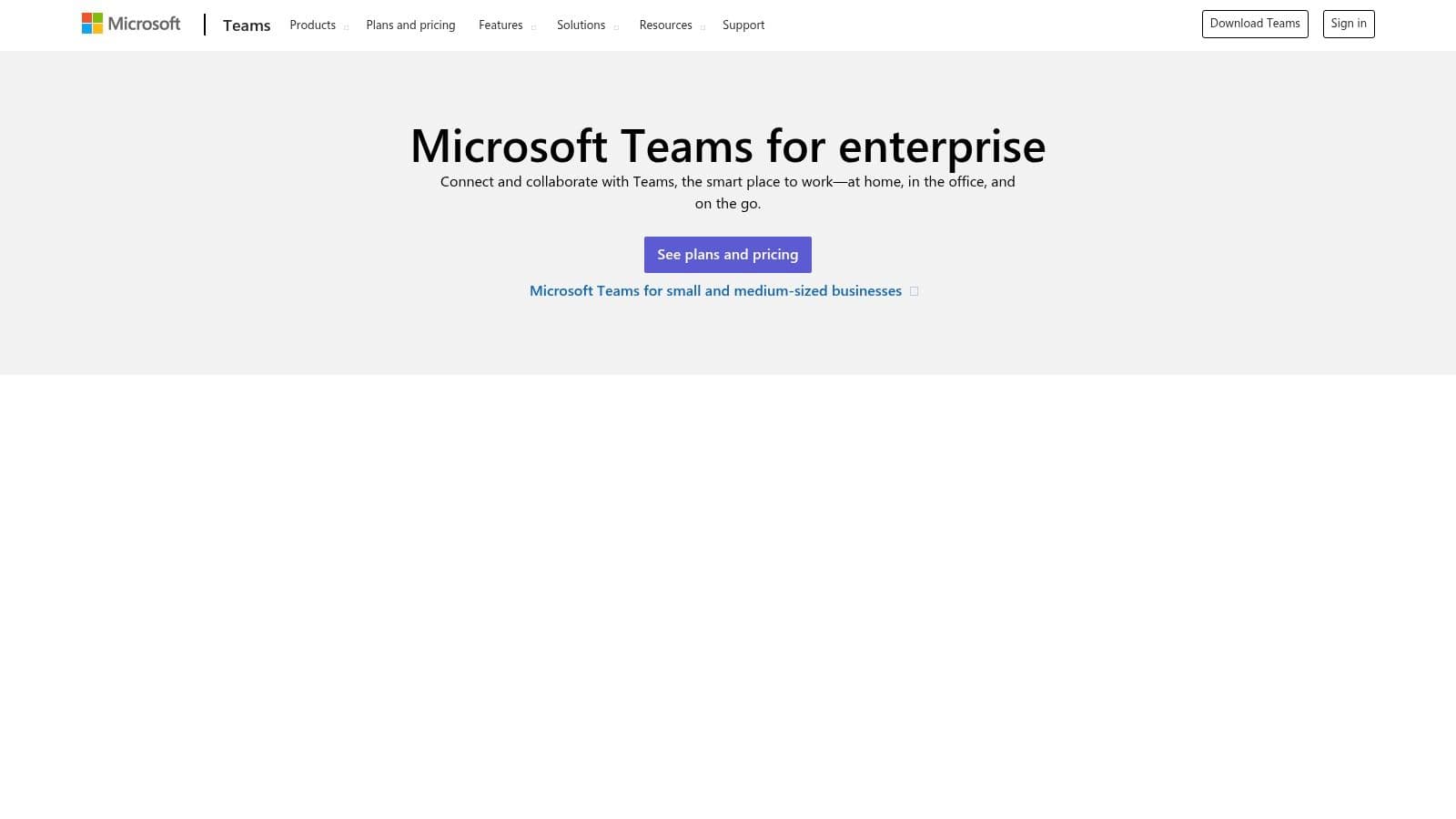
Microsoft Teams is basically the central hub for everything in the Microsoft 365 suite, which makes it a no-brainer for companies already invested in Office apps. It pulls together persistent chat, video meetings, file storage, and app integrations into one unified platform. Its killer feature is the deep, native connection with tools like Word, Excel, PowerPoint, and SharePoint, letting you co-edit and manage files in real time right inside Teams. This alone makes it one of the best collaboration tools for remote teams that live and breathe Microsoft's software.
Key Features & User Experience
Teams is great at keeping conversations organized with its channel-based structure, which lets you sort discussions by project, topic, or department. The user interface feels instantly familiar to anyone who's used a Microsoft product, so the learning curve isn't too steep.
- Core Functionality: Unlimited group meetings for up to 30 hours, screen sharing, and custom backgrounds.
- File Collaboration: Really solid file sharing and co-authoring, all powered by SharePoint and OneDrive in the background.
- Security & Compliance: It comes with enterprise-level security, admin controls, and compliance stuff that big, regulated industries need.
- Integrations: It plugs into the entire Microsoft 365 world and hundreds of third-party apps.
Pricing & Implementation
There's a free version, but the real power of Teams comes with a Microsoft 365 subscription. Plans like Microsoft 365 Business Basic start at $6.00 per user/month and bundle Teams with web and mobile versions of Office apps. For big companies, it's super important to set up clear rules for creating new teams and channels right from the start to avoid a chaotic mess down the line.
Pros & Cons
- Pro: You can't beat its integration with Microsoft 365; it just makes everything work together smoothly.
- Pro: The security features and admin controls are top-notch, perfect for large organizations.
- Con: You get the best bang for your buck as part of a bundle; the standalone versions aren't as good of a deal.
- Con: It can feel a bit bloated and overwhelming for small teams or anyone not using other Microsoft products.
Website: https://www.microsoft.com/en-us/microsoft-teams/enterprise
3. Slack
Best for Chat-First, Highly Integrated Communication
Slack pretty much invented the channel-based messaging game and is still a beast for teams that live on real-time, organized chats. It's fantastic as a central communication hub, completely replacing internal email with dedicated channels for projects, teams, or random topics. Its secret sauce is a massive app directory and a super intuitive, chat-first design that makes it one of the best collaboration tools for remote teams who want flexibility and deep connections to their other software.
Key Features & User Experience
Slack's interface is clean, intuitive, and highly customizable, so new users tend to pick it up fast. Everything revolves around channels, direct messages, and quick "huddles" for impromptu audio or video calls. For teams that are all-in on Slack, figuring out how to make a Slack bot that boosts productivity can seriously level up your efficiency.
- Core Functionality: Public and private channels, direct messaging, and voice/video huddles with screen sharing.
- External Collaboration: Slack Connect is awesome for creating shared channels with outside partners, clients, and vendors.
- Integrations: It has a huge app directory with over 2,600 integrations for tools like Google Drive, Asana, and Salesforce.
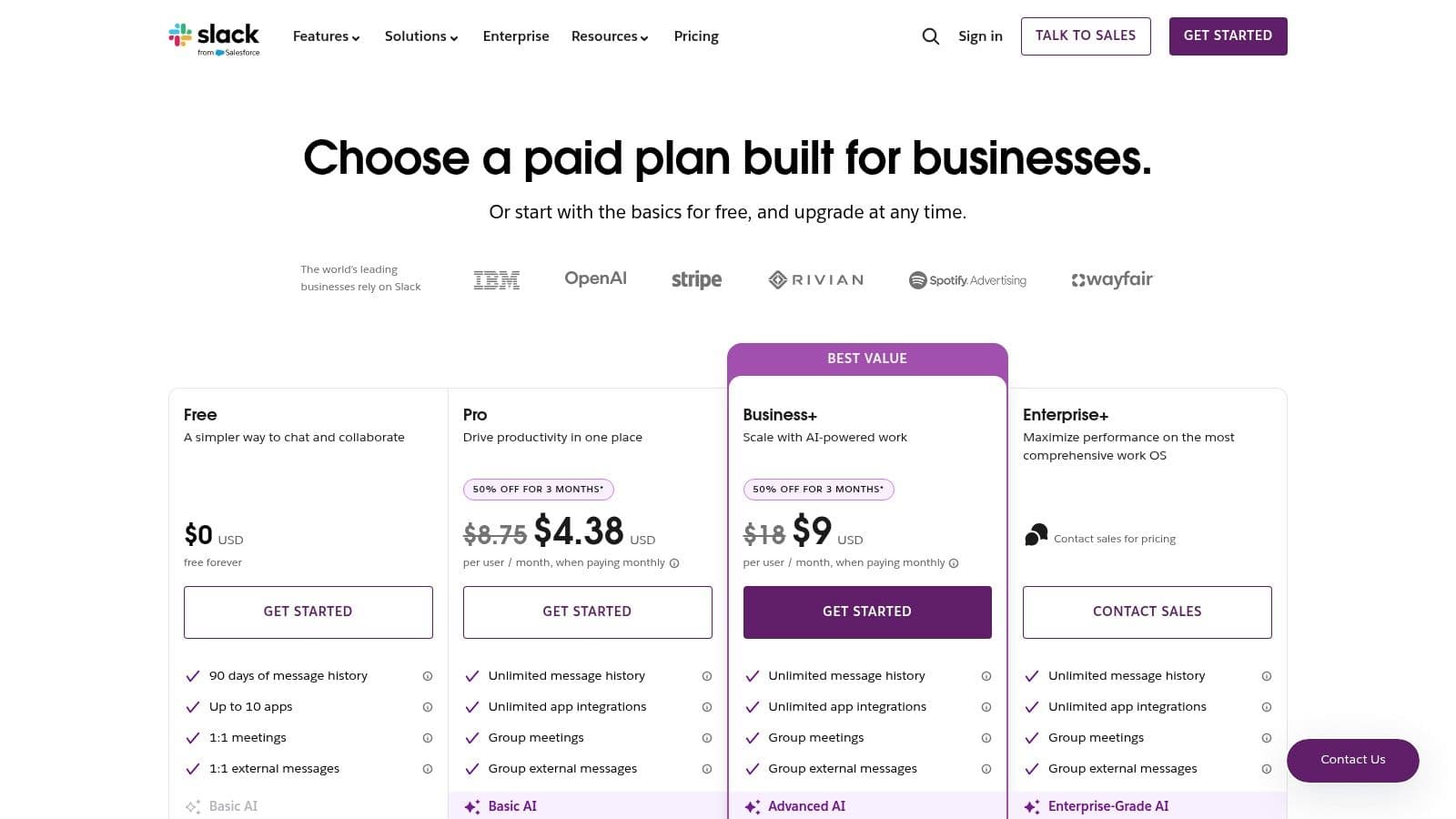
- AI Features: The paid plans have AI-powered search, channel recaps, and conversation summaries to help you catch up without reading everything.
Pricing & Implementation
Slack has a free plan, but it limits your message history and integrations. To really get the most out of it, you need a paid plan. The Pro plan starts at $8.75 per user/month. To keep things from getting out of hand, companies should set up clear naming rules and archiving policies for channels right away.
Pros & Cons
- Pro: The chat-first interface is incredibly intuitive, and its app ecosystem is the best in the business.
- Pro: It's excellent for working with outside companies using Slack Connect.
- Con: It can get pricey for large teams, especially when you start adding paid apps.
- Con: If you don't manage it well, it can quickly become disorganized and noisy.
Website: https://slack.com/pricing?utm_source=openai
4. Zoom Workplace
Best for Video-First Communication and Scalability
Zoom Workplace has grown from a simple video conferencing app into a full-blown collaboration suite, securing its spot as a must-have for remote teams. Its reputation was built on delivering crystal-clear, reliable video and audio, and that's still its biggest strength. The platform now includes persistent chat, online whiteboards, a meeting scheduler, and an AI Companion all in one package, making it a strong choice among the best collaboration tools for remote teams that rely on face-to-face interaction.
Key Features & User Experience
Zoom's interface is famously easy to use; you can join meetings with a single click and figure out its features with almost no training. The platform just makes video calls feel seamless, which is super important for keeping the team connected and for running effective remote meetings.
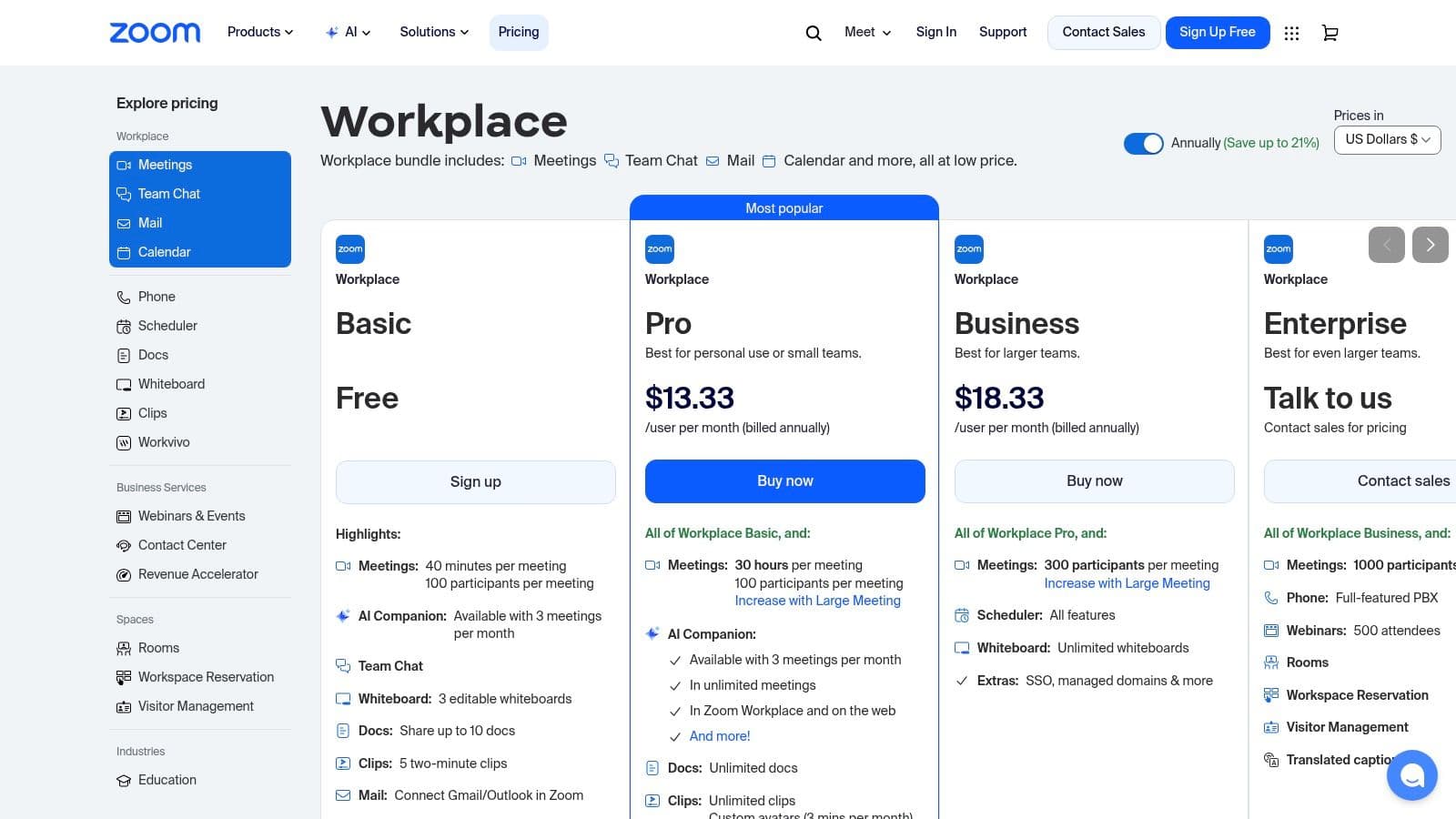
- Core Functionality: High-quality video and audio for up to 1,000 people, Team Chat, and an interactive Whiteboard for brainstorming.
- AI Companion: This comes with the paid plans and offers automated meeting summaries, next steps, and smart chapter creation, which is a huge time-saver.
- Scalability: You can add products like Zoom Phone and Zoom Rooms as your business grows, building a complete communications system.
- Integrations: It has a solid app marketplace with integrations for popular tools like Slack, Google Workspace, and project management software.
Pricing & Implementation
Zoom has a pretty good free plan for basic use. Paid plans start with the Pro tier at $15.99 per user/month, which gives you longer meeting times and cloud recording. Larger teams might want the Business plan at $19.99 per user/month, which includes the AI Companion and single sign-on. Getting started is easy, but if you're using multiple features, it's a good idea to set up clear admin policies to keep things organized.
Pros & Cons
- Pro: It's the industry leader for reliable, high-quality video and audio calls.
- Pro: The flexible, à la carte pricing lets companies build a solution that fits their needs perfectly.
- Con: The costs can add up fast when you start adding premium features like Zoom Phone, Rooms, or extra cloud storage.
- Con: With lots of add-ons, managing admin settings and user permissions can get complicated if you don't have a plan.
Website: https://zoom.us/pricing
5. Google Workspace
Best for Teams Prioritizing Simplicity and Real-Time Document Collaboration
Google Workspace is a tightly knit suite of productivity and collaboration tools that's all in the cloud, making it a perfect fit for nimble teams that grew up in Google's world. Its real power is how seamlessly Gmail, Calendar, Drive, Meet, and its document editors (Docs, Sheets, Slides) all work together. This unity makes it one of the best collaboration tools for remote teams looking for an intuitive, browser-based platform that's easy to manage and amazing for creating things together.
Key Features & User Experience
Google Workspace is famous for its clean, user-friendly interface and best-in-class real-time editing, where a bunch of people can work on the same document at the same time without any lag or fuss. Having Google Meet and Chat built right into Gmail creates a central communication spot, so you're not constantly switching between apps.
- Core Functionality: Secure business email (Gmail), integrated video calls (Meet), and team messaging (Chat).
- File Collaboration: Real-time co-editing in Docs, Sheets, and Slides, with a full version history and comment-based workflows.
- AI & Automation: It has an embedded AI assistant, Gemini, on paid tiers to help you draft content, summarize meetings, and organize data.
- Storage & Security: You get pooled cloud storage through Google Drive with strong admin controls to manage who can see and share what.
Pricing & Implementation
Google Workspace has simple, clear pricing. Plans like Business Starter begin at $6 per user/month, giving small businesses a complete set of tools. To set it up right, you need to establish clear Google Drive sharing policies and user groups from the get-go to keep things secure and prevent accidentally sharing sensitive info as you grow.
Pros & Cons
- Pro: The real-time document collaboration is just unmatched, and the user experience is incredibly intuitive.
- Pro: Simple, all-in-one pricing provides great value for teams that need email, storage, and office tools.
- Con: Drive's sharing system needs careful admin setup to avoid accidentally oversharing sensitive information.
- Con: For power users accustomed to Microsoft's desktop apps, it might not have every single feature they're used to.
Website: https://workspace.google.com/pricing.html
6. Asana
Best for Cross-Functional Project and Portfolio Management
Asana is a top-tier work management platform that's all about providing clarity and visibility across complicated projects and even entire company portfolios. It goes way beyond simple to-do lists, offering powerful tools for planning, organizing, and tracking work from beginning to end. Its killer feature is how it connects individual tasks to bigger strategic goals, so remote teams can see exactly how their work contributes to the company's mission. This focus on alignment makes Asana one of the best collaboration tools for remote teams that have to juggle multiple, interconnected projects.
Key Features & User Experience
Asana’s interface is clean and visual, offering different views like List, Board, Timeline (Gantt), and Calendar to fit how different people work. This flexibility means everyone can see their work in a way that makes sense to them, while managers get a high-level overview with Portfolios and reporting dashboards.
- Core Functionality: Robust task management, Timeline/Gantt charts, and Portfolios for a bird's-eye view of all projects.
- Resource Management: Features like Workload and Goals help prevent team burnout and make sure projects have the right people on them.
- Automation: It has a powerful rules-based automation engine to streamline routine stuff like assigning work or updating project statuses.
- Integrations: Connects smoothly with popular tools like Salesforce, Adobe Creative Cloud, Tableau, and Power BI.
Pricing & Implementation
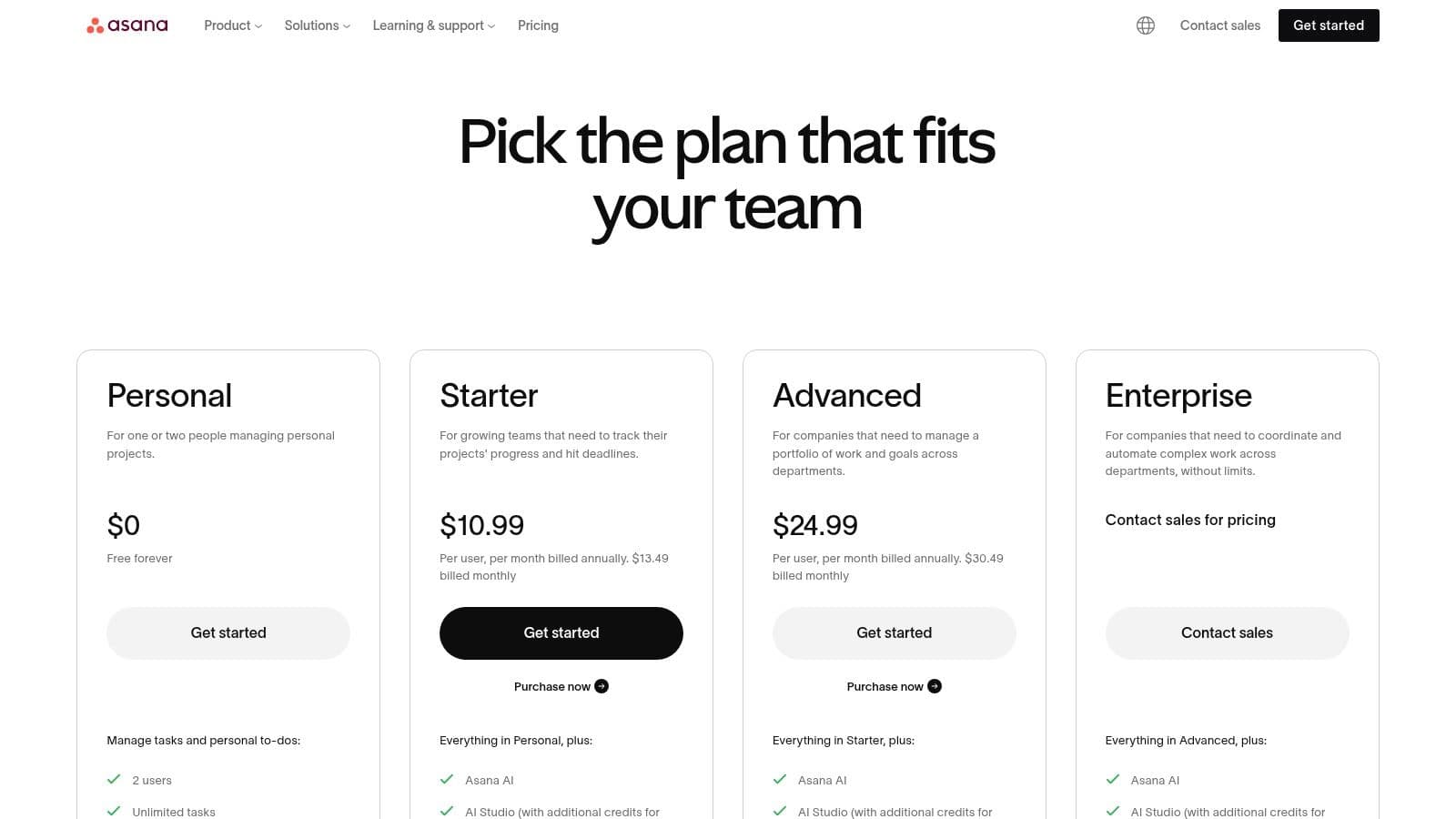
Asana offers a free Basic plan for individuals or small teams just starting out. Paid plans unlock more advanced features, with the Premium plan starting at $10.99 per user/month when billed annually. To get the most out of it, start by setting up clear project templates and automation rules to keep things consistent across teams and cut down on manual setup.
Pros & Cons
- Pro: Fantastic for portfolio and goal tracking, giving you unmatched visibility across teams.
- Pro: Its mature automation and reporting features are perfect for established project management offices.
- Con: The price really jumps between tiers, and paying per person can get expensive for large teams.
- Con: There can be a bit of a learning curve for users to really get the hang of its more advanced features.
Website: https://asana.com/pricing
7. Trello
Best for Visual Project Tracking and Simple Workflow Management
Trello is a super visual, Kanban-board-based tool that makes project management simple for teams of any size. It's great at organizing tasks and workflows into boards, lists, and cards, giving you a clear, at-a-glance view of who's doing what and where everything stands. Its simplicity and intuitive design make it one of the best collaboration tools for remote teams that need a straightforward way to manage projects without a huge learning curve, especially when you're bringing on outside clients or new team members.

Key Features & User Experience
Trello's user experience is famously friendly, built around its drag-and-drop card system. This makes managing tasks feel almost like a game. While the core is simple, you can add a ton of functionality with "Power-Ups," which bring integrations and new features right onto your boards.
- Core Functionality: Intuitive boards, lists, and cards; timeline, calendar, and dashboard views for different ways to see project progress.
- Automation: "Butler" automation helps you create rules, custom buttons, and scheduled commands to cut down on repetitive manual work.
- Integrations: It works seamlessly with the Atlassian ecosystem (Jira, Confluence) and has a huge library of Power-Ups for tools like Slack, Google Drive, and Salesforce.
- Flexibility: It's versatile enough for just about anything, from content calendars and sales pipelines to software development sprints and team onboarding.
Pricing & Implementation
Trello has a generous free plan that works well for individuals or small teams. For more advanced features, paid plans like Standard start at $5.00 per user/month. The Premium plan at $10.00 per user/month gives you unlimited Power-Ups and multiple project views. Getting started is ridiculously fast; teams can set up a board and start working together in just a few minutes.
Pros & Cons
- Pro: It's extremely easy to learn and use, which means teams pick it up super quickly.
- Pro: The highly visual layout makes it easy to see the status of a project instantly.
- Con: It might feel a bit too basic for really complex projects that need advanced features like Gantt charts or detailed reporting, unless you use Power-Ups.
- Con: Relying heavily on Power-Ups for advanced features can add to the cost or complexity.
Website: https://trello.com/en/pricing?utm_source=openai
8. monday.com
Best for Customizable Visual Project Management
monday.com is a powerful Work Operating System (Work OS) that lets teams build their own custom workflows for almost any project or process you can think of. Its strength is its visual, intuitive interface and incredible flexibility, making it perfect for everything from marketing campaigns and sales pipelines to software development. Unlike more rigid tools, monday.com gives you the building blocks to design your perfect collaboration space, making it one of the best collaboration tools for remote teams that need a solution tailored just for them.
Key Features & User Experience
monday.com is fantastic at turning complex data into clear, colorful, and actionable boards. The user experience is all about visual organization, with multiple views like Kanban, Gantt, and Calendar that help teams see progress at a glance. Its no-code automations are especially powerful for cutting down on manual tasks.
- Core Functionality: Highly customizable visual boards, multiple project views, and powerful dashboards for reporting.
- Workflow Automation: You can set up "if-this-then-that" rules to automate recurring tasks, notifications, and status updates without writing a single line of code.
- Product Suites: It offers specialized products like monday sales CRM and monday dev, letting you manage different parts of your business on one platform.
- Integrations: It connects with dozens of popular tools like Slack, Google Drive, Microsoft Teams, and Jira to pull all your workflows into one place.
Pricing & Implementation
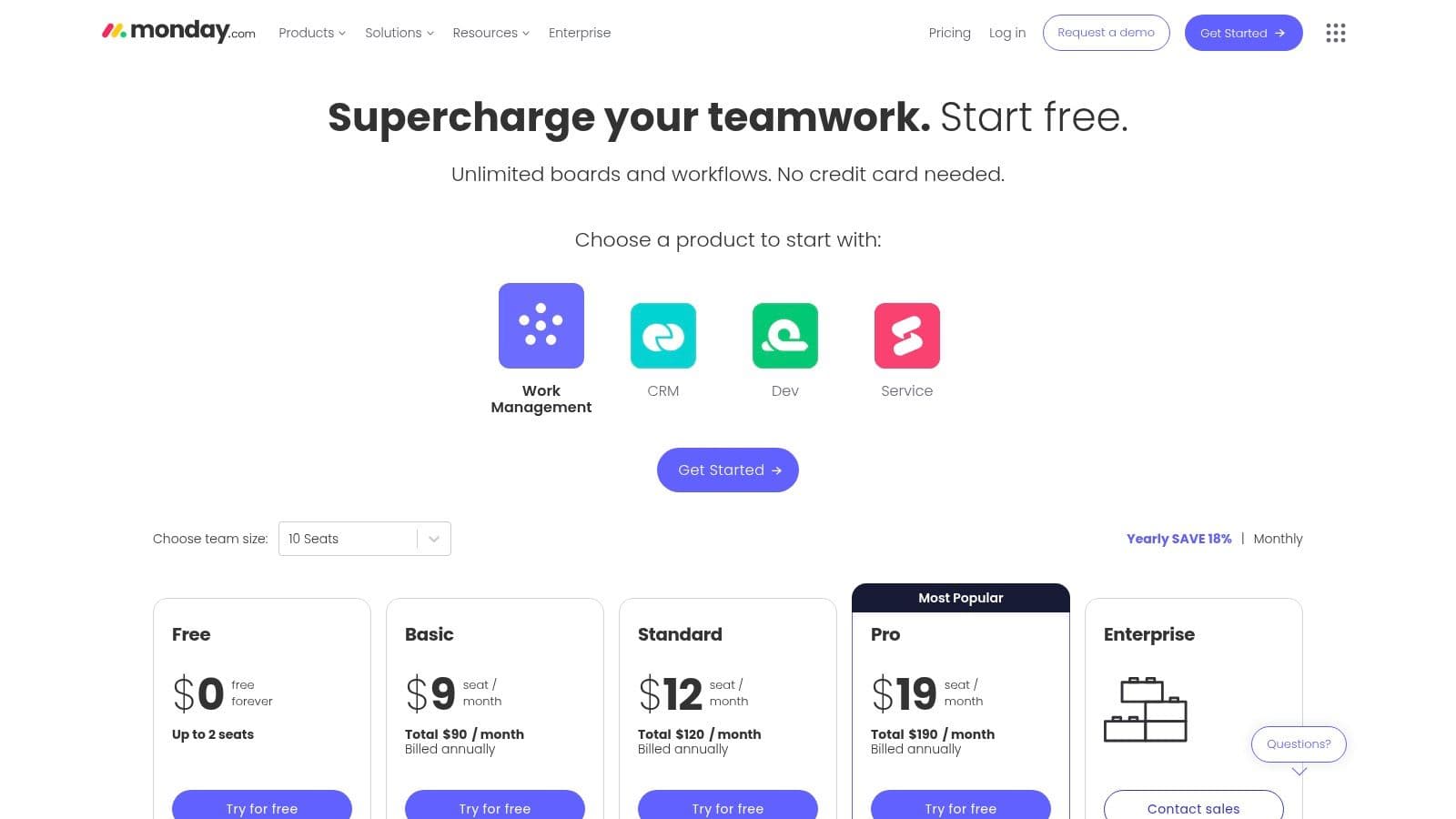
There's a free plan for individuals. Paid plans start with the Basic plan at $9 per seat/month (billed annually), with a three-seat minimum. The price changes based on the product suite and features you choose. To get it right, a team should spend some time upfront designing boards and automations that fit their specific processes, using monday.com's huge template library as a starting point.
Pros & Cons
- Pro: It's extremely customizable and visually engaging, which makes tracking projects feel intuitive.
- Pro: The robust automation and integration features help streamline workflows across different tools.
- Con: The per-seat pricing and minimum seat requirements can be expensive for very small teams or solo users.
- Con: The sheer number of features can mean a steeper learning curve compared to simpler tools.
Website: https://monday.com/pricing?utm_source=openai
9. Notion
Best for Teams Needing a Centralized Knowledge Base and Project Hub
Notion is an all-in-one workspace that pulls together notes, documents, wikis, and project management into a single, super flexible platform. Its biggest strength is its ability to replace a bunch of different tools, giving remote teams a single source of truth. By mixing rich text documents with powerful databases, Notion lets teams build their own custom workflows for everything from content calendars and task boards to full-blown company wikis. This adaptability makes it one of the best collaboration tools for remote teams looking to simplify their tech stack.

Key Features & User Experience
Notion’s block-based editor has a clean, minimalist interface that's surprisingly powerful, letting you build complex pages without much effort. The whole experience is built around customization; teams can start with pre-built templates and then tweak them endlessly to fit their exact needs.
- Core Functionality: Interlinked docs and wikis, flexible databases with multiple views (Kanban, calendar, timeline), and collaborative teamspaces.
- File Collaboration: Rich document editing, commenting, and real-time collaboration on pages and database entries.
- Advanced Features: Notion AI for creating and summarizing content, detailed permissions, and a solid API for integrations.
- Integrations: It connects with tools like Slack, Jira, and GitHub to pull information into one central workspace.
Pricing & Implementation
Notion has a generous free plan for individuals. For teams, the Plus plan starts at $8 per user/month (billed annually) and includes unlimited blocks and file uploads. Larger teams might go for the Business plan at $15 per user/month for advanced features like SAML SSO. To make it work, you really need to set up clear templates and rules to keep the workspace from becoming a hot mess.
Pros & Cons
- Pro: Its extreme flexibility means it can replace several other apps, cutting down on tool clutter.
- Pro: It combines powerful documentation features with solid project management tools.
- Con: It can have a steep learning curve and requires some thoughtful organization to keep it from getting chaotic.
- Con: It doesn't have some of the heavy-duty features you'd find in a dedicated project management tool.
Website: https://www.notion.so/pricing
10. Miro
Best for Visual Collaboration and Remote Workshops
Miro is an online collaborative whiteboard platform built to bring teams together for brainstorming, planning, and creative work, no matter where they are. It's amazing at recreating the feeling of an in-person workshop on its infinite canvas, making it a go-to tool for product design, agile workflows, and strategy sessions. Its real strength is turning abstract ideas into visual, actionable plans, which makes it one of the best collaboration tools for remote teams that are all about innovation and creativity.
Key Features & User Experience
Miro’s interface is intuitive and flexible, encouraging you to just let your ideas flow. It has a huge library of templates for everything from customer journey maps to Kanban boards. The platform is designed for engagement, with features that help you run dynamic and interactive meetings.
- Core Functionality: Infinite canvas boards, a massive template library, and real-time tools for diagramming and mind mapping.
- Workshop Facilitation: It has built-in tools like a timer, a voting system, and video chat to keep remote meetings on track and productive.
- Security & Compliance: It offers enterprise-grade features like SSO, advanced user admin, and data residency options for regulated industries.
- Integrations: It has deep integrations with popular tools like Jira, Asana, Microsoft Teams, and Slack to connect your visual plans to your actual project execution.
Pricing & Implementation
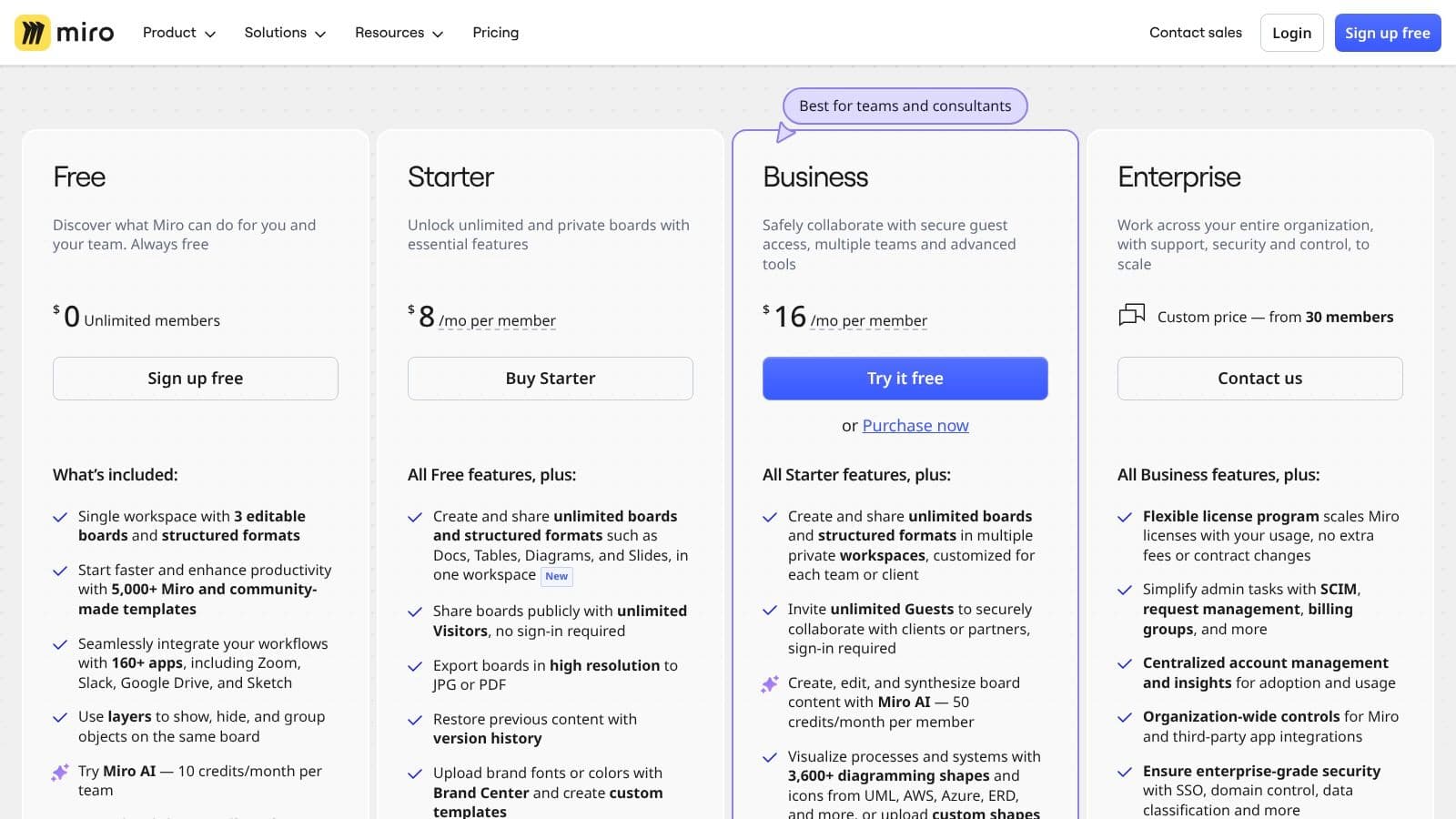
Miro has a generous free plan that's great for small teams or individuals. Paid plans start with the Starter tier at $8 per member/month (billed annually), which gives you unlimited private boards and advanced features. For the best results, teams should set up clear rules for organizing boards and using templates to keep things consistent across projects.
Pros & Cons
- Pro: It's the best tool out there for remote workshops, brainstorming, and visual product/design collaboration.
- Pro: It scales really well, with plans and security features that can grow from a small team to a huge enterprise.
- Con: It's not a full project management tool and works best alongside platforms like Jira or Asana.
- Con: The total cost can go up if you add on AI features or premium integrations.
Website: https://miro.com/pricing/
11. Atlassian Confluence
Best for Creating a Centralized Knowledge Hub
Atlassian Confluence acts like a shared team wiki or knowledge base, creating a single source of truth that is absolutely essential for distributed teams. It's fantastic at capturing, organizing, and sharing knowledge—everything from project plans and meeting notes to company policies and technical documentation. Its killer feature is its powerful integration with the rest of the Atlassian world, especially Jira. This lets teams link project documentation directly to development tasks, making it one of the best collaboration tools for remote teams in software and IT.
Key Features & User Experience
Confluence gives you a flexible and collaborative editing experience with templates for pretty much any situation. The structure of "Spaces" (for teams or projects) and "Pages" (for individual documents) helps keep things organized, but you need a good content strategy to prevent it from becoming a mess as the team grows. Figuring out a clear way to label and organize everything is a key part of learning how to manage a remote team effectively with this tool.
- Core Functionality: Collaborative document creation with real-time editing, comments, and version history.
- Organization: Pages and Spaces help you sort information by team, project, or topic.
- Advanced Features: The Premium plan includes analytics, automation, and advanced permissions for more control.
- Integrations: It has deep, native integration with Jira and Trello, plus a marketplace with hundreds of third-party apps.
Pricing & Implementation
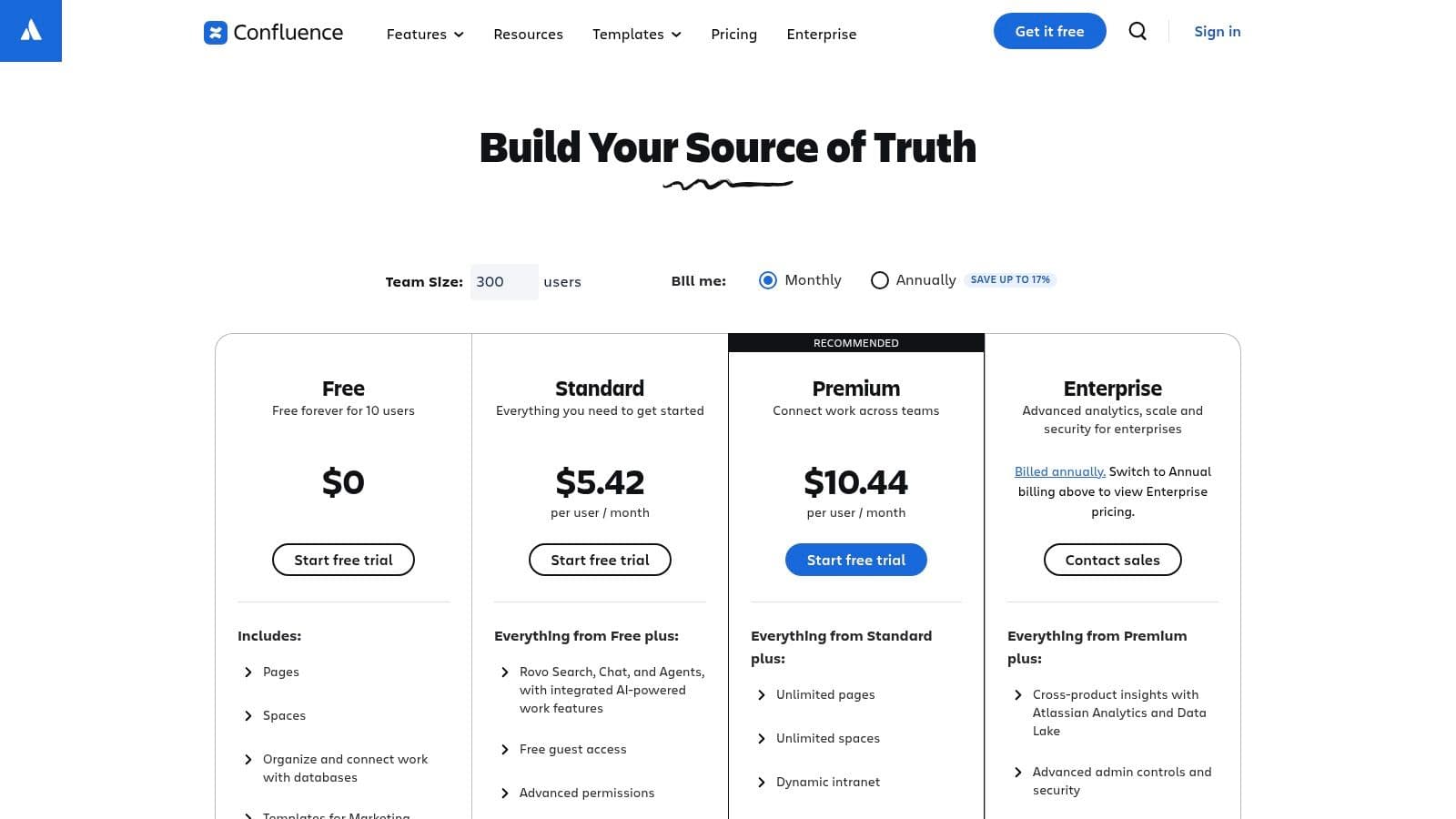
Confluence has a free plan for up to 10 users, which is great for small teams. Paid plans start with the Standard tier at $6.05 per user/month, which adds more storage and features. To make it work well, teams should appoint "gardeners" who are responsible for curating and organizing content to make sure the knowledge base stays reliable and up-to-date.
Pros & Cons
- Pro: It's an excellent central hub for documentation, cutting down on information silos.
- Pro: It scales well for large companies with its strong governance and permission controls.
- Con: You get the most value out of it when you use it with other Atlassian tools like Jira.
- Con: It can become a disorganized mess without a clear content management strategy and active upkeep.
Website: https://www.atlassian.com/software/confluence/pricing?utm_source=openai
12. ClickUp
Best for Teams Seeking an All-in-One Configurable Workspace
ClickUp is a unified work management platform that aims to replace multiple apps by combining tasks, documents, goals, whiteboards, and chat into a single, highly customizable space. Its main strength is its incredible flexibility, which lets teams build workflows that perfectly match how they work, from simple to-do lists to complex project management. For small to mid-sized businesses looking to consolidate their tech stack and save some money, ClickUp is one of the best collaboration tools for remote teams, offering a powerful, all-in-one solution.
Key Features & User Experience
ClickUp’s interface is packed with features, offering multiple views like List, Board, Calendar, and Gantt to visualize your work. While this customizability is a huge plus, it can also create a steep learning curve for new users. However, the huge library of templates and optional onboarding help make the transition smoother.
- Core Functionality: Comprehensive task management with custom statuses, Docs for collaborative notes, native Whiteboards for brainstorming, and integrated time tracking.
- Goal Tracking: You can set and monitor high-level objectives with Goals, which can be linked directly to individual tasks and projects.
- Customization & Automation: Extensive custom fields, powerful automation rules, and a vast template library let teams tailor the platform to their exact needs.
- Integrations: It connects with over 1,000 other tools, so it can fit into almost any existing workflow.
Pricing & Implementation
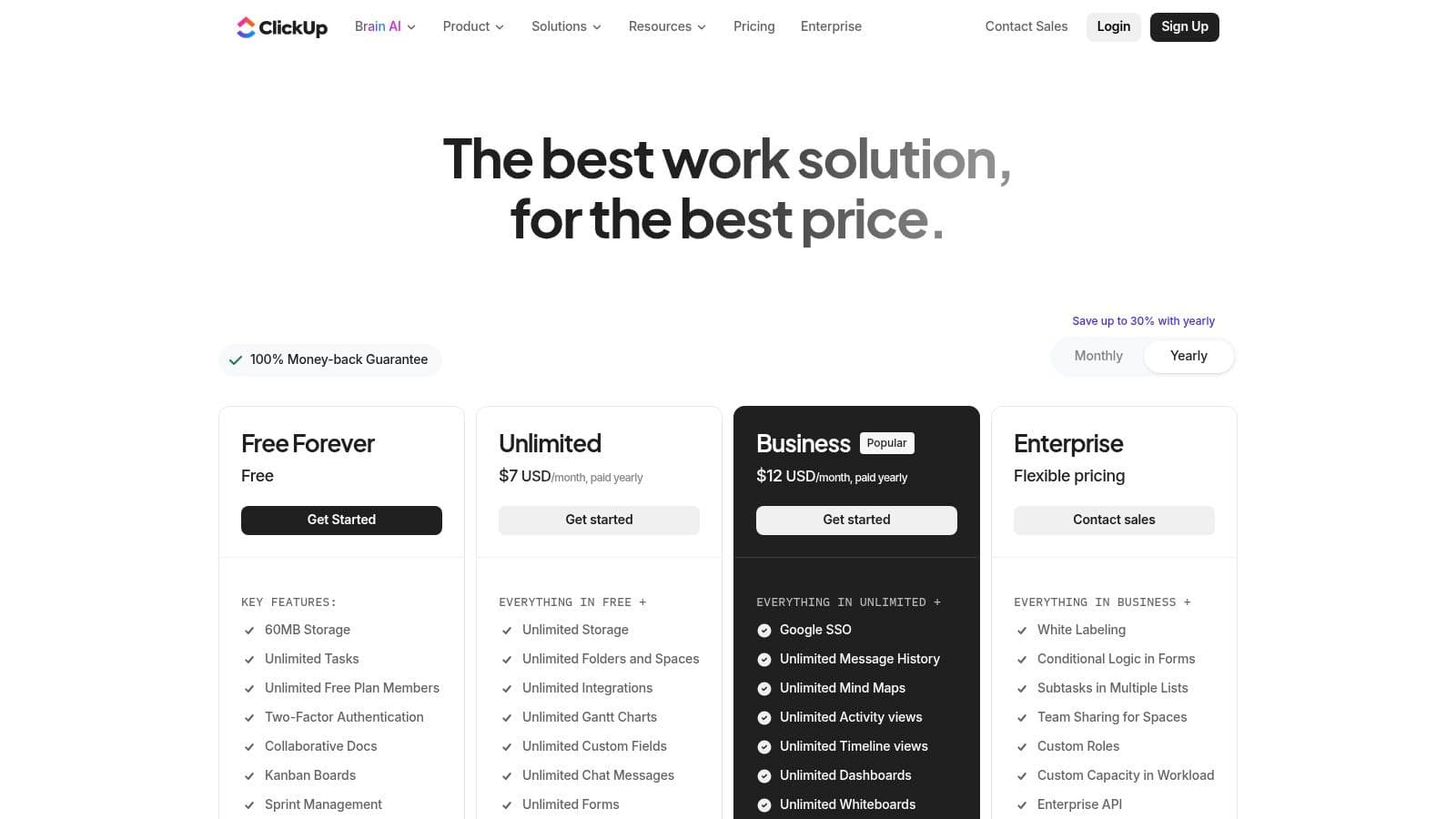
ClickUp offers a generous free-forever plan that's good for personal use. Paid plans unlock more advanced features, starting with the Unlimited plan at $7 per user/month, which is a great value for SMBs. For a smooth rollout, start with a core set of features and slowly introduce the more advanced stuff as your team gets comfortable.
Pros & Cons
- Pro: It offers a wide range of features at a competitive price, providing great value for growing teams.
- Pro: Its highly configurable structure can replace the need for several different apps.
- Con: The sheer number of features and customization options can be overwhelming for new users.
- Con: Performance can sometimes lag in very large, complex workspaces with tons of tasks.
Website: https://clickup.com/pricing?utm_source=openai
Top 12 Remote Collaboration Tools — Feature Comparison
| Product | Core focus | Unique selling points ✨ | UX / Quality ★ | Pricing / Value 💰 | Target audience 👥 |
|---|---|---|---|---|---|
| Fluidwave 🏆 | AI-driven task management + human VAs; multi-view (list/board/calendar) | ✨ AI auto-prioritization (saves 4+ hrs/wk); VA pay‑per‑task marketplace (coming soon); distraction‑free UI | ★★★★☆ — clean, instant‑response | 💰 Free forever; $34.95 one‑time premium; pay‑per‑task (TBD) | 👥 Busy professionals, teams, freelancers |
| Microsoft Teams | Chat, meetings & file collaboration integrated with M365 | ✨ Deep Office, identity & compliance integration | ★★★★☆ — enterprise‑grade | 💰 Included with Microsoft 365; standalone varies | 👥 Enterprises & orgs using Microsoft 365 |
| Slack | Channel-based messaging with large app ecosystem | ✨ Slack Connect for external partners; 2,600+ integrations | ★★★★☆ — intuitive chat‑first UX | 💰 Free tier; per‑seat paid tiers; costs scale | 👥 Chat‑first teams, startups, agencies |
| Zoom Workplace | Video‑first meetings + chat, phone & whiteboards | ✨ High‑quality video; Phone/Rooms & hardware options | ★★★★☆ — reliable video/voice | 💰 Free/basic; bundles & paid add‑ons (Phone/Rooms) | 👥 Teams prioritizing meetings & hybrid work |
| Google Workspace | Email, Drive, Docs/Meet tightly integrated | ✨ Tight app sync; Gemini AI on paid tiers | ★★★★☆ — simple, familiar | 💰 Seat‑based plans; strong value for email+collab | 👥 Google‑native teams & SMBs |
| Asana | Project & portfolio management (timelines, reporting) | ✨ Portfolio/Gantt, PMO automations & reporting | ★★★★☆ — powerful visibility; learning curve | 💰 Tiered seat pricing; can jump between tiers | 👥 PMOs, cross‑team project managers |
| Trello | Visual Kanban boards for simple projects | ✨ Easy boards + Butler automations; Atlassian ties | ★★★☆☆ — extremely easy onboarding | 💰 Free tier; affordable mid‑tier; Power‑Ups may cost | 👥 Small teams, simple workflows, clients |
| monday.com | Work OS for highly customizable workflows | ✨ Multiple SKUs, visual dashboards & automations | ★★★★☆ — very customizable | 💰 Seat‑based & SKU pricing; min seats may apply | 👥 Teams needing custom ops & dashboards |
| Notion | Docs, wikis & databases with project elements | ✨ All‑in‑one workspace; relational DBs & Notion AI | ★★★★☆ — flexible but needs governance | 💰 Free/personal; paid team plans (seat‑based) | 👥 Docs‑first teams, startups, knowledge hubs |
| Miro | Online whiteboard & visual collaboration | ✨ Infinite canvas, workshop tools & facilitation kit | ★★★★☆ — best for workshops | 💰 Free tier; paid seats & enterprise options | 👥 Designers, product teams, facilitators |
| Atlassian Confluence | Team wiki & knowledge base / intranet | ✨ Pages/spaces, advanced permissions, Jira links | ★★★★☆ — strong doc hub for scale | 💰 Seat‑based monthly/annual; pairs well with Atlassian | 👥 Engineering, ops & large distributed teams |
| ClickUp | Unified work platform: tasks, docs, goals, whiteboards | ✨ Broad feature set to replace multiple apps; strong automations | ★★★★☆ — highly configurable; setup depth | 💰 Free tier; competitive paid plans; good SMB value | 👥 SMBs wanting an all‑in‑one platform |
Building a More Connected and Productive Future
Trying to navigate the huge world of collaboration software can feel overwhelming, but the right tools are more than just a line on a budget; they're the digital foundation of a successful, connected, and productive remote team. In this guide, we've looked at a dozen of the best collaboration tools for remote teams, from all-in-one platforms like Microsoft Teams and Google Workspace to specialized powerhouses like Miro for whiteboarding and Asana for project management. The main takeaway is this: there's no single "best" tool for everyone. The perfect solution is the one that clicks with your team's unique workflow, communication style, and long-term goals.
Synthesizing Your Options: Key Takeaways
Going from picking a tool to actually using it well takes a bit of strategy. Remember that a tool is only as good as the processes you build around it. A chaotic workflow will still be chaotic, even with the fanciest software.
- All-in-One vs. Best-in-Breed: Platforms like Microsoft Teams, Google Workspace, and ClickUp try to be a single source of truth, pulling together chat, documents, and tasks. This can cut down on flipping between apps but might not have the specialized depth of dedicated tools like Trello or Miro. It all depends on whether your team values smooth integration over specialized features.
- Synchronous vs. Asynchronous: Tools like Slack and Zoom are great for real-time, synchronous communication, which is crucial for quick decisions and team bonding. But platforms like Fluidwave and Asana are built to support asynchronous work, empowering teams across different time zones to contribute thoughtfully without the pressure of an instant reply.
- Structure vs. Flexibility: Project management tools have very different approaches. Trello and Notion offer a ton of flexibility, letting teams build their own systems from scratch. On the other hand, platforms like Asana and monday.com provide more structured, opinionated frameworks that can guide teams toward established project management methods.
Your Action Plan for Choosing the Right Tool
Picking from this list of the best collaboration tools for remote teams is about more than just comparing feature lists. You have to do some real thinking about your team's basic needs. Before you sign on the dotted line, take these steps:
- Audit Your Current Workflow: Figure out the biggest pain points in how you work now. Are documents getting lost? Is communication spread across too many different apps? Are you missing deadlines because nobody's clear on who's doing what? Your problems are your starting point.
- Define Your Non-Negotiables: Make a shortlist of must-have features. Do you absolutely need robust task dependencies, deep integration with your CRM, or advanced security compliance? For individuals with ADHD or other neurodivergent team members, features like customizable notifications, visual layouts, and minimalist interfaces might be non-negotiable.
- Run a Pilot Program: Never roll out a new tool to the whole company at once. Pick a small, representative team to test your top two or three choices on a real project. Get their honest feedback on how easy it was to use, if it made them more efficient, and what the overall experience was like.
- Consider Total Cost of Ownership: Look beyond the monthly subscription price. Think about the time and resources you'll need for setup, training, and ongoing management. A tool that's a pain to adopt can end up costing way more in lost productivity than a slightly more expensive but user-friendly alternative.
Ultimately, the goal is to build a digital ecosystem that helps your team do its best work, no matter where they are. The right stack of collaboration tools will feel less like a collection of separate apps and more like a cohesive, digital headquarters—one that fosters clarity, accountability, and a real sense of connection.
Ready to build a calmer, more organized digital workspace for your team? Fluidwave combines task management, knowledge sharing, and asynchronous communication into one intuitive platform, making it one of the best collaboration tools for remote teams aiming to reduce digital noise and achieve deep focus. Start your free trial of Fluidwave today and discover a more streamlined way to work together.
Focus on What Matters.
Experience lightning-fast task management with AI-powered workflows. Our automation helps busy professionals save 4+ hours weekly.