Discover the 10 must have apps for Mac that boost productivity for busy professionals. Our 2026 guide covers tools for focus, automation, and efficiency.
May 11, 2026 (4mo ago)
10 Must Have Apps for Mac in 2026
Discover the 10 must have apps for Mac that boost productivity for busy professionals. Our 2026 guide covers tools for focus, automation, and efficiency.
← Back to blog
Your Mac is powerful. Your workflow should be, too.
You paid for the speed, the battery life, the clean hardware, and the polish. Then real work started. The desktop filled up, the Downloads folder turned into a junk drawer, and half your day disappeared into tiny repetitive actions that shouldn't require attention in the first place. Open this app. Resize that window. Find that file. Copy that link. Chase that task you forgot to write down.
That's the gap between owning a great machine and having a great system.
A stock macOS setup is fine for casual use, but it rarely stays fine once your calendar gets crowded and your work starts spanning projects, clients, teammates, and devices. The best must have apps for mac aren't random utilities. They work together. One tool captures and prioritizes work. Another launches commands instantly. Another cleans up files, secures credentials, manages windows, and documents what you're doing without friction.
If you're rebuilding your setup, start with tools that remove drag from the parts of your day you repeat most. Students may have a different stack, which is why this best Mac apps for students guide is useful for a lighter workflow. For professionals, though, the goal is different. You need a system that helps you decide faster, execute faster, and stay focused longer.
1. Fluidwave

Fluidwave changes how work gets processed on a Mac. It does more than hold tasks. It gives professionals a place to plan, prioritize, automate, and in some cases delegate, which makes it a strong foundation for the rest of the stack in this list.
That matters because a productivity system breaks down when the command layer, file automation, and capture tools all move faster than the place where work gets decided. Fluidwave handles that decision layer well. You can view work as a table, list, calendar, Kanban board, or cards, then switch based on the job in front of you. Weekly planning needs a different view than backlog cleanup or project review, and the app supports that without forcing awkward workarounds.
Why it earns the top spot
Fluidwave stands out for its hybrid model. It combines AI-assisted task handling with human delegation, so the workflow can go beyond organizing tasks and into getting tasks done. For founders, operators, freelancers, and team leads, that is a meaningful shift. The value is not just speed. It is reduced context switching and fewer handoffs between separate tools.
The automation layer is the practical part. Auto-prioritization, task breakdowns, and lighter process automation help cut the admin work that usually builds up around task managers.
Practical rule: If your task manager makes you spend too much time managing tasks, it's become admin work.
Fluidwave also fits the shift toward hybrid AI and human delegation workflows. Plenty of apps can suggest a next step. Fewer let you turn that next step into a delegated outcome inside the same system.
What works well, and what to watch
A few things stand out in daily use:
- Flexible planning: Different views work well for different kinds of work, especially if you manage both deadline-driven projects and open-ended tasks.
- Useful automation: Repeated flows can be turned into processes instead of rebuilt every time.
- Low-friction testing: The free tier gives you enough room to see whether it fits your workflow.
- More planning depth in Premium: Analytics, advanced prioritization, goals, habits, intentions, automation, and card view sit in the paid tier.
There are trade-offs. The human assistant marketplace and some deeper delegation features are still rolling out, so it makes sense to confirm what is live before building a process around them. Pay-per-task delegation also needs a real budget check. It gives flexibility, but cost and execution quality will vary depending on the task and the assistant.
That said, the direction is strong. If you want your Mac setup to work like a system instead of a pile of disconnected utilities, starting with the tool that captures work, structures it, and can eventually hand parts of it off is the right call.
2. Raycast
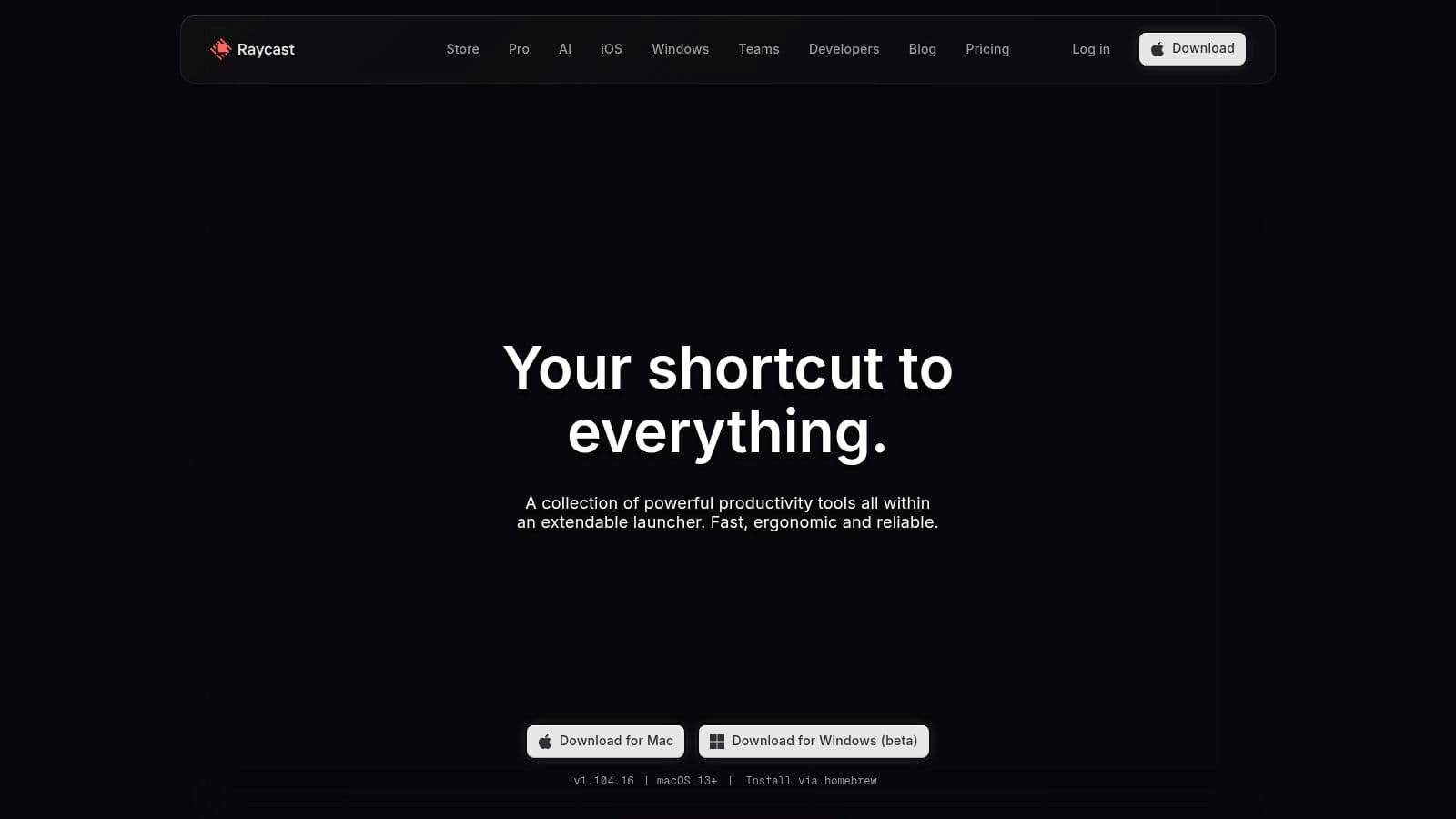
Raycast replaces the habit of hunting through folders, docks, and menu bars with one keyboard-first command palette. If you already think in shortcuts, it feels obvious within a day.
That popularity isn't niche. A 2025 analysis across Mac enthusiast forums and blogs found Raycast appeared in 40% of top Mac app lists, which says a lot about how central launchers have become in modern Mac setups (Pocket PC Mag forum discussion).
Where Raycast beats Spotlight
Spotlight is fine for basic search. Raycast is better when your day includes repeated commands, snippets, clipboard history, quick links, app launching, and service integrations. It handles those jobs from one place, which is why it tends to stick once installed.
It also supports custom scripts for actions like opening today's notes or starting a work timer. That's the kind of small automation that compounds because it cuts hesitation out of common routines.
Raycast is best for people who'd rather type a command once than click through the same interface fifty times.
The extension ecosystem is a major advantage. You can connect tools you already use and keep moving without turning every workflow into a browser-tab scavenger hunt.
Trade-offs
Raycast can become a little too tempting to customize. That's not a flaw, but it is a pattern. Power users sometimes end up tweaking the launcher instead of using it. Some advanced features also sit behind Raycast Pro.
Still, for anyone building a serious productivity stack on macOS, Raycast is one of the easiest wins. It speeds up dozens of tiny actions, and those tiny actions are where a lot of wasted time hides.
3. 1Password

If your work touches client accounts, finance tools, admin panels, or shared team logins, 1Password isn't optional. Security falls apart fast when people rely on memory, browser autofill alone, or a note buried somewhere in Apple Notes.
1Password does the basics well, which matters more than a flashy feature list. Vaults, passkeys, two-factor support, browser extensions, cross-platform apps, breach alerts, and secure sharing all fit into a polished Apple-friendly experience. On teams, the admin side is just as important as the personal side.
Why professionals keep it in the stack
1Password shows up in 30% of Mac app recommendation lists referenced in the verified research, which tracks with what many Mac-heavy teams already know. It's one of the few apps that scales from solo use to shared operational use without becoming painful.
It also pairs well with a more intentional workflow system. Strong personal organization depends on easy access to credentials, files, links, and recurring actions. That's one reason a personal organization system works better when your password manager is fast and reliable.
- Best fit: Professionals handling multiple logins across clients, vendors, and internal tools.
- Big strength: Secure sharing without the chaos of sending passwords in chat or email.
- Main drawback: No permanent free tier. You're committing to a subscription.
What doesn't work well is trying to save money by piecing together weaker substitutes. If a password manager creates even small friction, people stop using it properly. That's the actual cost.
4. Hazel
Hazel is what you install when you're tired of cleaning up after yourself on a computer that should already know better. It watches folders and applies rules to sort, rename, move, tag, archive, or process files in the background.
That sounds simple until you start using it on Downloads, Desktop, invoices, receipts, exports, or recurring client files. Then you realize how much visual clutter and file drift you've been tolerating.
Best use cases for Hazel
Hazel is strongest when the mess follows patterns.
- Downloads cleanup: Move installers, PDFs, images, and archives into the right folders automatically.
- Desktop control: Trash or archive old files before your desktop turns into a staging area for forgotten work.
- File naming: Standardize naming conventions so shared folders stay usable.
- Advanced automation: Trigger AppleScript, shell scripts, or Shortcuts when a file matches certain conditions.
Hazel rewards a bit of upfront thinking. Build a few smart rules once, and the app pays you back every day.
The best Hazel rules remove decisions you should never have to make twice.
Trade-offs
The learning curve is real. If you've never worked with conditions and actions before, the rule editor can feel more technical than it appears. Some people also overbuild Hazel setups and create edge cases they later forget about.
But for Mac users with repetitive file handling, Hazel is one of the cleanest examples of set-it-and-forget-it productivity. It's a native Mac app, and that matters.
5. Keyboard Maestro
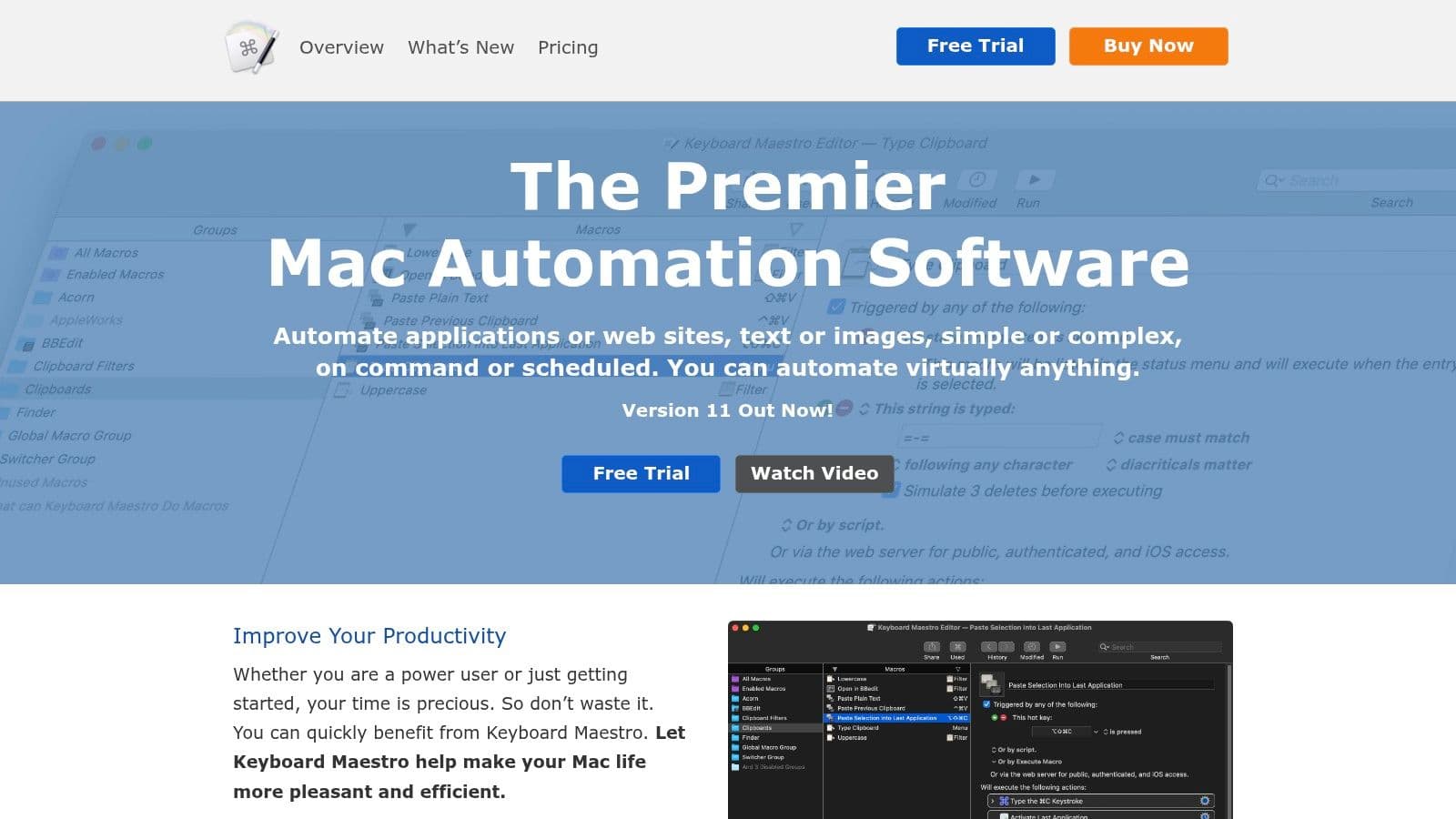
Keyboard Maestro is for the point where shortcuts stop being enough. You know the kind of work I mean. Open three apps, resize two windows, paste a template, click through a clumsy web UI, rename something, save it, then move on to the next item. Once that sequence repeats, Keyboard Maestro can usually automate it.
A TidBITS community poll of 46 daily-used apps described Keyboard Maestro as “indispensable glue for workflows,” and 25% of respondents used it for hotkey integrations in the same orbit as Alfred (TidBITS-linked community reference). That description is accurate. It's the connective tissue app.
What it replaces
Keyboard Maestro often ends up replacing several smaller utilities because it can handle triggers, variables, UI scripting, text expansion, clipboard actions, app-specific macros, and palettes in one place.
If you're trying to reduce repetitive labor inside your workday, this kind of workflow automation approach makes more impact than another note-taking app ever will.
- Best for: Operators, assistants, support leads, recruiters, marketers, and anyone doing structured repeat work.
- Less ideal for: People who want instant value without building anything.
- Biggest strength: It can automate awkward app behavior that other tools won't touch.
The honest downside
Keyboard Maestro asks for patience. You need to design the macro, test it, maintain it, and sometimes revise it after an app interface changes. If that sounds annoying, it may not be your tool.
If that sounds satisfying, you'll get a huge amount of value from it.
6. Rectangle and Rectangle Pro
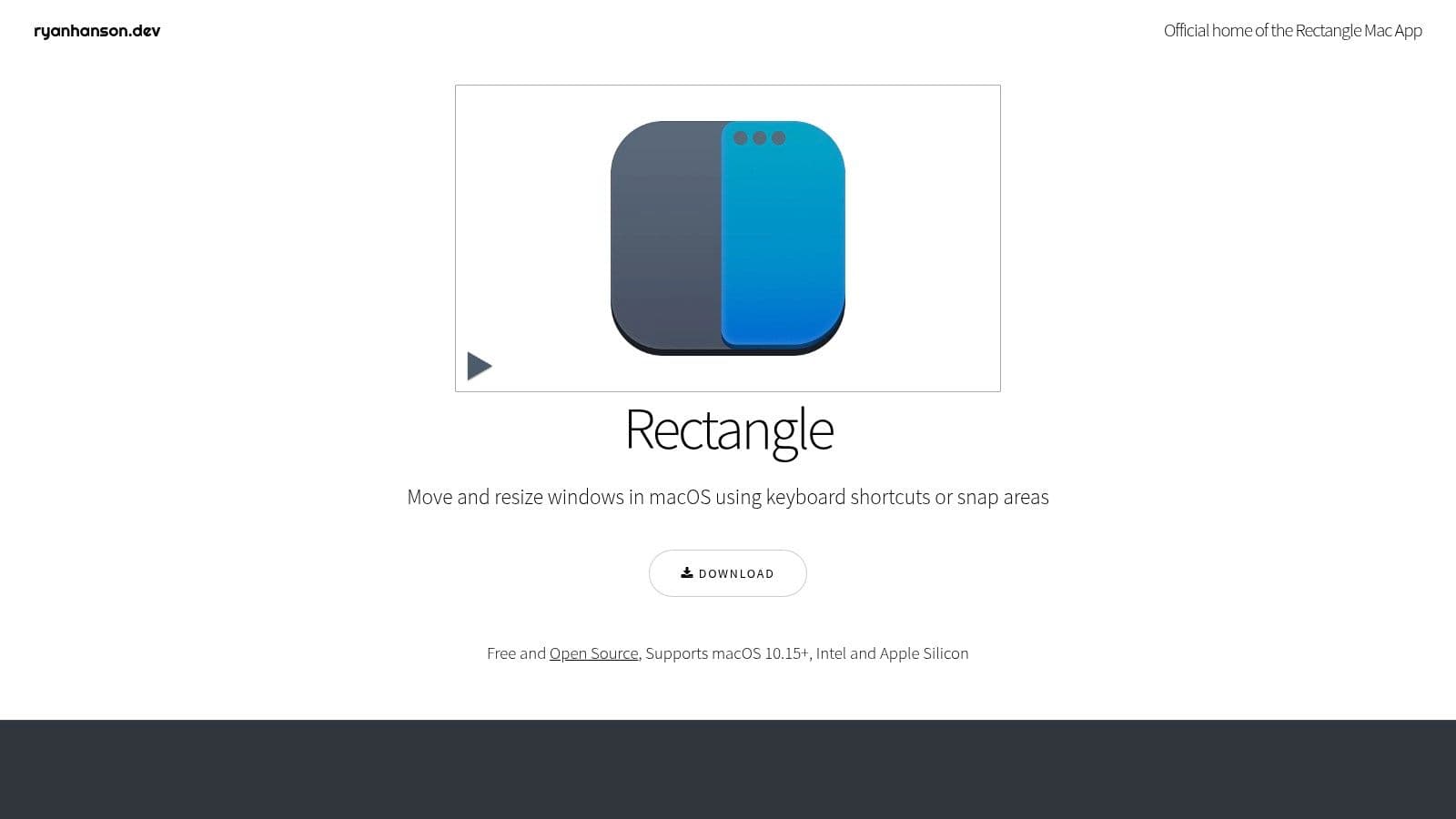
macOS still doesn't handle window management the way many professionals want it to. Rectangle fixes that with almost no overhead.
The free version covers the essentials. Snap windows into halves, thirds, quarters, move them between displays, maximize height, and assign keyboard shortcuts that feel natural. If you work on a laptop plus an external monitor, or you keep multiple documents open at once, this stops layout friction from piling up.
Why it belongs in a serious setup
Window management sounds minor until you track how often you do it. Rectangle removes those little repositioning chores that interrupt concentration.
For people trying to stay organized at work, controlling visual space matters more than it gets credit for. A clean window layout reduces context switching, especially when one side of the screen holds source material and the other holds the actual work.
A messy screen creates the same kind of drag as a messy desk. You can work through it, but you'll waste energy doing it.
Free versus Pro
The base app is enough for a lot of users. Rectangle Pro adds more advanced layouts and sync options, which are useful if your setup is more complex or you want custom placement behavior.
What Rectangle doesn't try to be is a heavy tiling environment. That's a good thing for most Mac users. It stays out of the way, uses minimal resources, and solves the problem directly.
7. CleanShot X
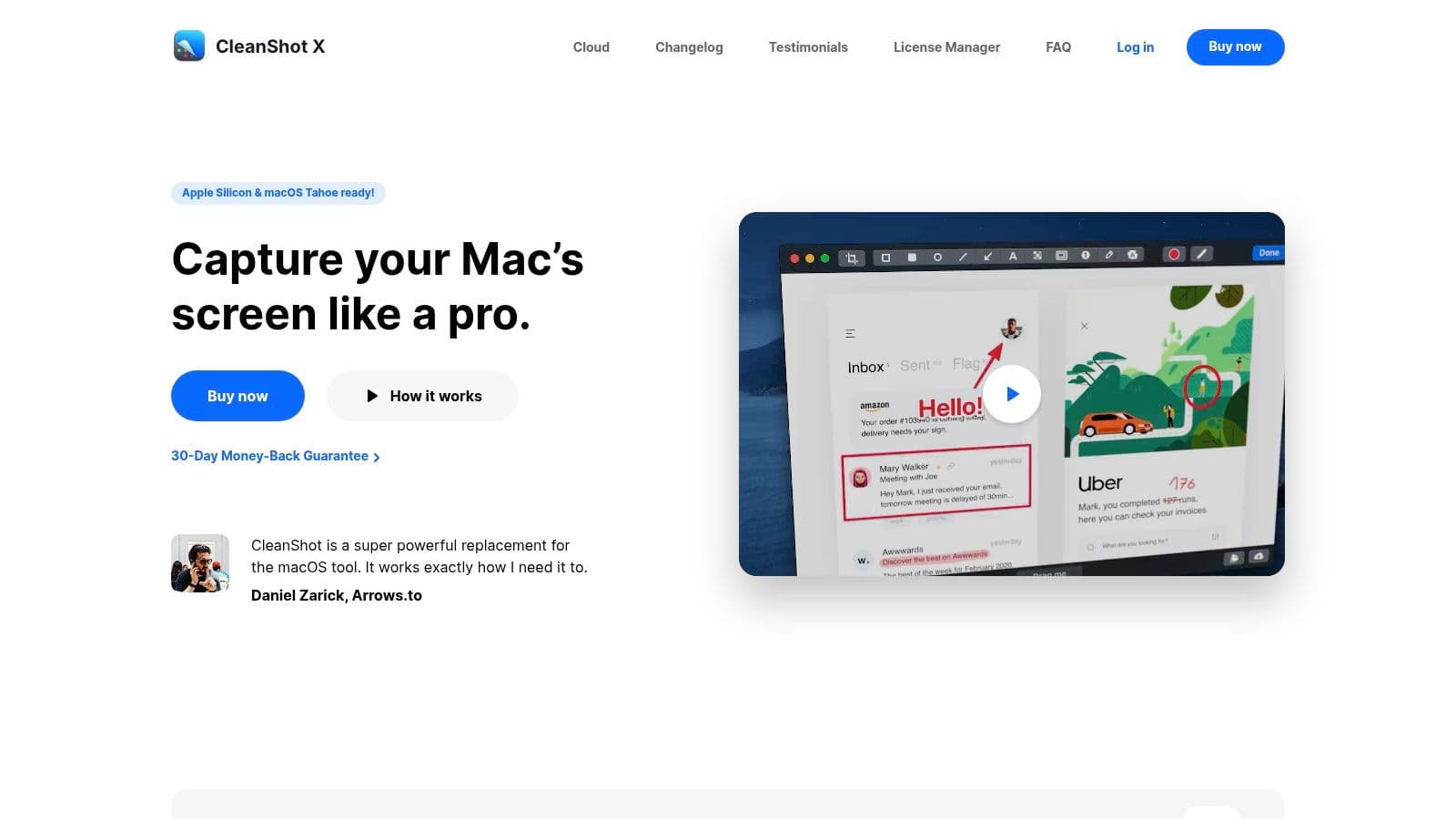
CleanShot X is one of those apps that looks optional until your work starts involving client communication, bug reporting, tutorials, SOPs, async updates, or marketing assets. Then it becomes daily infrastructure.
It combines screenshot capture, screen recording, scrolling capture, annotation, OCR, and shareable links in a polished Mac-native package. The quick access overlay is the part that keeps it fast. You take the shot, make the markup, and move on without opening a heavier editor.
Where it helps most
This app shines when visual communication is part of the job.
- Bug reports: Capture the issue, annotate the exact element, and send it fast.
- Client updates: Record a short screen walkthrough instead of writing a long explanation.
- Internal documentation: Build SOPs without bouncing between multiple tools.
- Marketing and sales: Grab polished visuals without extra cleanup steps.
The verified data set notes that CleanShot X appears in 25% of recommendation lists tied to Mac productivity discussions, which fits its reputation as the screenshot tool people settle on once they outgrow the default options.
Limitation to know
CleanShot X is macOS-only, and some cloud sharing functionality depends on add-ons or your preferred sharing setup. If you need a cross-platform screenshot standard, that matters.
If your work is mostly on Mac, though, CleanShot X is hard to beat for speed and polish.
8. DaisyDisk
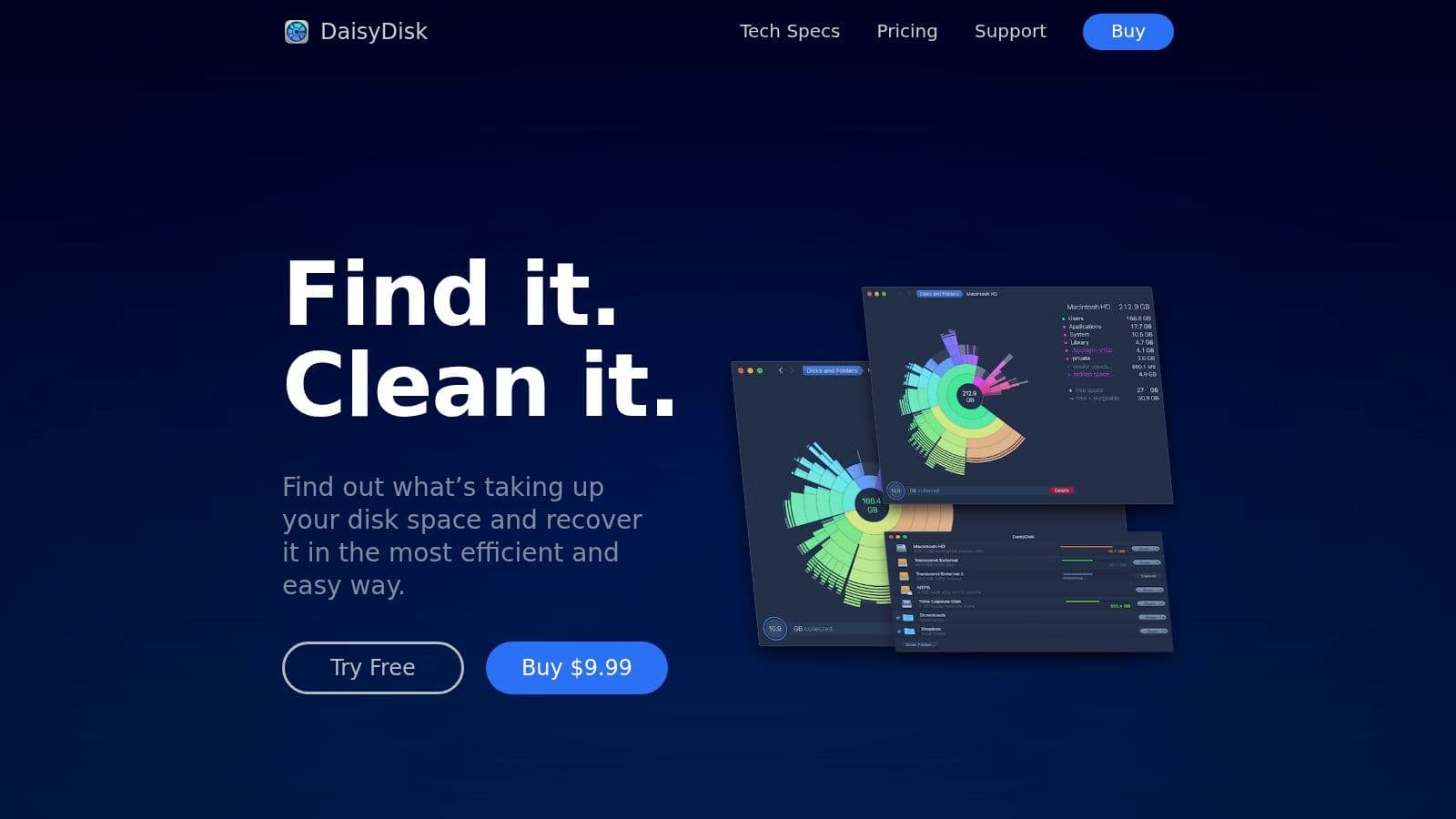
DaisyDisk solves a very specific Mac problem. Your storage starts disappearing, macOS gives you vague explanations, and “System Data” suddenly feels like a threat rather than a category.
DaisyDisk maps your drive into an interactive visual layout so you can see what's taking space. Large exports, old media folders, duplicate archives, forgotten installer caches, and project junk become obvious fast.
Why visual storage tools work better
The strength of DaisyDisk is that it doesn't make storage analysis feel like forensic accounting. You scan, inspect, and clean.
That visual approach is especially useful for people juggling design assets, development environments, local recordings, or old project folders. The issue usually isn't that the files are impossible to find. It's that the built-in storage tools don't surface them clearly enough.
- Best for: Professionals with large local files and unpredictable storage growth.
- Big strength: The sunburst map makes cleanup decisions easy.
- Main limitation: It's manual. This isn't an ongoing automation system.
For occasional maintenance, that's fine. Not every utility needs to run all day in the background.
9. Little Snitch
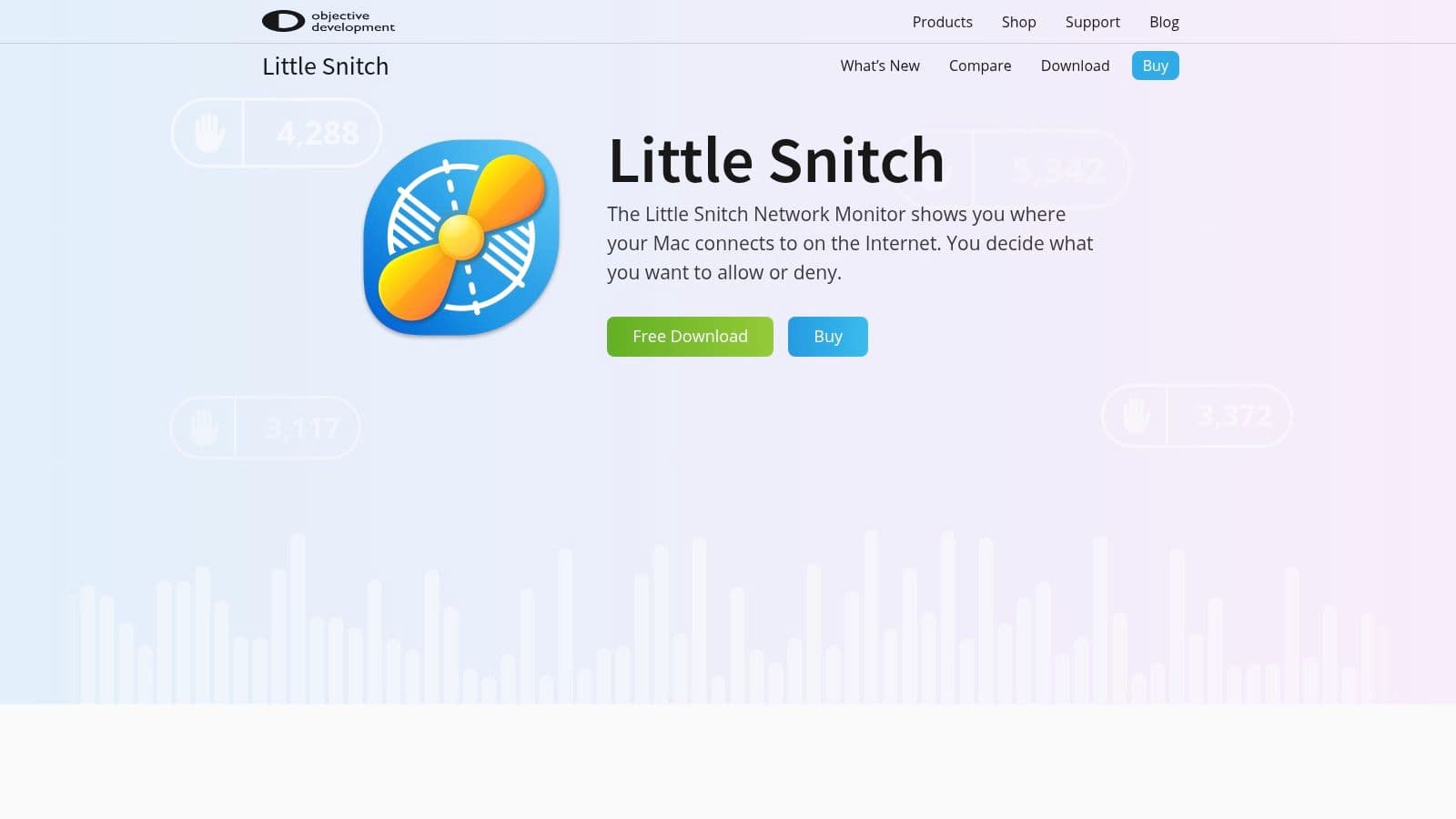
Little Snitch is for people who want to know what their Mac is sending out, not just what it's receiving. That matters more now than it used to. Apps phone home, helper processes operate unnoticed, and background connections stack up.
Little Snitch gives you visibility and control over outbound connections at the app and endpoint level. It can allow, deny, and profile network behavior in ways the average firewall never surfaces.
Who gets the most value
Privacy-conscious users, consultants handling regulated client work, developers testing software behavior, and anyone running a lot of third-party utilities will appreciate it most.
The network monitor is especially useful because it makes connection patterns visible instead of abstract. You can see which app is talking, where it's going, and decide whether that behavior makes sense.
If you care about privacy, don't stop at browser settings. Look at outbound traffic too.
What can frustrate new users
The first few days can feel noisy. You'll get prompts, need to make judgment calls, and probably create a few rules you later revise. That isn't a sign the app is bad. It's the normal cost of granular control.
If you want total simplicity, skip it. If you want to understand your Mac at the network level, it's one of the best tools available.
10. iStat Menus
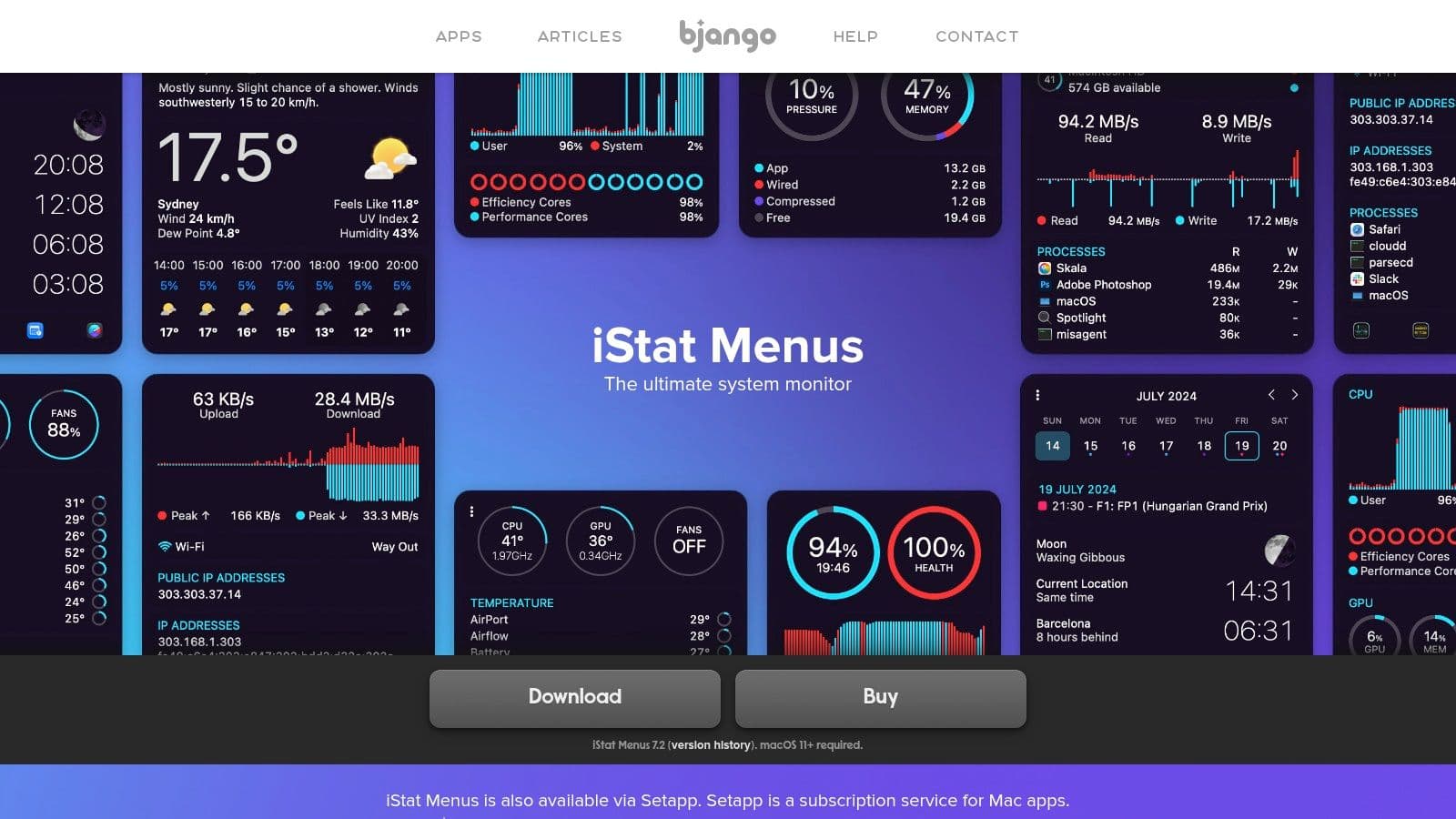
iStat Menus gives you the kind of at-a-glance telemetry macOS only partially exposes. CPU, GPU, memory pressure, disk activity, network usage, sensors, battery status, and historical graphs all sit in the menu bar where you can use them.
That's useful for troubleshooting slowdowns, checking thermal behavior during heavy workloads, or figuring out whether the problem is one runaway app or a system-wide bottleneck.
Why it stays installed
Most system monitors are something you open only when things go wrong. iStat Menus works better as an always-available dashboard. You can keep it minimal or make it dense, depending on how much information you want in the menu bar.
A modern Mac productivity stack also increasingly depends on current macOS support. TelemetryDeck's end-of-April 2026 data shows macOS 26.4 at 46.75% market share, with macOS 26.3 at 19.93%, which means a large share of active installs are already concentrated on recent releases (TelemetryDeck macOS version survey). For power users, that makes system visibility more important when evaluating whether an app is optimized for newer APIs and Apple silicon behavior.
The trade-off
The interface is information-dense. If you turn everything on at once, it can feel like cockpit software. The fix is simple. Enable only the metrics you check.
For professionals who care about performance, heat, battery behavior, or network activity, iStat Menus earns its place quickly.
Top 10 Must-Have Mac Apps Comparison
| Product | Core features | Quality ★ | Price / Value 💰 | Target audience 👥 | Unique selling points ✨ |
|---|---|---|---|---|---|
| Fluidwave 🏆 | AI auto‑prioritization; multi‑view (table/list/calendar/Kanban/cards); automation; pay‑per‑task human delegation; real‑time collaboration | ★★★★☆ Fast, distraction‑free; claims 4+ hrs/week saved | 💰 Free‑forever (≤100 tasks); Premium ≈ $10/mo (annual); pay‑per‑task delegation (no sub required) | 👥 Knowledge workers, teams, freelancers, neurodivergent/ADHD users | ✨ Hybrid AI + human delegation; deep‑focus UI; instant responses |
| Raycast | Keyboard‑first launcher & command palette; clipboard, snippets, window mgmt; extensions ecosystem | ★★★★☆ Very fast, extensible | 💰 Free core; Pro for cloud/AI features | 👥 Keyboard‑centric power users, developers | ✨ Huge extensions library; rapid keyboard workflows |
| 1Password | End‑to‑end encrypted vaults; passkeys & 2FA; cross‑platform apps; breach alerts; sharing | ★★★★★ Mature, secure UX | 💰 Subscription only (no permanent free tier) | 👥 Individuals, families, teams, security‑minded users | ✨ Strong Apple support; Watchtower breach alerts; team admin tools |
| Hazel | Folder‑watch rules; rename/tag/move/archive; AppleScript & Shortcuts support; App Sweep | ★★★★☆ Reliable macOS file automation | 💰 One‑time license | 👥 Mac users needing file cleanup & automation | ✨ Set‑and‑forget folder rules; deep macOS integration |
| Keyboard Maestro | Visual macro editor; many triggers; UI scripting, variables, text expansion | ★★★★★ Extremely flexible & powerful | 💰 One‑time license | 👥 Power users, automation enthusiasts, productivity hackers | ✨ Ultra‑flexible macros to automate complex workflows |
| Rectangle (Pro) | Keyboard & drag snap zones; halves/thirds/quarters; layouts; iCloud sync (Pro) | ★★★★☆ Lightweight & dependable | 💰 Free core; Pro one‑time upgrade | 👥 Multi‑monitor users, users needing quick window tiling | ✨ Open‑source core + simple, effective snapping |
| CleanShot X | Screenshots, screen recording, annotations, scrolling capture, OCR; cloud sharing | ★★★★☆ Best‑in‑class capture UX | 💰 One‑time app; optional Cloud subscription | 👥 Designers, product teams, creators, support teams | ✨ Floating thumbnail, advanced annotations, fast sharing |
| DaisyDisk | Fast disk scans; interactive sunburst visualization; in‑app delete; hidden space analysis | ★★★★☆ Intuitive visual disk analysis | 💰 One‑time license | 👥 Users reclaiming disk space, creatives with large files | ✨ Interactive sunburst map for quick large‑file cleanup |
| Little Snitch | Outbound firewall; per‑app rules & profiles; real‑time connection monitor | ★★★★★ Granular network control | 💰 Paid license (one‑time/upgrade model) | 👥 Privacy‑minded users, regulated environments | ✨ Detailed outbound monitoring and profile switching |
| iStat Menus | Menu‑bar telemetry: CPU/GPU, memory, disks, network, sensors, battery, weather | ★★★★☆ Deep, at‑a‑glance telemetry | 💰 Paid license | 👥 Sysadmins, developers, power users monitoring system health | ✨ Highly customizable menu‑bar metrics & alerts |
Build Your Ultimate Productivity Stack
A strong Mac setup changes the shape of the workday. Fewer tiny interruptions. Less context switching. More time spent finishing things.
The apps in this list work best as a system. Raycast gets you into actions fast. Hazel and Keyboard Maestro remove repetitive steps once those actions start repeating. Rectangle keeps the workspace under control. CleanShot X helps turn work into something shareable. 1Password, Little Snitch, DaisyDisk, and iStat Menus handle the operational side that keeps a Mac reliable over time. Fluidwave sits higher in the stack, where planning, prioritization, and hybrid AI plus human delegation can reduce the work you need to do yourself.
Start with the bottleneck that costs you attention every day.
If the day feels fragmented, begin with Fluidwave. If keyboard speed matters more than mouse travel, install Raycast. If files pile up faster than you can sort them, put Hazel in charge. If your screen layout keeps slowing you down, Rectangle is usually the fastest win on the list. These are must have apps for mac because they remove repeated friction, not because they look impressive in a dock screenshot.
A practical stack for many professionals looks like this:
- Control layer: Fluidwave for planning, prioritization, and delegated follow-through
- Speed layer: Raycast for launching, commands, and quick workflows
- Security layer: 1Password for credentials, autofill, and secure sharing
- Automation layer: Hazel and Keyboard Maestro for recurring file and app tasks
- Workspace layer: Rectangle for layout, CleanShot X for communication and capture
- Maintenance layer: DaisyDisk, Little Snitch, and iStat Menus for storage, privacy, and system visibility
There are trade-offs. More tools can create more overhead if each one solves a tiny problem in isolation. The payoff comes when each app reduces a different kind of drag and passes work cleanly to the next step. That is why this stack holds up in real use. It is built around flow, not feature collecting.
If you're also improving the way your team captures conversations and follow-ups, this piece on AI-powered transcription for business productivity is worth reading alongside your Mac stack rebuild.
Build slowly. Keep the apps that save time every week. Remove the ones that ask for more maintenance than they return.
If you want one place to manage tasks, reduce decision fatigue, automate recurring work, and hand off real execution when needed, Fluidwave is a strong starting point. Its combination of AI-assisted planning, multiple work views, and pay-per-task human delegation makes it useful as the hub of a professional workflow, not just another task app.
Focus on What Matters.
Experience lightning-fast task management with AI-powered workflows. Our automation helps busy professionals save 4+ hours weekly.