Unlock productivity with our guide to integration capabilities. Learn what they are, why they matter for your workflow, and how to evaluate them in any tool.
July 7, 2026 (3mo ago)
A Guide to Integration Capabilities in Productivity Tools
Unlock productivity with our guide to integration capabilities. Learn what they are, why they matter for your workflow, and how to evaluate them in any tool.
← Back to blog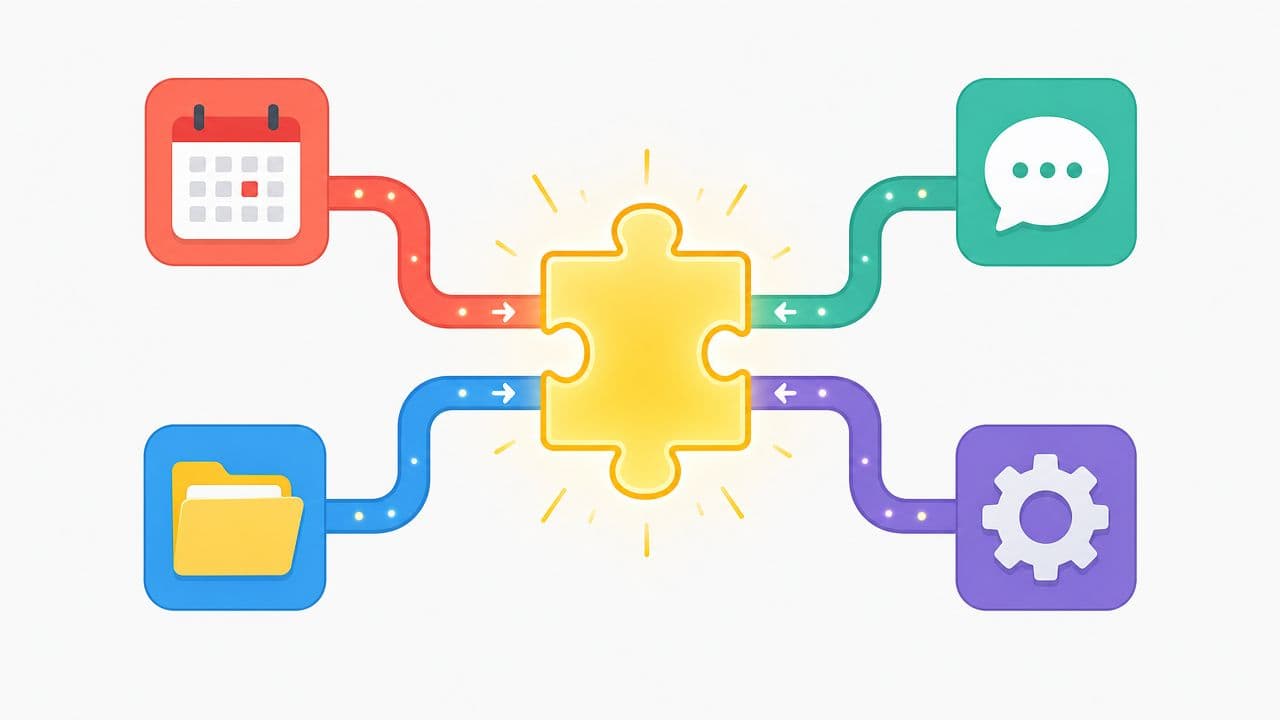
You're probably using more software than you want to think about.
A task lands in Slack. The customer record lives in your CRM. Notes sit in Google Docs. Dates are on your calendar. Files are in Dropbox or Drive. Someone updates a spreadsheet, but the project board doesn't change, so your team works from stale information for half a day. None of this feels dramatic. It just siphons attention.
That's why integration capabilities matter. Not as a technical checkbox, but as the difference between a tool that fits your workflow and a tool that creates more admin work. If you're choosing a productivity platform, this is one of the few areas worth slowing down for, because weak integrations turn a promising product into another silo.
The Hidden Cost of Disconnected Tools
A common workday looks like this. You read an email from a client, copy the action items into Asana or ClickUp, paste the due date into Google Calendar, send a Slack message so nobody misses it, then upload the related file to Dropbox. Later, someone asks for status, and you check four places to answer one simple question.
That friction adds up fast. The cost isn't only time. It's lost context, duplicate work, missed updates, and the low-grade mental fatigue that comes from constantly translating between apps.
Where the drain shows up
Disconnected tools usually create the same pattern of problems:
- Manual re-entry: You type the same customer name, due date, or task details into multiple systems.
- Context switching: You bounce between tabs just to complete one workflow.
- Conflicting records: Sales updates one system, operations checks another, and both think they're right.
- Delayed action: Work waits for someone to notice an update instead of moving automatically.
The worst productivity tools don't fail because they lack features. They fail because they make people become the integration layer.
Businesses have been putting real money behind fixing this. The global data integration market is projected to grow from USD 17.58 billion in 2025 to USD 33.24 billion by 2030, according to MarketsandMarkets' data integration market forecast. That projection tells you something useful: organizations aren't treating integration as a nice extra anymore. They're treating it as infrastructure.
For a busy professional, the practical takeaway is simple. If your tools don't share information cleanly, your team becomes the middleware.
What Are Integration Capabilities Really
Integration capabilities are the ways a software product connects with other systems so information can move without constant human intervention.
A plain-English analogy helps. Think of your software stack as a group of specialists who all speak different languages. Your calendar knows time. Your CRM knows customers. Slack knows conversations. Your project tool knows tasks. Integration capabilities are the translators and messengers that help them coordinate.

Connection versus coordination
A lot of products say they “integrate with” another app. That phrase can mean almost anything.
Sometimes it means a shallow connection. Maybe you can attach a Google Drive file to a task. Helpful, but limited.
A stronger integration does more. It syncs records, updates status in both systems, triggers follow-up actions, and keeps data consistent as work changes. That's where productivity improves, because the tools stop acting like separate islands.
By enabling real-time synchronization and automated triggers, effective integration capabilities can reduce manual data entry and decrease human error rates by up to 40%, according to Docsie's explanation of integration capabilities.
What busy teams should care about
If you're evaluating a platform, don't get stuck on whether it has a long logo grid on the pricing page. Ask what those integrations let you do.
Look for outcomes like these:
- A status change in one tool updates another automatically
- A new lead creates an onboarding task without copy-paste
- A document update alerts the right team at the right time
- A calendar event and task deadline stay aligned
Practical rule: If a person has to notice an update and manually pass it along, you don't have much of an integration. You have a handoff.
This is the point of integration capabilities. They don't make software more complicated. They remove the need for people to play courier between systems.
The Three Main Types of Software Integrations
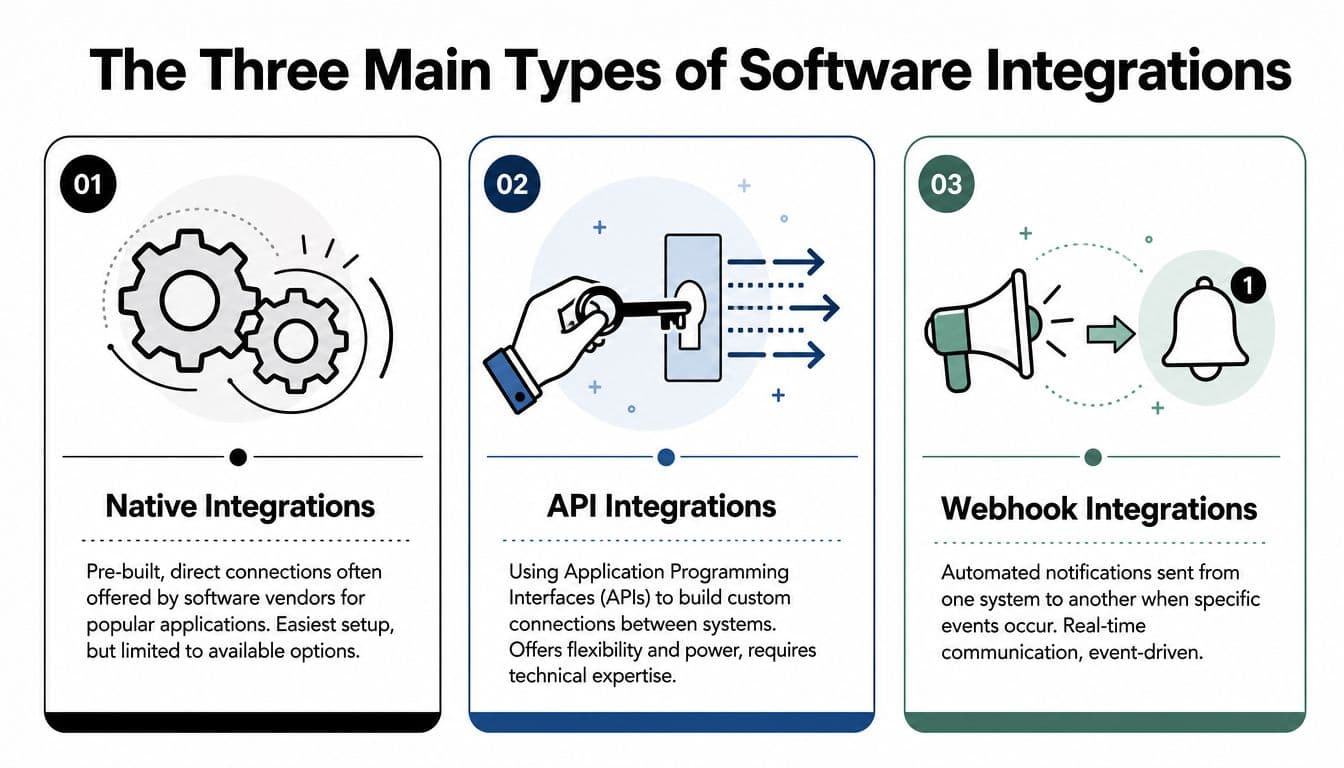
When a vendor says a tool integrates with your existing stack, it usually means one of three things. Knowing which one you're looking at helps you judge setup effort, flexibility, and long-term reliability.
Start with this quick visual comparison.
Native integrations
Native integrations are the built-in plumbing. The software vendor has already created a direct connection to another popular tool like Slack, Google Calendar, Microsoft Teams, or Salesforce.
For non-technical teams, this is often the easiest option. You connect your account, approve permissions, and choose a few settings. There's less setup work, and support is usually more straightforward because the vendor owns the connection.
The trade-off is control. You get the workflow the vendor decided to support. If your team needs an unusual trigger, custom field sync, or specialized approval flow, a native integration may not go far enough.
API integrations
An API integration is closer to a universal adapter kit. API stands for Application Programming Interface, but you don't need the full engineering definition to use the concept well. It's a structured way for one system to ask another system for data or send data into it.
Software gains flexibility. A company can connect a project tool to a proprietary CRM, a finance system, or an internal dashboard that no vendor has built a native integration for.
API integrations are powerful because they can handle custom logic. They can also be more demanding. Someone needs to define what data moves, when it moves, and what happens when something fails.
Webhook integrations
Webhooks are like doorbell notifications for software. One app says, “Something happened,” and it immediately notifies another system.
That makes webhooks useful for event-driven workflows. A contract gets signed. A bug gets reported. A payment succeeds. A code change is published. Instead of waiting for a manual check, another tool can react right away.
Webhooks are often fast and efficient, but they depend on clean event design. If the notification is vague or the receiving system doesn't know what to do next, the speed doesn't help much.
A short video can make the differences easier to spot in practice.
How to compare them in real buying decisions
If you're choosing software for a team, don't treat these integration types as better or worse in the abstract. Match them to the job.
- Choose native integrations when your team wants fast setup and uses common business apps.
- Look for API integrations when your workflow is unique or your systems are more complex.
- Use webhooks well when timing matters and one event should trigger another action immediately.
Here's the easy shorthand:
| Integration type | Best analogy | Best for | Main limitation |
|---|---|---|---|
| Native | Built-in plumbing | Fast setup with common tools | Limited customization |
| API | Universal adapter kit | Flexible, custom workflows | More technical effort |
| Webhook | Doorbell notification | Real-time event-driven actions | Depends on good event design |
The confusion usually starts when vendors blend these together in one sentence. If a product says it “connects to” HubSpot, Slack, or Google Workspace, ask which method it uses. A native integration with two-way sync is very different from a simple webhook alert or a basic API connection that your team has to configure from scratch.
Why Strong Integrations Matter for Your Productivity
Productivity doesn't improve because software has more menus. It improves when work moves forward without requiring you to babysit each step.
That's why strong integration capabilities matter so much in practice. They reduce the number of times you have to stop, remember where something lives, and manually push information from one system to another.
Less switching, more follow-through
Teams often lose focus in the gaps between tools.
A salesperson updates a deal in Salesforce. Someone in delivery should create the onboarding checklist in Monday.com or ClickUp. Finance needs the billing details. Customer success wants the kickoff date. Without integration, each handoff depends on memory and follow-up.
With stronger connections, those actions can happen in a more orderly way. The information appears where the next person needs it, instead of getting trapped in one app.
Your tool either joins the stack or becomes a silo
This is especially important with AI task managers and productivity software. When evaluating them for enterprise use, critical integration criteria include native connectivity with tools like Slack, Google Calendar, and Dropbox, because products that lack those connections quickly become isolated silos, as noted in Teamwork's guide to AI task manager evaluation.
That point matters more than many feature comparisons. A task tool can have elegant design, smart prioritization, and good templates, but if it can't connect to the systems your team already relies on, people will keep reverting to email, chat, and spreadsheets.
A productivity app should reduce coordination work. If it creates one more place to check, it's adding friction, not removing it.
What this looks like in the real world
Strong integrations often show up in ordinary moments:
- New customer handoff: A deal closes in the CRM, then an onboarding task appears in the project tool with the right owner and due date.
- Meeting follow-up: A calendar event leads to a task list and pulls in the meeting notes file automatically.
- Team visibility: A deadline changes in the task system, and the update reaches the team communication channel without someone posting it manually.
These aren't flashy features. They're the mechanics behind a calmer workday.
A Practical Checklist for Evaluating Integration Capabilities
When you're comparing software, the best questions are concrete. Don't ask, “Does it integrate?” Ask how, how thoroughly, and how reliably.
A product demo often hides this by showing the happy path. Your job is to test the messy reality. What syncs. What breaks. Who fixes it. What happens when your workflow isn't standard.
The questions that reveal the truth
Start with the basics:
- Does it connect to your must-have tools: Check for the exact products your team uses every day, such as Slack, Google Calendar, Outlook, Salesforce, Google Drive, Dropbox, HubSpot, or Microsoft Teams.
- Is the sync one-way or two-way: Some tools only push updates out. Others can also receive changes and keep records aligned.
- What data moves: A logo on an integrations page doesn't tell you whether only task titles sync, or whether owners, dates, comments, attachments, and custom fields move too.
- Can non-developers set it up: If every useful workflow requires engineering time, adoption slows down.
Then ask the more technical questions that often separate dependable systems from fragile ones. Resilient integrations rely on detailed field mapping, retry logic for transient errors, and clear API rate limits, which can reduce integration failure rates by 35% in critical processes, according to Pandium's integration requirements guidance.
Integration Capability Evaluation Checklist
| Evaluation Criteria | What to Look For | Red Flag |
|---|---|---|
| Core app coverage | Direct support for the tools your team already uses | Long list of logos, but your key tools are missing |
| Sync depth | Tasks, owners, dates, comments, files, and status updates move cleanly | Only basic records sync |
| Direction of sync | Clear explanation of one-way or two-way updates | Vendor language is vague |
| Setup effort | Admins can configure common workflows without code | Useful setup requires developer support |
| Field mapping | Custom fields can be matched between systems | Data lands in the wrong place or gets flattened |
| Failure handling | Retries, error alerts, and useful error messages exist | Silent failures or cryptic errors |
| API limits and stability | Vendor documents rate limits and expected behavior | No documentation on volume or limits |
| Workflow flexibility | Supports triggers, conditions, and follow-up actions | Connection exists, but no usable automation |
| Ownership | Clear support path when the integration breaks | Vendor and third party blame each other |
A fast way to score a tool in a live demo
During a demo or trial, use a simple test:
- Connect one communication tool.
- Connect one calendar or email tool.
- Connect one file storage or CRM tool.
- Create a small real workflow.
- Break it on purpose.
That last step matters. Change a field. Revoke a permission. Rename a status. See whether the system fails gracefully or falls apart.
Buying advice: Ask the vendor to show what happens when data doesn't match perfectly. Healthy integrations are judged by recovery, not just setup.
If you're evaluating platforms that support broader automation ecosystems, that's useful too. Some automation tools can bridge many systems when native options aren't enough. But even then, the underlying product still needs solid integration basics. Middleware can extend a good foundation. It won't rescue a weak one.
Best Practices for Secure and Scalable Integration
A connected tool stack can save time. It can also create risk if nobody thinks about permissions, growth, or maintenance.
That sounds like an IT concern, but it isn't only an IT concern. If you own the workflow, you need to know who can access what, what happens as usage grows, and who notices when a connection breaks.
Keep permissions tight
Every integration asks for access. Sometimes it wants to read data. Sometimes it wants to write, delete, or act on behalf of users.
Give the least access needed for the workflow. If a calendar integration only needs to create events, don't approve broad access without a reason. Review who connected the app, whether that person is still on the team, and whether shared admin credentials are involved.
A few practical habits help:
- Use formal authorization methods: Prefer secure sign-in flows over shared credentials.
- Review app permissions regularly: Especially after team changes or vendor updates.
- Separate experiments from production workflows: Test new automations before connecting them to core business processes.
Plan for growth before it hurts
Some integrations work fine at a small scale and become unreliable when your team adds more data, more users, or more frequent updates.
Scalability usually shows up in boring but important details. Can the connection handle larger volumes. Does it queue updates safely. Are there sensible limits. Is there logging that helps your team understand what happened.
This is also where human factors matter. Good integration design isn't only about semantics and architecture. Teams need trust in the system and clarity about how automation affects their work. Skepticism from frontline staff can slow adoption if leaders treat integration as a pure technology rollout instead of an operational change.
Assign an owner
Every important integration needs a named owner. Not a department. A person.
That owner doesn't have to build the workflows, but they should know what the integration is supposed to do, what “healthy” looks like, and who to contact when something fails. Without that, small issues linger until someone misses a customer handoff, an invoice, or a deadline.
Reliable integrations aren't set-and-forget. They're monitored, reviewed, and adjusted as the business changes.
The Fluidwave Approach to Seamless Workflows
A useful way to judge any modern productivity platform is to ask whether it treats integration as a side feature or as part of the workflow design.
Some tools only connect apps. Others try to connect work itself. That usually means combining task capture, prioritization, and delegation with the systems where information already lives.
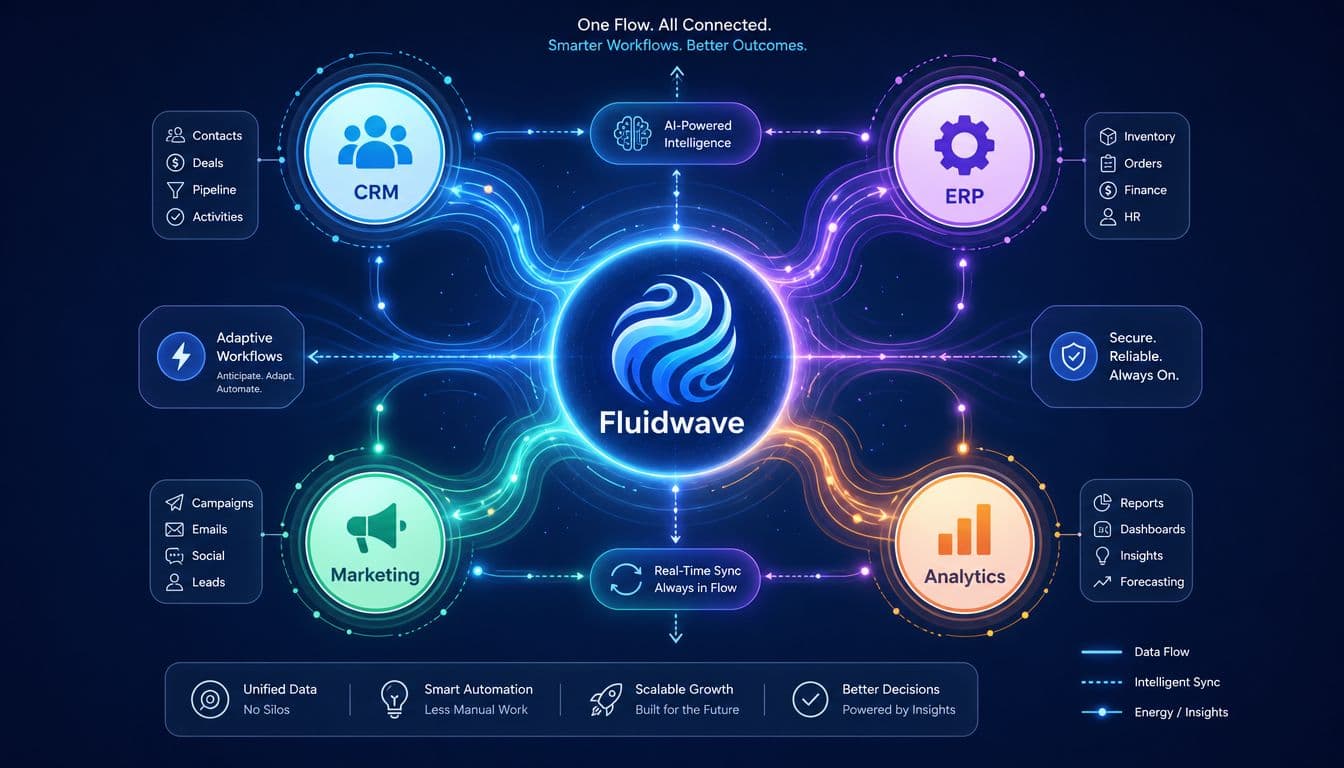
Fluidwave fits into that second category. It supports connectors or API-based integration depending on the setup, and it can sync tasks with tools like Todoist. In practical terms, that means it can sit inside an existing stack instead of forcing teams to start over with a closed system. Its model also goes beyond app-to-app automation by letting users delegate tasks to human virtual assistants, which is a different kind of workflow integration that many platforms don't address.
That broader view matters because the primary goal isn't just moving data between apps. It's moving work forward with less friction.
Modern automation platforms can extend that further. For example, Zapier AI can integrate tasks across more than 7,000 software tools, allowing actions in one system to trigger workflows in another without manual input, as described in Kuse's overview of AI task manager workflows. For buyers, the lesson is straightforward: choose products that can participate in your wider operating system, not just products that look polished on their own.
If your current tools force you to copy, paste, chase updates, and reconcile conflicting records, it may be time to rebuild your workflow around stronger connections. Fluidwave is one option for teams that want AI-driven task management, flexible delegation, and integration capabilities that fit into an existing stack rather than creating another silo.
Focus on What Matters.
Experience lightning-fast task management with AI-powered workflows. Our automation helps busy professionals save 4+ hours weekly.