Discover the top apps for recording lectures with audio quality, transcription, and note-syncing comparisons to streamline your study workflow.
July 28, 2026 (2mo ago)
Top Apps for Recording Lectures in 2026
Discover the top apps for recording lectures with audio quality, transcription, and note-syncing comparisons to streamline your study workflow.
← Back to blog
You're in the middle of class, the professor is moving fast, and your notebook is already behind. By the time you look up, the sentence you needed is gone, the diagram on the board is half-erased, and the audio recorder on your phone is just a flat file you'll probably never revisit. That's exactly why apps for recording lectures have become more than simple voice memos. The best ones connect audio to notes, transcripts, and study workflows so you can use what you captured after class.
The category itself has changed a lot. Institutional lecture capture systems turned recording into part of campus infrastructure, with scheduled capture, LMS delivery, and centralized distribution instead of one-off audio files. Panopto's guide identifies Panopto, Echo360, Kaltura, and YuJa as the main platforms in that segment, which shows how lecture recording moved from a personal convenience into a broader education service for replay, accessibility, and asynchronous learning (Panopto's lecture recording software guide). A second shift is just as important, modern tools now combine recording, transcription, and summarization into one workflow, because students and professionals want searchable study material, not just audio. That's why the best choice depends on how you take notes, what devices you use, and whether your real problem is capture, review, or both.
1. Notability
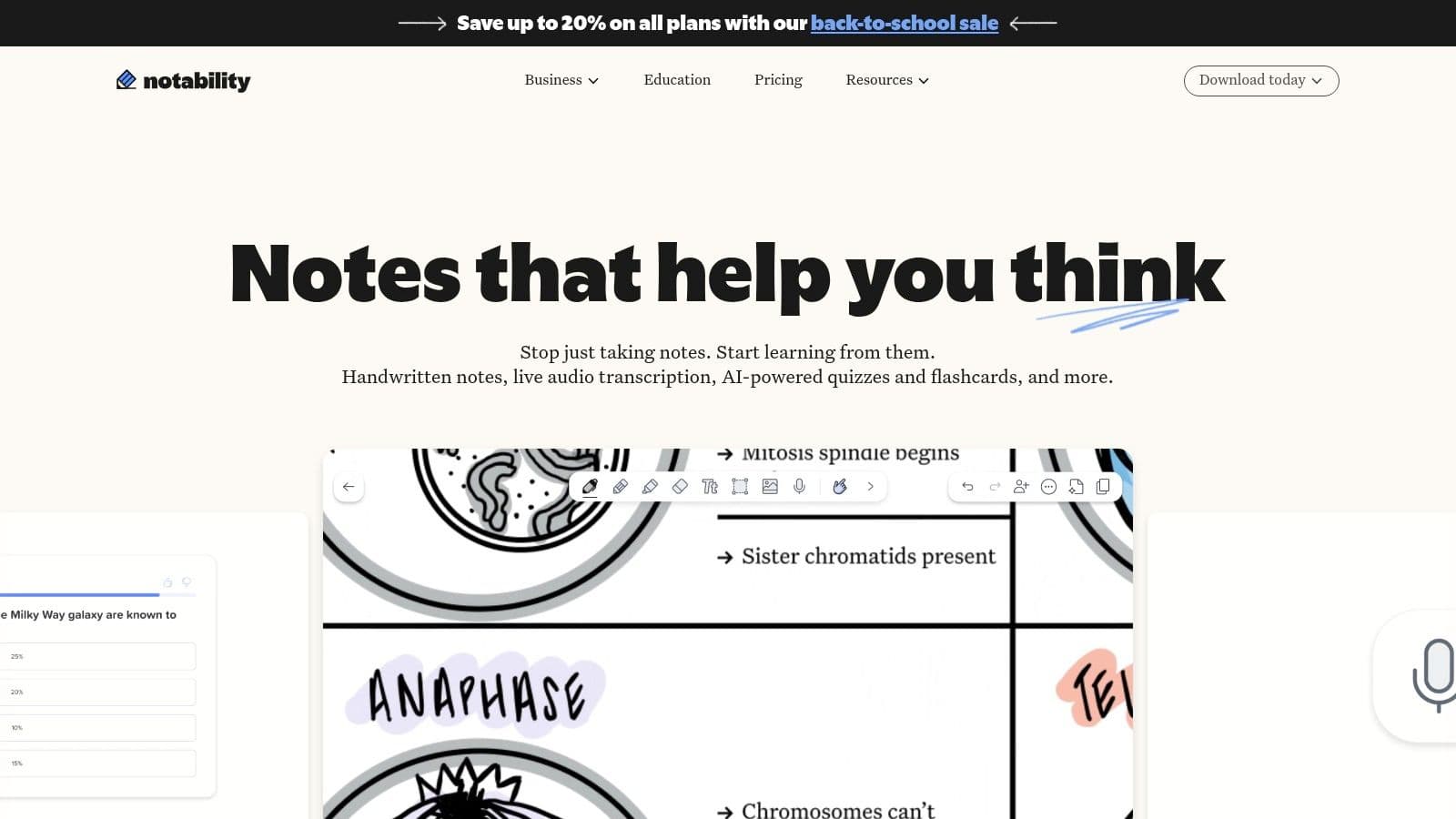
Notability makes the most sense when your notes and your audio need to stay glued together. On iPad and Mac, it's a very natural fit for students who write by hand, type selectively, and then jump back to the exact part of the lecture where a note was made. That time-synced Note Replay workflow is the reason it shows up so often in classrooms that rely on diagrams, slides, and handwritten annotations.
It also feels built for study, not just capture. The app's audio recording, transcription, and AI study tools give you a path from lecture to review without making you export everything into a separate app first. PDF annotation and the template library help when professors drop readings or slides into the mix.
The trade-off is clear. Notability is strongest on Apple hardware, and the full AI and transcription stack sits behind paid tiers. If you're on Android or you want a universal recorder, this won't be your main answer.
Best fit: iPad users who learn by writing while they listen.
A practical setup is simple. Keep one notebook per course, use handwritten highlights for exam-worthy concepts, and let the recording handle everything you missed while looking down. If your brain works best when note-taking stays visual, Notability stays close to the way you already study. For a quick self-check on whether your note style is the right match, the How Good Is Your Note-Taking? quiz can be a useful mirror.
2. Otter.ai
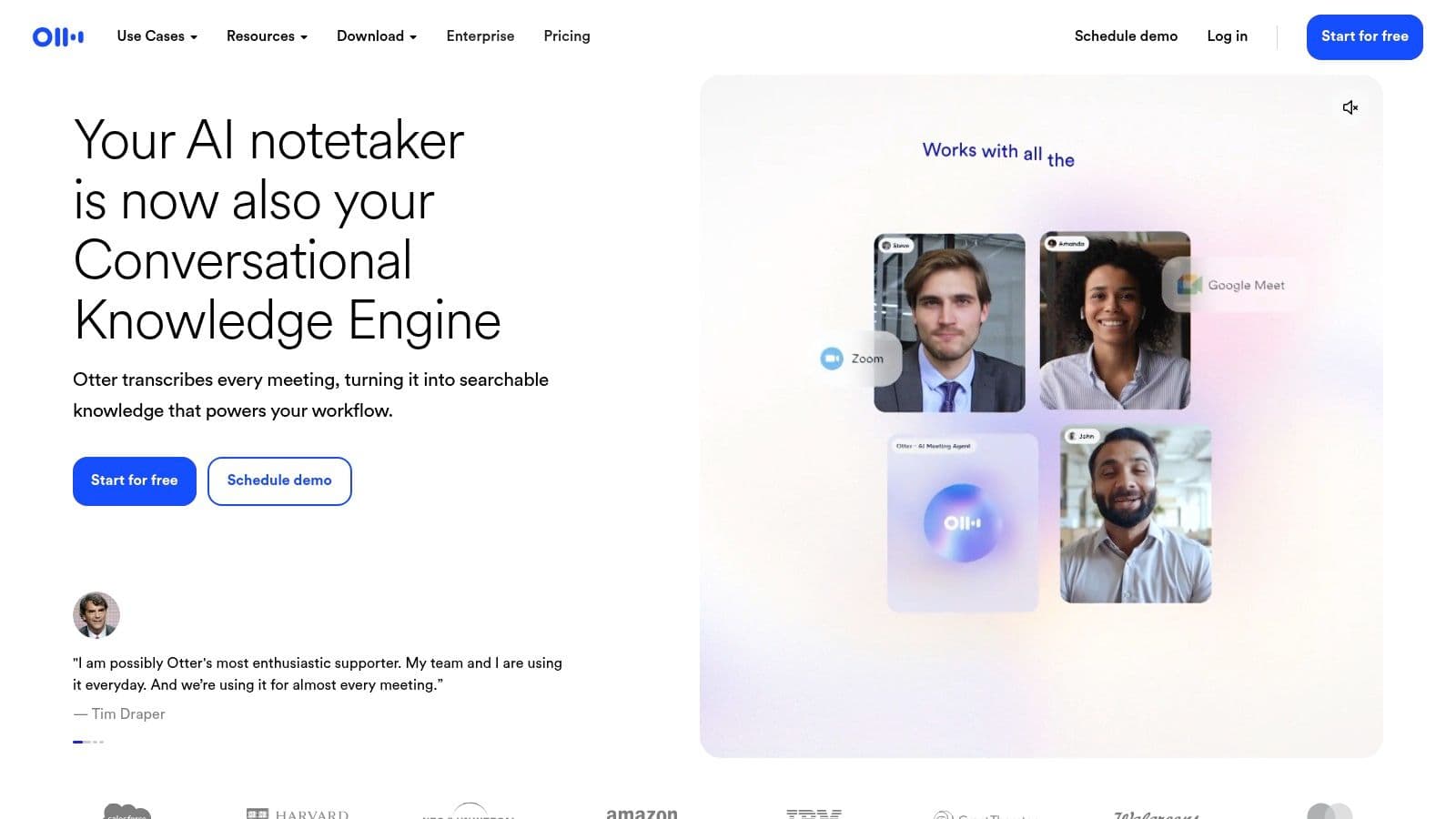
Otter.ai is the opposite of a passive recorder. It's built for people who want the transcript to do real work after the lecture ends. The live recording, speaker labeling, timestamps, and automatic transcription are especially useful in discussion-heavy classes, team training sessions, and meetings that blur into lecture format.
The strongest part of Otter is how quickly it turns spoken content into something searchable and shareable. That matters if you're studying with classmates, because a transcript you can search is much easier to split into sections, compare, and review together. Cloud sync also makes it easier to move between devices without manually exporting files every time.
There are limits, and they matter. The free tier is constrained, and the best features sit behind paid plans. Otter also depends on internet and cloud processing for full functionality, so it's not the recorder I'd choose if privacy and offline capture are your top concerns.
Practical rule: use Otter when your review process starts with text, not handwriting.
For students and professionals who need to reduce after-class admin, pairing a transcript-first workflow with a task system helps a lot. If you use lectures as a source of follow-up work, the AI Pomodoro tool can help structure review blocks around transcript cleanup, summaries, and action items. Otter isn't trying to be a notebook. It's trying to make the spoken part of a class usable fast.
3. Goodnotes
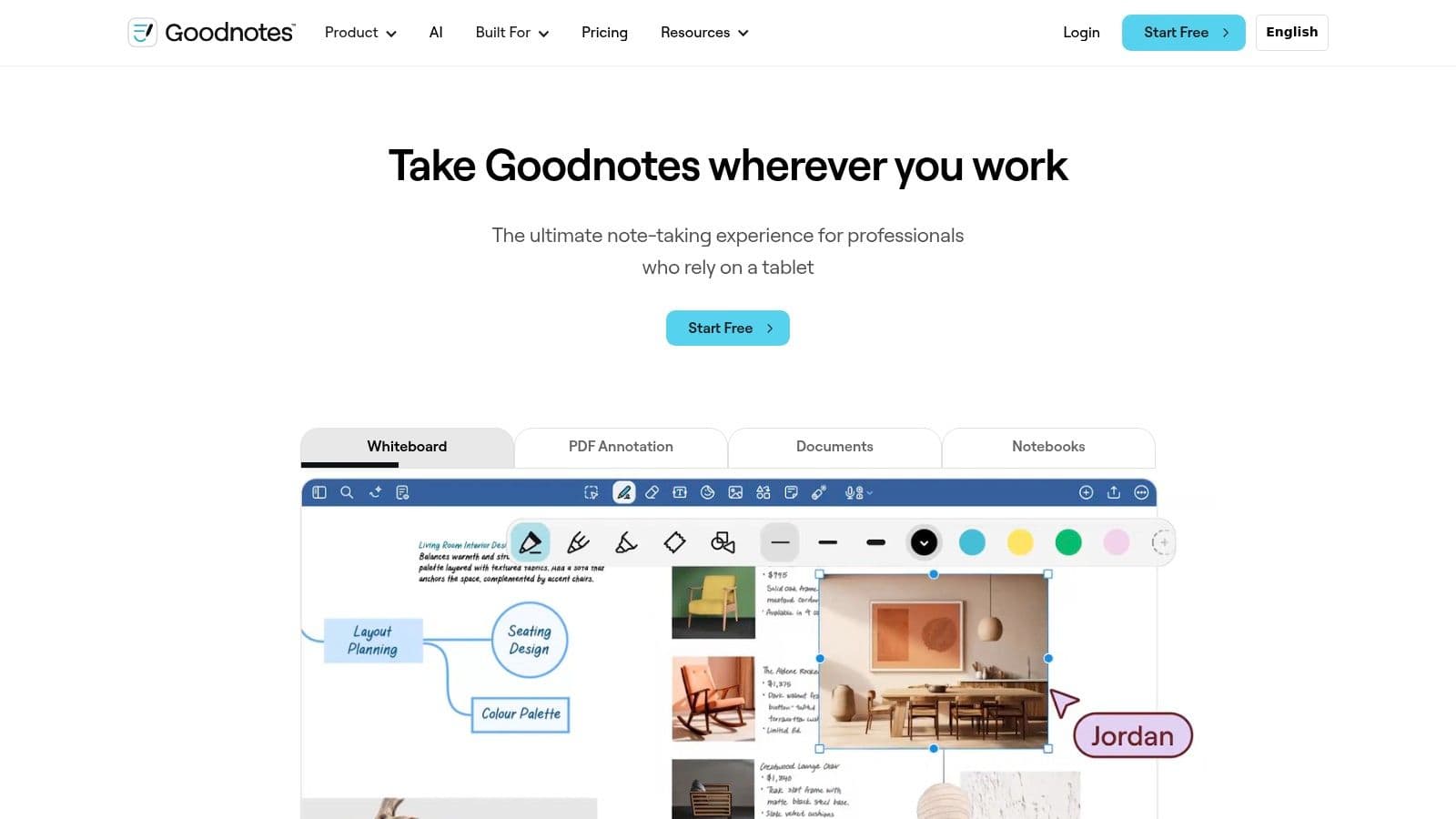
Goodnotes works best for people who think in pages, not chat windows. Its handwritten notes, time-synced audio recording, and PDF markup make it a strong pick for lecture-heavy courses where the professor's slides matter as much as the spoken explanation. If you already annotate readings, draw diagrams, or keep a visual notebook system, Goodnotes keeps that routine intact.
The app's study features push it beyond simple note-taking. Audio transcription and AI summaries give you a way to revisit a lecture without replaying the whole thing, and the note structure makes it easier to keep course materials together in one workspace. On iPad, the experience feels especially smooth, which is why many students treat it as their default school notebook.
The trade-off is cost and platform fit. Full capabilities and some AI features require paid plans, and the experience is still strongest on Apple devices. If you move between Windows, Android, and iPad, the setup feels less clean.
When Goodnotes feels worth it
It fits classes where:
- You annotate slides heavily. The PDF markup and notebook flow keep everything in one place.
- You study from your own writing. Audio tied to handwritten notes helps when the lecture moved too fast.
- You need a structured review system. The app's study tools support a more deliberate workflow than a basic recorder.
For students who only get real value after turning lecture notes into outlines, review sheets, or flashcards, Goodnotes gives you a cleaner starting point than most audio-only apps. That also makes it useful for neurodivergent users who rely on visual structure, since keeping the lecture, the markings, and the audio in one place reduces context switching. If you want a quick read on whether your own note system is helping or slowing you down, the note-taking self-check is a useful place to start.
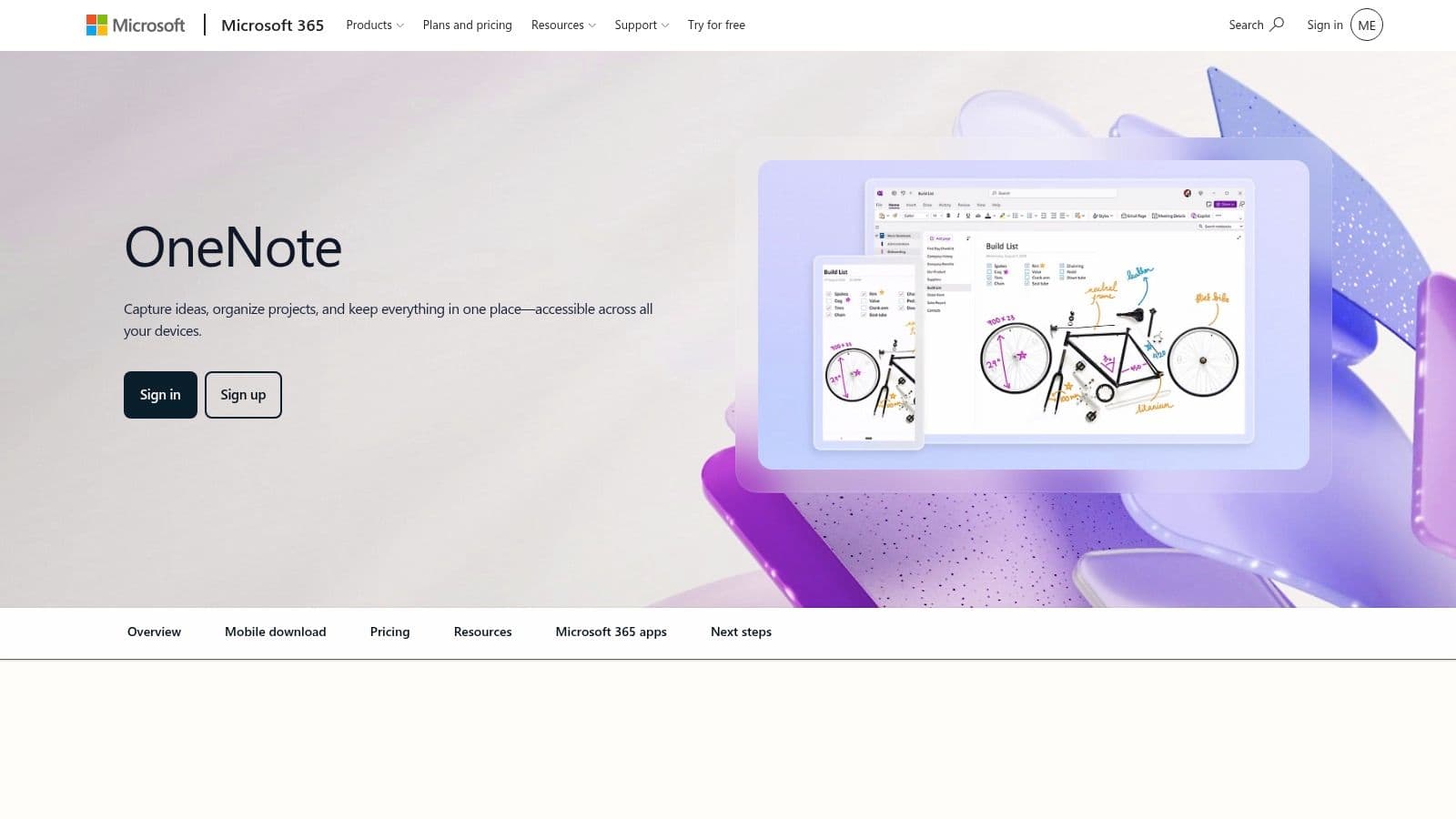
4. Microsoft OneNote
OneNote is the safe choice when you need a recorder that doesn't force you into a narrow layout. Its freeform pages work well for students and professionals who type, sketch, paste screenshots, and record audio on the same canvas. The audio linked to typed notes is the key feature, because it lets you return to the place where a thought was captured without hunting through a separate file.
The cross-platform angle is what makes OneNote so durable. If your work or university already lives in Microsoft 365, then OneNote slots into an ecosystem you probably use every day. That makes it easy to organize lectures by sections and pages, then search across old material when exam season or a project review rolls around.
The weakness is that the recording experience is best on desktop. Web and mobile versions have more limitations, and users need the current OneNote desktop app rather than the retired Windows 10 version. That matters if you want a recorder that feels equally polished everywhere.
OneNote works best when the notes are the product and the audio is the backup.
For mixed school and work use, that distinction is useful. It's not the flashiest tool on this list, but it's one of the easiest to maintain over a full semester or a busy work cycle. If you want a broader productivity stack around your notes, these iPhone apps for focus can complement the same kind of low-friction workflow.
5. Glean
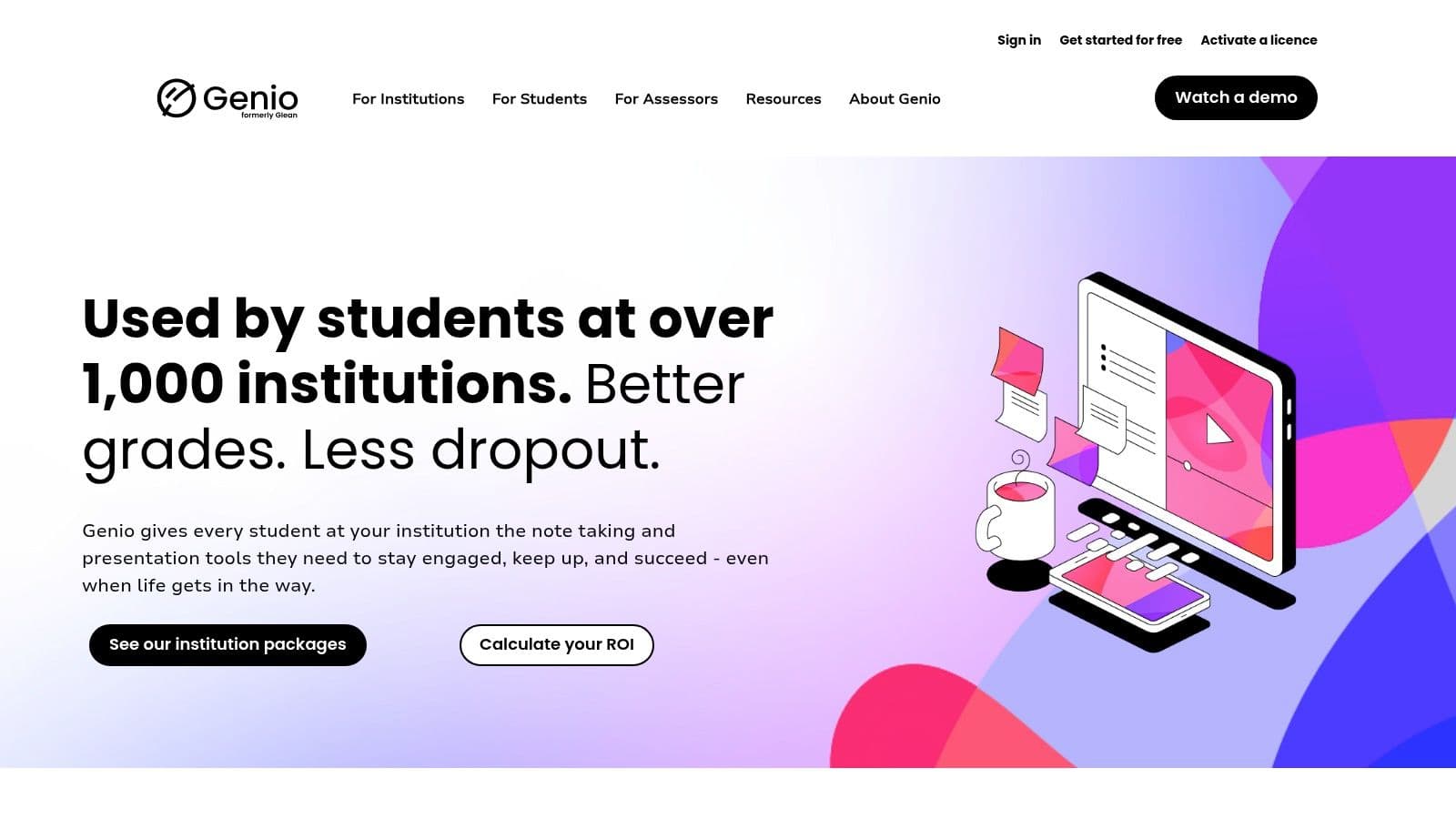
Glean fits lecture capture in a way many general note apps do not. It is especially useful in higher education and disability support settings, where organized capture and later review matter more than flashy editing. The app is built around lecture behavior, not just microphone access, and that changes how it feels in practice.
The marker-based workflow is the main thing to watch. Instead of forcing live transcription as the only path, Glean lets you capture audio and mark key moments as they happen, then return later to review those moments with more focus. That suits students who need a clearer way through dense lectures, and it also helps people who get overloaded when they try to write and listen at the same time.
Feature access still depends on the edition, so institutional support matters. Much of the sales process runs through schools rather than individual buyers, which means pricing and package details can be harder to compare than in consumer apps.
Where Glean is strongest
- Accessibility-first environments. It fits disability and learning-support workflows well.
- Structured review. Markers make later study less chaotic.
- Campus deployment. Institutions can standardize it across departments and services.
If you need lecture recording to support executive-function needs, Glean is one of the more serious options. It does not try to do everything. It tries to keep lecture capture usable after the lecture ends, which is where many apps fall short. For a simple way to judge whether your workflow is set up for focused review, the Focus Score tool is a practical companion.
6. Google Recorder
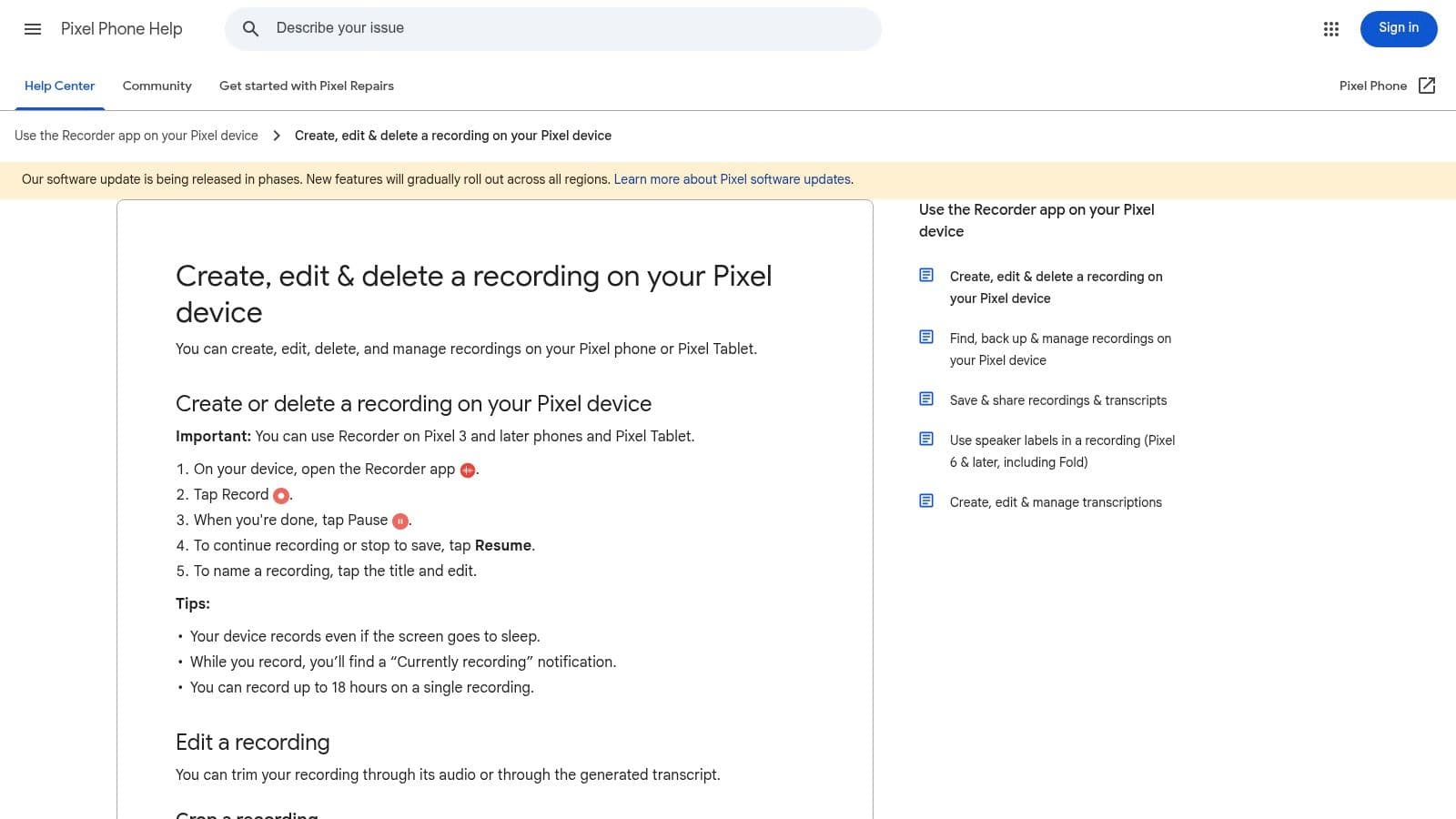
Google Recorder is a good choice when privacy and speed matter more than a huge feature set. On supported Pixel devices, it handles on-device transcription, searchable text, and AI summaries without turning every lecture into a cloud workflow. That makes it attractive for students who want fast capture in a lecture hall and fewer concerns about whether the recording has to travel somewhere else first.
The offline angle is practical too. If you're in a room with weak connectivity, or you just don't want to rely on the network during class, on-device recording keeps things simple. Word and phrase search make the file useful later, and the backup option lets you sync recordings when you do want cloud access.
The obvious limit is device access. It only works on Pixel hardware, and some features depend on the model and update cycle. If you don't own a Pixel, it's not an option, no matter how appealing the workflow looks.
Best fit: Pixel users who want private transcription without another subscription.
That said, if you are on the right hardware, Google Recorder is one of the cleanest lecture capture tools available because it gets out of the way during class and stays useful afterward. It's not trying to become your entire note system. It just makes recorded speech searchable fast.
7. Apple Voice Memos
Apple Voice Memos is the lowest-friction option here, and that is exactly why it works for quick lecture capture. If you need to start recording on iPhone, iPad, Mac, or Apple Watch without hunting through menus or setting up an account, the built-in app gets out of the way fast. For a student walking into class or a professional catching a meeting note between appointments, that kind of instant access matters.
The app covers the basics well. You get simple trimming, iCloud sync, and export options, which is enough if the recording is only the first step in your workflow. Many students and professionals record in Voice Memos first, then move the file into transcription software, note apps, or an AI study workflow later. It also handles external microphones, so it can do more than people expect from a stock recorder.
Privacy is another reason some people stay with it. If you are already inside Apple's ecosystem, keeping recordings on-device and in iCloud can feel simpler than handing class audio to a separate service right away. That matters for anyone who wants to separate capture from sharing, especially in study groups or work settings where lecture audio may contain names, client details, or class discussion that should not be spread around casually. For a broader workflow on the phone side, see iPhone apps to boost your focus.
What Voice Memos does not do is just as important. It does not link audio to handwritten notes, and its study tools are limited. Transcription support also varies by OS, device, region, and version, so you should check what your hardware supports before depending on it for a long class.
Best when simplicity beats features
Use Voice Memos if you want:
- Fast capture. Open the app, press record, and keep your attention on the lecture.
- Apple ecosystem convenience. iCloud keeps the file available to the other tools you already use.
- A clean handoff to another app. It works well as a front-end recorder, not as a full study system.
For students who want the least distracting way to capture a lecture, that is enough. For professionals who only need a reliable audio backup, it also does the job without adding clutter. Apple's Voice Memos guide is the place to check device-level behavior before you rely on it for a long class.
8. Easy Voice Recorder
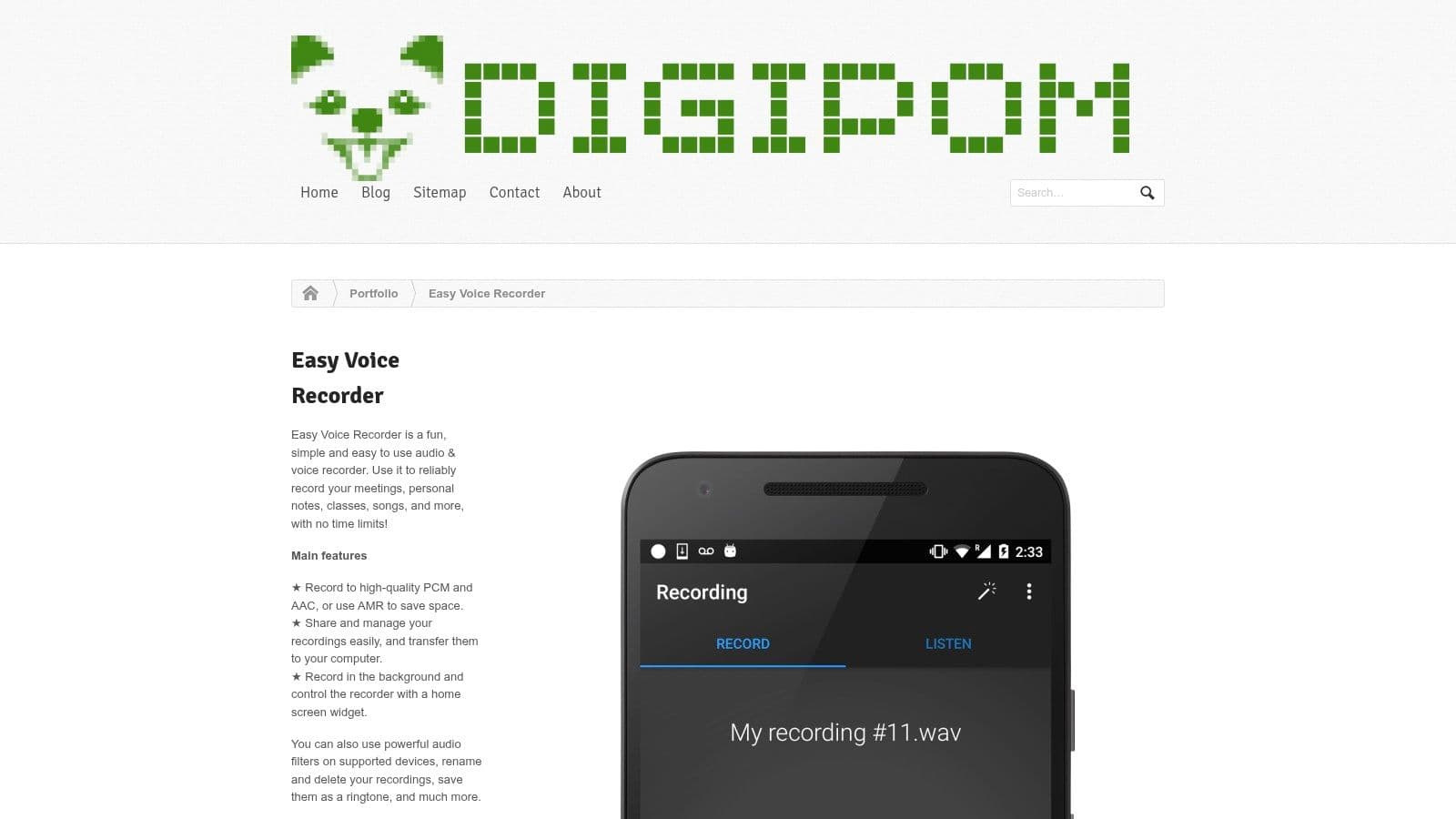
Easy Voice Recorder is the kind of app people keep because it keeps out of the way. It's a lightweight recorder for long classes, lab sessions, and lecture marathons where you mostly care about clean audio and dependable file handling. If you've ever lost patience with feature-heavy tools that slow down right when class starts, this kind of app makes sense.
The format control is one of its best practical strengths. WAV, MP3, and M4A support, plus adjustable quality and gain, give you enough control to match the lecture environment. Skip silence and Bluetooth mic support also help when you're recording long sessions or using external hardware.
The downside is straightforward. There's no native transcription or study layer, so you'll need another tool if you want searchable text or summaries. That makes Easy Voice Recorder a better capture tool than a full lecture workflow.
It's a recorder first, not a learning assistant.
That's not a flaw if your priority is reliability. Many students and professionals just want a stable audio file they can process later, and Easy Voice Recorder does that job without turning into a cluttered all-in-one app. If you're comparing low-friction recording tools on the same device, this one belongs near the top of the practical list.
9. AudioNote 2
AudioNote 2 sits in a useful middle ground between plain recording and fully automated study apps. Its whole value is the time sync between notes and audio, which makes it much easier to return to the exact explanation that mattered. If you take notes as the professor speaks, that kind of linkage saves time later.
It also works across platforms, which makes it a practical option for people who move between school devices and personal devices. That matters more than it sounds like, because lecture capture often fails not on features, but on device friction. If the app doesn't follow you cleanly from phone to laptop, it gets abandoned.
The interface does feel older than some newer AI-driven tools, and that matters if you want polished summaries or aggressive automation. But for distraction-light lecture capture, it's still a dependable choice.
Why AudioNote 2 still earns a spot
- Time-synced notes help review. Tap your note and jump back to the relevant audio.
- Cross-platform use keeps it practical. Mixed-device students aren't locked out.
- Exports stay usable. You can move your material without rebuilding everything.
AudioNote 2 is especially useful for people who don't want their lecture app to feel like a social feed or an AI dashboard. It just keeps your notes and your recording aligned, which is often all you need.
AudioNote 2
10. Voice Record Pro
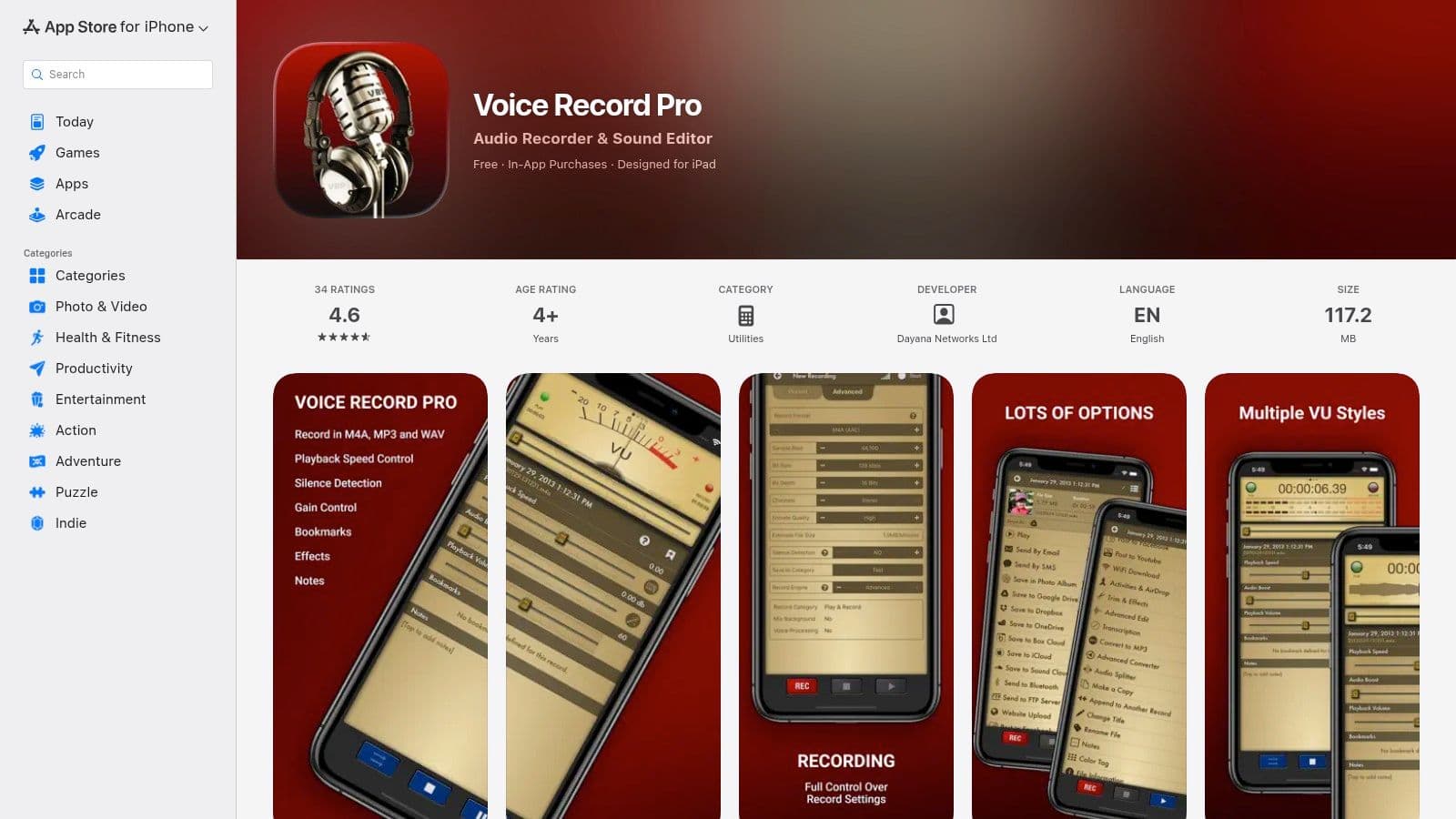
Voice Record Pro is for people who care about control. It gives you detailed audio formats, bitrate options, bookmarking, trimming, effects, and metadata editing, which makes it a strong pick for technical lectures, long recordings, or situations where you need to move big files around after class. If you've ever needed a recording that travels smoothly between cloud services, this app handles that better than most simple recorders.
The export side is where it really separates itself from more casual tools. iCloud, Drive, Dropbox, Box, SoundCloud, Wi-Fi web server, and FTP support give you a lot of ways to distribute or archive a lecture file. That's useful in professional settings too, not just school, because the file management is often the bottleneck after recording.
The trade-off is that the interface can feel dense. There's a learning curve, and there's no native transcription or note-sync workflow, so it won't replace an all-in-one study app. It's built for power users who want file control more than simplicity.
Practical rule: choose Voice Record Pro when the recording itself is the asset.
That's a fair description of technical lectures, interviews, and long training sessions where storage, export, and post-processing matter. It's less friendly for casual users, but it gives experienced users the control they're usually looking for.
Top 10 Lecture Recording Apps, Feature Comparison
| Product | Core features | UX / Quality ★ | Price / Value 💰 | Target audience 👥 | USP ✨ / 🏆 |
|---|---|---|---|---|---|
| Notability | Time‑synced note replay, audio recording, transcription, AI study tools | ★★★★☆ | 💰 Free tier; AI/transcript features paid | 👥 Students & professionals (Apple) | ✨ Handwriting + audio linkage; 🏆 education-focused study flow |
| Otter.ai | Live multi‑speaker recording, auto transcription, inline summaries, AI chat | ★★★★☆ | 💰 Free limited; best features on paid plans | 👥 Teams, meeting/lecture recorders | ✨ Real‑time speaker labeling + AI query; 🏆 collaboration tools |
| GoodNotes | Smooth handwriting engine, audio playback, on‑device transcription option, PDF markup | ★★★★☆ | 💰 Paid app; AI options extra | 👥 iPad/iOS note‑takers & students | ✨ Best ink feel + playback; rich templates |
| Microsoft OneNote | Audio into pages, cloud sync via OneDrive/365, sections/pages/tags | ★★★★ | 💰 Free / enhanced with Microsoft 365 | 👥 Cross‑platform students & professionals | ✨ Deep 365 integration; 🏆 enterprise & org tools |
| Glean | Lecture capture with markers, structured review workflows, institutional deployments | ★★★★ | 💰 Institution pricing / variable individual plans | 👥 Higher‑ed students & accessibility services | ✨ Lecture‑centric study workflow; 🏆 campus adoption |
| Google Recorder | On‑device recording & transcription, searchable transcripts, AI summaries, offline | ★★★★ | 💰 Free on Pixel devices | 👥 Pixel phone/watch users needing private offline capture | ✨ Fast on‑device transcription; 🏆 privacy/offline capability |
| Apple Voice Memos | One‑tap recording, trimming, iCloud sync, basic editing | ★★★☆ | 💰 Free (built‑in) | 👥 Apple users seeking quick capture | ✨ Zero‑friction built‑in recorder; 💰 free & reliable |
| Easy Voice Recorder | Long recordings, WAV/MP3/M4A, skip silence, external mic support | ★★★☆ | 💰 Free with Pro upgrade / Play Pass | 👥 Android users & long‑session recorders | ✨ Lightweight, reliable for marathon lectures |
| AudioNote 2 | Time‑sync typed/written notes to audio; tap notes to jump to moments | ★★★★ | 💰 Paid one‑time licenses (varies by platform) | 👥 Students, journalists, mixed‑device users | ✨ Tap‑to‑jump note/audio sync; 🏆 distraction‑light workflow |
| Voice Record Pro | Granular format/bitrate control, bookmarks, trimming, extensive export options | ★★★★ | 💰 Free / paid pro features | 👥 Power users, AV/technical workflows | ✨ Pro audio controls + wide export formats |
Putting It All Together
The best apps for recording lectures aren't the ones with the most features on paper, they're the ones that fit how you study. If you write by hand and review by tapping back through your own notes, Notability, Goodnotes, or AudioNote 2 will feel natural. If your real need is searchable text, Otter.ai and Google Recorder are stronger because they turn speech into something you can scan quickly. If you just want clean capture with almost no friction, Apple Voice Memos and Easy Voice Recorder stay out of the way and let you process later.
Device ecosystem matters more than you might expect. Notability and Goodnotes are strongest on Apple hardware. Google Recorder only works on Pixel devices. OneNote is more forgiving across school and work setups, especially if you already use Microsoft 365. And if your class or workplace uses institution-level lecture capture, the broader market is already moving toward recorded, stored, and distributed sessions rather than isolated audio files, which is why tools like Panopto, Echo360, Kaltura, and YuJa matter in the background of this whole category (Panopto's lecture recording software guide).
Privacy and policy deserve real attention too. Some schools require permission before recording, some professors prohibit it, and some places have consent rules that affect what you can capture. Independent guidance points out that this question is often buried under app comparisons instead of being treated as a core buying criterion, which is a mistake if you're studying online or crossing borders for classes (Notigo's lecture recording and note-taking guidance). If your university already provides accessibility tools, institutional support may matter more than a flashy feature list.
The post-class workflow is the other big divider. A recorder is only half the job. You still need to turn the file into something useful, whether that means transcripts, summaries, bookmarks, flashcards, or a clean outline. Some recent guides keep pushing that point for good reason, the value is in what happens after capture, not just during it (Ask Maeve's lecture recording apps guide). If your current setup stops at raw audio, you're still doing too much manual work later.
If you want one practical rule, use this. Students should choose the app that matches their note style and device. Professionals should choose the app that keeps review searchable and shareable. Neurodivergent users often benefit most from tools that reduce the burden of real-time note writing and make later review more structured. The right lecture recorder doesn't just store sound, it gives you a way to get back to the part that matters without losing half the class to rewinding.
Fluidwave helps turn the review part of this workflow into something easier to manage. It organizes tasks, auto-prioritizes follow-ups, and supports delegation when lecture notes, transcripts, and study tasks start piling up. If you want a cleaner way to turn recordings into action, visit Fluidwave and see how it fits into your lecture-to-workflow routine.
Focus on What Matters.
Experience lightning-fast task management with AI-powered workflows. Our automation helps busy professionals save 4+ hours weekly.